PowerEdge: How to run sfc /scannow from the Windows Recovery Environment (WinRE)
Summary: Info on running the System File Checker in the Windows Recovery Environment in Windows Server
This article applies to
This article does not apply to
This article is not tied to any specific product.
Not all product versions are identified in this article.
Instructions
This article provides information about running the System File Checker (sfc.exe) in the Windows Recovery Environment in Windows Server.
When attempting to run the System File Checker (sfc.exe) within the Windows Recovery Environment (WinRE), you may receive the following error:Windows Resource Protection could not start the repair service.
The error is shown in the screenshot below (Figure 1 (English-only)):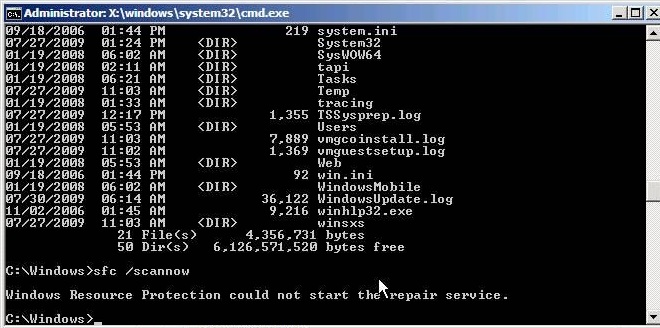
Figure 1: Windows Resource Protection Error
When running sfc /scannow in WinRE, two switches must be added to the command in order to run it in offline mode:
/offbootdir=<disk>indicates the boot drive letter./offwindir=<folder>indicates the folder where Windows is installed.
The following is an example of the command with these switches added:
sfc /scannow /offbootdir=D:\ /offwindir=D:\Windows
Important: The drive letter required in both switches is the drive letter as it appears in WinRE. This is typically a different letter from the one assigned to the same partition when Windows is running, because WinRE enumerates partitions differently.
Affected Products
Microsoft Windows Server 2016, Microsoft Windows Server 2019, Microsoft Windows Server 2022Article Properties
Article Number: 000137221
Article Type: How To
Last Modified: 30 Jan 2026
Version: 6
Find answers to your questions from other Dell users
Support Services
Check if your device is covered by Support Services.