
UNSOLVED
Inspiron 15-7559 BIOS Legacy Mode, UEFI Partition Deleted, Cannot Enter BIOS
I upgraded my SSD on my laptop from 256Gb to 1Tb then installed a clean copy of Windows 10 Home on the new 1TB SSD placing the BIOS into LEGACY mode during the "upgrade". The 256Gb SSD was repurposed. The 1Tb SSD does not have a UEFI partition. I can no longer get into the BIOS. The Dell Logo does not appear, it just boots directly into Windows. Obviously, there is no option in windows recovery to get to UEFI since it does not exist. F2, F12 and Fn-F2 pressed during restart will not put the laptop into BIOS. Without access to the BIOS I cannot upgrade the laptop, otherwise it is functioning fine. How do I go about getting access to the BIOS and restoring the UEFI partition?
1
0
Posted September 3rd, 2026 06:08
Deleting the EFI System Partition does not delete UEFI or the BIOS. The firmware is stored on the laptop’s motherboard, not on the SSD. You do not need to recreate a “UEFI partition” to enter BIOS. Deleting the EFI System Partition does not delete UEFI or the BIOS. The firmware is stored on the laptop’s motherboard, not on the SSD. You do not need to recreate a “UEFI partition” to enter BIOS.
Try this first
Shut Windows down completely—not Restart. Disconnect the AC adapter and all USB devices. Hold the power button for about 30 seconds. Connect the AC adapter.
Power on and immediately tap F2 repeatedly—do not hold it continuously.
If that fails, repeat using F12.Reset the embedded controller
For the Inspiron 15-7559, a full power reset has helped in cases where the Dell logo and F2/F12 prompts no longer appear:
Shut down. Unplug the charger. Remove the bottom cover if necessary.
Disconnect the main battery from the motherboard.
Hold the power button for 30 seconds. Reconnect the battery and AC adapter.
Power on and immediately tap F2.Try BIOS recovery only if necessary
Do not start with Ctrl+Esc unless the normal access methods and power reset fail. Dell uses Ctrl+Esc for BIOS recovery, but the procedure is intended primarily for corrupted BIOS or POST failures—not simply for a deleted EFI partition.
Turn the laptop off. Disconnect the AC adapter. Hold Ctrl + Esc on the built-in keyboard. While holding the keys, connect the AC adapter or press the power button.
Release the keys when the BIOS Recovery screen appears.
If the recovery screen appears, choose the option to recover or roll back BIOS only if offered. Do not choose a destructive recovery option casually. Dell documents Ctrl+Esc as a BIOS-recovery trigger on supported systems.You may be able to update BIOS from Windows. The Inspiron 15-7559 has Dell BIOS update packages that can be run from Windows. Download the BIOS file only from Dell’s Inspiron 15-7559 support page, connect AC power, close applications, and run it as administrator. The updater should reboot the laptop into the firmware flashing process; this can sometimes restore normal Dell-logo and F2/F12 behavior afterward. Do not interrupt power during the update.
3
0
Posted September 3rd, 2026 07:32
Hi
If it were me/mine....
I would use a LIVE LINUX, like Mint and create the EFI partition, probably sized between 350 and 600 megabytes. Gparted.
~~~~~~~~~~~~~~~~~~~~~~~~~~~~~~~~~~~~
Alternatively, I use the absolutely excellent Paragon Partition Manager Community Edition, create the appropriate EFI partition there.
Disk/Partition Conversions
- Convert a logical partition to primary and vice versa
- Convert HFS volumes to NTFS without reformatting
- Convert MBR disk to GPT and vice versa
Resize/move partitions
Adjust partition size by sliding the partition left and right or enter the exact partition size you want.
if in doubt please ask.
Kind Regards
anne_droid

10
0
Posted September 8th, 2026 07:11
Thank you all for the replies. I will try these, from least "destructive" and so on. It will take some time as I am babysitting my granddaughter and I really want to give the laptop my full attention.
Mikie
4
0
Posted September 9th, 2026 23:04
Thank you so much!
Powered down completely (Windows Shutdown), unplugged power, held down the power button for 30 seconds (and until the keyboard backlight went off, so a little longer than 30 seconds), pressed the power button and f2 but started in Windows 10. Redid it and pressed f12 this time it went into a support screen and began testing memory. I hit f2 and it went into the BIOS (yay!).
However, I have to do that each time I want to get into the BIOS and it doesn't always work. I think that when I count to 10030 (30 seconds) but the keyboard backlight is still on, pressing the f12 does nothing and the machine boots into Windows 10 so that's why I wait until the backlight goes off.
It's a good workaround.
Dell Logo is still not coming on and the f2 and f12 don't work unless you disconnect the power and hold the power button down for 30 seconds.
4
0
Posted September 10th, 2026 10:57
Hi
To enter the BIOS on a Dell computer running Windows 10, follow these steps:
Method 1: Using Windows Settings
- Open Settings: Click on the Start menu and select Settings.
- Navigate to Update & Security: Click on Update & Security.
- Go to Recovery: On the left side, select Recovery.
- Advanced Startup: Under the Advanced startup section, click Restart now.
- Select Troubleshoot: After your PC restarts, choose Troubleshoot.
- Advanced Options: Click on Advanced options.
- UEFI Firmware Settings: Select UEFI Firmware Settings.
- Restart: Click Restart to enter the BIOS.
Method 2: Using the F2 Key
Alternatively, you can access the BIOS directly during startup:
- Restart the Computer: Turn on or restart your Dell computer.
- Press F2: As soon as the Dell logo appears, repeatedly press the F2 key until the BIOS setup screen opens.
Important Notes
- If your operating system is corrupted, you may still access the BIOS using the F2 key method.
- Ensure that you have a wired keyboard if you encounter issues with USB keyboards not responding during boot.
By following these methods, you can easily access the BIOS settings on your Dell device running Windows 10.
Kind Regards
anne_droid
2
0
Posted September 14th, 2026 18:58
Hi Anne,
Method 1: I tried this but I think you have to have a UEFI partition or you need to have the BIOS in UEFI mode. I deleted my UEFI partition and my BIOS is in LEGACY mode. When I get to the Advanced Options menu there is no option for UEFI Firmware Settings.
Method 2: This does not work. I get no Dell Logo. When I completely shut down the laptop, disconnect the power and hold the power button down for 30 seconds and then start the pc and press the f2 key the system still boots into windows.
Method 3: This does not work unless I completely shut down the laptop, disconnect the power and hold the power button down for 30 seconds, then power up and press the f12 key. I can then get into the BIOS from the diagnostic screen. I was able to make changes to the BIOS settings and save them. However, the dell logo still does not appear on restart. The laptop boots directly into Windows.
Thanks,
Mikie
1
0
Posted September 15th, 2026 09:31
Hi
Consider creating a uEFI partition.
Min 250 MB max 550 MB
Either with Gparted or Paragon Partition Manager CE.
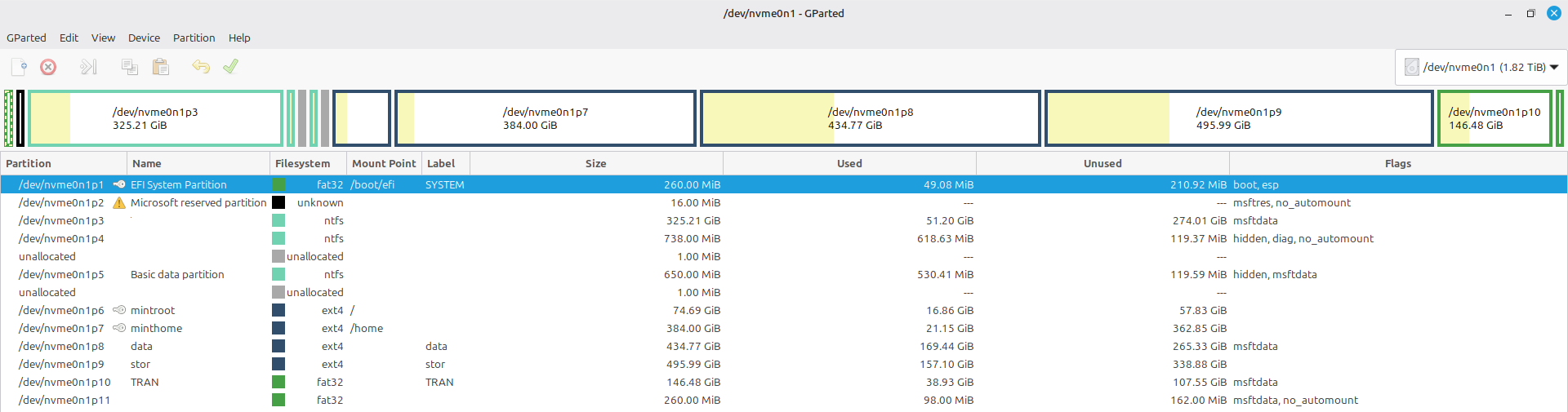
OR
Convert to UEFI: Upgrade or reinstall the older legacy OS to support UEFI so all systems share a single GPT disk and EFI partition safely.
Kind Regards
anne_droid

ejn63
12 Elder
•
31831 Posts
•
156223 Points
8
0
Posted September 2nd, 2026 22:47
Unplug the system, disconnect the battery from the mainboard and hold the power button for 30 sec.
Remove the drive from the system. That should get you into setup on next boot.
If you have CSM/Legacy mode on, the system doesn't look for a UEFI partition at all -- if the above doesn't get setup to load, something other than the firmware settings is amiss.