Omnissa Horizon 8 VDI on Dell PowerStore - White Paper
Oct 20, 2026
Omnissa Horizon 8 VDI on Dell PowerStore - White Paper
This white paper describes deployment considerations, best practices, and performance findings for Omnissa Horizon 8 Virtual Desktop Infrastructure (VDI) hosted on Dell PowerStore.
Omnissa Horizon 8 is a Virtual Desktop Infrastructure (VDI) solution that provides IT teams with a modern, streamlined approach to deliver, protect, and manage Windows and Linux virtual desktops and published applications, enabling end users to work any time and anywhere, on any device.
The Dell PowerStore platform uses container-based microservices architecture, advanced storage technologies, and integrated machine learning to unlock the power of data. It is a versatile platform with a performance-centric design that delivers multidimensional scale, always-on data reduction, and support for next-generation media. PowerStore brings the simplicity of public cloud to on-premises infrastructure, streamlining operations with an integrated machine-learning engine and seamless automation. It also offers predictive analytics to monitor, analyze, and troubleshoot the environment. PowerStore provides organizations with a data-centric, intelligent, and adaptable infrastructure that supports both traditional and modern workloads.
Document Purpose
This white paper discusses the deployment of Omnissa Horizon 8 on Dell PowerStore. The paper addresses the following topics:
Performance characterization and analysis of Horizon 8 using Login Enterprise Platform to run CPU & GPU intensive workloads
Best practices for deploying Omnissa Horizon 8
Optional integration of Omnissa Dynamic Environment Manager (DEM) using PowerStore file capabilities
Personalized end-user experience through Omnissa DEM integration
Revision history
Table 1. Revision history
Publication date
Part number
Change
September 2025
H04574
Initial release
October 2025
H04574.1
Added GPU based performance analysis
Audience
This white paper is intended for sales engineers, field consultants, IT administrators, customers, and anyone who is interested in configuring and deploying Omnissa Horizon 8 hosted on Dell PowerStore with optional DEM integration.
You are expected to have a working knowledge of PowerStore, VMware vSphere, desktop virtualization technology, and Omnissa Horizon 8 and its management features.
Terminology
The following table provides definitions of some of the key terms that are used in this document:
Table 2. Terminology
Term
Definition
AD
Active Directory
AZ
Availability Zone
DEM
Dynamic Environment Manager
DHCP
Dynamic Host Configuration Protocol
DNS
Domain Name System
EUX
End User Experience
GPU
Graphics Processing Unit
OSOT
Operating System Optimization Tool
RDS
Remote Desktop Session
ROI
Return on Investment
SSO
Single Sign-On
VDI
Virtual Desktop Infrastructure
We value your feedback
Dell Technologies and the authors of this document welcome your feedback on the solution and the solution documentation. Contact the Dell Technologies Solutions team by email.
The PowerStore platform is a unified storage array that can service block and file resources along with numerous data services and efficiencies. PowerStore is ideal for traditional and modern workloads, including relational databases, electronic medical record applications, and content repositories among many others.
PowerStore has two purpose-built platforms:
The 2U, two-node, dual-socket Intel® Xeon® platform is used for the PowerStore 1200, 3200, 5200, and 9200 models.
The 2U, two-node, single-socket Intel® Xeon® platform is used for the PowerStore 500 model.
Figure 1. PowerStore appliance
Both platforms run the exact same version of software and can be clustered and managed together coherently. For more information about PowerStore platforms, see Dell PowerStore: Introduction to the Platform.
Organizations that use new applications and solutions require dependable storage and often face the challenge of doing more with less. PowerStore addresses this challenge by packaging a powerful storage system into a cost-efficient and space-efficient profile. PowerStore features and benefits include:
Active/active architecture
Multiple protocol support including iSCSI, Fibre Channel, NVMe/FC, NVMe/TCP, SMB, FTP, SFTP, NFS
Unified offering serving block and file storage
Simplified, modern user interface
Inline data reduction
Local and remote native data protection
PowerStore achieves new levels of operational simplicity and agility. It uses a container-based microservices architecture, advanced storage technologies, and integrated machine learning to unlock the power of your data. It offers predictive analytics to monitor, analyze, and troubleshoot the business environment. PowerStore is highly adaptable, providing the flexibility to host specialized workloads, and fits seamlessly into existing infrastructures to meet industry requirements. No matter where your business strategy takes you, PowerStore’s full-featured, adaptable design can help you build your unique breakthrough.
VMware vSphere
vSphere, a product of VMware by Broadcom, is a virtualization platform which transforms data centers into aggregated computing infrastructures that include CPU, storage, and networking resources. vSphere manages these infrastructures as a unified operating environment and provides customers with tools to administer the data centers that participate in that environment.
VMware vSphere 8
vSphere 8 brings the benefits of cloud to on-premises workloads. It enhances operational efficiency, seamlessly integrates with add-on hybrid cloud services, and accelerates innovation with an enterprise-ready integrated Kubernetes runtime that runs containers alongside VMs.
vSphere 8 provides customers with the following key features:
Intelligent operations management: Maximize capacity utilization and free IT teams to focus on more strategic business initiatives with intelligent operations management and advanced analytics.
Maximize workload performance: Throughput and latency requirements of modern workloads are met through continued optimization, data analytics, and intent-based workload placement. vSphere 8 can boost the ROI of customer AI infrastructure with GPU-aware workload placement.
Enhanced security: vSphere delivers a secure-by-default infrastructure for all workload types to safeguard data and ensure business continuity for your organization.
Accelerate innovation for DevOps: vSphere provides the fastest way to get started with Kubernetes, enabling you to easily deploy DevOps services to run workloads with VMs and containers and accelerate business innovation.
Centralized life cycle management: Manage infrastructure software and hardware firmware through vSphere Lifecycle Manager and Update Planner
Omnissa Horizon 8
Omnissa Horizon 8 delivers virtualized Windows desktops and apps as well as Linux desktops to almost any endpoint device and in various form factors from data centers. End-point clients are available on Dell ThinOS, Microsoft Windows, Apple macOS, Linux, numerous mobile devices, and web browsers, making it possible for end users to access a secure computing environment anywhere, at any time.
Horizon 8 offers a number of deployment options spanning private and public clouds, such as on-premises, Microsoft Azure, AWS, and Google Cloud, enabling IT teams to choose a cost-effective cloud provider that meets their specific needs. Flexible deployment options also enable scaling up or down on demand. Rapid provisioning can be used to manage seasonal workforce fluctuations, remote work expansion, and global growth.
Key benefits of Omnissa Horizon 8 are:
Streamlined image management: Managing virtual desktop and application images centrally reduces administrative effort and increases availability for end users.
Exceptional end-user experience: The Horizon Blast display protocol delivers seamless, feature-rich virtual desktops and apps. End users can instantly connect to their remote sessions and enjoy responsive, high-fidelity displays. Horizon Blast delivers consistent and reliable performance, keeping employees connected and productive.
Application management: Seamless integration of Omnissa Horizon with Omnissa App Volumes offers simplified image management and delivery of packaged applications. Applications are packaged once and can be deployed across multiple Horizon environments both on-premises and in the cloud.
Flexible monitoring capability: For individual pods, Horizon offers centralized monitoring capability through the Horizon Admin Console, for administrators, and the Helpdesk Console, for call center workers. The Horizon Control Plane services offer centralized analytics across multiple pods irrespective of their location. Workspace ONE Intelligence Integration offers customized reporting, orchestration, and remediation. Horizon 8 Integrates seamlessly with the Horizon Cloud Service and Workspace ONE Intelligence, offering new and deeper monitoring levels.
Enterprise grade security: Horizon offers enhanced security by protecting data, implementing policies for granular control, and offering advanced security tools for virtual environments. Centralized data storage in data center or cloud minimizes data loss from endpoint device failure, theft, or unauthorized access. Additional policies such as screen scraping, keylogging, and script injection provide an extra layer of security to help safeguard end-user sessions.
NVIDIA vGPU integration: Horizon seamlessly integrates with NVIDIA vGPU software to deliver GPU acceleration across virtual desktops. vGPU-enabled VDI desktops offer smooth and responsive user experience as well as allow users to run graphics intensive applications.
NVIDIA Virtual GPU (vGPU) enables multiple virtual machines (VMs) to have simultaneous, direct access to a single physical GPU, using the same NVIDIA graphics drivers that are deployed on non-virtualized operating systems. By doing this, NVIDIA vGPU provides VMs with unparalleled graphics performance, compute performance, and application compatibility, together with the cost-effectiveness and scalability brought about by sharing a GPU among multiple workloads.
One of the key benefits of NVIDIA vGPU technology is that it accelerates graphics intensive workloads. These include office applications, web browsers, ultra-high-definition video streams, complex engineering software, medical imaging, and multimedia applications.
Login Enterprise, by Login VSI, is the industry-standard software that simulates a human-centric workload that is used for benchmarking the capacity and performance of VDI solutions. The performance testing that this white paper describes used the Login Enterprise benchmarking tool. Login Enterprise virtual user technology simulates real-world users performing real-world tasks while measuring the time required for each interaction. Login Enterprise assesses desktop performance, application performance, and user experience to determine the overall responsiveness of the VDI solution. Using Login Enterprise for VDI capacity planning helps determine the optimal hardware configuration to support your desired number of users and applications. For more information, see Login Enterprise Platform.
EUX score
The Login Enterprise End-User Experience (EUX) Score is a unique measurement that provides an accurate and realistic evaluation of user experience in virtualized or physical desktop environments. The score is based on metrics that represent system resource utilization and application responsiveness. The results are then combined to produce an overall score between 1 and 10 that closely correlates with the production user experience.
VSImax
The Login Enterprise VSImax performance metric measures the maximum user capacity or scalability of a VDI environment. The EUX score is used to determine the VSImax,the maximum number of virtual users that the infrastructure can support while still maintaining acceptable performance levels.
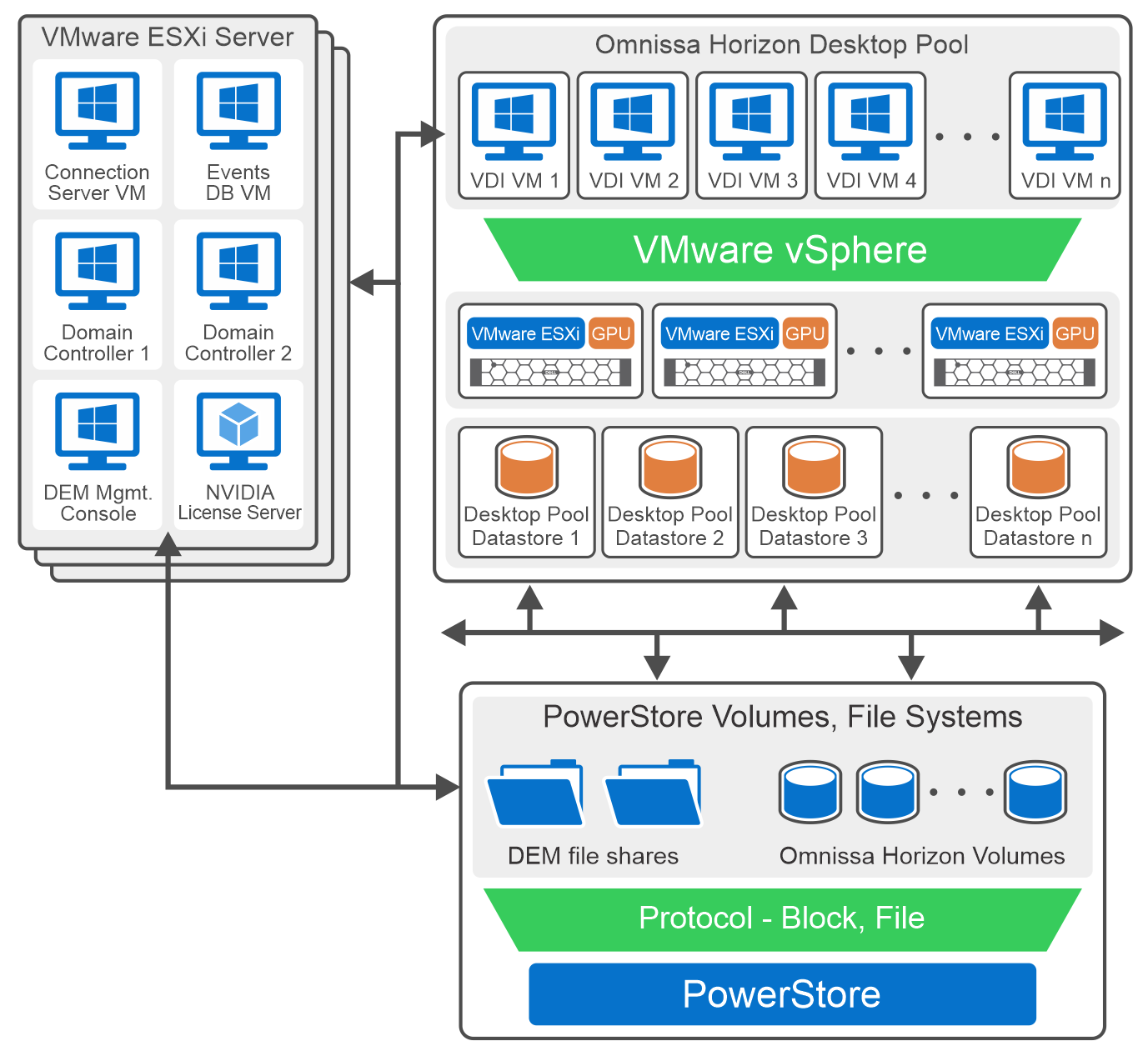
The following figure shows the logical architecture of Omnissa Horizon 8 and optional DEM Enterprise components that are deployed on PowerStore:
Figure 2. Logical architecture
PowerStore supports a unified (block and file) or block-optimized (block only) configuration. For this solution, a PowerStore 5200T single appliance cluster is configured as a unified storage array. This array enables the host servers to access the storage using both protocols.
The VMware ESXi 8 hypervisor is installed on all host servers. Hosts are then added to VMware vCenter, forming a vSphere cluster. A vSphere cluster offers features such as vSphere High Availability, vSphere DRS, and vMotion. A vSphere cluster also enables users to centrally manage every aspect of the cluster from the vCenter Server. For the hardware and software configuration that the solution uses, see Appendix A - Hardware and software configuration.
Horizon 8 components
The Omnissa Horizon 8 VDI platform that is deployed in this solution serves Windows 11 virtual machines (VMs) that are hosted on VMware ESXi nodes. The Omnissa Horizon 8 deployment includes the following components:
Horizon connection cerver: Acts as a Broker agent between users and VDI machines. Incoming requests from users are authenticated through AD, and users are connected to entitled resources.
Horizon agent:Runs on target VDI machines and allows the Connection Server to manage the target machines. The Horizon agent is responsible for opening VDI sessions to Horizon clients.
Horizon client: Installed on end-point devices to access resources such as virtual desktops and applications, Remote Desktop Session (RDS) hosts, or physical machines that are available through the Horizon platform.
Horizon console:A web application that is part of the Connection Server, enabling administrators to manage the Horizon environment. You can perform tasks such as configuring Connections Servers, adding and managing resources, user authentication, end-user support, and more from the Horizon console.
Events database: An external database to store events that occur in the Horizon environment.
The Omnissa DEM management solution is integrated with the Horizon 8 deployment. The following components of DEM are deployed in the test environment:
DEM FlexEngine: The client component that must be installed on each VDI VM. FlexEngine applies user settings to VDI sessions as the user logs in, capturing and storing modified settings in an SMB file share when user logs off.
DEM Management Console: An administration console for DEM that can be installed on any server supporting the VDI infrastructure. Configuration files that are generated by the management console are stored on an SMB file share that is dedicated for that purpose. FlexEngine accesses this file share to read DEM configuration.
Active Directory Administrative Templates: A set of administrative templates that must be added to Active Directory Domain. The templates create an Active Directory Group Policy Object (GPO). The GPO is then attached to VDI VMs which will configure FlexEngine.
SMB File Shares: The two file shares that are required by DEM are the central configuration share and the profile archive share. These SMB file shares are created in PowerStore, and required user permissions are applied.
In this solution, the hosts are connected to PowerStore volumes through the iSCSI storage protocol. Connectivity is enabled by adding an iSCSI software adapter to each ESXi host. Four iSCSI targets are exposed from the PowerStore 5200T appliance. Each node in the PowerStore appliance accommodates two iSCSI targets, and iSCSI adapters (or iSCSI initiators) are connected to these four targets, ensuring redundancy. Network port binding is enabled by adding two VMkernel adapters that are dedicated to carrying storage traffic.
Note:
Depending on requirements, other storage protocols that PowerStore supports can be used for connecting hosts.
NVIDIA virtual GPU components
The solution uses NVIDIA vGPU graphics virtualization platform to provide VDI VMs access to NVIDIA GPUs. A compute cluster is created with three hosts, each equipped with a NVIDIA L40S GPU. A license server is configured in the environment to provide licenses to vGPU enabled VMs residing in non-persistent desktop pool such as Horizon floating desktop pools used in this solution. vGPU software manager is installed on each host and NVIDIA graphics driver for Windows 11 is installed on VDI VMs.
For technical information on NVIDIA L40S, see NVIDIA L40S.
For more information on hardware used for vGPU performance benchmarking, see Appendix B.
Network architecture
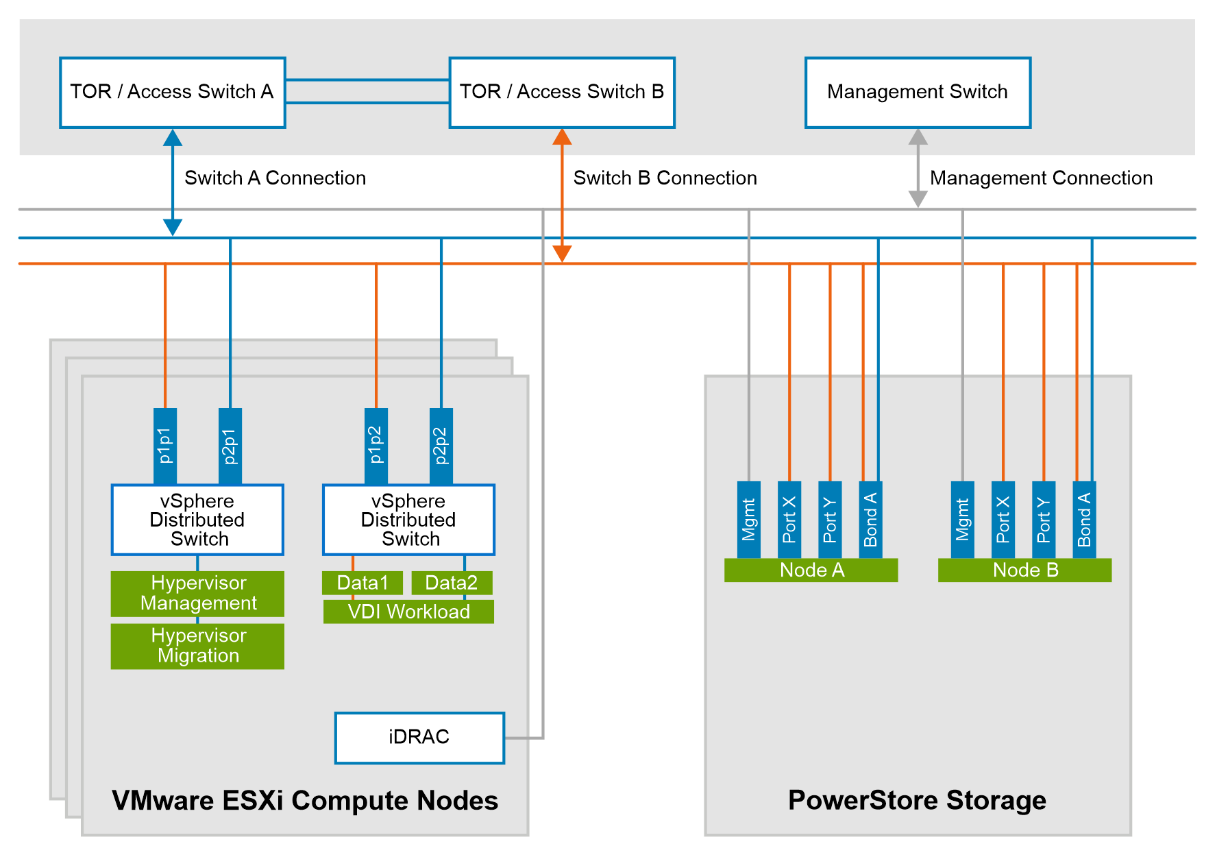
The following figure shows the network architecture of this solution:
Figure 3. Network architecture
As shown in the preceding figure, the ESXi nodes and PowerStore appliance are connected to two Top of Rack (ToR) switches for redundancy and load balancing. A Virtual Link Trunking (VLT) connection is present between the two switches.
Two vSphere distributed switches in the compute environment manage data and management traffic respectively. This means that, in addition to separating traffic, network admins can use high-performance physical NICs for data traffic and NICs with a lower data rate for management traffic.
Dedicated VLANs are recommended to separate management and data network traffic. Two dedicated data VLANs with different subnets carry iSCSI traffic between the ESXi nodes and PowerStore appliance. To configure these data VLANs with dedicated uplinks, choose an explicit failover order for load balancing. For more information, see the Dell Technologies Host Connectivity Guide.
A dedicated VLAN for carrying network traffic generated by Horizon components is recommended for the VDI network. This network also carries PowerStore file traffic. The following table shows the VLAN IDs that are used in this solution:
Table 3. VLAN types used in this solution
Network Type
VLAN ID
iSCSI Data 1
1075
iSCSI Data 2
1076
Hypervisor Management
1077
Hypervisor Migration
1078
VDI Workload
1072
Omnissa Horizon 8 deployment
Omnissa Horizon 8 deployment
Deployment prerequisites
The Horizon Connection Server is the core of Omnissa Horizon 8. Before installing the Horizon Connection Server on a VM, ensure that the following components are available in the environment:
A configured vSphere environment with PowerStore volumes attached to house virtual desktops and golden images.
An AD domain. The connection server VM must be a member of this domain.
A DNS service that is present in the AD domain.
A DHCP service with a defined address scope having the required number of IP addresses.
A database to record information about Horizon events. This implementation uses Microsoft SQL Server 2019. For the list of supported databases, see the Omnissa Horizon documentation.
An NVIDIA licensing server configured to provide licenses. This is required when creating desktop pools with vGPUs. For instructions on installing and configuring license server, see License Server User Guide.
Configuring the AD domain
When configuring AD to support an instant clone virtual desktop pool, take account of the following requirements:
Omnissa Horizon uses AD for user authentication and management. The AD domain should have Organizational Units (OUs) defined for virtual desktops and entitled users. This definition is helpful when applying group policies to specific users and machines.
Create a user account in AD called instant clone domain administrator, which Omnissa Horizon uses to perform certain operations related to instant clones in AD. The Horizon Connection Server requires this account to join instant-clone virtual machines to the AD domain.
A user account with which Horizon can access the vCenter Server. Create a user account in AD. In the vCenter Server, assign a role with the requisite privileges for this user. For more information, see Configure a vCenter Server user for Horizon 8.
Using remote desktops, configuring a complex AD having multiple domains or forests, integrating authentication mechanisms, and so on come with additional prerequisites that are outside the scope of this paper. For more information, see Preparing Active Directory.
Install the Horizon Connection Server
It is recommended to install the Horizon Connection Server on a Windows Server VM that has no other running services. A Windows Server 2022 VM was created for this solution. For information about the hardware, networking, software, and support software requirements, see Omnissa Horizon Connection Server Requirements.
To install and configure the Connection Server:
Log in to the VM as a domain user with administrator privileges.
Successful installation enables the Horizon 8 Console web application.
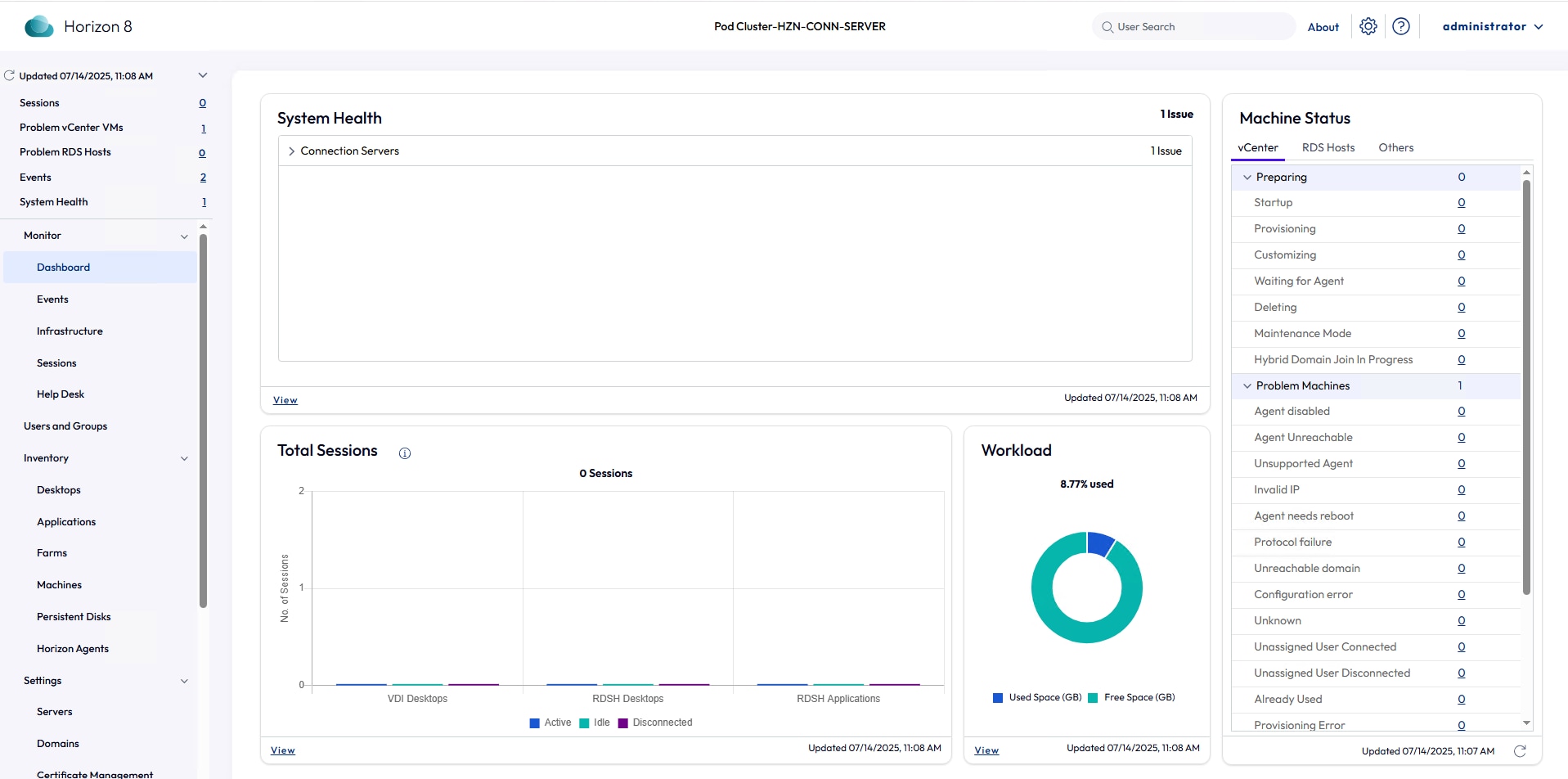
In the Horizon Console UI, go to the admin page (https:// <server-name> /admin) and use the account assigned during installation to log in.
Figure 4. Horizon Console landing page after login
Add a valid license and configure the events database by connecting to the external database that you set up for this purpose.
Add vCenter server details for the vCenter on which the VDI VMs will be hosted. Provide the account details that you created for this purpose.
Add an instant clone domain administrator account to enable Horizon to perform operations in AD while creating instant clone desktop pools.
For more information about configuring the Horizon Connection Server, see Configuring Horizon for the First Time. The Connection Server is now configured to perform operational activities such as creating desktop pools, adding user entitlements, and so on.
Deploy NVIDIA vGPU software
To create a desktop pool with vGPUs, NVIDIA vGPU software should be installed in the Horizon 8 environment. The software package consists of vGPU Manager which should be installed on host servers and guest OS driver which is installed when preparing the VDI golden image.
vGPU Manager Installation prerequisites
Before installation of vGPU manager on each host, verify the following BIOS settings in each host server:
Hyperthreading is enabled.
System profile is set to High Performance.
Memory Mapped I/O is enabled and is set to 4GB or above.
SR-IOV is enabled.
VT-d/IOMMU is enabled.
Verify the following in vCenter:
vGPU hot migration is enabled.
Graphics type for each host is set to shared direct.
After all pre-requisites are met, vGPU Manager can be installed on each host. The installation follows the standard steps used to install any ESXi software package:
Copy vGPU Manager components to the ESXi host.
Place the host in maintenance mode.
Install vGPU hypervisor host driver using following command:
After the Horizon Connection Server is set up, create a desktop pool. Deploying an instant clone desktop pool requires a golden image. A golden image is a fully configured, optimized snapshot of a VM that Horizon can use as a reference to populate the desktop pool with identical desktops.
The following table shows the VM configuration of the golden image that this solution uses:
Table 4. Sample golden image VM specifications
Component
Task and Knowledge Worker
Multimedia Worker
CPU
2 vCPUs
4 vCPUs
RAM
4 GB
8 GB
RAM Reserved
4 GB
8 GB (full reservation is applied automatically when PCI devices are added to a VM)
Storage SCSI Controller
VMware Paravirtual
VMware Paravirtual
vGPU Profile
N/A
L40S-2B
Network adapter type
VMXNET3
VMXNET3
Operating system
Windows 11 24H2 Enterprise
Windows 11 24H2 Enterprise
A Windows 11 VM was created using this configuration, and then optimized following the guidelines in Omnissa documentation. Omnissa provides the Horizon OS Optimization Tool (OSOT) to optimize Windows 11 and Windows Server systems. The OSOT includes customizable templates to activate or deactivate Windows system services and features according to recommendations and best practices. Deactivating unnecessary services and features can improve performance. For more information about OSOT, see Omnissa Horizon 8 documentation.
To optimize the VM:
On the VDI compute cluster, create a VM and install Windows 11 on the VM.
Enter audit mode at the first-time configuration page.
Do not perform any first-time configuration. When you enter audit mode, the Windows desktop is displayed on system reboot.
Install VMware tools.
Update Windows and restart the VM. Repeat this step until no more updates are available.
When the Connection Server is configured and a golden image is available, create a desktop pool. A desktop pool is a collection of VMs. In this case, the VMs are identical and created using a golden image. Omnissa Horizon 8 delivers desktops from the pool to Horizon Clients.
To create an instant clone desktop pool:
In the Horizon console, go to Desktops and click Add to start the desktop pool creation wizard.
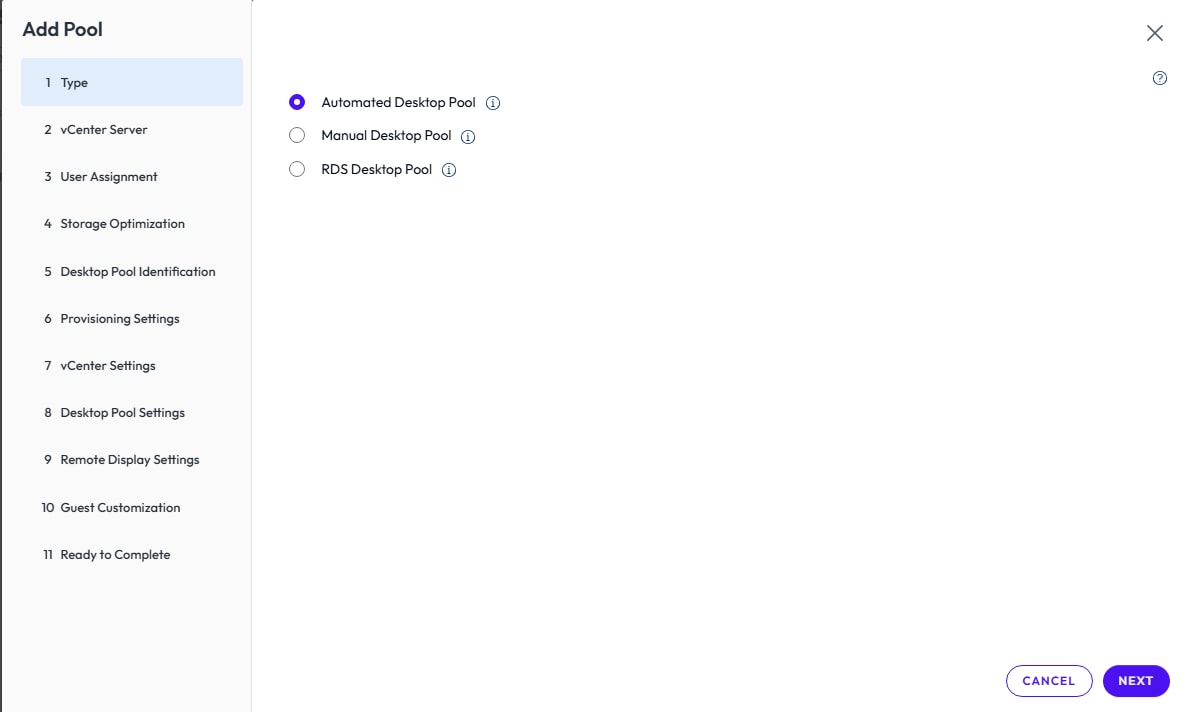
Select Automated Desktop Pool as the pool type and click Next
Figure 5. Choose a desktop pool type
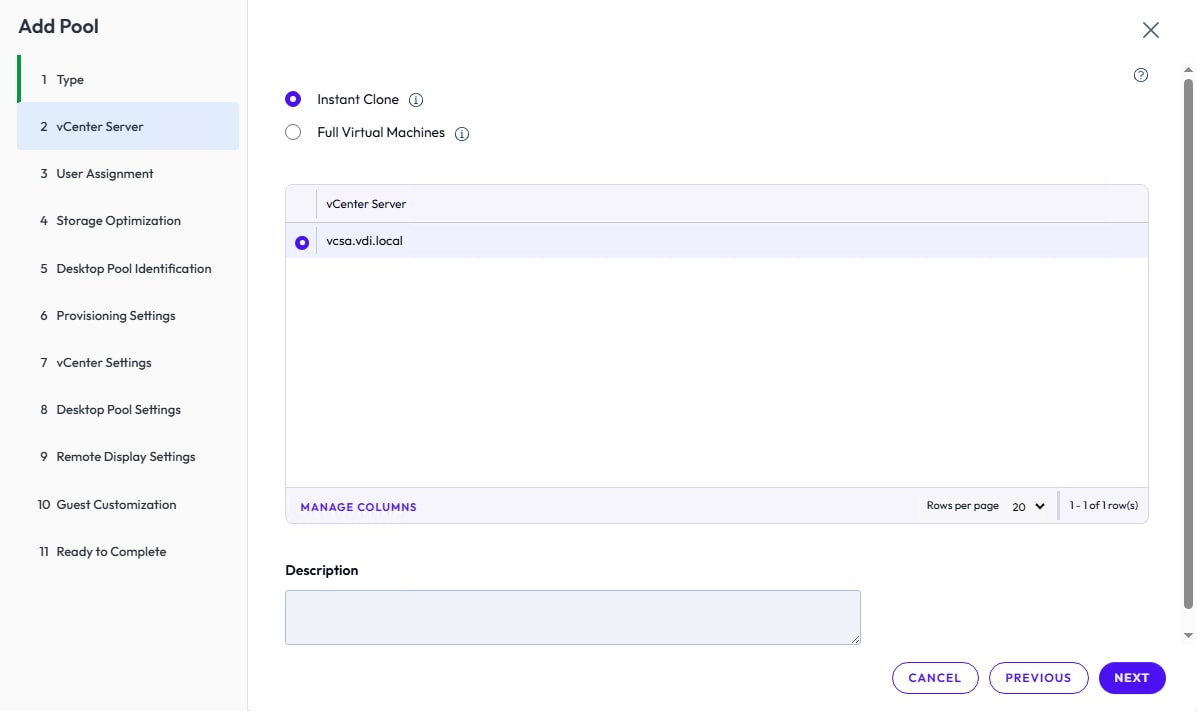
Choose Instant Clone, and then choose the vCenter Server to be used with the pool.
Figure 6. Choose a virtual machine type and host vCenter Server
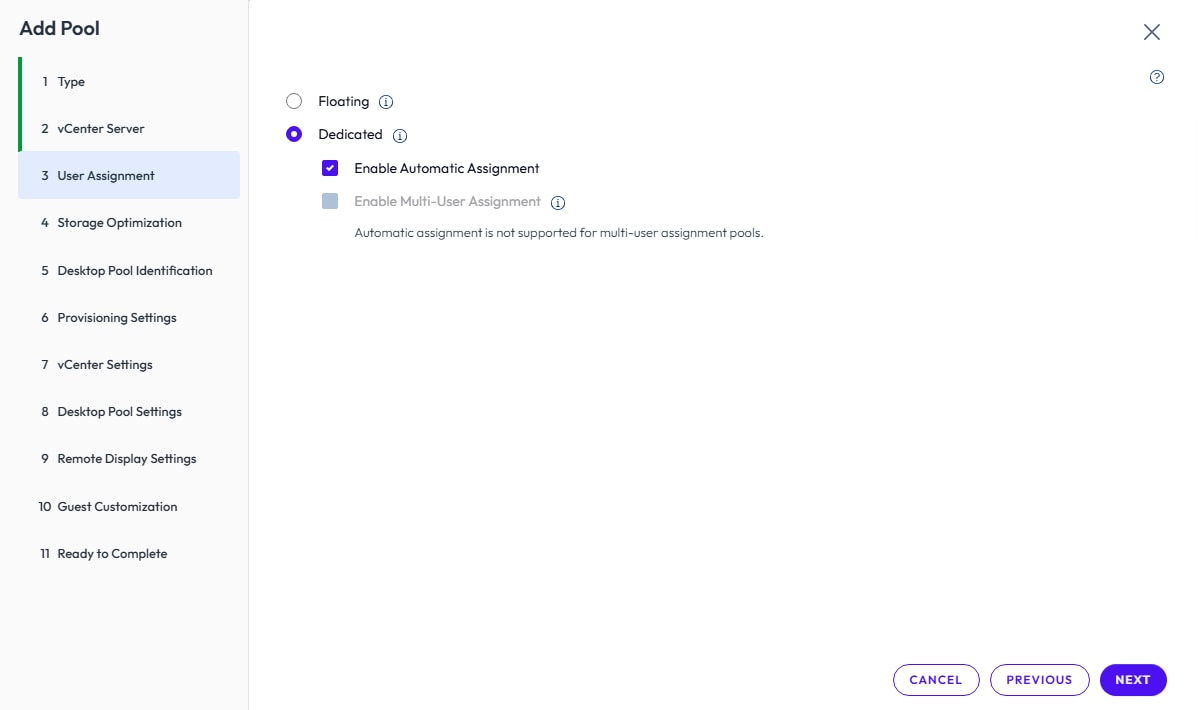
Choose between a floating and dedicated desktop pool as required. This implementation uses a floating desktop pool.
Figure 7. Choose the desktop pool user assignment
Select your preferred storage policy management.
You can also configure persistent disks to store Windows profiles.
Complete the required fields in the desktop pool identification page.
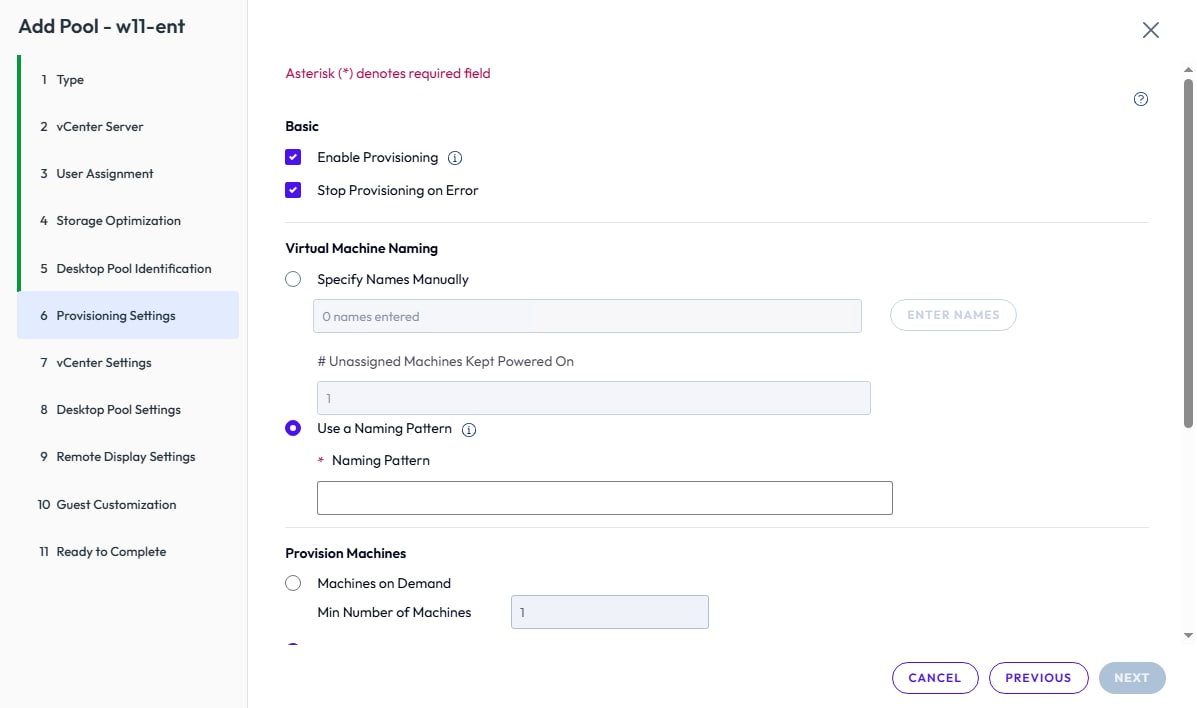
In the provisioning settings page, provide the required information: VM naming pattern, pool size, and so on.
Figure 8. Configure desktop pool provisioning
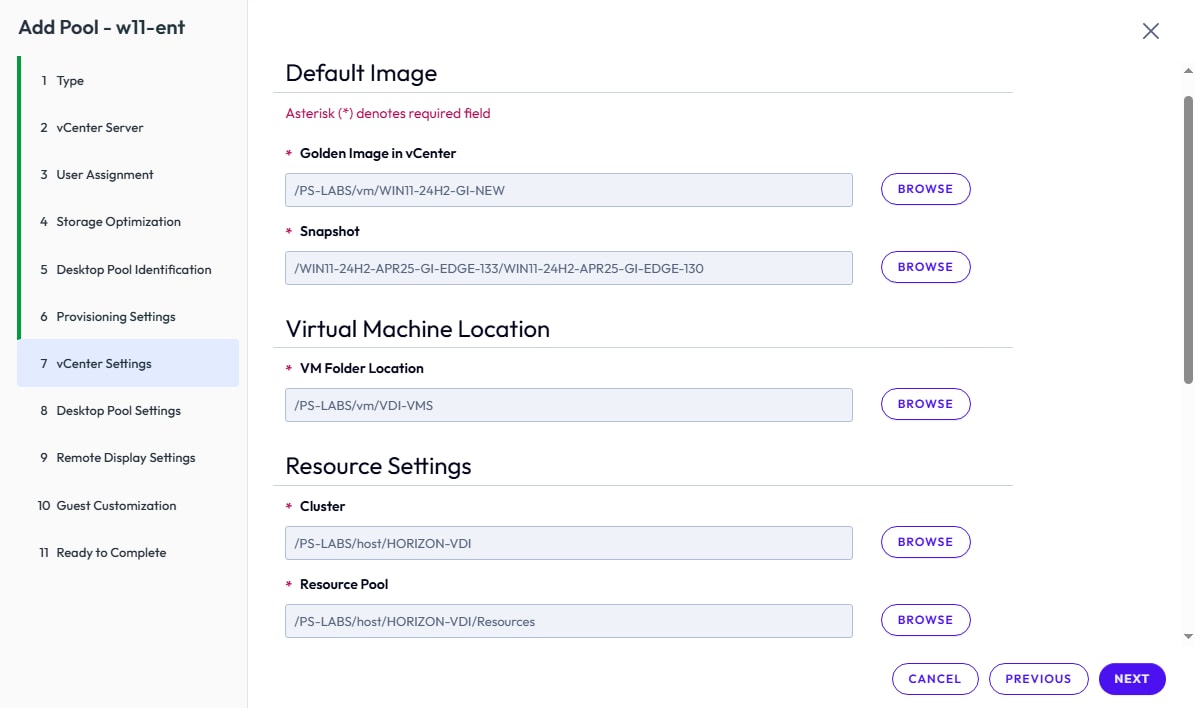
Choose the golden image, compute cluster, and datastores that the desktop pool will use. Modify the VM compute profile, if necessary.
Figure 9. Choose a golden image and resources for the desktop pool
In the Desktop Pool Settings page, configure policies related to VMs, users, and sessions and click Next.
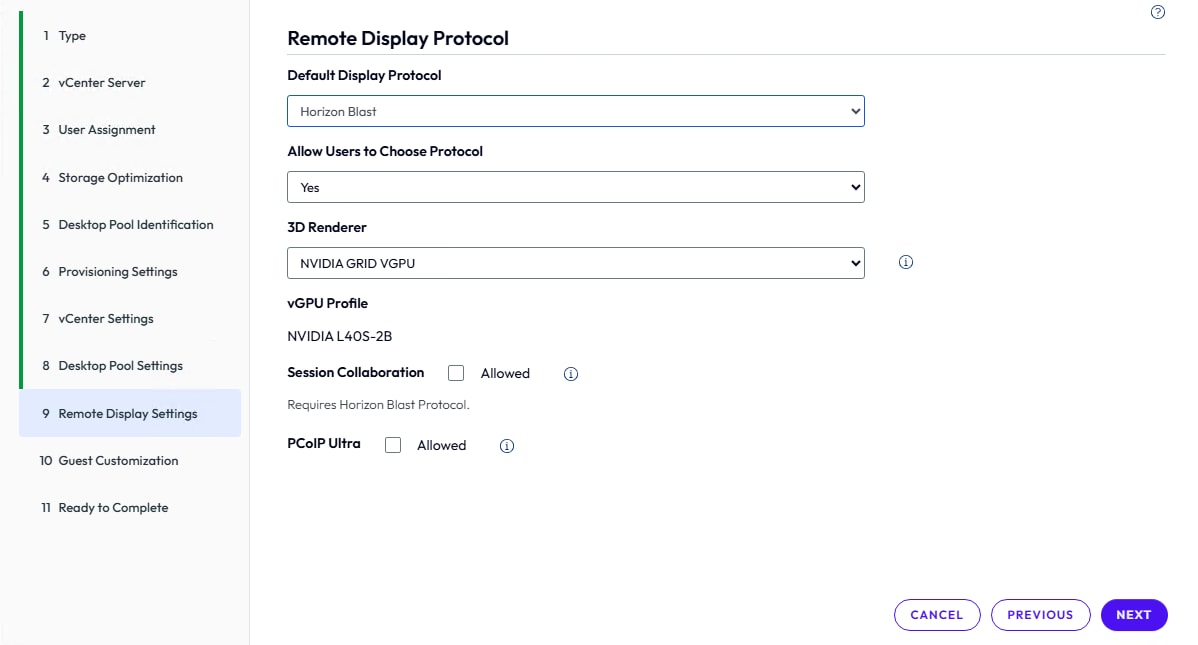
In the Remote Display Settings page, choose the display protocol.
While using a vGPU enabled golden image, Horizon 8 will automatically detect the vGPU as the 3D renderer. Verify detection of vGPU and vGPU profile.
Figure 10. Choose display protocol and verify 3D renderer
In the Guest Customization page, configure options related to the AD domain and scripts to customize the guest operating system.
In this solution, guest operating system customization is done using VM customization specification that is created in vCenter Server. The Windows sysprep utility will use the specification when creating VMs.
Confirm your choices in the summary and complete the wizard.
Horizon 8 starts publishing the golden image. You can add user entitlements to the desktop pool. After the golden image is published, VDI VMs are brought up in the compute cluster. Entitled users in the AD domain can now start accessing VDI sessions from the Horizon client.
Omnissa DEM provides end users with a personalized and dynamic Windows desktop that adapts to the specific needs of users. Through DEM, system administrators can enable personalization of user environment settings, application settings, and Windows settings for VDI users. Settings can also be configured dynamically based on location of user, device type, and user role.
DEM gives system admins the ability to exercise control over which settings can be personalized and to configure default settings for applications and Windows operating system.
This section describes the configuration of Omnissa DEM using PowerStore file capabilities
DEM is deployed in standalone mode, which requires two SMB file shares: DEM configuration and Profile Archives. The configuration files created by the management console are stored in the configuration share, while FlexEngine uses the Profile Archives share to store .zip files containing personalized user settings.
Configure the file shares needed by DEM before installing DEM components in the Horizon environment.
To create an SMB file share in PowerStore, perform the following high-level steps:
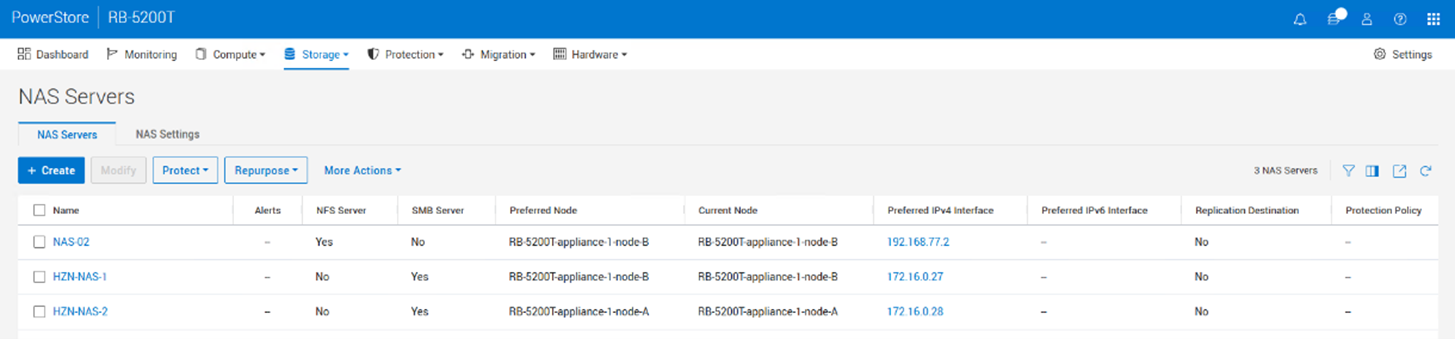
In PowerStore Manager, create an SMB-enabled NAS server if one is not already created.
Figure 11. SMB-enabled NAS servers created in PowerStore Manager
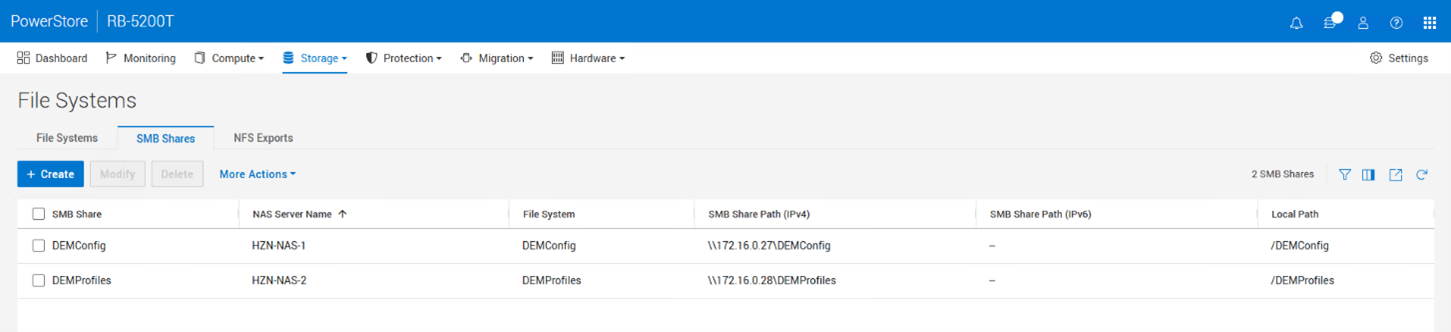
Create a file system and SMB share using the SMB enabled NAS server.
Figure 12. SMB file shares created in PowerStore Manager
Add required users and permissions to the Access Control List (ACL) of both SMB file shares.
After deployment in the Horizon 8 environment, the DEM functionality was verified by applying DEM configurations to a set of VDI user accounts. The settings were applied to the VDI sessions as expected. The tested settings are:
System wallpaper
Taskbar settings and pinned applications
Conditional folder redirection applied to Downloads, Documents, and Pictures folders
Conditional drive mappings applied to several user accounts
Note:
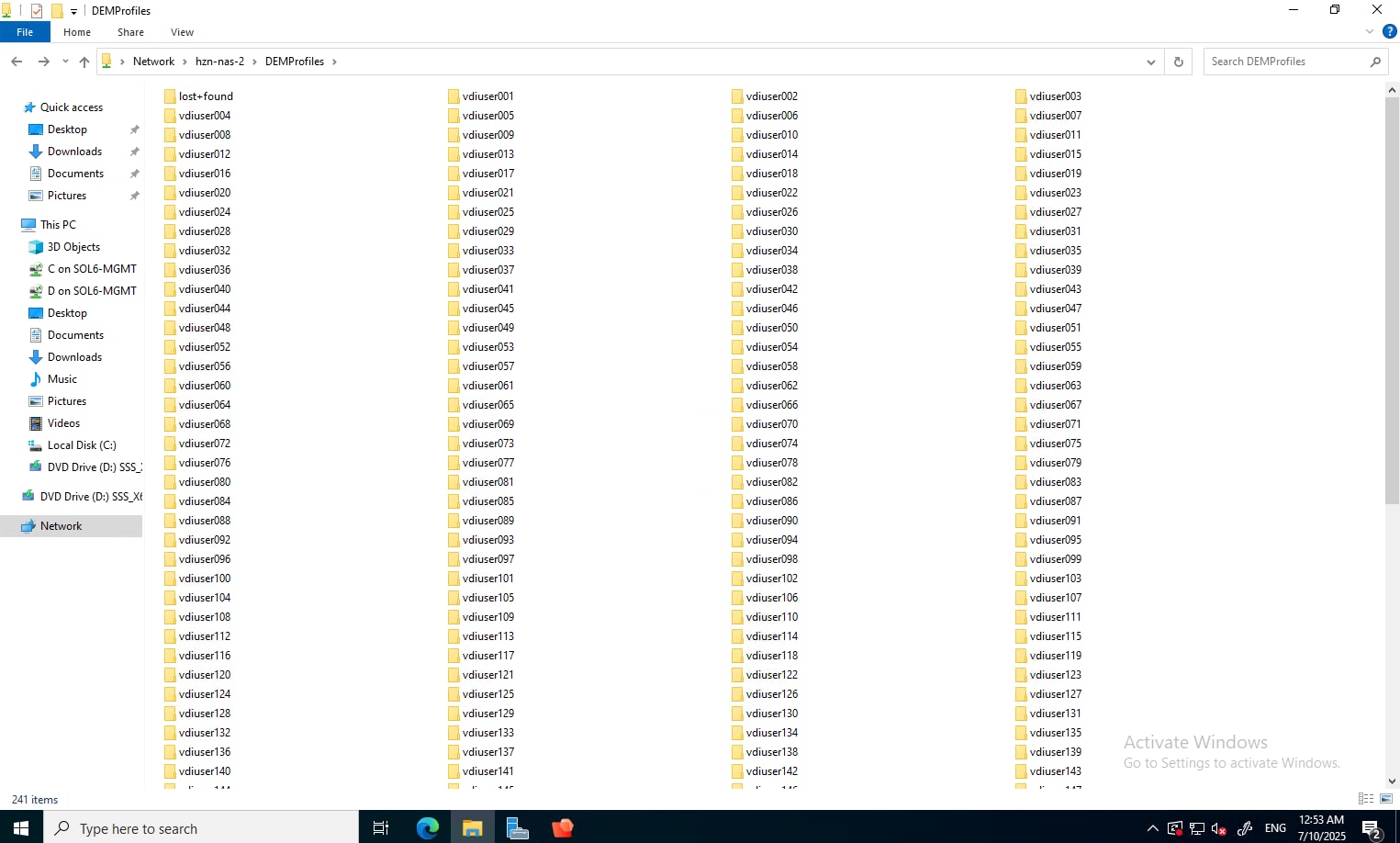
The use of conditions to map drives and redirect folders enables each user to get their own dedicated shared drives and folders. Figure 13. User profiles stored in the Profiles Archive file share
As users connect to their sessions, FlexEngine creates folders in the Profiles Archive file share for each user. Settings that the user changes are captured by FlexEngine at logoff and stored in Profiles Archive as .zip files. Those settings are retrieved and applied when a user logs in again.
Test and performance analysis
Test and performance analysis
This section describes the test environment, workload profiles, and metrics collected for performance analysis, along with a detailed description of how the system performed under various workloads.
Horizon 8 desktop pool
An automated desktop pool is created for performance benchmarking. The pool uses instant clones to create space-efficient VMs from the published golden image. Instant clones share the same base image, which is created using Instant Clone technology that is supported by vSphere 6 and later versions.
In this solution, the desktop pool is a floating pool in which users are randomly allocated a machine from the pool every time they log in.
PowerStore volume configuration
To host a Horizon 8 desktop pool, a five-terabyte volume is created in PowerStore and attached to the compute cluster using the iSCSI storage protocol. A datastore is then created and is used by Horizon to store VDI VMs.
A second volume is also created and attached to store golden images and other files.
Login Enterprise Workloads
Login Enterprise workloads are human-centric workloads that are designed to simulate a user interacting with preset applications in a human-paced way. While Login Enterprise offers vendors the facility to tailor workloads to closely match the behavior of their user base, integrated workloads are also available on the platform to generate comparable and repeatable test results. These integrated workloads are Task Worker and Knowledge Worker. An additional Multimedia Worker workload is also added to the Login Enterprise appliance to test VDI VMs leveraging vGPUs. All these workloads are based on the Microsoft Office suite and other browsers that are used in the enterprise.
This solution uses both Task Worker and Knowledge Worker workloads to benchmark the Omnissa Horizon virtual desktop environment.
Task worker: An enterprise task worker is a light-duty productivity user that regularly uses a web browser to access static internal sites, an email client, and an application that is the basis for their task. Task workers stay focused on the task at hand and occasionally switch between apps. The task worker is tolerant of some workspace lag. Task workers often take the form of data processing workers, call center agents, tellers, and receptionists. For more information, see Task Worker – Default Workload.
Knowledge worker: An enterprise knowledge worker is a medium to heavy-duty productivity user that regularly uses a web browser, an email client, and specializes in a wide range of software to create spreadsheets, documents, and presentations. Knowledge workers often have multiple applications and browsers open at once, regularly switching between these applications. The knowledge worker expects a responsive user experience and has little tolerance for variation in performance. For more information, see Knowledge Worker 2022 – Default Workload.
Multimedia Worker: A heavy-duty productivity user designed to evaluate VDI environments equipped with NVIDIA vGPUs. Multimedia Worker regularly uses a web browser, email client, and a wide range of office applications including spreadsheets, documents, and presentations. Multimedia worker will have multiple tabs open in the web browser such as high-definition video streams, online documentation, PDFs, and web searches. The worker will also join online meetings with a high number of participants. Meeting participants can have their camera turned ON. Multimedia worker expects a smooth, responsive user experience all the while running compute intensive applications. This workload is run on Horizon 8 clients configured to open VDI sessions in 3840x2160 video resolution. For more information, see Appendix B.
Note: End User Experience (EUX) score collection occurs in both workloads at appropriate intervals that are determined by Login Enterprise Platform.
Test environment
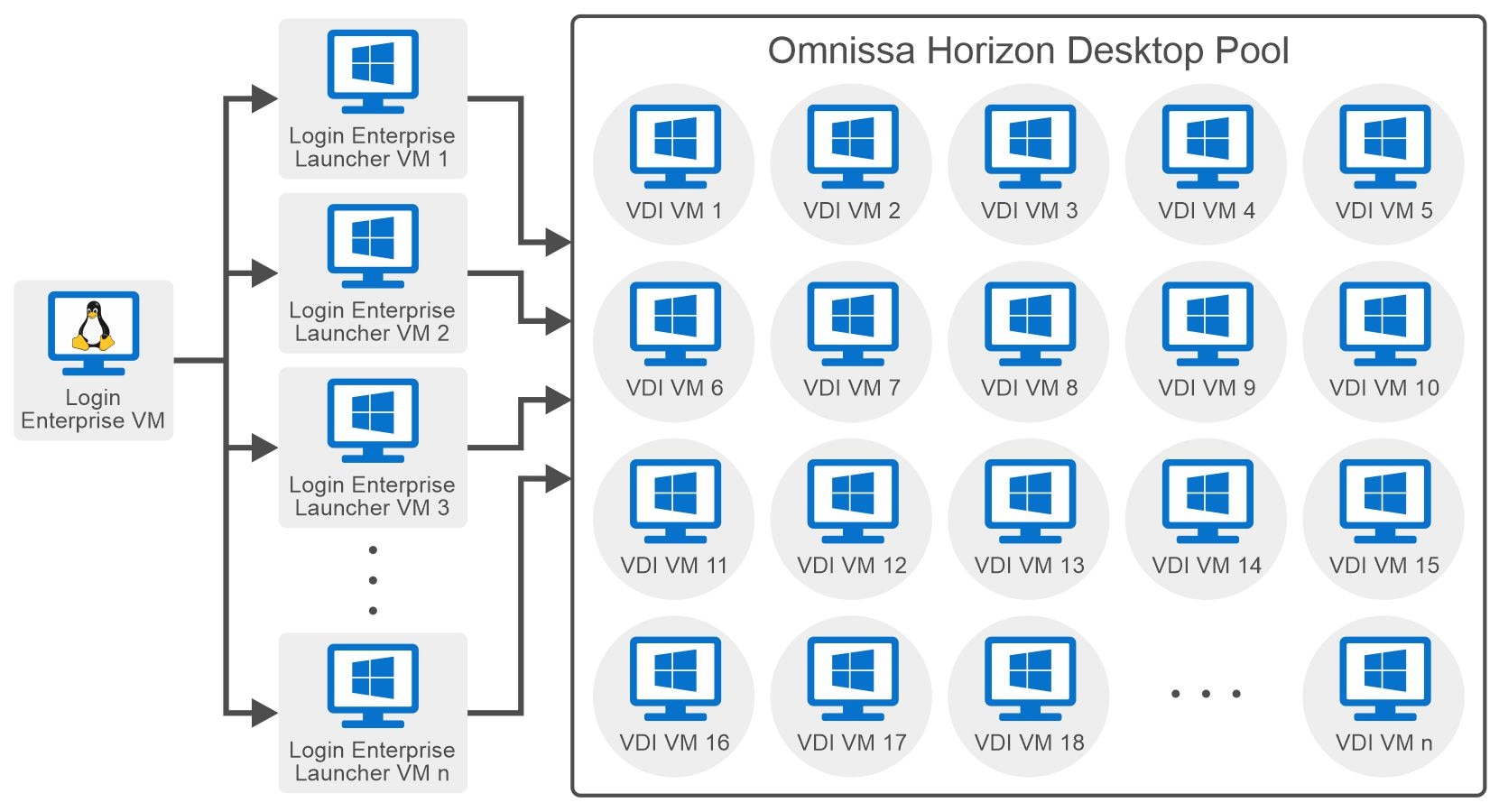
Login Enterprise requires the following components to be installed and available in the environment:
Login Enterprise virtual appliance: When the virtual appliance is deployed, it presents a Web UI through which all aspects of testing, monitoring, performance evaluation, and managing the appliance itself can be performed. The appliance must be part of the AD domain that houses the Omnissa Horizon VDI VMs and other components.
Login Enterprise launchers: The Login Enterprise launcher is used as an endpoint to launch sessions using the Horizon client, providing a connection to the Omnissa Horizon VDI VMs. For this purpose, Windows Server 2022 VMs are created, and Login Enterprise launcher software is installed on the VMs. For more information, see The role of Launcher in Login Enterprise.
Login Enterprise Logon Executable: This component must run when a Login Enterprise virtual user logs in to the VM. Therefore, it must be placed in a location that is accessible to all virtual users. There are several ways to perform this task. In this solution, an AD group policy with a login script to start the executable is applied to all VDI VMs.
Figure 14. Performance test environment
Test methodology
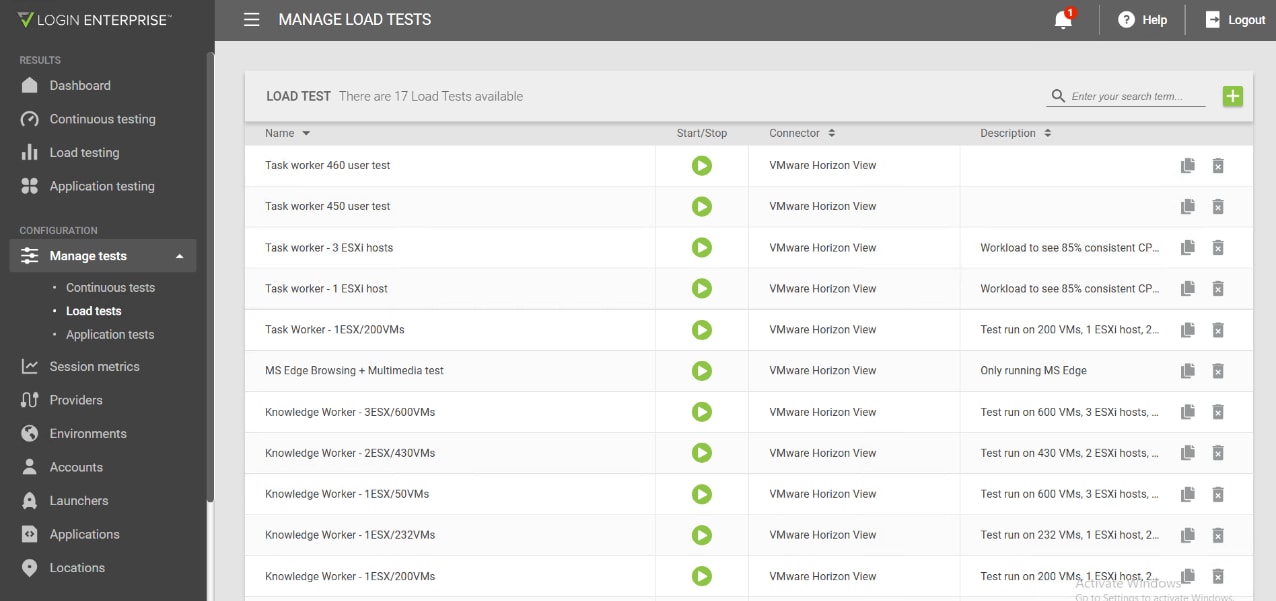
The tests are defined using the Login Enterprise Web UI. The Task Worker, Knowledge Worker, and Multimedia Worker workloads are defined as load tests. They are designed to simulate multiple active users that are running concurrently, to determine the point at which an additional user noticeably impacts existing users. The following figure shows the load tests that are defined for both workloads:
Figure 15. Load tests defined in the Login Enterprise Web UI
The load tests perform the following actions, in sequence:
Launch session connections based on the number of sessions parameter and ramp-up time defined in the test.
When all sessions are launched, they run for a duration as defined by the test definition. If sessions fail at any point during the test, they are not restarted.
When a session is launched, the application script test sequence is repeated on a loop for the defined test duration. EUX data, session metrics, and logs are collected during this time.
When the test duration elapses, sessions are terminated after the current application script run is completed.
All workloads are run multiple times to ensure that test results are consistent. All tests are run for a duration of 135 minutes, with the first 60 minutes allocated for user login, followed by 60 minutes of steady-state test execution. The final 15 minutes are used for session termination.
Performance metrics
Login Enterprise Platform provides several metrics related to session quality and system performance:
EUX score: Represents the performance of VDI sessions. An EUX baseline score is calculated at the beginning of the test. The baseline score represents the performance of the system when the system is not under any stress. Adding more users to the VDI system impacts the score because more users add more stress to the system.
VSImax: The maximum number of user sessions that can fit in a system before the performance degrades. VSImax is calculated during the login phase of a test and is triggered by several factors, including application, CPU, and disk-related operations.
Along with these Login Enterprise metrics, metrics such as CPU usage, memory usage, network, and storage performance are gathered from VMware vSphere, and storage latency, IOPS, and bandwidth from PowerStore are tracked. PowerStore Manager provides performance metrics such as storage latency, IOPS, bandwidth, IO size, and queue depth, which can be downloaded in various formats.
Performance analysis - Task Worker
This section describes the performance of compute and storage components when the Task Worker workload was run.
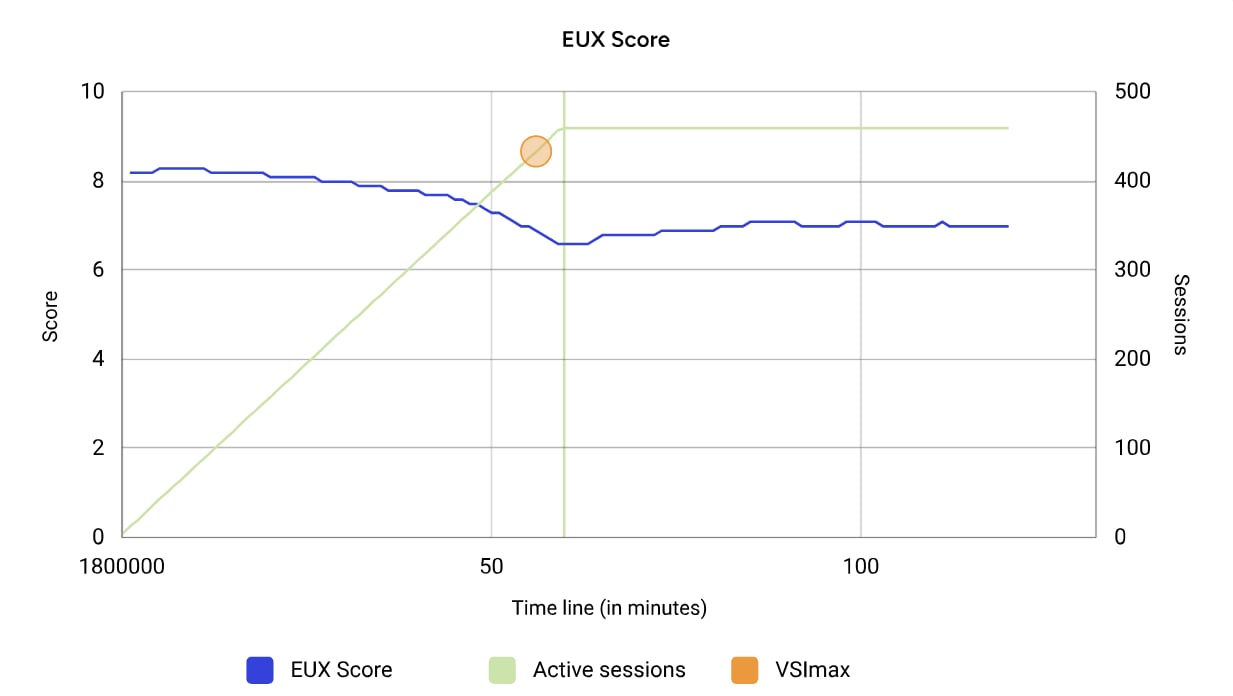
For the analysis, 460 VMs were determined as the desired number for the test environment, based on the resources available in the cluster. The Task Worker workload was run on all 460 VMs, as described in Test Methodology. The vSphere compute cluster consists of two ESXi compute nodes, with the VDI VMs distributed equally among the nodes.
No session failures, user login errors, or Login Enterprise engine failures were reported. The Login Enterprise appliance reported the application execution rate as 98.7 percent for the duration of the test.
Note: Login Enterprise recommends that the application execution rate should be at least 95 percent for any load test run on the platform.
Note: An EUX score of 7.0 and above signifies a good and acceptable performance of a VDI environment. For more information, see EUX Score Examples and Explanations.
Figure 16. EUX score of Task Worker workload
ESXi host CPU usage
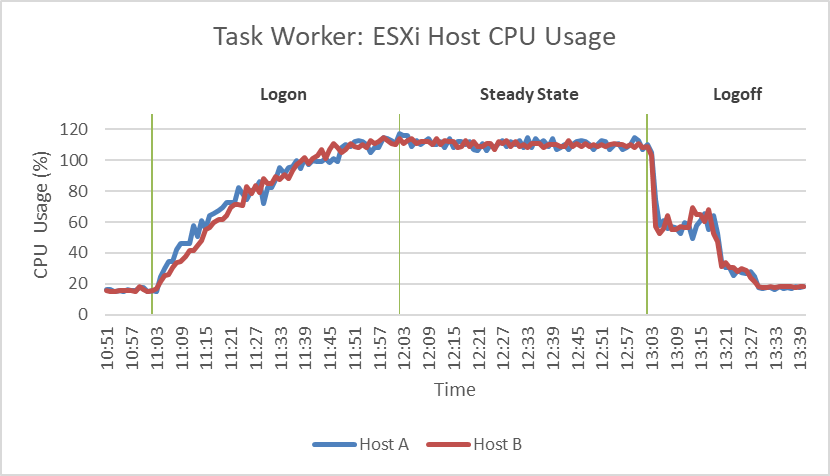
The following graph shows the ESXi host CPU usage during the test. The graph follows the expected trends of a VDI workload. During the logon phase, as users log on to on to their desktops, CPU usage steadily increases. When all users are logged on, the test enters the steady state phase. CPU usage during this phase stays at nearly the same percentage. During the user logoff phase, Horizon 8 starts re-creating logged off VDI VMs. A steep drop in CPU usage occurs in this phase, followed by an increase in CPU usage caused by re-creation of VDI VMs.
Figure 17. ESXi host CPU usage as a percentage during the test
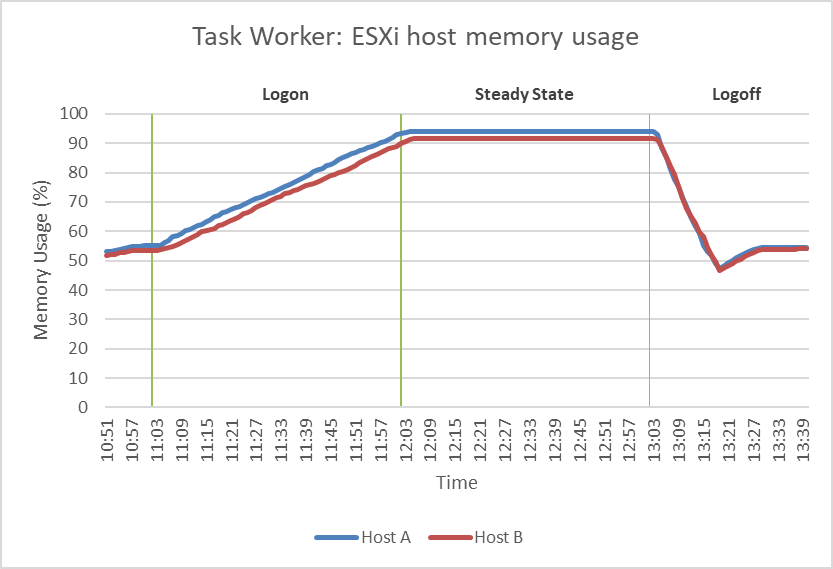
The following graph below plots the percentage of host memory used for the duration of the test. VDI VMs are configured with 4 GB of RAM, all of which is reserved. So, idling VMs in the Horizon desktop pool consumes above 50 percent of host memory. When the test is triggered, the usage gradually increases with the number of user sessions in the logon phase. Memory consumption on both hosts is a constant during the steady state phase of the test. During the logoff phase, logoff results in a decline of memory usage. No memory ballooning or swapping was observed at any point during the test.
Figure 18. ESXi host memory usage as a percentage during the test
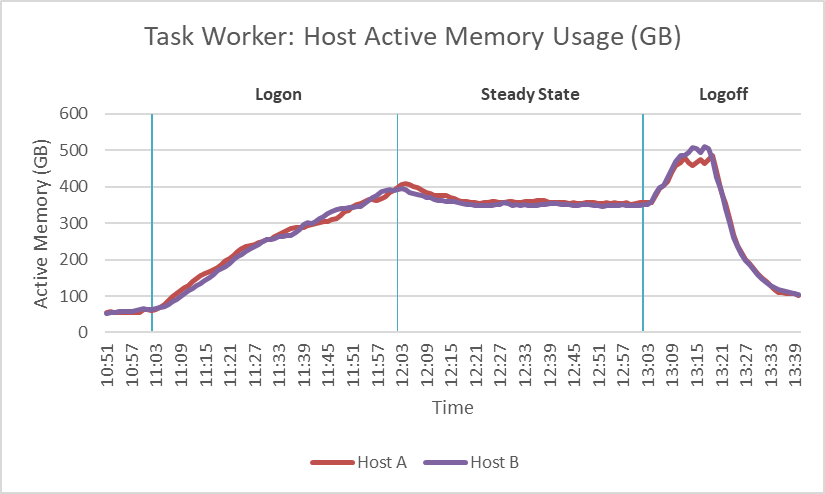
Active memory is the amount of physical memory that is being actively read or written by guests. Active memory during the test reached a peak of 500 GB and was observed to maintain around 350 GB during the steady state phase of the test.
Figure 19. Active memory usage of hosts during the test
Host network performance
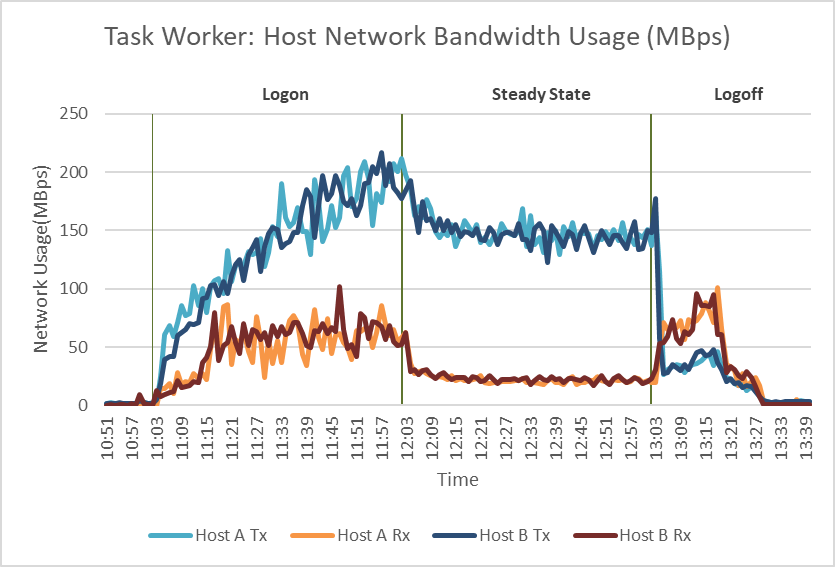
The following graph shows the network performance of ESXi hosts during the test. Network activity increases gradually during the logon phase, and then settles to a steady usage in the steady state phase of the test. A steep decline in network activity occurs in the logoff phase, along with a spike in network activity due to the additional storage traffic that is incurred by the re-creation of VDI VMs.
Figure 20. Host network usage during the test
PowerStore IOPs performance
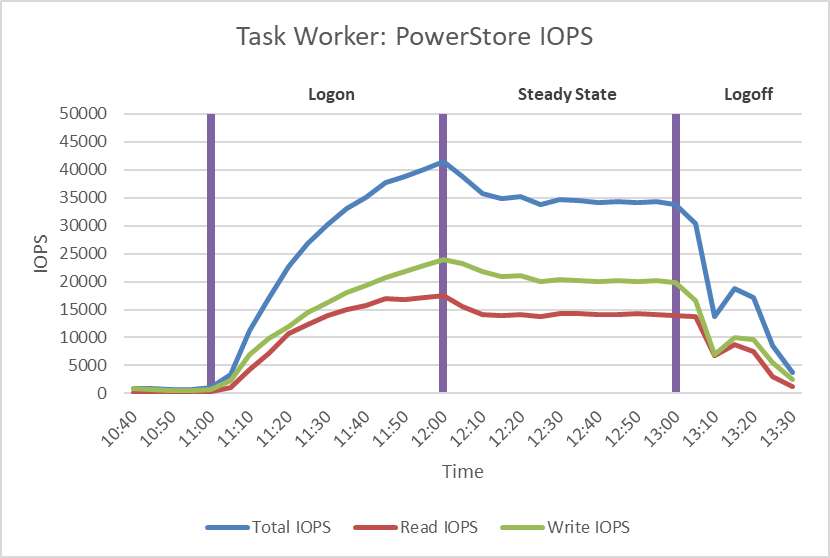
The following graph shows the performance of PowerStore during the test. During the logon phase, as more users log on to their VDI sessions and start using applications, IOPS increases proportionally. Total IOPS reaches a peak of 41,000 IOPS at the end of the logon phase, and then settles at approximately 34,000 IOPS during the steady state phase of the test. VDI workloads are typically write-heavy. This characteristic feature is seen during the test, with write IOPS making up 60 percent of total IOPS during the steady state phase.
PowerStore can handle high I/O traffic during the logon phase and sustain write-heavy VDI workload for longer periods of time during the steady state phase. This translates directly to quality VDI sessions, as evidenced by Login Enterprise EUX score of 7.0 during the steady state phase and an overall EUX score of 7.1 on the test.
Figure 21. PowerStore IOPS performance for the test duration
PowerStore IOPS: Compute cluster scale-out tests
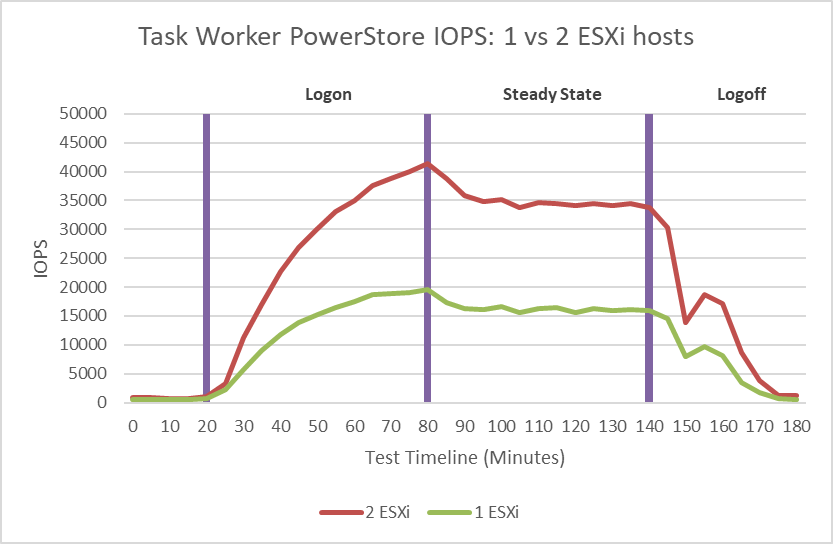
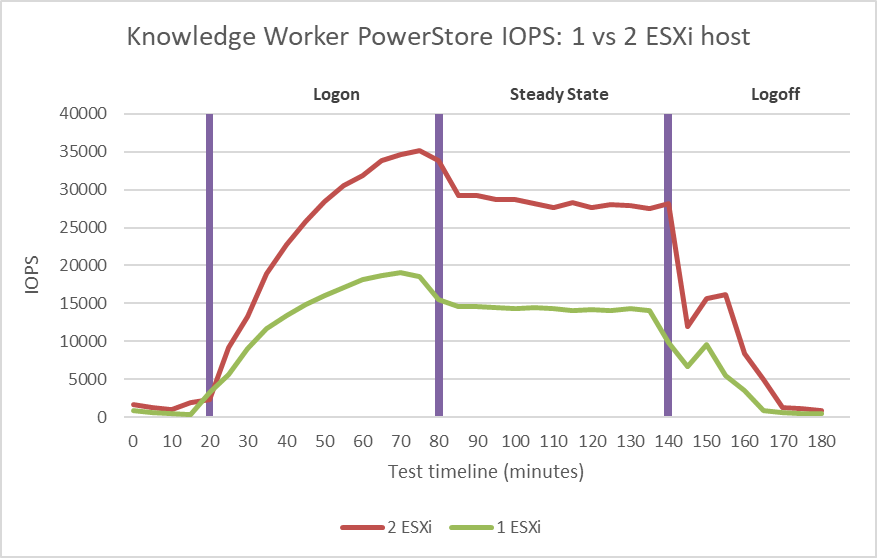
The following figure shows IOPS performance when the Task Worker test was run on a single ESXi host and then scaled out to two ESXi hosts in the compute cluster. The additional host doubled the Horizon desktop pool size from 230 to 460, subsequently doubling the load on PowerStore. Both lines in the graph plot the same patterns on all three phases of the test.
Figure 22. PowerStore IOPS comparison between one and two ESXi host tests
The following table shows a comparison between the EUX and VSImax scores for the tests. The EUX scores show that the quality of VDI sessions did not diminish. PowerStore delivered the same session quality for both tests.
Table 5. Task Worker: EUX and VSImax score comparison on scale-out tests
Test
EUX score
VSImax
1 ESXi host test
7.0
213
2 ESXi host test
7.1
434
Performance analysis - Knowledge Worker
This section describes the performance of ESXi hosts and PowerStore storage when the Knowledge Worker workload is run in the test environment.
For this analysis, a right-sized desktop pool with 430 VDI VMs was used and a workload run as described in Test Methodology. VDI VMs from the desktop pool were distributed equally across ESXi hosts. No session failures, user logon errors, or Login Enterprise engine errors were reported during the test. The application execution rate remained consistently at 99 percent.
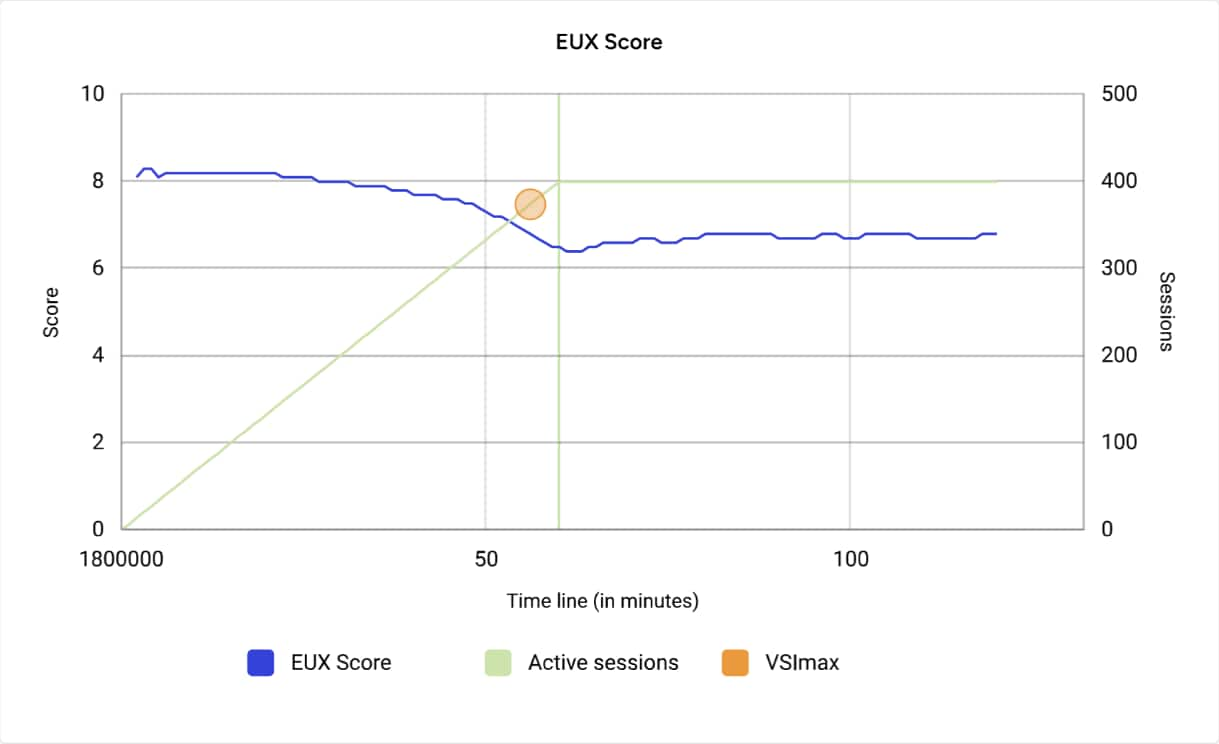
Login VSI reported a VSImax score of 374 for two ESXi hosts. The EUX score metric collected by Login Enterprise for this test is 6.8.
Figure 23. Knowledge Worker workload EUX score
ESXi host CPU usage
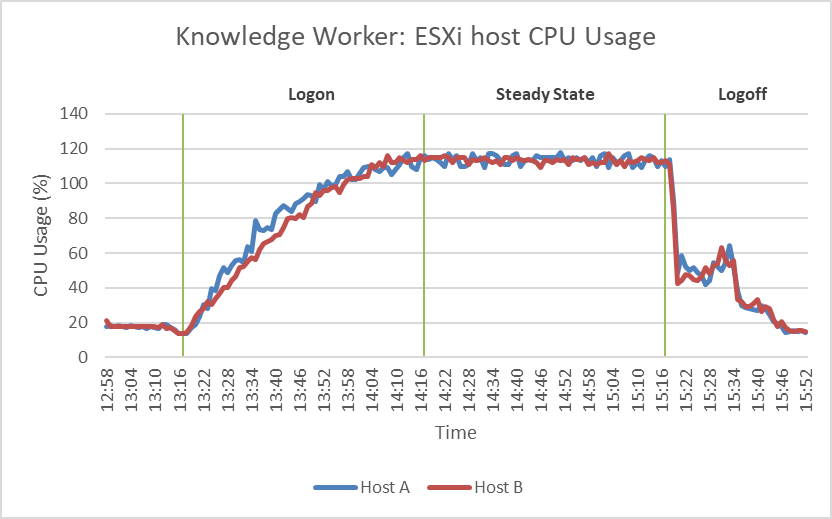
The following graph shows CPU usage of compute hosts as a percentage throughout the test. CPU usage is initially at 20 percent. When the test is triggered, users start logging on to VDI VMs in the desktop pool. As more users log on, CPU usage of both hosts starts climbing. After all users have logged on, CPU usage remains high for the steady state phase. When users start logging off, CPU usage drops and eventually goes back to idle values. The spike that occurs in the logoff phase is due to Horizon 8 re-creating instant clone VMs.
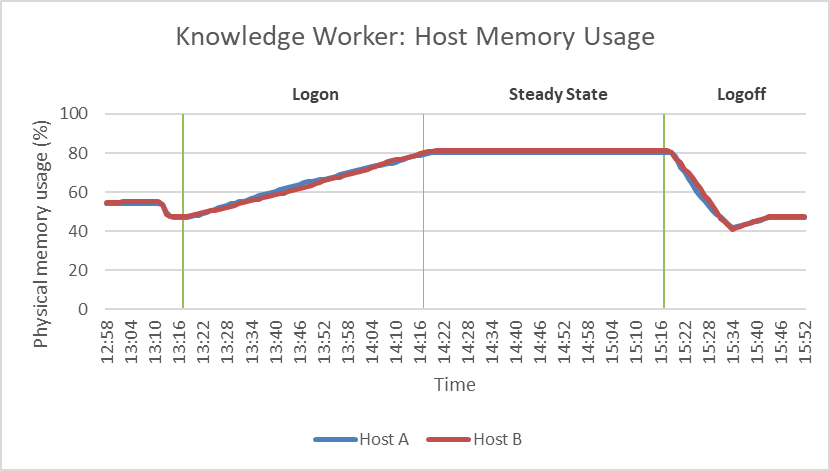
The following graph shows memory usage of the ESXi hosts for the duration of the test. The usage trend is similar to the Task Worker workload. Physical memory consumption steadily rises with user logons and remains constant in the steady state phase. The average memory consumption during the steady state phase is slightly lower than the memory that is consumed during Task Worker test runs. This is the expected behavior, because the Knowledge Worker workload is run on a smaller desktop pool than the Task Worker workload. The usage decreases as users log off, eventually reaching the original usage figures before the test. Figure 25. ESXi host memory usage during the test
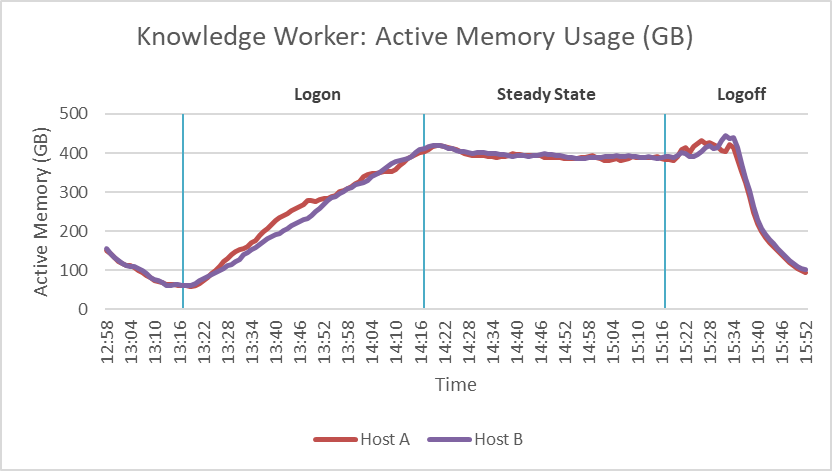
The following graph shows active memory usage of hosts during the test. Like host memory usage, active memory usage gradually increases during the logon phase and remains constant during the steady state phase. No anomalies are observed, and the usage spike during the logoff phase is consistent with Horizon 8 re-creating logged off instant clone VMs.
Figure 26. Active memory usage during the test
ESXi host network performance
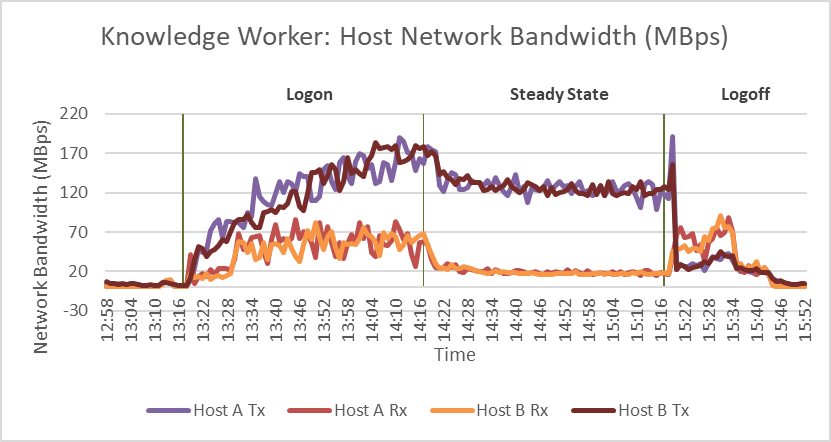
The following graph shows the network performance of ESXi hosts during the test. Network activity increases gradually during the login phase, and then settles to a steady usage in the steady state phase. A steep decline in network activity occurs in the logoff phase along with a spike in network activity due to the additional storage traffic incurred by re-creation of VDI VMs.
Figure 27. Network performance
PowerStore IOPS performance
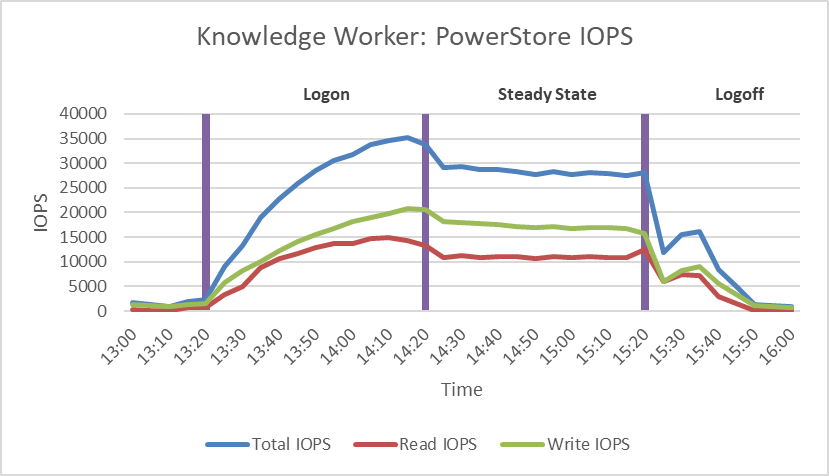
The following graph shows the performance of the PowerStore system during the test. Total IOPS reaches a maximum of approximately 35,000 IOPS during the logon phase. Write I/O accounts for up most of the storage traffic across all three phases. During the steady state phase, I/O consists of 60 percent writes and 40 percent reads. This is expected because VDI workloads are typically write-heavy. As observed with other resources in the environment, an IOPS drop occurs during the logoff phase as user sessions are terminated, followed by a short spike that is triggered by Horizon 8’s recreation of instant clone VMs.
Figure 28. PowerStore IOPS
PowerStore IOPS: Compute cluster scale-out tests
The following graph shows PowerStore IOPS as captured from a Knowledge Worker workload run on a single ESXi host and two ESXi hosts. Scaling out the cluster increased the size of the Horizon desktop pool from 200 to 400. The IOPS pattern for both tests is nearly the same across all three phases of the test. As the desktop size doubled, the Horizon 8-generated IOPS also doubled.
Figure 29. PowerStore IOPS comparison between one and two ESXi hosts
The following table shows the EUX and VSImax scores of both tests. The EUX scores show that PowerStore is able to deliver almost the same VDI session quality on both tests.
Table 6. Knowledge Worker: EUX and VSImax scores on scale-out tests
Test
EUX score
VSImax
1 ESXi host test
6.9
183
2 ESXi host test
6.8
374
Performance analysis - Multimedia Worker
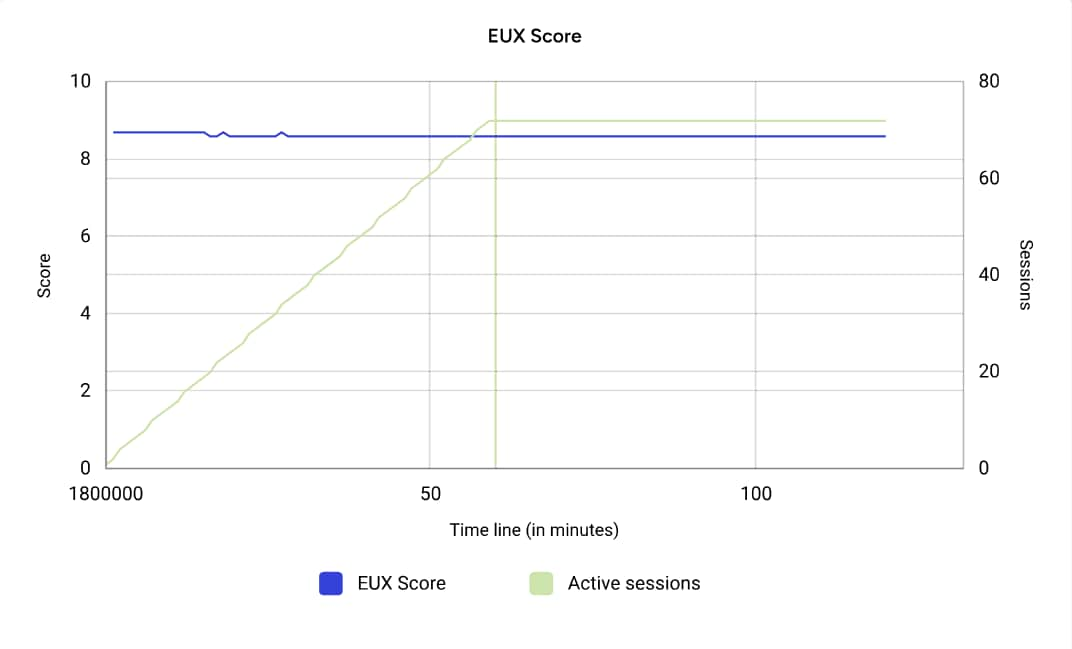
This section describes the performance of ESXi compute hosts and PowerStore storage when the Multimedia Worker workload is run on the test environment. The test is run on 72 VDI VMs spread equally across three ESXi hosts. VDI VMs are equipped with a vGPU having L40S-2B vGPU profile. The workload is run as described in Test methodology. No session failures, user logon errors, or Login Enterprise engine errors were reported during the test. The application execution rate consistently remained at 98 percent for the entire duration of the test.
The EUX score metric reported by Login Enterprise for this test is 8.6.
Note: An EUX score of 7.0 and above signifies a good and acceptable performance of a VDI environment. For more information, see EUX Score Examples and Explanations.
Figure 30. EUX Score of Multimedia Worker Workload
ESXi host CPU usage
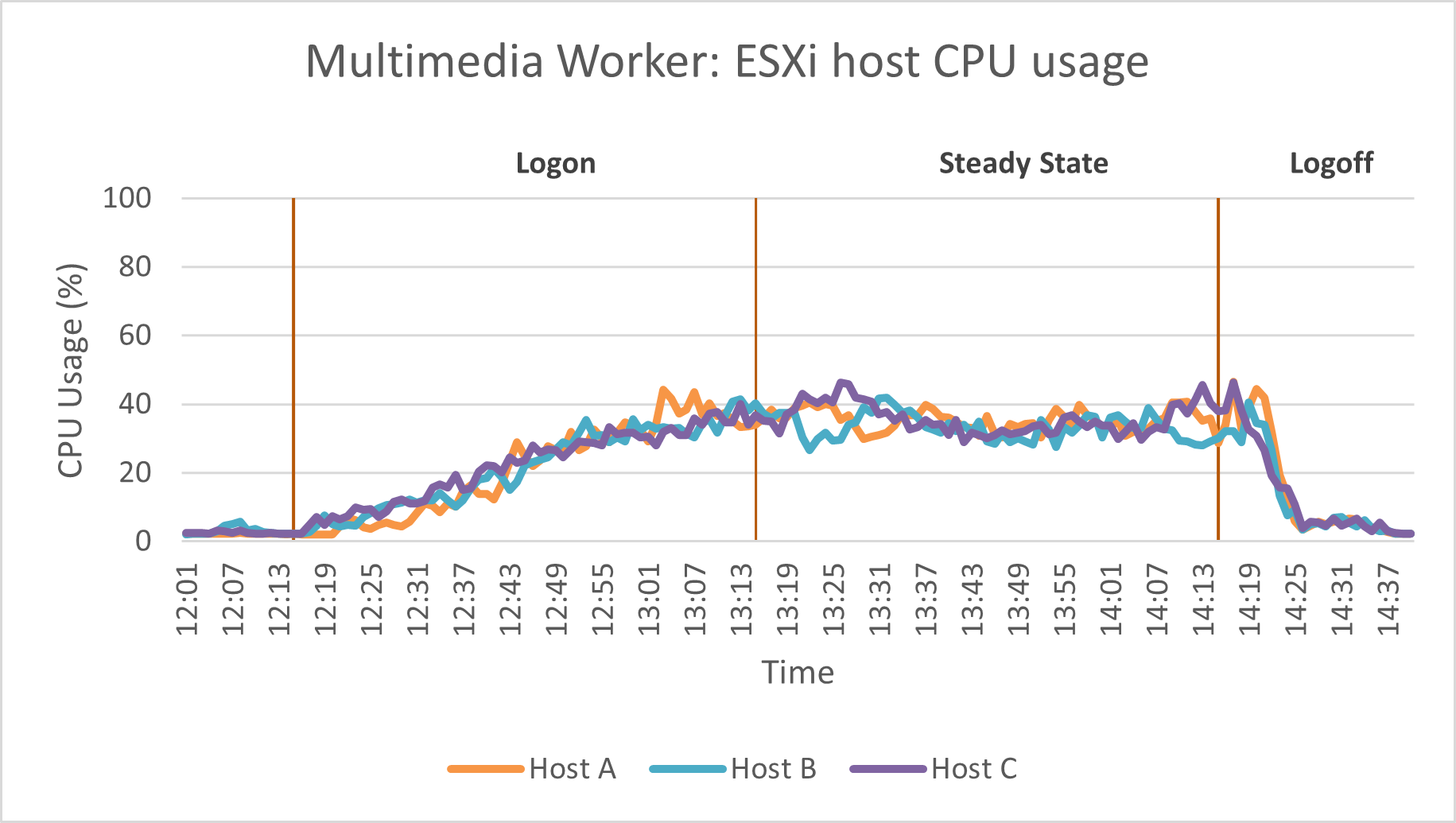
The following graph shows CPU usage of compute hosts as a percentage throughout the test. As users start logging on to VDI VMs, CPU usage of all three hosts starts climbing during the logon phase. The usage remains between 30 percent to 40 percent during the steady state phase of the test. When users start logging-off, the CPU usage decreases gradually and settles down to idle values when all users log off.
Figure 31. ESXi hosts CPU usage during the test
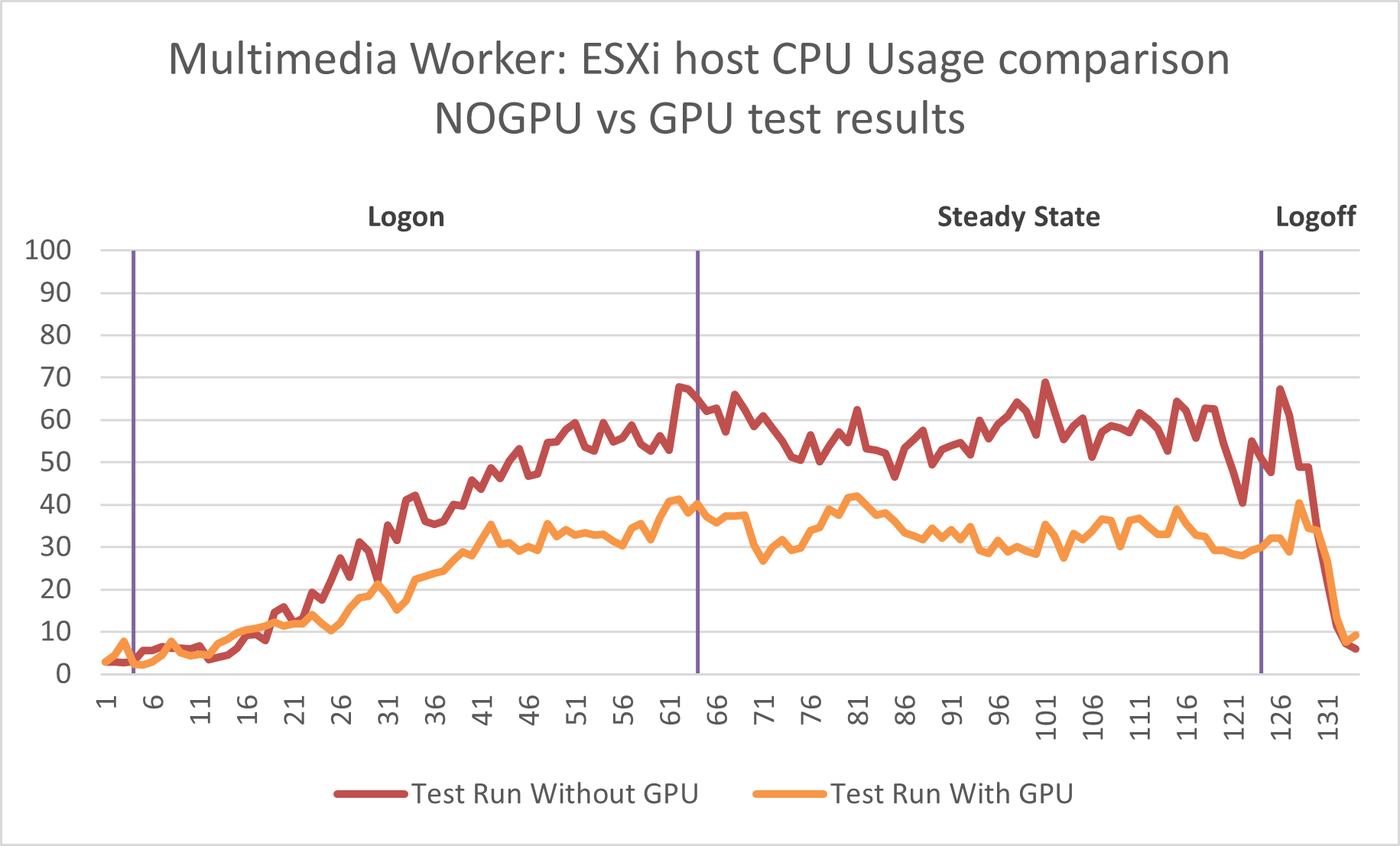
The following graph shows a comparison of CPU usage of one ESXi host when Multimedia Worker is run on VDI VMs having no vGPU attached compared to the same test run on VDI VMs having a NVIDIA L40S-2B vGPU. Both tests are run with the same parameters, and on an equally sized desktop pool having 72 VMs, ensuring that the only difference is the addition of vGPU.
Figure 32. Comparison of CPU usage when test run on VMs with vGPU vs. no vGPU
It is clear from the graph that CPU usage has decreased substantially when VDI VMs are enhanced with vGPUs. The decrease in CPU usage is due to graphics-intensive applications being offloaded to the GPU. On average, the Multimedia Worker workload uses 40 percent less CPU in the steady state phase when run on VDI VMs with vGPUs compared to the same test run on VMs with no vGPU. Other hosts in the environment exhibit similar patterns. These extra available resources can be used to add more VMs to the desktop pool.
ESXi host physical GPU usage
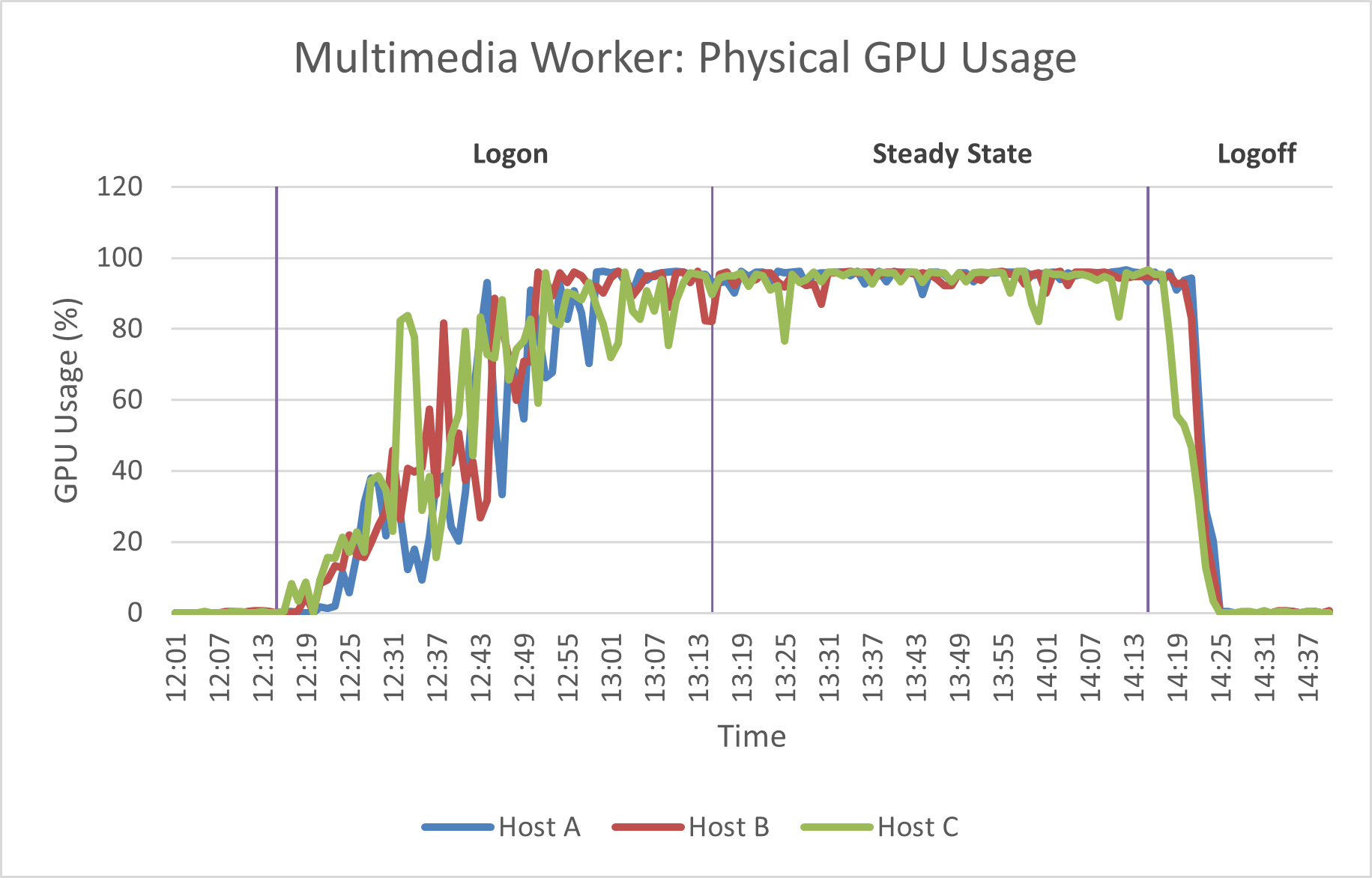
The following graph shows the physical GPU usage of each host during the test. Like CPU usage, GPU usage rises during the logon phase as users log on to VDI sessions. After all 72 users have logged on to their respective sessions, GPU usage stays at 95 percent throughout the steady state phase. This is due to applications such as Microsoft Edge and Zoom offloading compute intensive tasks to the GPU. This demonstrates the increased utilization of GPU resources in a virtual environment. During the logoff phase, GPU usage drops to idle as users log off.
Figure 33. Physical GPU usage of hosts during the test
ESXi host memory usage
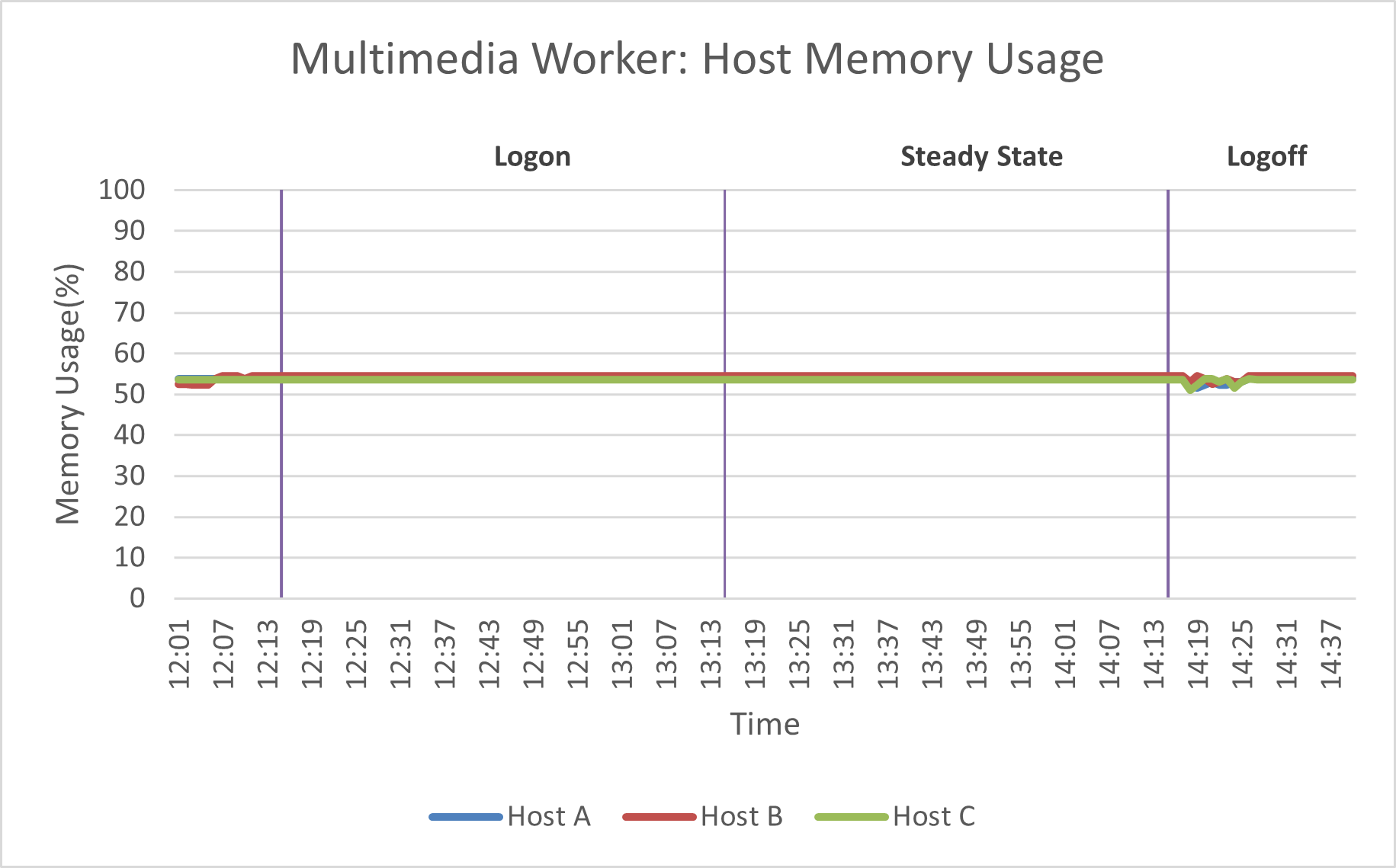
The following graph shows memory usage of ESXi hosts for the duration of the test. The usage is constant throughout the test duration.
Figure 34. ESXi host memory usage during the test
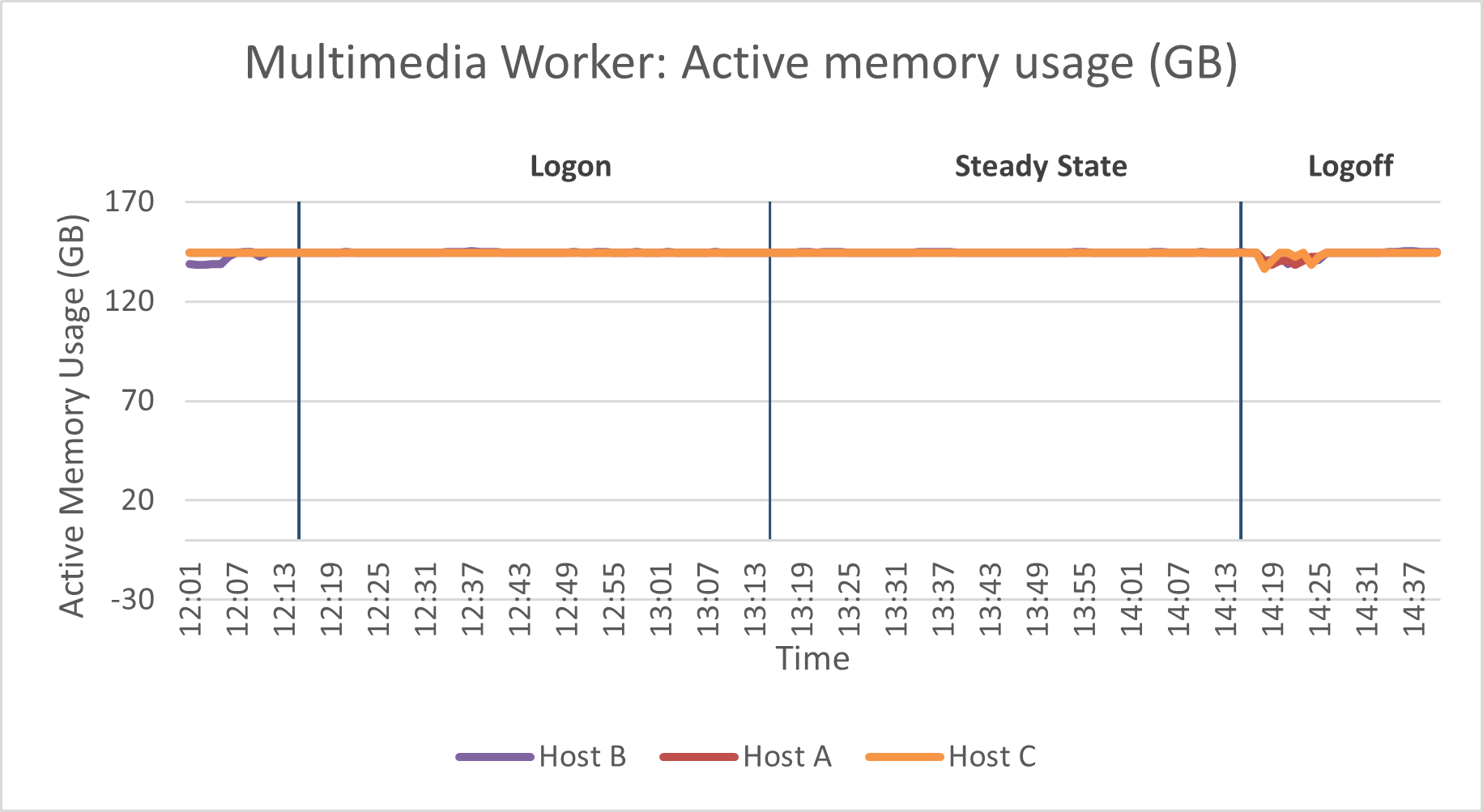
The following graph shows active memory usage for the test duration. Like memory usage, active memory usage is also constant for the test duration.
Figure 35. ESXi hosts active memory usage during the test
ESXi network performance
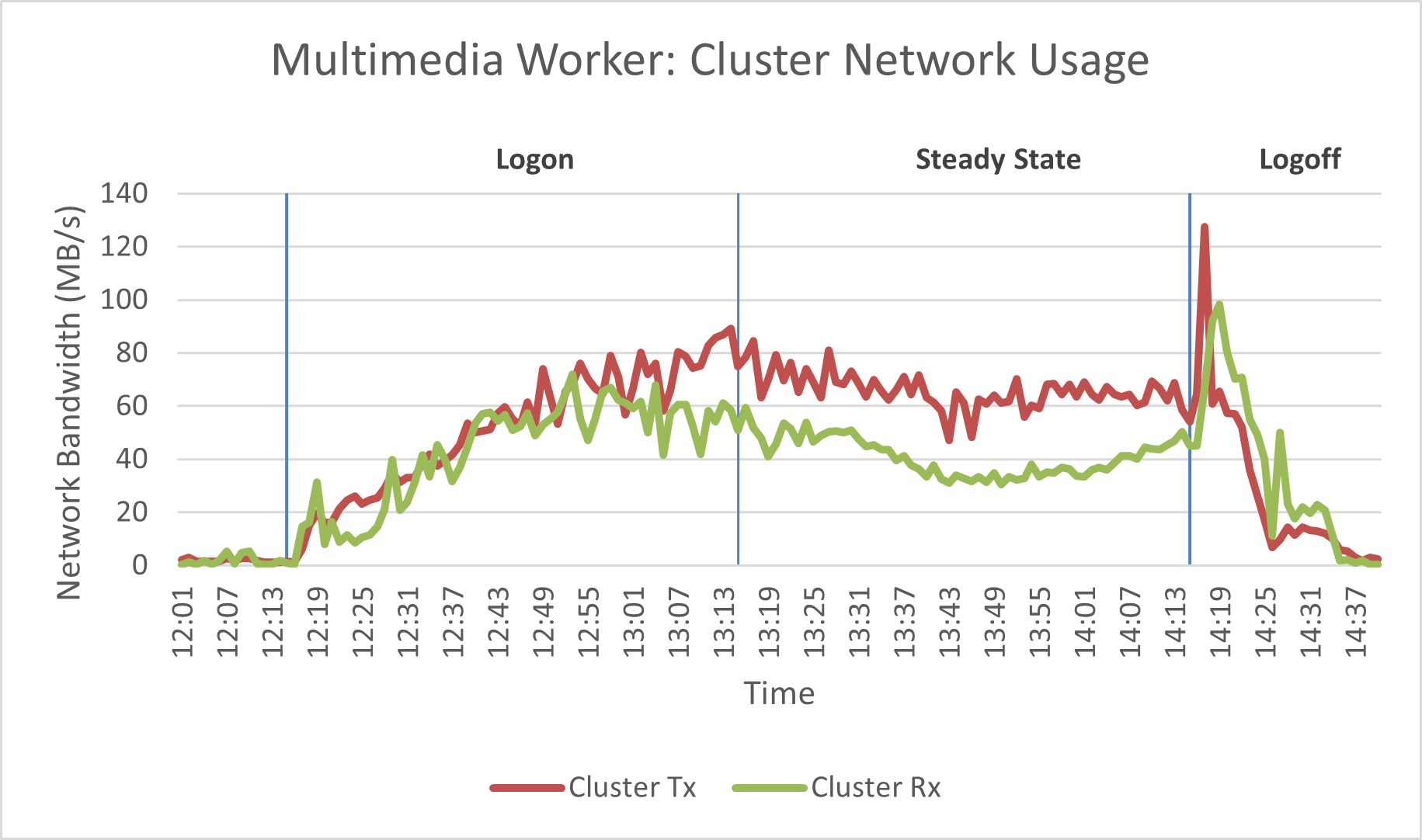
The following graph shows the network performance of ESXi hosts during the test. The usage rises as users log on to their VDI sessions during the logon phase of the test. The usage is initially high at the beginning of the steady state caused by video streaming happening in most VDI sessions. As the streams close and Microsoft Office applications startup, the usage begins to decrease until Zoom meetings generate network traffic. The usage increases until the end of the steady state where Zoom meetings reach the maximum participant concurrency set for the test. A spike in network usage is observed in the logoff phase caused by increased storage traffic due to recreation of VDI VMs by Horizon.
Figure 36. Network usage of compute cluster for the test duration
PowerStore IOPS performance
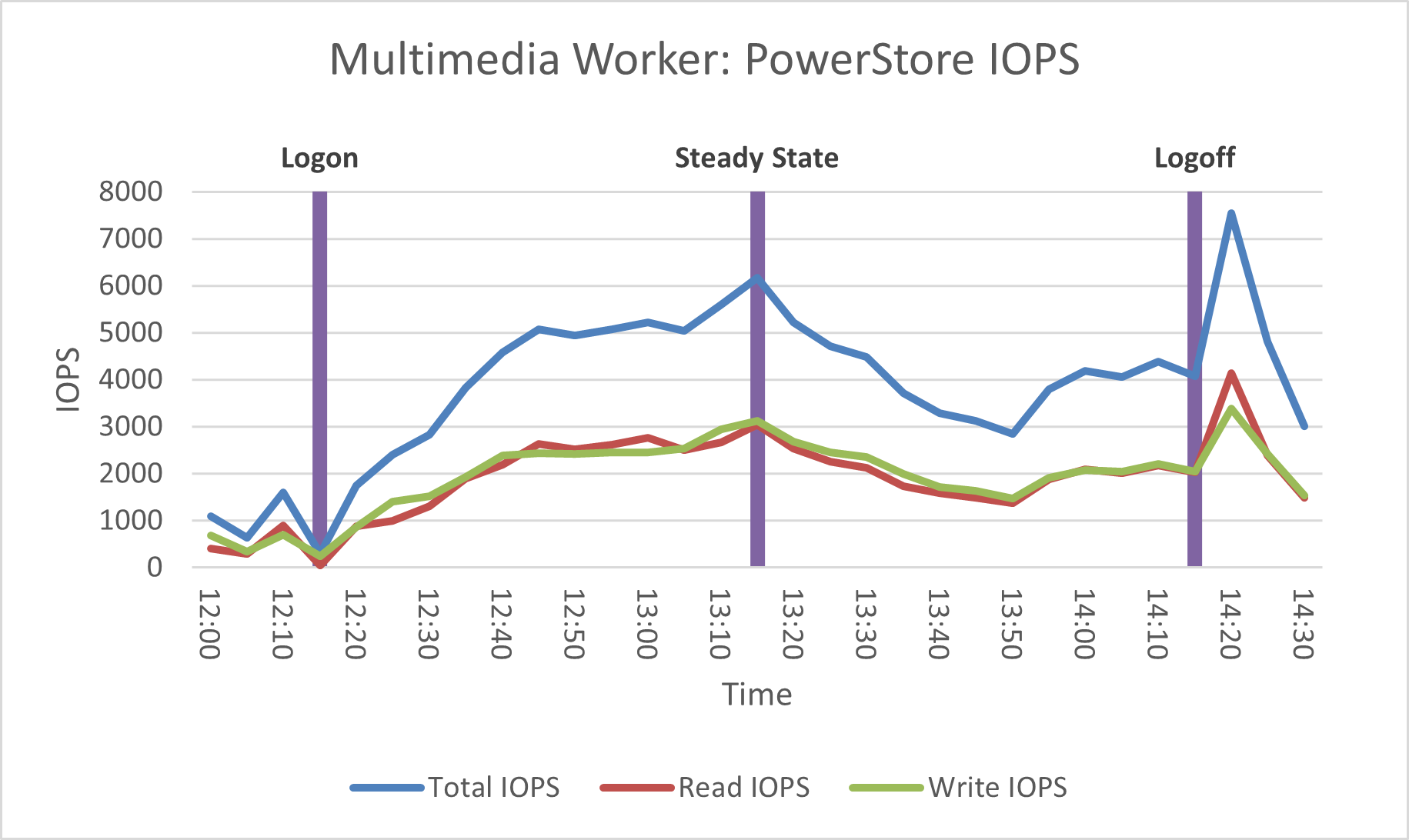
The following graph shows the storage performance of PowerStore for the duration of the test. Total IOPS peaks at only 6,000 IOPS primarily due to the low number of VDI VMs participating in the test compared to Task and Knowledge Worker workloads.
There is more than enough headroom available to accommodate additional VMs that could be added to consume the CPU capacity freed up by applications offloaded to GPUs.
Figure 37. PowerStore IOPS
Best practices
Best practices
For optimal performance of VDI solutions, Dell Technologies recommends the following best practices.
Omnissa Horizon 8 golden image
Use the Horizon operating system optimization tool to optimize golden images.
Use thin-provisioned virtual disks to maximize space savings.
Use a paravirtual SCSI controller with the virtual disk.
Choose VMXNET3 as the adapter type for the VM NIC.
Choose the appropriate video memory for the VM. For example, 8MB of video memory is sufficient for 1920x1080p resolution.
Choose the right license and profile based on user requirements. This solution uses NVIDIA vPC licensing and 2B vGPU profile suitable to run Multimedia Worker workloads.
Choose between an equal-size and mixed-size GPU configuration based on user requirements. Equal-size is better when all users have a similar set of applications like Multimedia Worker while mixed-size deployments are suitable for more flexible environments.
Choose the right GPU scheduler. This solution uses best-effort scheduling which guarantees consistent performance at scale.
Conclusion
Conclusion
Omnissa Horizon 8 offers efficient delivery of applications and desktops from cloud as well as on-premises infrastructure, enabling users to access VDI resources anywhere, at any time, and on any device. Horizon 8 enables centralized management of desktop pools, RDP servers, and physical machines, while features such as instant cloning make managing the environment a seamless experience for IT teams.
The performance characterization and analysis of Omnissa Horizon 8 hosted on PowerStore demonstrates the ability of the solution architecture to support large-scale VDI deployments that deliver good quality VDI sessions to users. When a node was added to the compute cluster, doubling the size of the Horizon desktop pool, the PowerStore Appliance 5200T handled the additional storage traffic without any diminution of the quality of VDI user sessions.
The analysis also showcases the benefits of using NVIDIA GPUs in a VDI environment. Compute intensive applications are offloaded to vGPUs, freeing up compute and memory for additional seats to be added to desktop pools while delivering a smoother experience to end users.
Advanced management features such as DEM Enterprise deployed using PowerStore File give users the ability to personalize their VDI sessions. Changes that users make persist across their VDI sessions.
The combination of Horizon 8 hosted on PowerStore block storage and DEM Enterprise hosted on PowerStore File provides users with a quality, personalized VDI experience, while providing IT teams with centralized storage management, scalability, and enterprise storage features for both block and file storage.
References
References
Dell Technologies documentation
The following Dell Technologies documentation provides additional information. Access to these documents depends on your login credentials. If you do not have access to a document, contact your Dell Technologies representative.
The workload is created using built-in Knowledge Worker workload as a base. Microsoft Edge with multiple tabs and Zoom applications are provided by Login VSI.
The following table lists the applications used in Multimedia Worker. The applications are run in the provided sequence:
Table 9. Multimedia Worker application sequence
Application
Remarks
Microsoft Outlook
Application is left running for the duration of the test
Microsoft Edge
Microsoft Edge opens the following tabs:
A publicly available 4K 60 FPS video stream
Run a Google image search
Microsoft Excel
Application is left running for the duration of the test
Microsoft Word
Application is left running for the duration of the test
Zoom for VDI
Application is run for 25 minutes
Participants join a Zoom meeting run from a physical device with a camera. The camera is active for the meeting duration.
Microsoft PowerPoint
Application is left running for the duration of the test