Objaśnienie portów USB: Typy, złącza, prędkości i rozwiązywanie problemów
Podsumowanie: Dowiedz się więcej na temat typów portów USB, kształtów złączy, wersji i prędkości złączy USB, portów USB monitora firmy Dell, funkcji PowerShare oraz rozwiązywania problemów z niedziałającymi portami USB w urządzeniu firmy Dell. ...
Instrukcje
Porty USB znajdują się w wielu urządzeniach, w tym w komputerze firmy Dell, monitorze, stacji dokującej i akcesoriach. W tym artykule wyjaśniono, czym są porty USB, różne typy, z którymi możesz się spotkać, i co zrobić, jeśli port USB nie działa.
Co to jest port USB?
USB to skrót od Universal Serial Bus (uniwersalna magistrala szeregowa). Jest to standardowy typ portu, który umożliwia podłączenie wszystkich rodzajów urządzeń za pomocą jednego kabla. Porty USB znajdziesz w komputerach, monitorach, stacjach dokujących i wielu innych urządzeniach.
Porty USB mogą robić dwie rzeczy jednocześnie: przesyłają dane (np. kopiują pliki na dysk zewnętrzny) i zasilają (np. ładują telefon).
Jakie porty USB ma moje urządzenie?
Nie wszystkie urządzenia firmy Dell mają takie same porty USB. Dostępne porty zależą od posiadanego modelu i daty jego produkcji. Najlepszym sposobem, aby dowiedzieć się, jakie dokładnie porty ma Twoje urządzenie i co każdy z nich może zrobić, jest sprawdzenie instrukcji obsługi tego urządzenia.
Aby znaleźć instrukcję obsługi:
- Przejdź na stronę Instrukcje obsługi firmy Dell .
- W polu wyszukiwania wpisz kod Service Tag, kod obsługi ekspresowej lub numer modelu. Uzyskaj pomoc w znalezieniu kodu Service Tag urządzenia.
- W sekcji Podręczniki i dokumenty wybierz podręcznik użytkownika urządzenia, a następnie odszukaj sekcję dotyczącą portów lub łączności.
Gdzie znajdują się porty USB?
Porty USB znajdują się nie tylko w komputerach. Znajdziesz je na różnych urządzeniach, w tym:
Komputery i notebooki zazwyczaj mają porty USB po bokach, z przodu lub z tyłu. Umożliwiają one podłączenie akcesoriów codziennego użytku, takich jak klawiatury, myszy, dyski flash, telefony i inne, bezpośrednio do komputera.

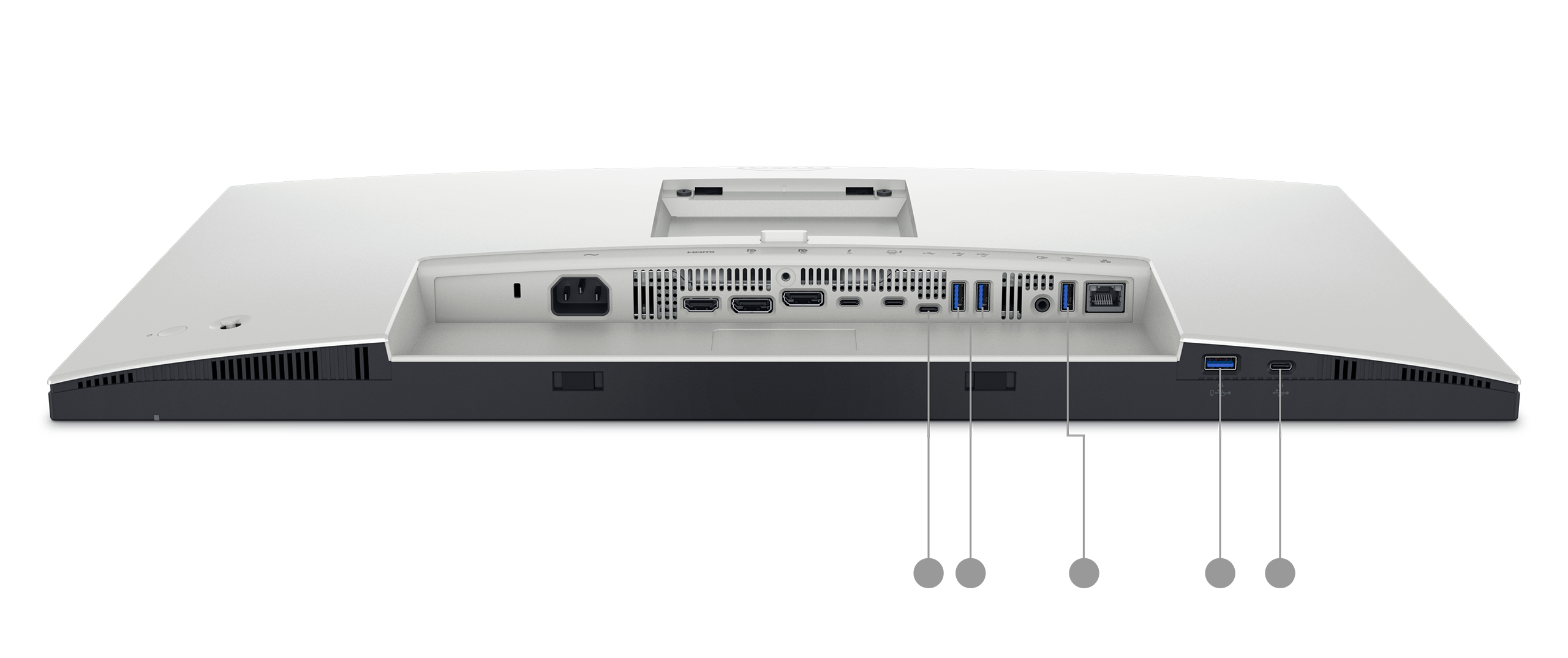
Monitory często mają wbudowane porty USB, które zmieniają monitor w wygodne miejsce na akcesoria. Aby dowiedzieć się, jak to działa, zapoznaj się z poniższą sekcją Porty USB w monitorach firmy Dell .
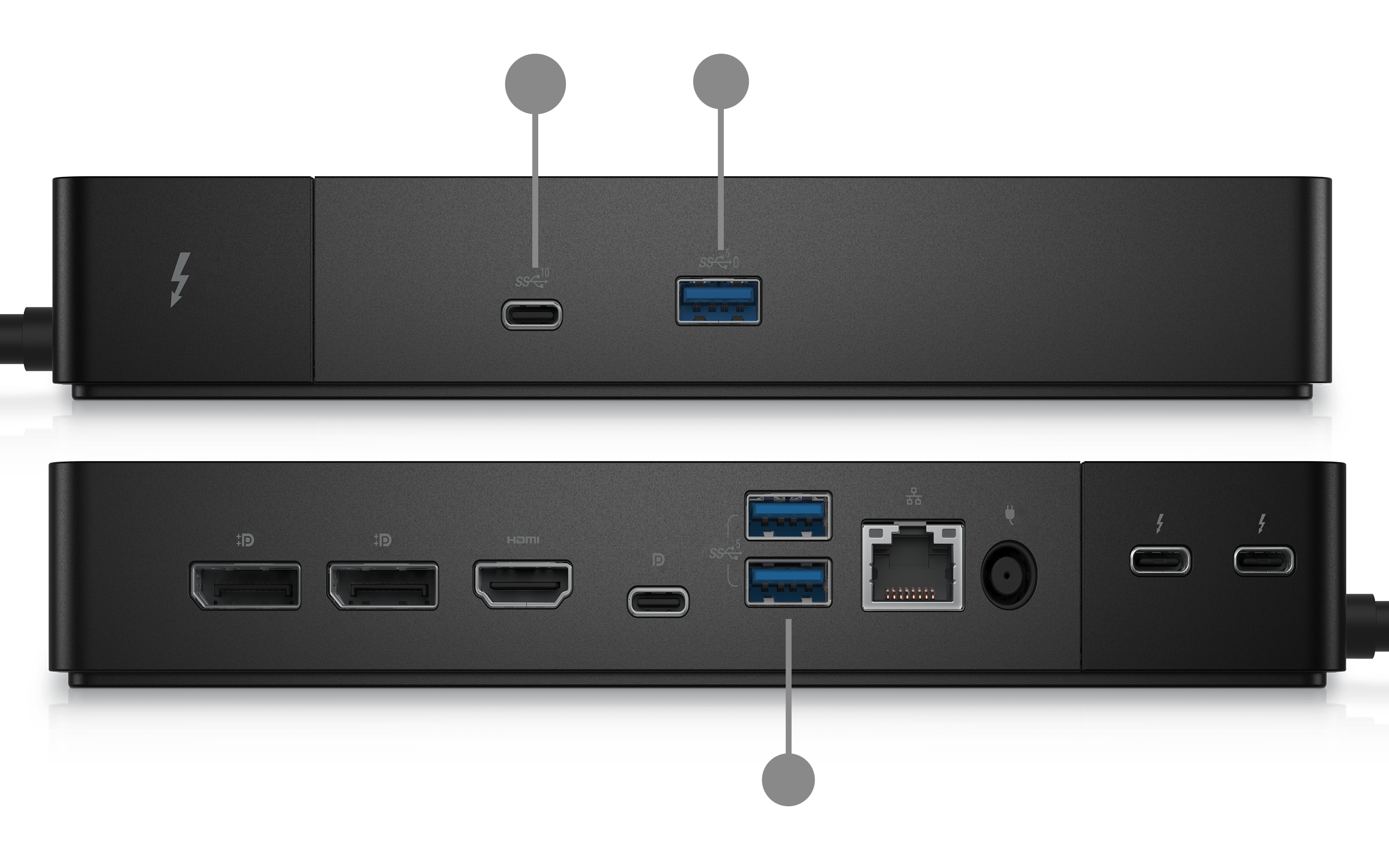
Stacje dokujące zaprojektowano z myślą o zwiększeniu liczby i różnorodności portów dostępnych dla notebooka. Pojedynczy kabel łączy notebooka ze stacją dokującą, która następnie zapewnia dostęp do wielu portów USB, wyjść wyświetlacza, sieci Ethernet i innych funkcji.
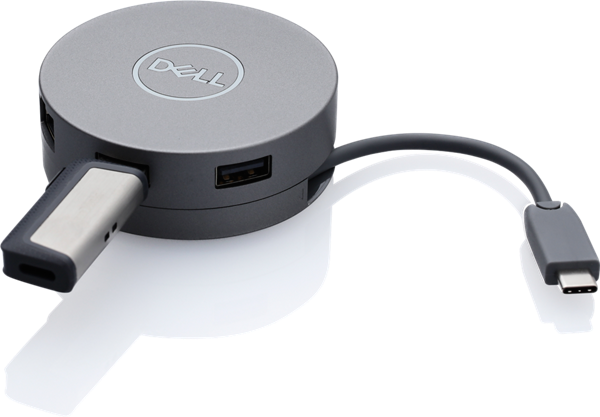
Koncentratory USB to autonomiczne akcesoria, które zamieniają jeden port USB w kilka. Zapoznaj się z artykułem Potrzebujesz więcej portów USB? Aby dowiedzieć się więcej, skorzystaj z poniższej sekcji koncentratora USB.
Typowe kształty portów USB i zawartość urządzenia
Kształt portu USB informuje, jakie kable i urządzenia będą pasować. Poniżej przedstawiono najczęściej spotykane typy portów, które najprawdopodobniej można zobaczyć w urządzeniach firmy Dell.
- USB Type-A to szeroki, płaski, prostokątny port. Jest to najpopularniejszy typ, który znajduje się na komputerach i urządzeniach od wielu lat. Większość kabli i akcesoriów USB, dysków flash, klawiatur, myszy korzysta z tego portu.
- USB Type-B to kwadratowy port z lekko pochylonymi górnymi rogami. Rzadziej występuje bezpośrednio na komputerach. Złącze typu B znajduje się zazwyczaj po stronie kabli drukarki i skanera.
- USB Type-C to nowszy, mniejszy port o owalnym kształcie. Jest w pełni odwracalny, nie ma złego sposobu na jego podłączenie. W zależności od specyfikacji urządzenia za pomocą tego samego portu można ładować, przesyłać dane z dużą szybkością i podłączać wyświetlacze zewnętrzne.
USB typu C odnosi się do kształtu portu i złącza. Jest niezależny od wersji USB (prędkość). Niektóre porty USB-C obsługują standard USB 4, podczas gdy inne mogą obsługiwać tylko standard USB 2.0. Podobnie szybkość USB 3.2 jest dostępna zarówno w przypadku portu USB typu A, jak i USB typu C. Zawsze sprawdzaj dane techniczne urządzenia, aby zrozumieć szybkość obsługiwaną przez port.
Typy złączy USB, zawartość kabla lub urządzenia
Port w urządzeniu to tylko połowa połączenia. Druga połowa to złącze na kablu lub akcesorium. Różne urządzenia używają różnych kształtów złączy. Wiedza o tym, który jest który, chroni Cię przed złapaniem niewłaściwego kabla.
Złącze USB Type-A
Jest to szeroka, płaska, prostokątna wtyczka, którą większość ludzi wyobraża sobie, myśląc o USB. Jest to standardowe złącze w dyskach flash, klawiaturach, myszach i jednym końcu większości kabli USB.
Najczęściej spotykane na: Dyski flash, klawiatury, myszy, koncentratory USB oraz jedna końcówka kabli do ładowania i transmisji danych.
Złącze USB typu B
Jest to kwadratowy łącznik z lekko pochylonymi górnymi rogami. Zazwyczaj znajduje się on na końcu kabli drukarki i skanera, na końcu podłączanym do drukarki, a nie do komputera.
Najczęściej spotykane na: Drukarki, skanery i niektóre starsze zewnętrzne dyski twarde.
Złącze mini USB
Mini USB to niewielkie złącze o charakterystycznym trapezowym kształcie, szersze u góry i węższe u dołu. Został zaprojektowany z myślą o kompaktowych urządzeniach, zanim micro USB stało się standardem. Został w dużej mierze zastąpiony przez micro USB i USB-C, ale nadal można go spotkać na starszych urządzeniach.
Najczęściej spotykane na: Starsze aparaty cyfrowe, starsze urządzenia GPS, niektóre starsze odtwarzacze MP3 i starsze przenośne dyski twarde.
Złącze Micro USB
Micro USB jest mniejszy i cieńszy niż mini USB. Ma płaską dolną krawędź i lekko skośne górne rogi. Przez wiele lat było to standardowe złącze do ładowania i transmisji danych dla telefonów, tabletów z systemem Android oraz szerokiej gamy akcesoriów.
Najczęściej spotykane na: Starsze telefony i tablety z systemem Android, przenośne ładowarki (power banki), głośniki i słuchawki Bluetooth, czytniki e-booków i wiele drobnych akcesoriów.
Złącze Micro USB 3.0
Micro USB 3.0 ma nietypowy kształt, wygląda jak standardowe złącze micro USB z dodatkową sekcją przymocowaną z boku, dzięki czemu jest zauważalnie szerszy. Ta dodatkowa sekcja zawiera dodatkowe złącza potrzebne do obsługi szybkości USB 3.0.
Najczęściej spotykane na: Starsze przenośne zewnętrzne dyski twarde.
Łącznik USB Type-C
USB Type-C to małe złącze o owalnym kształcie, które szybko staje się nowym uniwersalnym standardem. W przeciwieństwie do starszych złączy jest w pełni odwracalny, nie ma złego sposobu na jego podłączenie. Obsługuje większe prędkości danych, wyższą moc i więcej funkcji niż jakikolwiek poprzedni typ złącza.
Najczęściej spotykane na: Nowoczesne notebooki (w tym nowsze komputery firmy Dell), smartfony, tablety, monitory, stacje dokujące i nowsze akcesoria.
Skrócone informacje: Kształty łączników w skrócie
| Złącze | Kształt | Nadal powszechne? | Zazwyczaj używane do |
|---|---|---|---|
| USB typu A | Szeroki, płaski prostokąt | Tak | Dyski flash, klawiatury, myszy |
| USB Type-B (Kontroler USB) | Kwadrat z ukośnymi górnymi narożnikami | Rzadziej spotykane | Drukarki, skanery |
| Mini USB | Mały trapez | Tylko starsze urządzenia | Starsze aparaty fotograficzne, odtwarzacze MP3 |
| Micro USB | Cienka, płaskodenna | Tak | Akcesoria do Androida, powerbanki |
| Złącze Micro USB 3.0 | Szerokie złącze micro USB (dwugłowicowe) | Rzadziej spotykane | Starsze przenośne dyski twarde |
| USB typu C | Mały owalny, odwracalny | Tak, coraz bardziej standardowy | Nowoczesne laptopy, telefony, akcesoria |
Wersje i prędkości USB, jaka jest różnica?
Na przestrzeni lat technologia USB uległa znacznej poprawie. Nowsze wersje przesyłają pliki znacznie szybciej niż starsze.
Wersja USB, którą obsługuje port, jest oddzielona od jego kształtu. Na przykład port USB Type-C w starszym urządzeniu może obsługiwać tylko szybkość USB 2.0, podczas gdy port USB Type-A w nowszym urządzeniu może obsługiwać tylko szybkość USB 3.2. Instrukcja obsługi zawiera dokładne informacje o tym, co obsługuje każdy port urządzenia.
Oto prosty przewodnik po najpopularniejszych wersjach USB:
| Wersja USB | Znany również jako | Szybkość | Szablon odpowiedni dla |
|---|---|---|---|
| USB 2.0 | Szybki port USB | Do 480 Mb/s | Klawiatury, myszy, podstawowe dyski flash |
| USB 3.2 pierwszej generacji | USB 3.0 / SuperSpeed USB 5 Gb/s | Do 5 Gb/s | Zewnętrzne dyski twarde, pendrive'y, kamery internetowe |
| USB 3.2 drugiej generacji | Superszybki port USB 10 Gb/s | Do 10 Gb/s | Szybkie zewnętrzne dyski SSD, transfer wideo w wysokiej rozdzielczości |
| Port USB 4 | Port USB4 | Do 40 Gb/s | Wydajna pamięć masowa, zewnętrzne wyświetlacze |
Co oznaczają Mb/s i Gb/s? Są to jednostki szybkości przesyłania danych. Mb/s oznacza liczbę megabitów na sekundę, a Gb/s oznacza gigabity na sekundę. 1 Gb/s jest około 1000 razy szybsze niż 1 Mb/s. Na co dzień szybsza wersja USB oznacza krótszy czas oczekiwania na kopiowanie dużych plików.
Kilka rzeczy, które warto wiedzieć:
- Nowsze porty działają ze starszymi urządzeniami. Jeśli podłączysz urządzenie USB 2.0 do portu USB 3.0, będzie ono nadal działać, tylko z mniejszą prędkością standardu USB 2.0. Nigdy nie tracisz kompatybilności.
- Kabel też ma znaczenie. Nawet jeśli port obsługuje szybkość USB 3.0, użycie starszego lub gorszej jakości kabla może spowolnić pracę. Aby uzyskać najlepszą wydajność, użyj kabla dostarczonego z urządzeniem lub zgodnego z wersją USB portu.
- Poszukaj symbolu "SS". Porty USB 3.0 i szybsze są często oznaczone literami "SS" (SuperSpeed) wydrukowanymi obok portu. Niektóre mają również niebieską wkładkę wewnątrz otworu portu, chociaż nie jest to spójne u wszystkich producentów.
- USB 4 to najnowszy standard. Znajduje się w nowszych urządzeniach firmy Dell z wyższej półki. Zapewnia największe prędkości i obsługuje większość funkcji, ale aby w pełni wykorzystać jego możliwości, potrzebujesz kabla i urządzenia zgodnego ze standardem USB 4.
Do czego mogę używać portów USB?
Porty USB współpracują z szeroką gamą urządzeń codziennego użytku, w tym:
- Klawiatury i myszy
- Dyski flash USB i zewnętrzne dyski twarde
- Telefony i tablety (do ładowania lub przesyłania plików)
- Drukarki i skanery
- Kamery internetowe i kamery
- Koncentratory USB (aby dodać więcej portów USB)
Większość urządzeń działa od razu po podłączeniu, urządzenie rozpoznaje je automatycznie.
Porty USB w monitorach firmy Dell
Wiele monitorów firmy Dell ma wbudowane porty USB, które ułatwiają podłączanie akcesoriów, takich jak klawiatura, mysz, kamera internetowa lub dysk flash, bezpośrednio do monitora, bez konieczności sięgania do komputera. Aby skorzystać z tych portów, warto zrozumieć, jak działają.
Porty typu upstream i downstream na monitorach
Monitor firmy Dell z portami USB działa jak koncentrator USB. Ma dwa rodzaje portów USB, upstream i downstream, a każdy z nich pełni inną rolę.
Port upstream to sposób , w jaki monitor łączy się z komputerem. Można to porównać do połączenia monitora z komputerem. Jeden koniec kabla USB podłącza się do portu przesyłania w monitorze, a drugi koniec do portu USB w komputerze. To połączenie umożliwia działanie wbudowanych portów USB monitora, bez którego porty pobierania danych monitora nie będą działać.
- Port upstream jest zwykle oznaczony.
- Obsługiwane monitory firmy Dell mają jeden port upstream.
- W zależności od modelu monitora portem upstream jest zazwyczaj port USB typu B lub USB typu C.
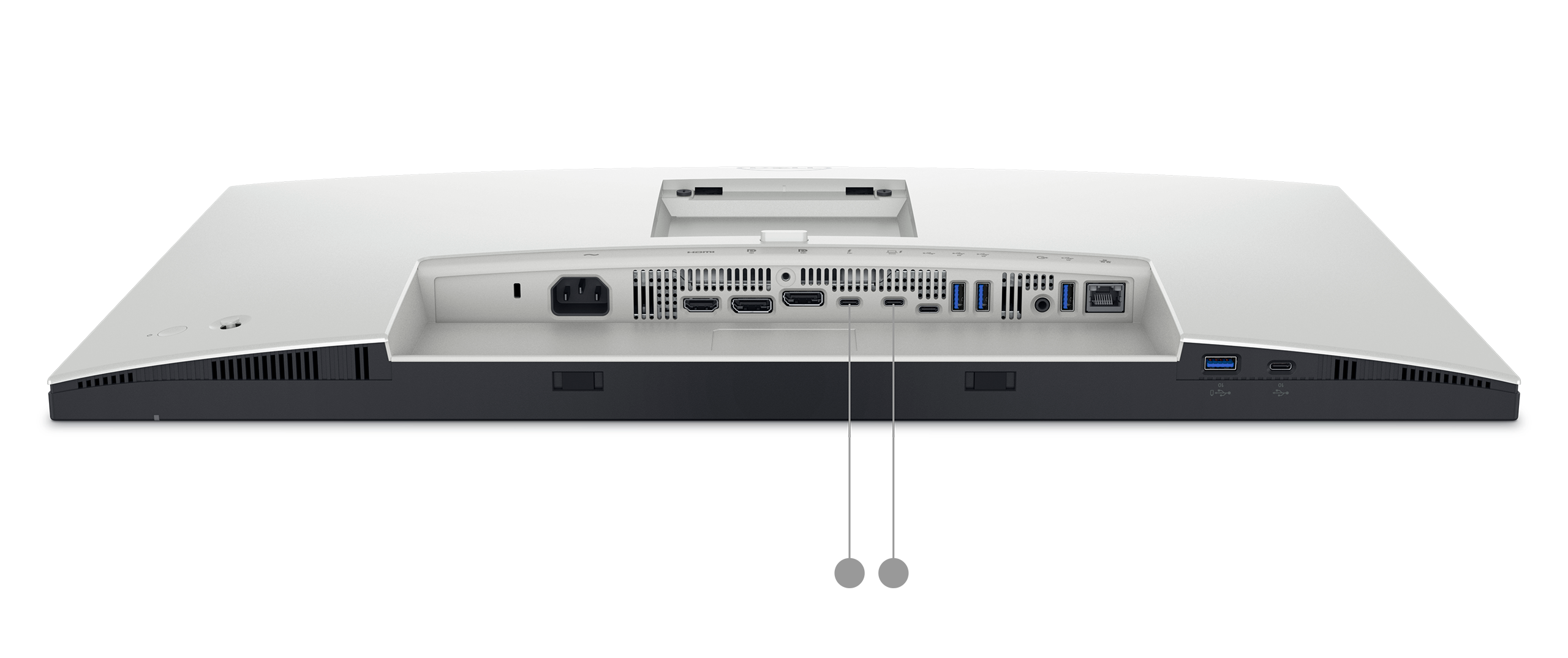
Porty downstream to porty używane do podłączania akcesoriów. Po podłączeniu przewodu typu upstream do komputera każde urządzenie podłączone do portu pobierania monitora, takie jak klawiatura, mysz lub dysk flash, komunikuje się bezpośrednio z komputerem, tak jakby zostało podłączone do samego komputera.
- Porty pobierania danych to zazwyczaj porty USB typu A lub USB typu C.
- Obsługiwane monitory firmy Dell mogą mieć od dwóch do czterech portów pobierania danych.
- Niektóre porty pobierania danych obsługują również ładowanie, dzięki czemu można ładować telefon lub tablet nawet wtedy, gdy monitor jest w trybie gotowości. Sprawdź w instrukcji obsługi monitora, czy dotyczy to Twojego modelu.
Jak to wszystko działa
Oto prosty sposób, aby to zobrazować: port upstream to jedyna droga, która łączy monitor z komputerem. Porty w dolnym biegu rzeki to odgałęziające się od niego boczne ulice. Wszystko, co porusza się po tych bocznych uliczkach, dane z myszy, pliki z pendrive'a, korzysta z tej głównej drogi, aby dotrzeć do komputera.
Oznacza to, że całkowita prędkość dostępna na wszystkich portach pobierania danych jest współdzielona przez jedno połączenie upstream. Jeśli przesyłasz duże pliki z wielu urządzeń w tym samym czasie, współdzielą one dostępną przepustowość połączenia upstream.
Konfigurowanie portów USB monitora firmy Dell
- Podłącz monitor do komputera za pomocą kabla wyświetlacza (takiego jak HDMI, DisplayPort lub USB-C).
- Podłącz kabel USB z portu przesyłania danych w monitorze do portu USB w komputerze.
- Podłącz akcesoria (klawiaturę, mysz, dysk flash itd.) do portów pobierania monitora.
Komputer powinien automatycznie rozpoznać podłączone akcesoria.
Potrzebujesz więcej portów USB? Użyj koncentratora USB
Koncentrator USB to małe urządzenie, które zamienia jeden port USB w kilka. Działa jak listwa zasilająca, ale dla urządzeń USB. Jeśli zabraknie Ci portów USB, koncentrator jest łatwym i niedrogim rozwiązaniem.
Istnieją dwa rodzaje koncentratorów USB i warto zrozumieć różnicę przed zakupem.
Koncentratory niezasilane (zasilane z magistrali)
Niezasilany koncentrator pobiera całą energię bezpośrednio z portu USB, do którego jest podłączony. Nie ma oddzielnego kabla zasilającego, wystarczy go podłączyć i gotowe.
Szablon odpowiedni dla: Urządzenia o niskim poborze mocy, takie jak klawiatury, myszy i dyski flash.
Pamiętaj: Ponieważ koncentrator współdzieli zasilanie z jednego portu USB, ma pewne ograniczenia. Podłączenie zbyt wielu urządzeń lub urządzenia wymagającego większej mocy (np. zewnętrznego dysku twardego lub kamery internetowej) może spowodować, że niektóre urządzenia nie będą działać prawidłowo lub w ogóle nie zostaną rozpoznane.
Zasilane koncentratory
Zasilany koncentrator jest dostarczany z własnym zasilaczem, który podłącza się do gniazdka ściennego. Zasila on każdy port własnym dedykowanym zasilaniem, niezależnie od urządzenia, do którego jest podłączony.
Szablon odpowiedni dla: Urządzenia wymagające większej mocy, takie jak zewnętrzne dyski twarde, telefony, kamery internetowe i inne akcesoria o większej mocy. Zasilane koncentratory są również bardziej niezawodne, gdy jednocześnie podłączonych jest kilka urządzeń.
Pamiętaj: Potrzebne będzie wolne gniazdko zasilania dla adaptera koncentratora.
Jaki typ huba wybrać?
Jeśli podłączasz proste akcesoria, takie jak klawiatura i mysz, koncentrator bez zasilania działa dobrze. Jeśli planujesz podłączyć dyski zewnętrzne, ładować urządzenia lub korzystać z kilku akcesoriów jednocześnie, koncentrator zasilany jest lepszym i bardziej niezawodnym wyborem.
Wskazówka: Kupując koncentrator USB, sprawdź, czy obsługuje on tę samą wersję USB, co port, do którego go podłączasz, na przykład USB 3.0. Koncentrator, który obsługuje tylko standard USB 2.0, ogranicza prędkość każdego podłączonego do niego urządzenia, nawet jeśli te urządzenia i komputer obsługują większe prędkości.
Dell PowerShare
Niektóre notebooki firmy Dell obsługują funkcję PowerShare. Umożliwia ładowanie urządzenia, takiego jak telefon lub tablet, za pośrednictwem określonego portu USB, nawet gdy notebook jest wyłączony lub w trybie uśpienia.
W obsługiwanych notebookach port USB z funkcją PowerShare jest oznaczony małą ikoną błyskawicy lub ikoną baterii wydrukowaną na obudowie notebooka, tuż obok portu.
Nie każdy notebook firmy Dell jest wyposażony w funkcję PowerShare i nie każdy port USB w obsługiwanym notebooku jest w nią wyposażony. Jeśli nie masz pewności, czy Twój notebook obsługuje funkcję PowerShare, zapoznaj się z instrukcją obsługi, wykonując czynności opisane w sekcji Jakie porty USB ma moje urządzenie? powyżej.
Szczegółowe informacje na temat działania i konfiguracji funkcji PowerShare można znaleźć w artykule Czym jest funkcja USB PowerShare w notebookach firmy Dell.
Port USB nie działa? Najpierw spróbuj wykonać te czynności
Jeśli urządzenie USB nie jest rozpoznawane lub nie działa, wypróbuj kilka prostych rozwiązań:
- Odłącz urządzenie i podłącz je ponownie mocno.
- Użyj innego portu USB w urządzeniu.
- Jeśli korzystasz z portów USB monitora, sprawdź, czy kabel USB typu upstream jest podłączony od monitora do komputera.
- Uruchom ponownie komputer i ponownie podłącz urządzenie.
- Spróbuj podłączyć urządzenie na innym komputerze, aby sprawdzić, czy problem dotyczy urządzenia, czy portu.
- Sprawdź port i kabel pod kątem widocznych uszkodzeń, takich jak wygięte styki, pęknięcia lub luźne pasowanie.
Jeśli żaden z powyższych kroków nie rozwiązał problemu, uruchom test diagnostyczny komputera.
Uruchamianie diagnostyki portów USB
Narzędzie diagnostyczne online firmy Dell może szybko sprawdzić, czy porty USB w komputerze działają prawidłowo.
- Przejdź do strony Dell USB Port Diagnostics .
- Postępuj zgodnie z instrukcjami wyświetlanymi na ekranie, aby przetestować każdy z portów USB.
Nadal potrzebujesz pomocy?
Jeśli problem nie ustąpi po wykonaniu powyższych czynności, dział pomocy technicznej firmy Dell jest gotowy do pomocy.
- Rozwiązać: Zapoznaj się z naszym przewodnikiem rozwiązywania problemów, aby rozwiązać problem z niedziałającymi portami USB w systemie Windows.
- Fora użytkowników: Przeglądaj odpowiedzi i wskazówki innych użytkowników produktów firmy Dell w społeczności firmy Dell.
Dodatkowe informacje
Polecane artykuły
Poniżej przedstawiono niektóre polecane artykuły dotyczące tego tematu, które mogą Cię zainteresować.