Teclado, mouse y panel táctil
Obtenga información sobre cómo conectarse y solucionar problemas comunes con el teclado, el mouse o el panel táctil.
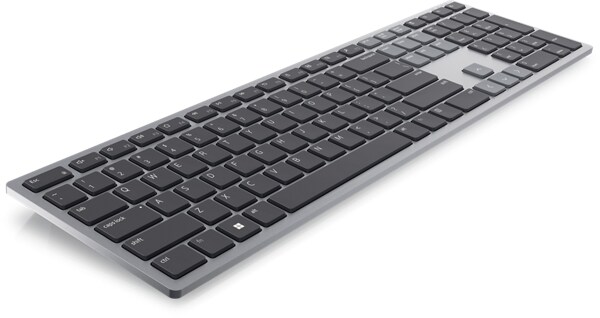
Prueba de hardware del teclado
Dell recomienda ejecutar diagnósticos en el teclado inalámbrico, Bluetooth o con cable para asegurarse de que funcione correctamente.
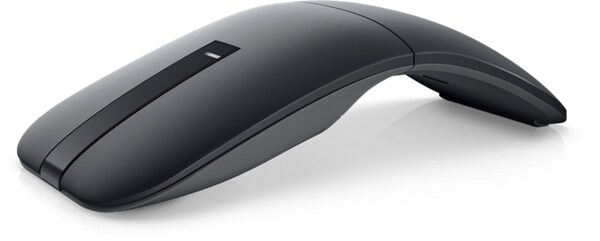
Prueba de hardware de mouse
Dell recomienda ejecutar diagnósticos en el mouse inalámbrico, Bluetooth o con cable para asegurarse de que funcione correctamente.
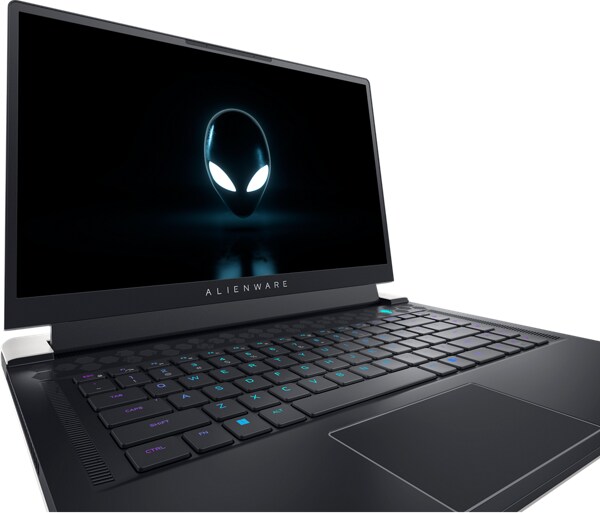
Prueba de hardware del panel táctil
Dell recomienda ejecutar diagnósticos en el panel táctil para asegurarse de que funcione correctamente.
Soporte adicional
El teclado no funciona: teclados USB, Bluetooth o inalámbricos
Descubra cómo solucionar problemas comunes del teclado, como problemas de conectividad, teclas que no responden y más. Vuelva a poner en funcionamiento el teclado USB, Bluetooth o inalámbrico.Mouse
¿Tiene un problema con su mouse USB, Bluetooth o inalámbrico? Siga los pasos rápidos sugeridos para resolver problemas relacionados con el mouse en una computadora Dell. Encuentre enlaces a los recursos adicionales para solucionar los problemas del mouse.Panel táctil
¿Tiene un problema con el panel táctil? Siga los pasos rápidos sugeridos para resolver problemas relacionados con el panel táctil en una computadora Dell. Encuentre enlaces a los recursos adicionales para solucionar los problemas del panel táctil.El teclado de la laptop no funciona
Descubra soluciones eficaces para solucionar problemas del teclado de la laptop, desde teclas que no responden hasta teclas atascadas. Siga nuestra guía para que su teclado vuelva a funcionar bien.Guía de configuración del teclado: Conecte teclados USB, inalámbricos y Bluetooth
Aprenda a configurar teclados USB, inalámbricos y Bluetooth. Encuentre consejos sobre cómo emparejar el teclado, ajustarlo, cambiar el idioma y mantenerlo en buen estado.Guía de configuración del mouse: Conecte un mouse USB, inalámbrico y Bluetooth
Aprenda cómo conectar un mouse a una laptop y una computadora de escritorio mediante USB, tecnología inalámbrica o Bluetooth. Consulte consejos de emparejamiento y la configuración del mouse.Recursos en video

En este video, se proporciona una guía paso a paso para solucionar problemas comunes del teclado en Windows. O
btenga información sobre cómo probar el teclado fuera del sistema operativo, ejecutar diagnósticos, utilizar el teclado virtual y actualizar el BIOS. Siga estas instrucciones para asegurarse de que el teclado funcione correctamente y sepa cuándo comunicarse con el soporte técnico de Dell para obtener más ayuda.
Para obtener más información, consulte este artículo: Teclado ...
Para obtener más información, consulte este artículo: Teclado ...

Descubra cómo emparejar y conectar fácilmente dispositivos Bluetooth a su PC con Windows 11 en este ú til video tutorial.
...
Para realizar un análisis completo del sistema en la computadora, presione la tecla F12 durante el inicio y va
ya a Diagnostics con las teclas de flecha. Presione Intro para comenzar el escaneo y utilice el panel táctil para comprobar si el puntero se mueve de forma errática. Para salir de las pruebas predeterminadas, presione la tecla Escape.
...
Otros recursos

Bluetooth
Siga los pasos rápidos sugeridos para resolver los problemas relacionados con el dispositivo Bluetooth en una computadora Dell. Encuentre enlaces a los recursos adicionales para solucionar los problemas de Bluetooth. Bluetooth
Dell Display and Peripheral Manager para macOS
Dell Display and Peripheral Manager (DDPM) es un software que mejora la productividad y la personalización de los monitores y las cámaras web de Dell en macOS. Dell Display and Peripheral Manager para macOS