The Easy Arrange feature in Dell Display and Peripheral Manager (DDPM) allows you to partition your monitor screen and organize your applications seamlessly, creating a more efficient workspace. Enhance your productivity and optimize your workflow with this versatile feature. For information or assistance, visit: Dell.com/Support/DDPM.
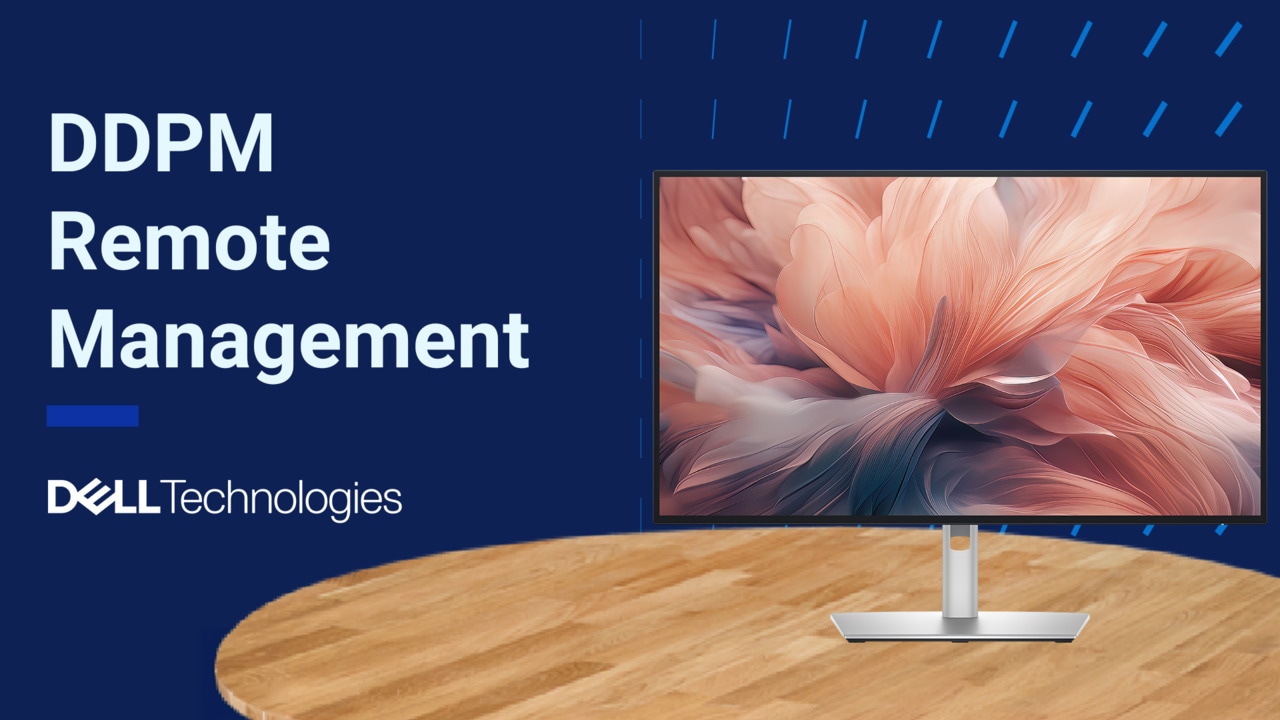
In this video, we will walk you through an overview of the Easy Arrange and Easy Arrange Memory feature in Dell Display and Peripheral Manager or DDPM. To get started, select your device and navigate to the overview page. Here you'll see a detailed visual representation of your display, including information like the firmware version, service tag, and manufacturing date.
On the right, you'll find quick access to essential features like Display Settings, Input Source, Easy Arrange, KVM, and more. Offering everything you need to set up and customize your monitor, Easy Arrange helps you maximize your efficiency by allowing you to partition your monitor screen. You can now view multiple applications simultaneously without the hassle of resizing or toggling between multiple windows and displays. Select a template from the Layout tab and drag your applications into the predefined layouts.
Choose from a variety of predefined layouts or create your own custom layout to customize. Click the pen icon to adjust the partition lines and save your layout for later use. Assign a hot key to your most recently used layouts for quick access. Go to the Settings menu and enter your preferred key combination. You can further personalize your experience by aligning applications across your screen side by side, with or without gaps.
You can also allow zone positioning when the Shift key is pressed. Enhance your setup by spinning your chosen layout across multiple monitors for seamless synchronization. For the best experience, ensure your monitors are aligned side by side. Enable the Application Windows Snap feature to quickly arrange apps in your preferred layout. Use the floating menu to drag and drop apps onto your recently used layouts for easy organization.
The Easier Range Memory feature makes it even easier to use your frequently used E asy Memory profile. With this feature, you can create profiles with applications and specific files assigned to different sections of your monitor screen, save them, and restore them as needed. You can create up to 9 profiles that can be saved and launched manually, automatically at startup, or at a scheduled time.
Whether you're tackling important tasks, working with your team, or relaxing after a long day, Dell Display and Peripheral Manager adapts to your needs to keep you productive. Download the free software at Dell.com/Support/DDPM and elevate your work today.