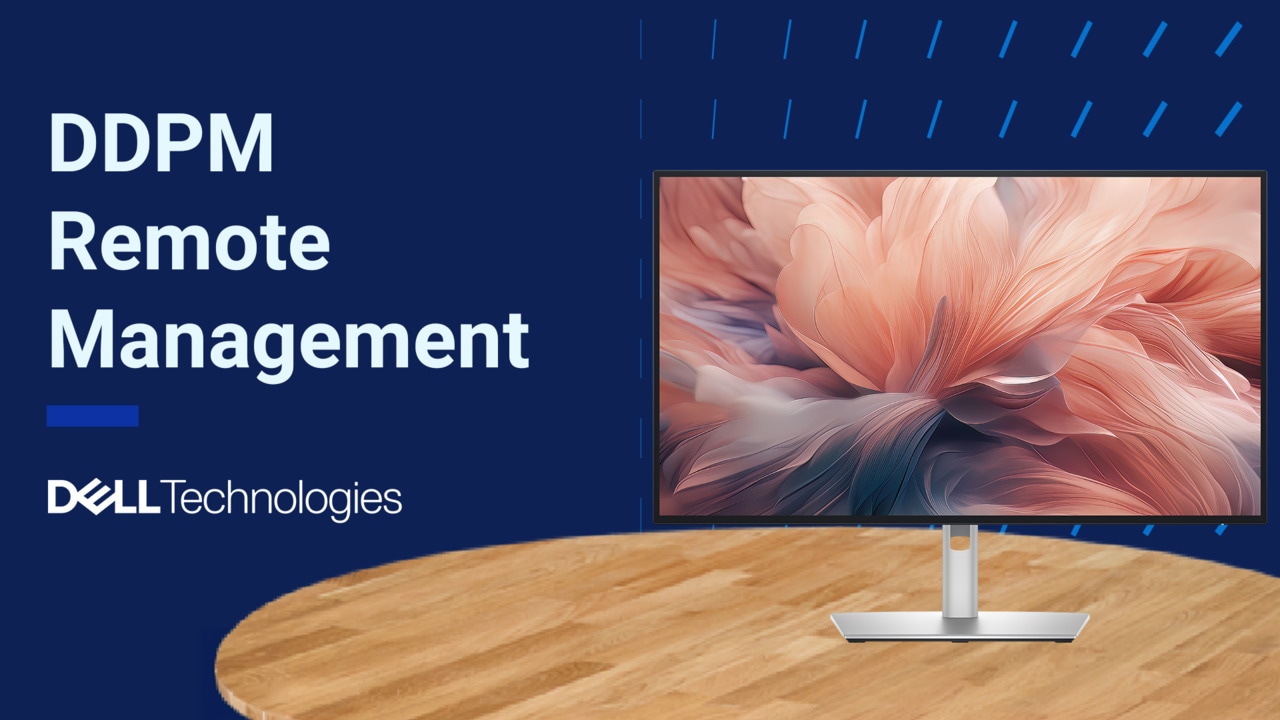
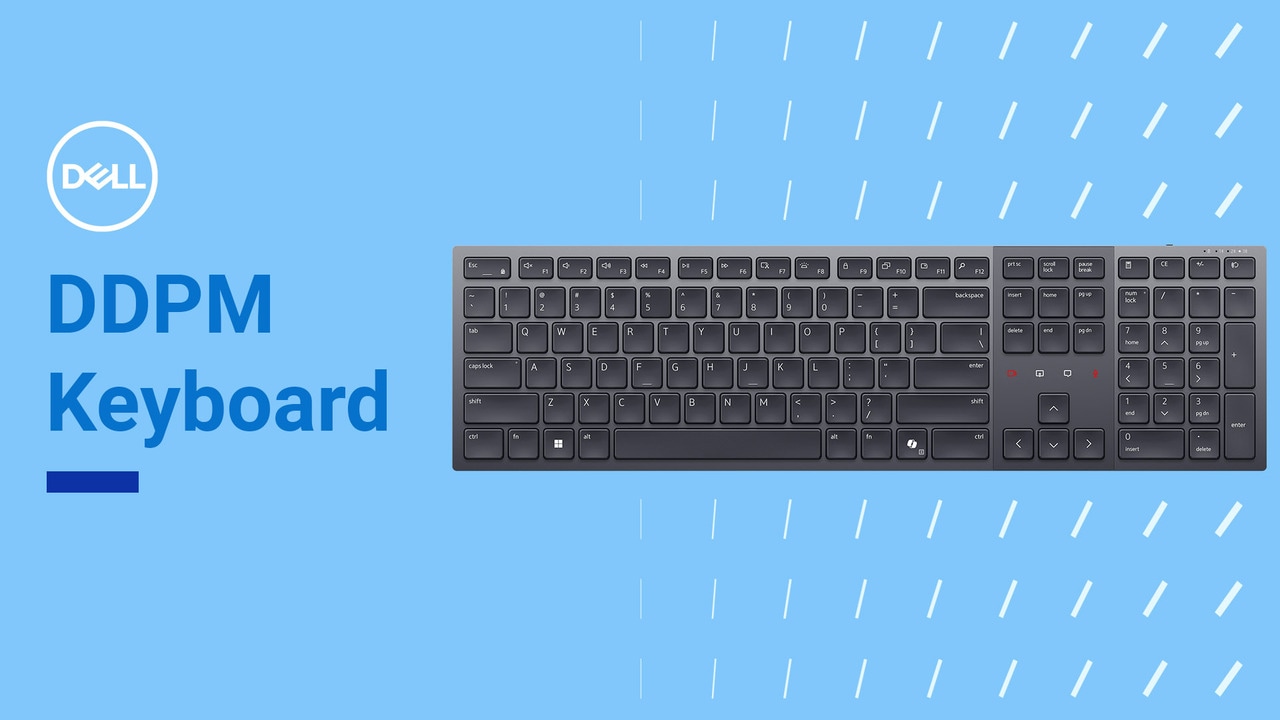
Discover how to set up the USB KVM and Network KVM features in Dell Display and Peripheral Manager (DDPM) to significantly enhance your productivity. Learn how these features allow you to seamlessly work across multiple PCs by easily configuring your monitor, keyboard, and mouse to switch between devices. Enable efficient multitasking and streamline your workflows with these powerful tools. For information or assistance, visit: Dell.com/Support/DDPM.
In this video, we will walk you through an overview of the USB KVM and Network KVM features in Dell Display and Peripheral Manager, or DDPM. Using DDPM you can easily set up your monitor, keyboard, and mouse to work across multiple PCs. There are two ways to do so: USB KVM and Network KVM. USB KVM is suitable for PCs connected to one monitor that requires simply sharing one monitor, keyboard, and mouse across them.
Network KVM is suitable for a cluster of monitors and PCs connected on the same network. Network KVM allows for file transfer and seamless switching, in addition to the sharing of a keyboard and mouse. once installed, launch the DDPM app. Select your device and navigate to the overview page. Here, you'll see a detailed visual representation of your display, including information like the firmware version, service tag, and manufacturing date.
On the right, you'll find quick access to essential features like Display Settings, Input Source, Easy Arrange, KVM and more, offering everything you need to set up and customize your monitor. Click on the KVM option to explore two configurations: Network KVM and USB KVM. The USB KVM feature enables you to manage multiple PCs connected to a KVM-supported monitor.
If no setup is saved, click 'Set up USB KVM' to start the setup walkthrough. Begin the setup walkthrough by connecting your PCs. Then your mouse and keyboard. Then configure the Picture in Picture- PIP and Picture by Picture-PBP settings for your monitor.
Finally, select your preferred display mode: Fullscreen, PIP or PBP. You can assign a hotkey to perform various switching functions. In this case, we will use ‘alt + P’. Press the hotkey to switch between computers in full screen mode, or to switch the keyboard and mouse between computers in PIP or PBP modes. With the Auto Switch feature, switching between PCs is effortless. Just move your cursor to the centre of the split screen, and control will automatically shift to the second PC - and vice versa. Additionally, there is an option to automatically switch USB upstream ports in PBP side-by-side mode.
For monitors that support Network KVM, select 'Network KVM' and click on the 'Open Network KVM' button, which opens another window. Click next and the software will scan your network for connected PCs. Choose the desired PC from the list and you're ready to go. For more complex network setups, you can manually enter the PC’s IP address. If needed, pair the devices securely with a PIN to ensure a safe and personalized connection.
Whether you’re tackling important tasks, working with your team, or relaxing after a long day, Dell Display and Peripheral Manager adapts to your needs to keep you productive. Download the free software at: Dell.com/Support/ddpm and elevate your work today!