Genere una clave de acceso y un PIN para productos Dell Storage/DP/HCI/CI
Resumen: Se requiere una clave de acceso y un PIN para configurar la conectividad de forma segura. Seleccione una ubicación del sitio para los productos de gateway. Para todos los demás usos, seleccione un ID de producto o una etiqueta de servicio individuales. Se le solicitará que cree un PIN necesario para generar la clave de acceso. ...
Instrucciones
Se puede crear o ver una clave de acceso y un PIN para un ID de sitio, un nombre de sitio, un ID de producto, una ubicación del sitio o una etiqueta de servicio de Dell específicos. En los siguientes pasos, se describe el proceso para generar la clave de acceso y el PIN o ver claves de acceso generadas anteriormente.
REQUISITOS PREVIOS:
Asegúrese de que el usuario ya tenga una cuenta empresarial para el cliente final antes de intentar generar una clave de acceso y un PIN. Si el usuario no está seguro de cómo hacerlo, consulte Cómo registrarse para acceder al soporte en línea de Dell Technologies o actualizar una cuenta existente.
- (Encontrará un tutorial en video sobre la solución de problemas de la cuenta empresarial en la sección Información adicional de este artículo).
- (Encontrará un tutorial en video sobre cómo descargar el gateway de conexión segura y obtener su clave de acceso y PIN en la sección Información adicional de este artículo).
Para generar una clave de acceso para los productos PowerSwitch y PowerVault, consulte las secciones separadas a continuación.
Para generar una clave de acceso para un producto con una etiqueta de servicio o número de serie:
- En el sitio de soporte de Dell, ingrese el nombre del producto para el cual intenta generar una clave de acceso y presione Search. Ejemplo: DD9900, número de serie, etiqueta de servicio o ID de sitio
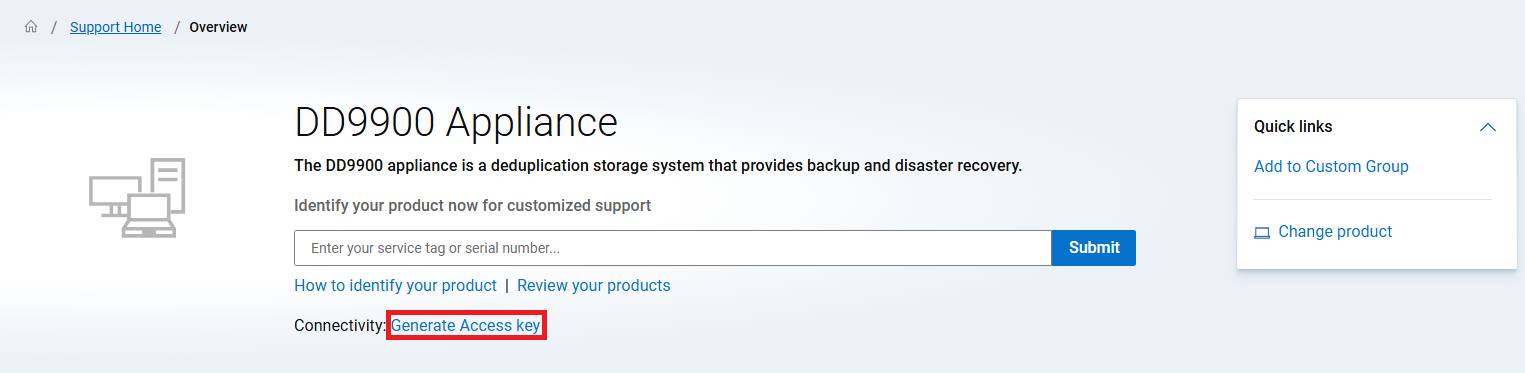
- En la página del producto, haga clic en el enlace Generate Access Key:
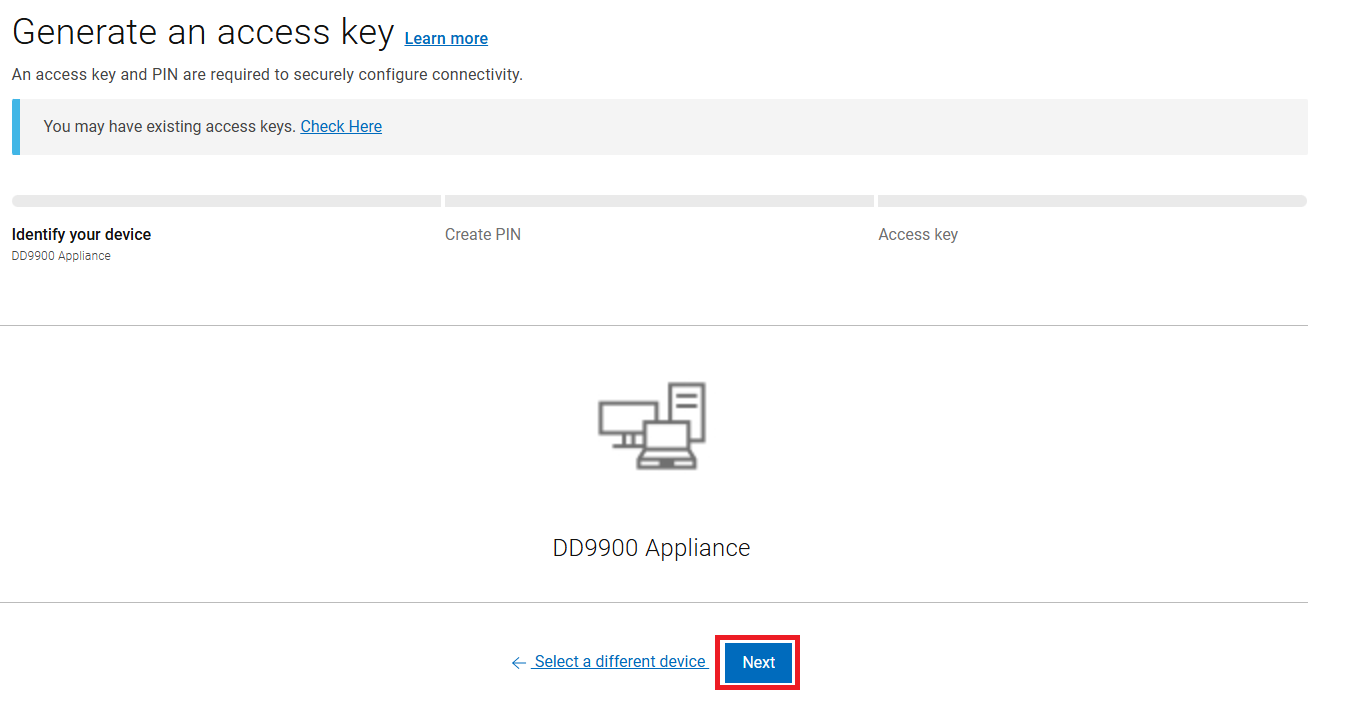
- En la página Generate Access Key, el producto ya debe aparecer identificado. Seleccione Next.
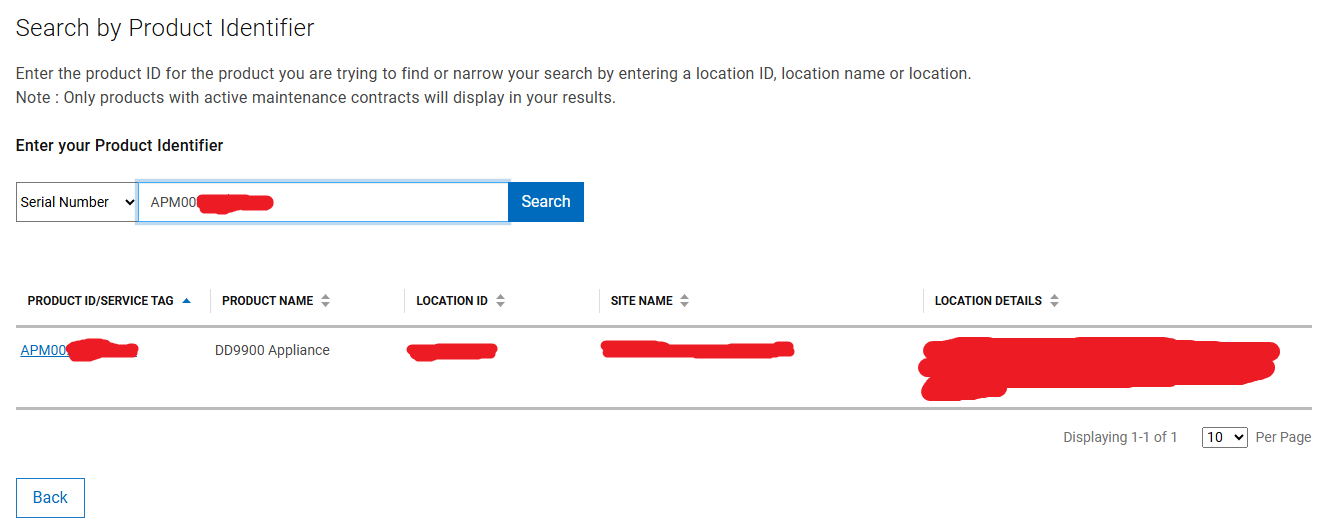
4. En la página Buscar por identificador de producto, utilice el número de serie, la etiqueta de servicio o el identificador de producto y, a continuación, seleccione el sistema para el que desea generar la clave de acceso. Nota: También puede buscar sus sistemas por ID del sitio/ubicación del sitio/nombre del sitio o detalles del sitio. A continuación, verá una coincidencia de sistemas para los que puede crear una clave de acceso.
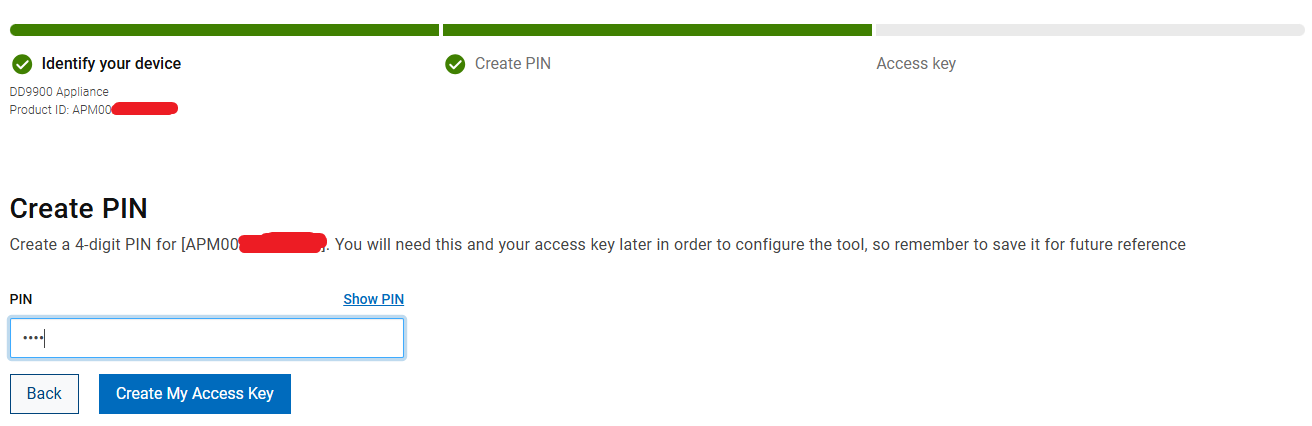
- 5. Cree un PIN de 4 dígitos y, a continuación, haga clic en "Crear mi clave de acceso"
 6. Se enviará un correo electrónico al correo electrónico del usuario que inició sesión con la clave de acceso e información sobre su vencimiento. Puede generar una nueva clave de acceso para el sistema en cualquier momento. Una vez que se ha utilizado la clave de acceso, no se puede volver a utilizar.
Genere una clave de acceso para un gateway, un gateway de conexión segura o un plug-in de OpenManage Enterprise mediante una ubicación del sitio o un ID del sitio.
Información adicional para encontrar los detalles del sitio:
Hay recursos adicionales disponibles para determinar los detalles de la información del sitio para enviar la solicitud de clave de acceso.- Después de iniciar sesión y acceder a la página Generate Access Key, haga clic en su nombre de usuario y en Manage Company Information. Desde aquí, podrá ver los sitios a los que tiene acceso.
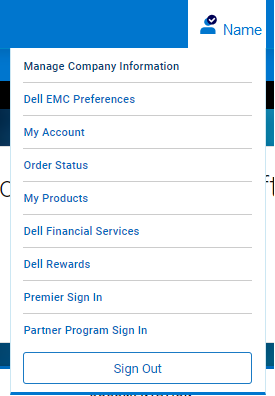
- Si no tiene acceso a ningún sitio, utilice el Company Administration Portal para ver los administradores locales de la empresa y los contactos de la cuenta. El administrador local puede ayudarlo con información adicional.
- Si no se proporciona la información necesaria del sitio mediante las dos opciones anteriores:
- Si el administrador local tiene una cuenta de soporte de Dell, inicie sesión con las credenciales de este y abra una solicitud de servicio en la página Admin Support:
- Estados Unidos: +1-800-SVC-4EMC (+1-800-782-4362)
- Canadá: +1-800-543-4782
- Mundial: +1-508-497-7901
- Si el administrador local tiene una cuenta de soporte de Dell, inicie sesión con las credenciales de este y abra una solicitud de servicio en la página Admin Support:
- Si selecciona un producto de hardware en el paso anterior, las opciones que se presentan a continuación son diferentes e incluyen una opción de ID de producto o etiqueta de servicio.

- Si no tiene una cuenta de soporte de Dell, comuníquese con el soporte administrativo para abrir una solicitud de servicio en su nombre:
- Después de iniciar sesión y acceder a la página Generate Access Key, haga clic en su nombre de usuario y en Manage Company Information. Desde aquí, podrá ver los sitios a los que tiene acceso.
- Si no ha creado una cuenta para el soporte de Dell, consulte Cómo registrarse para acceder al soporte en línea de Dell Technologies o actualizar una cuenta existente.
- Ingrese un PIN ÚNICO de cuatro dígitos que pueda recordar y, a continuación, haga clic en Create My Access Key.
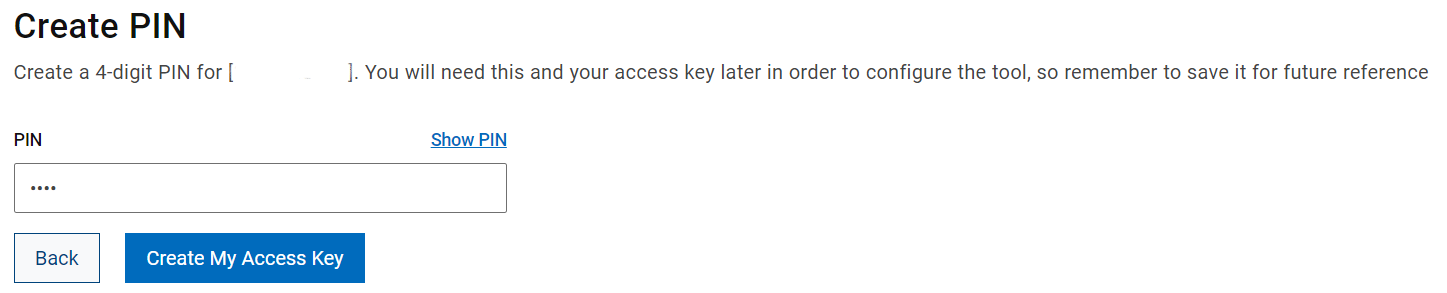
- Verá una pantalla en la que se indica que se creó su PIN. Su clave de acceso se envía a la dirección de correo electrónico de la cuenta empresarial registrada.

- Recibe un correo electrónico similar al que se muestra a continuación. Necesita esta clave de acceso (que vencerá dentro de una semana) para establecer la conectividad.
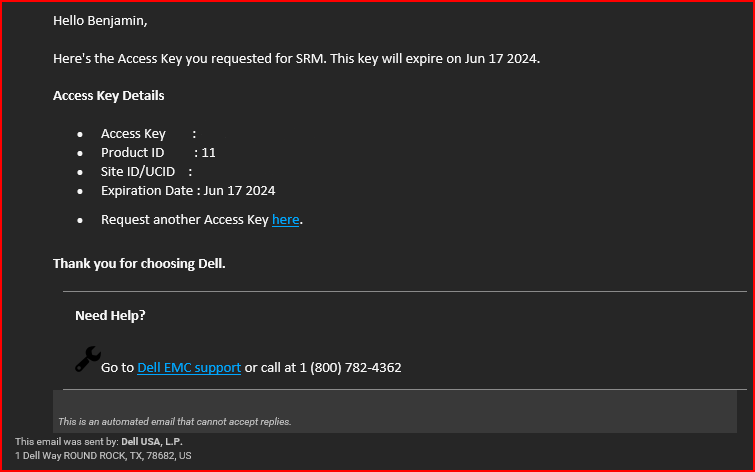
Cómo ver las claves de acceso generadas anteriormente:
Siga estos pasos a fin de ver el historial de claves de acceso y PIN, o para que se vuelvan a enviar claves activas a su dirección de correo electrónico.
- Haga clic en el enlace View them here en la página Generate Access Key.
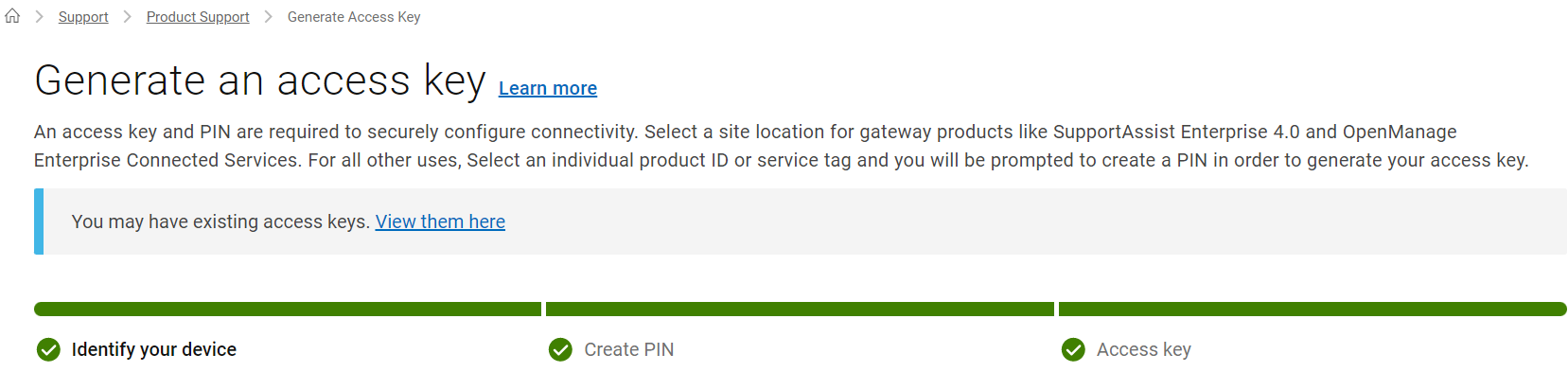
- La ventana Access Key History muestra el ID de sitio, el ID de producto, el nombre de producto, el estado y la fecha de vencimiento de las claves de acceso generadas anteriormente.
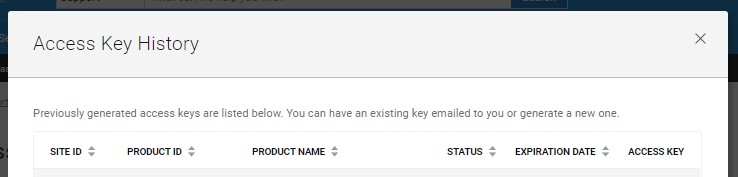
- Para recibir la información de clave de acceso de un ID de sitio específico, haga clic en el icono de letra
 en la columna Access Key.
A fin de generar una clave de acceso para los productos PowerSwitch y PowerVault, realice los siguientes pasos:
En la página Generate Access Key, realice los siguientes pasos:
- Ingrese los criterios en el cuadro de búsqueda y seleccione el ID de sitio o la etiqueta de servicio correctos. Generación de una clave de acceso para conectarse a Secure Connect Gateway u OpenManage Enterprise:
Seleccione el sitio correcto eligiendo el número de ID del sitio.
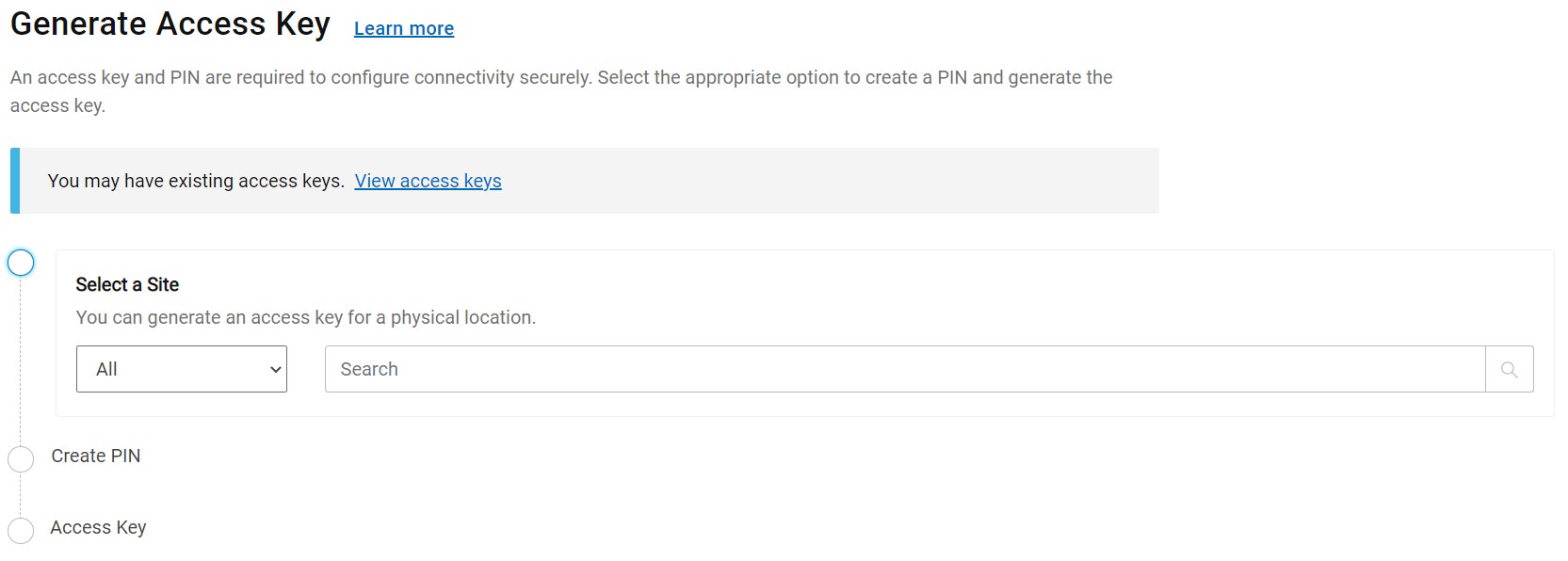
Nota: Puede buscar por ID del sitio completo o parcial, nombre o ubicación del ID del sitio. Si tiene problemas para localizar la información del sitio, consulte la siguiente sección: Información adicional para encontrar los detalles del sitio.
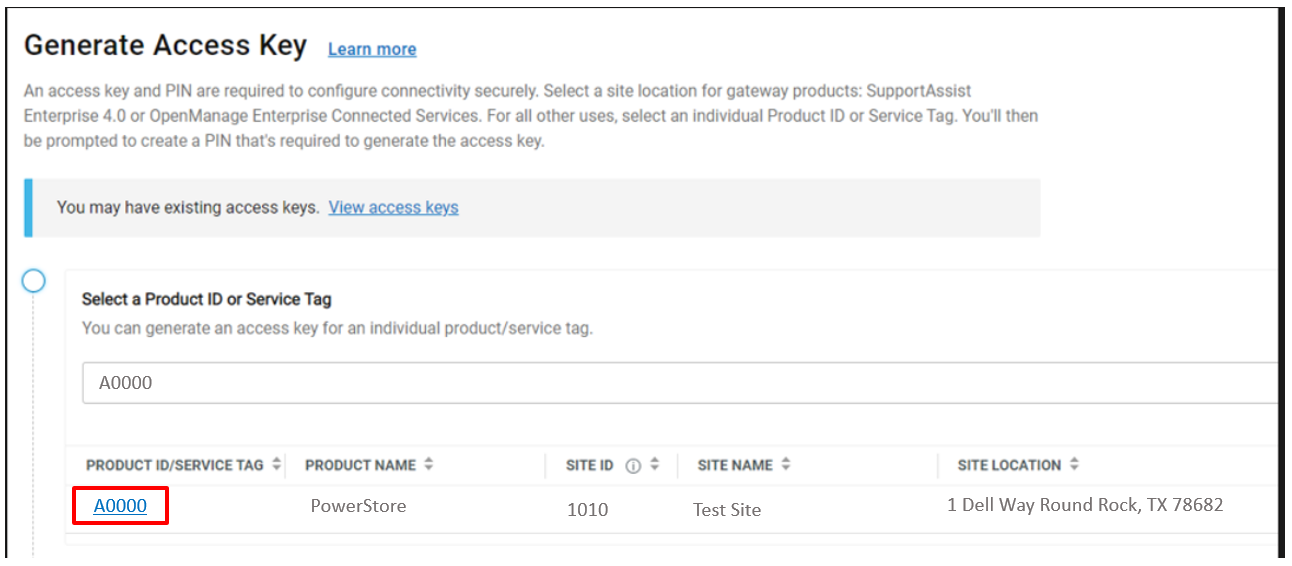
Generación de una clave de acceso para conectar su producto de Dell Technologies mediante el ID de producto, el número de serie o la etiqueta de servicio:
Seleccione el producto haciendo clic en el activo.
- Ingrese un PIN de cuatro dígitos en el campo Create PIN. Recuerde el número PIN, ya que es necesario para configurar la herramienta después de obtener la clave de acceso.
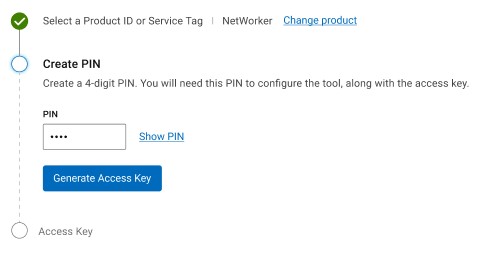
- Haga clic en Generate Access Key para crear la clave de acceso. Tanto la clave de acceso como el PIN se envían a la dirección de correo electrónico vinculada a su cuenta.
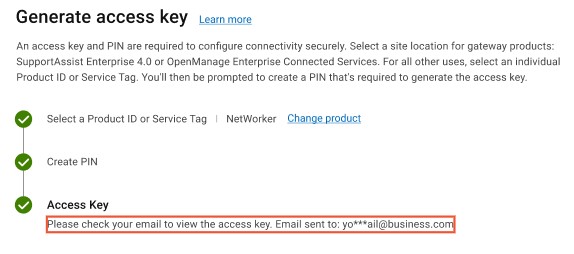
- Haga clic en Done (Listo).
Información adicional
- TUTORIAL EN VIDEO sobre cómo descargar el gateway de conexión segura y obtener su clave de acceso y PIN
- Brightcove:
Descargar Gateway de conexión segura
Duración: 00:02:05 (hh:mm:ss)
Cuando esté disponible, se puede elegir la configuración de idioma de los subtítulos cerrados (subtítulos) mediante el ícono CC en este reproductor de video. - TUTORIAL EN VIDEO sobre la solución de problemas de la cuenta empresarial
- Brightcove:
Tutorial: Problemas con la cuenta empresarial de Gateway de conexión segura
Duración: 00:06:24 (hh:mm:ss)
Cuando está disponible, se puede elegir la configuración de idioma de los subtítulos cerrados (subtítulos) mediante el ícono CC en este reproductor de video. - Si necesita la clave de acceso y el PIN a fin de registrar Unisphere para PowerMax con el GW de SCG, siga el artículo de la base de conocimientos 000367755
- 000367755 de la base de conocimientos: Unisphere para PowerMax: el registro con Secure Connect Gateway requiere clave de acceso y PIN