Company Administration - View and Manage Sites & Contacts
Summary: Learn how to manage your individual and company preferences so you can get the most out of your support experience with Dell Technologies
This article applies to
This article does not apply to
This article is not tied to any specific product.
Not all product versions are identified in this article.
Instructions
This guide covers how to view and manage company profile settings, locations, and your organization's userbase via three distinct user types: Company Administrators, Partner Administrators, and Business Users.
Keeping your information up to date helps maintain security and ensures Dell Technologies can provide you with fast, accurate support.
Recommended administrative actions include:
-
Setting your location and asset preferences so we can deliver the right onsite service, replacement parts, and case management support to the appropriate contacts.
-
Managing your userbase by assigning who can access specific assets and locations, and by removing anyone who is no longer part of your organization.
-
Adjusting key security settings, such as default employee access and specifying overall location and asset visibility.
The section provides an overview of how to access and navigate Company Administration, request administrator rights, and understand the different customer roles and their capabilities.
What is a Company Administrator?
A Company Administrator is a customer responsible for managing their organization's company information. This includes the ability to view and update company profile details, manage locations and assets, and oversee the userbase, including any contact relationships. Company Administrators ensure that organizational information is accurate and that the appropriate individuals have the correct level of access within the online experience.
Company Administration Features
Company Administration in Dell's Online Support provides a centralized view of your organization's company and user information. It enables you to keep your support details up to date and helps make sure the right people have the right access to your online ecosystem.
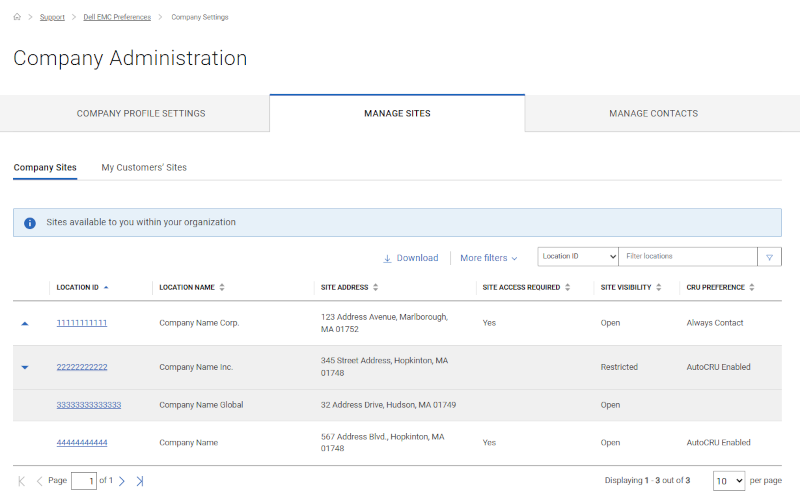
Figure 1: Manage Sites
Company Administration features provide users the ability to:
- Manage Company Profile Settings (Company Administrators only)
- View or Manage Sites (Locations)
- View or Manage Contacts
User Types and Capabilities
This guide provides instructions for three types of users:
- Company Administrators ‐ Have full access to manage company profile settings, locations, and the userbase for their organization.
- Partner Administrators ‐ Can manage asset-level contact relationships for the companies they are contracted to support.
- Business Users ‐ Can view locations and contacts associated with their organization based on the Company Administrators&apos visibility settings.
A user may hold more than one role. For example, a user can be both a Company Administrator and a Partner Administrator, or have the standard business user experience for their organization's own assets while also having Partner Administrator capabilities for their organization's partner supported assets.
If you are designated as a Company Administrator, you will be able to view and manage locations, products, and users affiliated with your organization.
You can also update location preferences, assign specialized contact roles, and grant access rights to others.
Accessing Company Administration
To access Company Administration, select Manage Company Information from the person icon menu  in the upper right corner of the Homepage.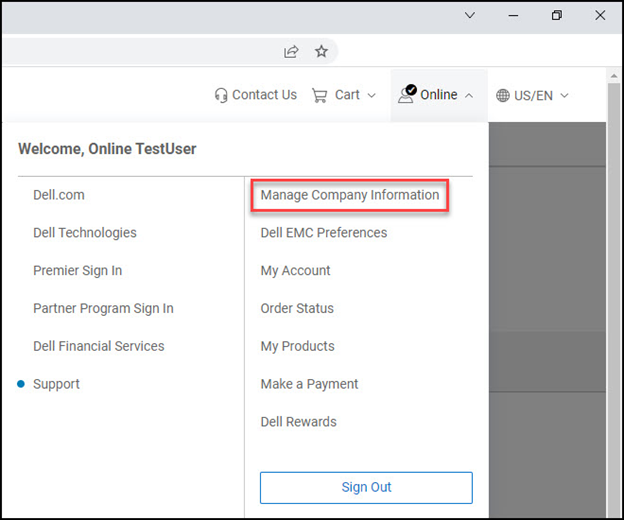
Figure 2: Company Admin Navigation
Alternatively, you can access Company Administration by selecting Preferences and then the "Show company administration" link in the Company Administration tile. For business users, you will only be able to view information, and the link will be Show company information.
There are 3 main tabs within Company Administration. Options may vary based upon the user privileges of Administrator vs Business users.
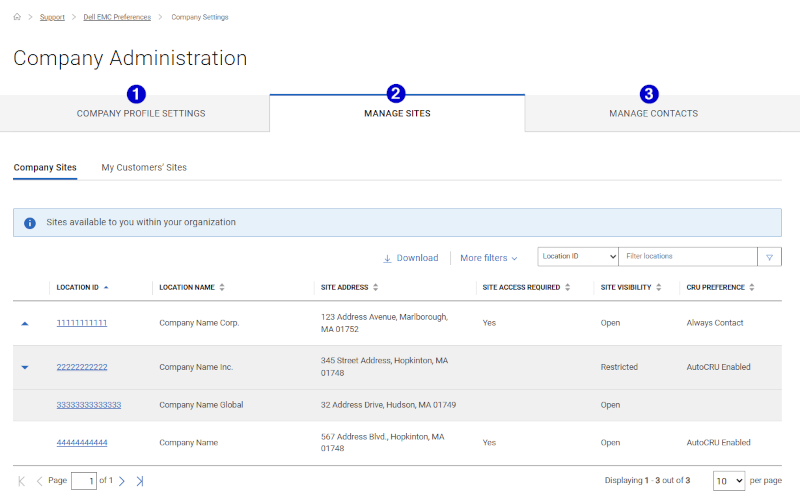
Figure 3: Company Admin Main Tabs
- Company Profile Settings ‐ includes settings that determine whether new users can automatically register and gain full access or if they must be invited by a Company Administrator.
- Manage Sites (Locations) ‐ related actions include setting location dial home contacts, changing the Site Visibility level of locations, as well as assigning and editing Customer Replaceable Unit (CRU) preferences for a location.
- Manage Contacts ‐ related actions include promoting and demoting Administrator users, removing users that have left your organization, and granting access rights.
Administrator Roles (Company and Partner)
Your ability to action or administer various data within Company Administration is determined by having the necessary Administrator role defined on your user account.
Please note Administrator privileges are only related to the online support company administration data, and do not affect access to other online features such as creating a service request, initiating live chat, accessing software downloads, so forth.
- The Company Administrator attribute allows enabled users to manage various location, product, or contact features for their organization. This includes the ability to promote or demote other contacts in their organization as Company Administrators, set, or manage a location or product's dial home relationships, and set the Site Visibility levels of a location.
Without the Company Administrator role, business users can only view the various location, product, or contact features within Company Administration, without the ability to manage.
- The Partner Administrator attribute allows enabled users to edit product dial home contact relationships for products supported by the Partner company. In addition, they can also promote or demote other users in their organization with the Partner Administrator role.
NOTE: The Partner Administrator attribute is strictly related to Partner Administrator features. In order to administer Company Administrator status and features for their organization, the user must be designated with the Company Administrator role.
Requesting the Administrator role
Contact an existing Administrator within your organization to request the Company or Partner Administrative role. Administrators are identified within the applicable column when viewing Contacts within the Manage Contacts section, as well as certain Contact tabs within Site Details (ex. Internal Contacts tab).
Company Administration
The behavior of the Company Administration page will differ based on the type of user.
- Company Administrators will see three tabs on the Company Administration page which will include Company Profile Settings, Manage Sites, and Manage Contacts.
- Partner Administrators will see two tabs on the Company Administration page which will include Manage Sites and Manage Contacts.
- Business Users will see View Sites and View Contacts tabs on the Company Administration page.
The Company Profile Settings section guides Administrators on how to set company profile type to take advantage of the Invite to register capability for increased security, and to view a list of approved email domains for their company.
Manage Company Profile Settings
Company Administrators can control how new user registrations for their organization are handled.
- Open: Allows any user with a valid domain for the organization to register and immediately gain full access. This is the default setting.
- Restricted: Limits registration to specified users invited by Company Administrators (manually).
- Blocked: Implemented for Partner companies which have a specialized onboarding process. This option is pre-set and cannot be edited online.
To change the company profile setting click Edit in the New User Access area, choose either Open or Restricted, and then click Save Changes.
To invite users to a restricted company profile, click Invite User.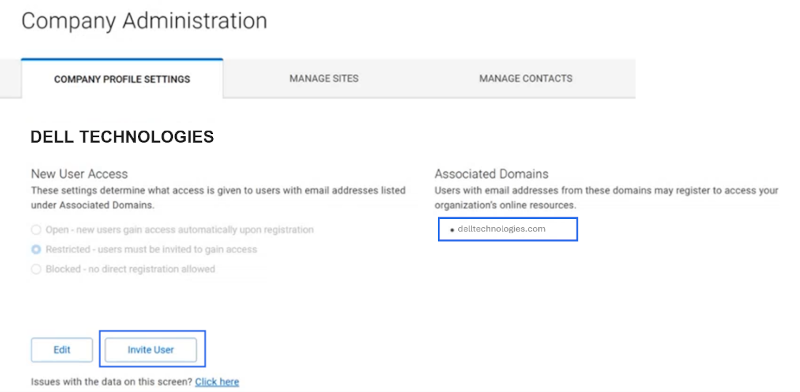
Figure 4: Company Profile Settings tab
Input the email address of the user to be invited. Company Administrators can invite users to register for a business account using email addresses from domains listed under 'Associated Domains' only.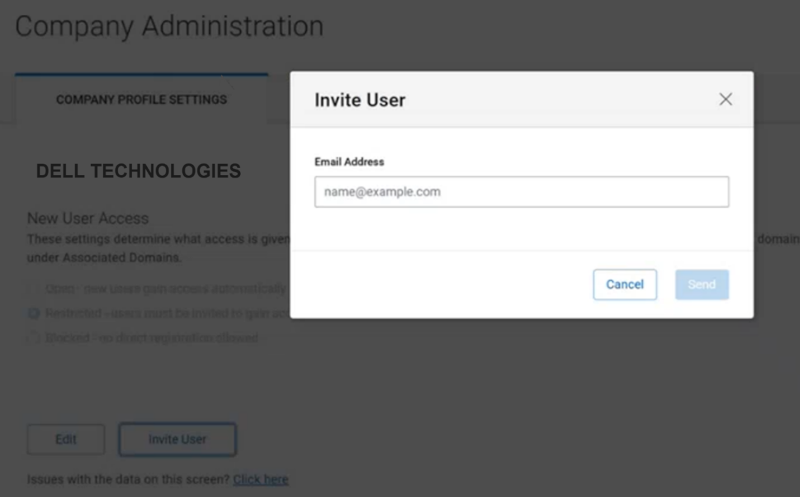
Figure 5: Invite User Close-Up
After inputting the user email address click Send. A confirmation banner will appear if successfully sent to the user.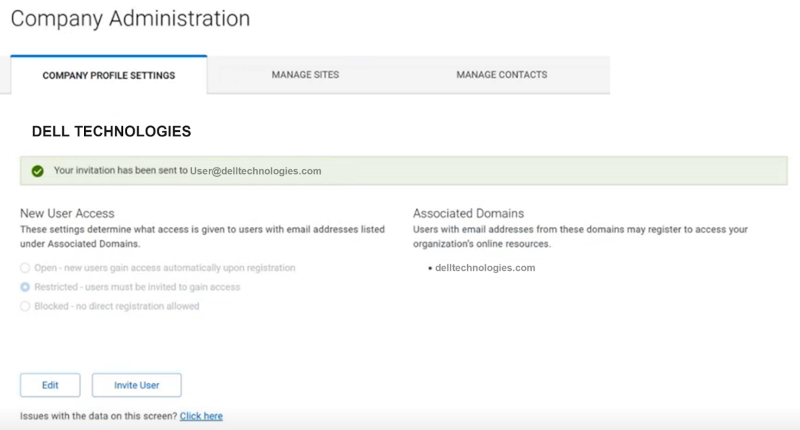
Figure 6: Invite User Success Message
Invited users will have up to 15 days to complete registration before the invitation expires (example of invitation below).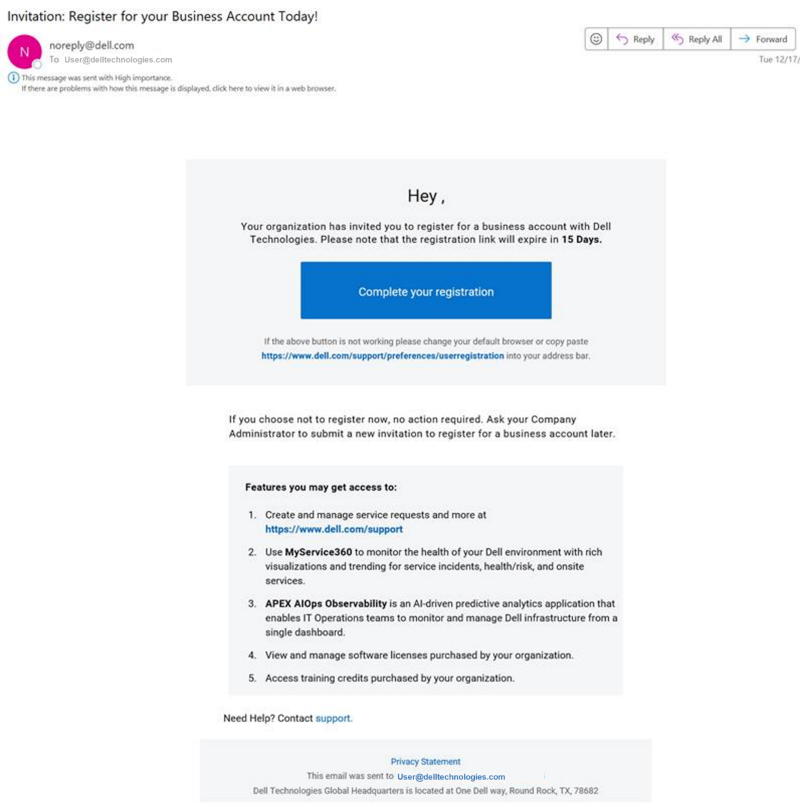
Figure 7: Invite User Email Example
What are Locations / Location IDs and why do I see them? Is Site ID still in use?
In 2025, Dell Technologies introduced a consolidated view of your account assets and, with that, a new approach to representing where your datacenters and Dell infrastructure products are located.
Location ID became a new identifier for additional physical location details and used when consolidating information about the assets located at a specific address.
Dell Technologies has now fully implemented the new approach. As a result, Online Support and MyService360 have now:
- Adopted a single address-based identifier - Location ID
- Retired Site ID and removed it from online view (late 2024)
Dell displays the company's legally registered name from public records as the site name associated with a 'parent', or base, location. Currently, the site name for a 'parent' location in your Online Support and MyService360 views cannot be customized.
Dell Technologies provides the initial 'parent' Location ID (which is address based) for an installed asset that you see in the Online Support and MyService360 views. Thus, several installed assets can share the same Location ID.
Subsequently, at the Online Support site, the new self-service sub‐location feature only allows Company Administrators to select & group the Dell assets located at the same address as the 'parent' Location ID.
The Location ID for the new sub-location will be a new & unique numeric identifier with no tie to the 'parent' Location ID. However, the sub‐location connections to the 'parent' location are apparent in the sub‐location name (which includes the 'parent' location name) and via the Install Base address (which remains unchanged).
NOTE: Creating a sub‐location could have impact to both Custom and Access Group visibilities, as the assets will be represented at a "new" Location ID which is not in existing groups.
To review the full release documentation related to the Online Support / MS360 enhancements introducing the Location and Sub‐Location experiences, see the Dell Online Support and MyService360 Enhancements PDF (English Only).
Sub‐Location Management (Manage Sites > Company Sites > Site Details > Preferences)
What is the sub-location feature and how will it help me manage my Dell environment?
Dell Technologies provides a consolidated view of your account assets and, with that, a new approach to representing where your datacenters and Dell infrastructure products are located. With Location ID as our standard address-based identifier, we are pleased to offer enhanced self‐service with the Create sub‐location feature.
Diagram 1 below provides a detailed introduction.
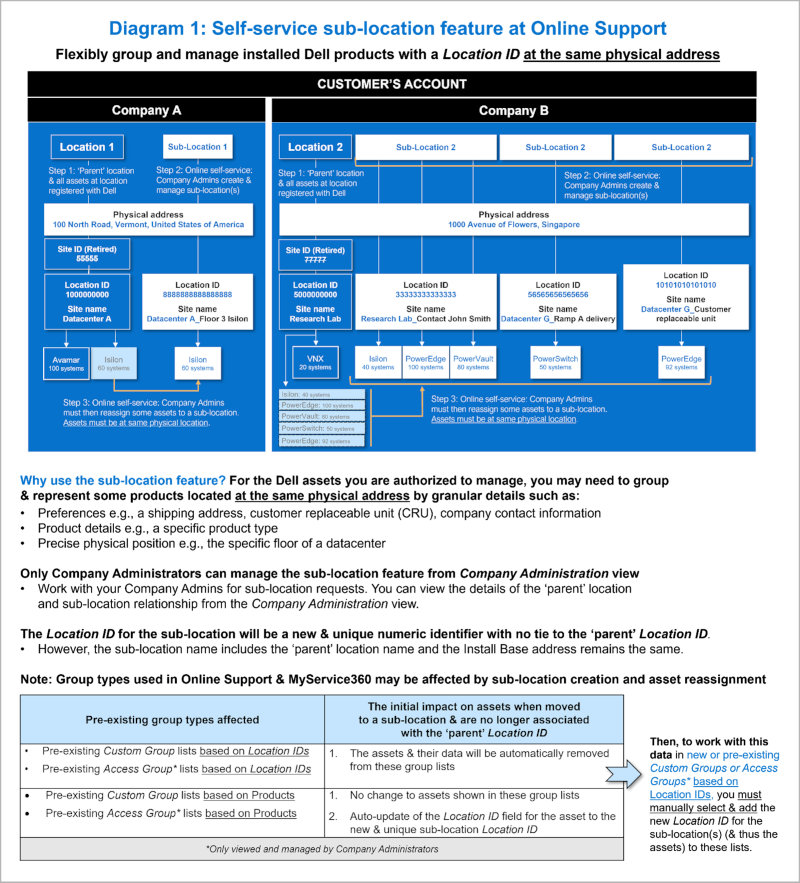
Figure 8: Sub&dashLocation Diagram
Why use the sub‐location feature?
For the Dell assets you are authorized to manage, you may need to group and represent some products located at the same physical address by granular details such as:
- Preferences, e.g., a shipping address, customer replaceable unit (CRU), company contact information.
- Product details, e.g., a specific product type / family.
- Precise physical position, e.g., the specific floor of a datacenter.
Where can I manage or view the details of the 'parent' location and sub-location relationship?
Sub‐Location Management (Manage Sites > Company Sites)
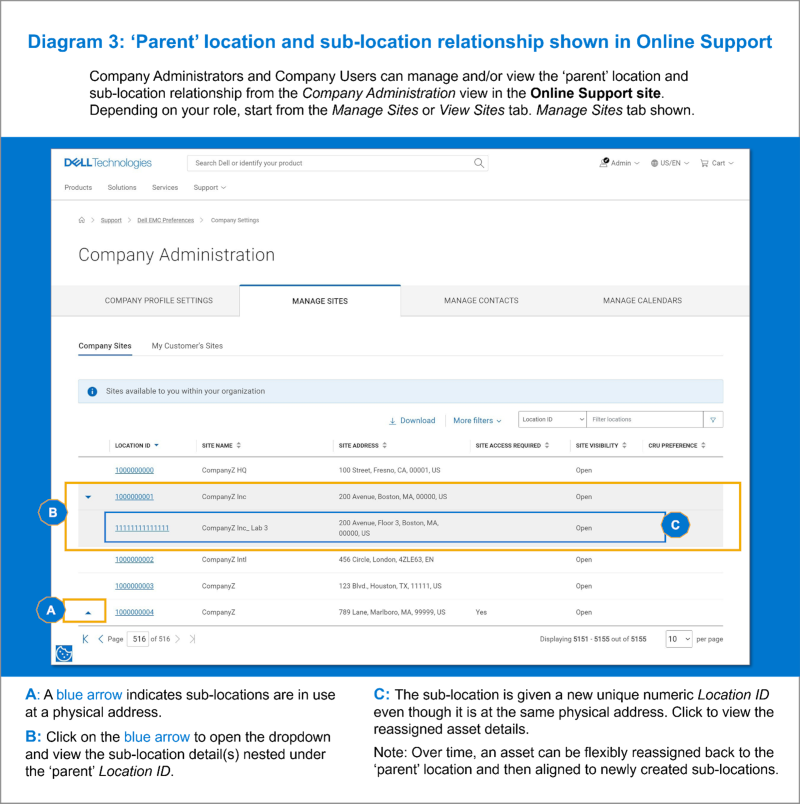
Figure 9: Manage Sites Sub-Location relationship in Grid
NOTE: Dell Technologies provides the initial 'parent' Location ID (which is address based) for an installed asset that you see in the Online Support and MyService360 views. Thus, several installed assets can share the same Location ID.
Create / Edit a sub‐location.
From the Online Support view for Company Administration > Manage Sites, Company Administrators can create a sub-location by:
- Clicking the desired Location ID where the desired assets for grouping reside.
- Clicking "Create Sub-Location" button.
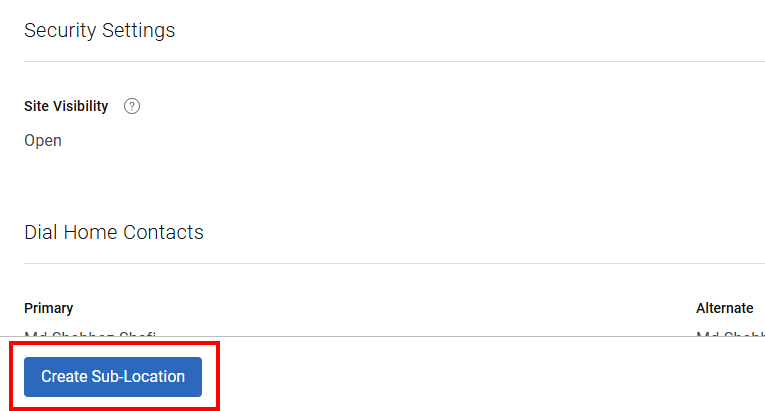
Figure 10: Create Sub‐Location button
- Fill in the 2nd half of the Sub‐Location name (1st half is from the "parent" Location ID).
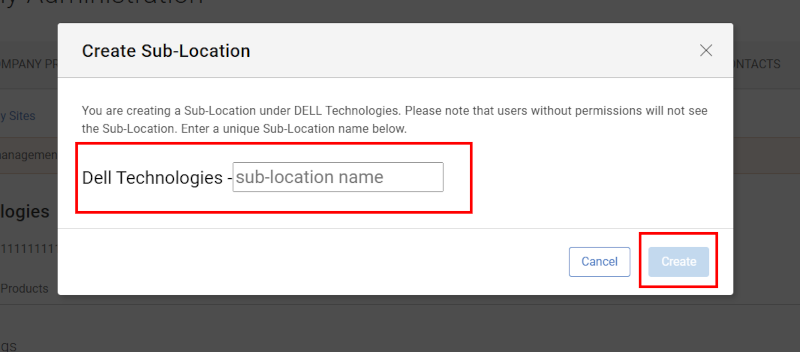
Figure 11: Create Sub&dashLocation Name
- Search for and select any assets you want represented at the new sub‐location then click "Save & Next" (or "Next" to create an empty placeholder sub‐location).
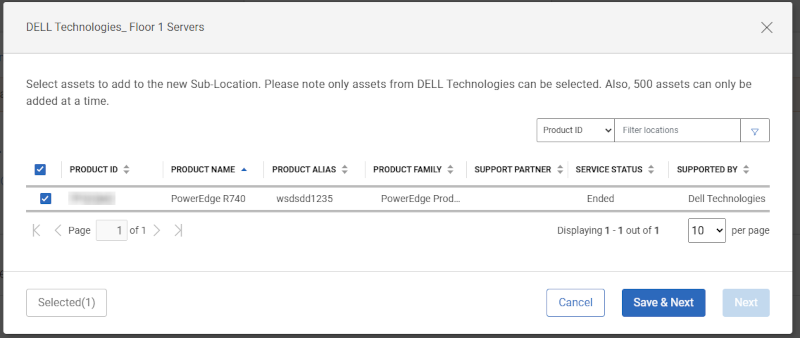
Figure 12: Create Sub&dashLocation Add Assets
- Choose whether to copy Preference Settings from the "parent" Location ID.
- You will be brought to the Preferences subtab of the newly created Location ID record (the sub-location of the "parent").
- In the Manage/View Sites grid, the sub-location will exist under the initial "parent" Location ID it was created from, via a blue arrow to the left of the Location ID.
- Clicking on an existing Sub‐Location (its Location ID), will provide an "Edit Sub‐Location" option to adjust its content.
NOTE: The new self-service sub-location feature only allows Company Administrators to select & group the Dell assets located at the same address as its 'parent' Location ID.
Deleting a sub-location
From the Online Support view for Company Administration > Manage Sites, Company Administrators can delete a sub‐location (only after moving all associated assets back to the "parent") via the "Remove Sub‐Location" button.
Removing the assets from the sub-location will trigger the following realignments:
- The initial 'parent' Location ID? and related Preferences / site contact data will be automatically realigned to the Dell assets & shown in your Online Support and MyService360 views.
- In addition, the asset data will be returned to the pre‐existing Custom Group and Access Group lists that use the initial 'parent' Location ID.
Within this section, Administrators can learn how to view locations for their account, view, and update preferences for locations (Site Visibility, Dial Home contact relationships, Onsite contact relationships, CRU preferences and more), and manage users that have access to the locations and how they obtain that access.
View or Manage Sites (Locations)
From the Manage Sites tab (accessible by Company Administrators or Partner Administrators) or View Sites (accessible by business users), you will have the option to view the Company Sites and My Customers' Sites subtabs. Each of these respective subtabs is described below.
Company Sites subtab (Manage Sites > Company Sites)
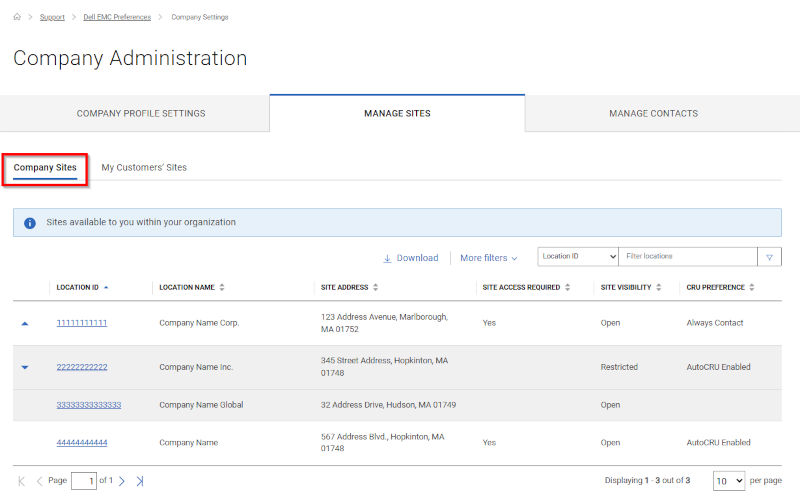
Figure 13: Manage Sites Company Sites
The Company Sites view displays locations available to you within your organization. Visibility to any locations and products found within the Company Sites tab are automatically granted to you through the Dell Technologies online registration process.
Access is designated by the email domain used during registration, which is associated to a company that has an established relationship with Dell Technologies. Any locations and products affiliated to that company or organization will automatically be available for viewing (inherited) by the user unless location visibility levels have been defined by a Company Administrator by Access Groups.
-
Business users:
- Can access all open locations and also to any restricted locations within their organization, which requires a Company Administrator's approval for access.
- Blocked locations will not be visible to Business users. In order for the Business user to gain access, they must be explicitly granted access to the location by a Company Administrator.
- Can request access to a restricted location that the user does not have access to by selecting Request Access. The pending request may be approved or denied within the Company Administrator's Manage Approvals subtab under Manage Contacts.
-
Company Administrator users:
- Can access all locations including open, restricted, and blocked locations within their organization.
- In addition, Company Administrators have the ability to change location visibility settings and specify CRU preferences and other settings for customizing service of the locations and other settings for customizing service for the locations.
Accessing Site Details (Manage Sites > Company Sites > Site Details)
Clicking on an individual Location ID within the Company Sites list will display detailed settings for the location.
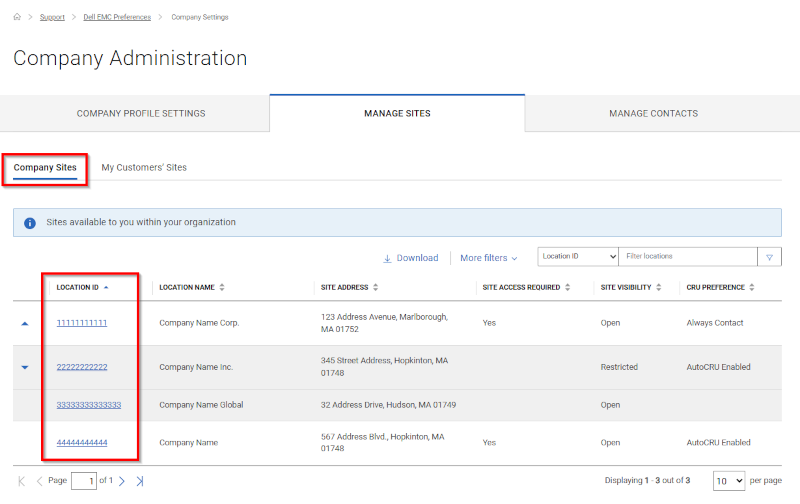
Figure 14: Manage Sites Company Sites Location IDs
You can manage basic location preferences by the Preferences subtab, product preferences by the Products subtab, and contacts for the location by the Contacts subtab.
-
Preferences - includes the below location preferences:
- Security Settings
- Site Dial Home Contacts
- Site Access Details
- Customer Replaceable Unit (CRU) settings
- Shipping Information / Shipping Contact
- Onsite Scheduling Contacts
- Products - a list of all products for the site.
- Contacts - includes the following:
- Internal Contacts - either have default visibility to the location (Open Site Visibility) or a relationship has been explicitly granted to the user allowing access to specific locations with Restricted or Blocked Site Visibility.
- External Contacts - a list of users from other organizations that have been granted a third-party relationship to the location.
Preferences (Manage Sites > Company Sites > Site Details > Preferences)
The first subtab within Location Details (clicking a Location ID) is the Preferences tab that includes the various location preferences.
-
Security Settings
-
Site Dial Home Contacts
-
Site Access Details
-
CRU (Customer Replaceable Unit) Settings
-
Shipping Information / Shipping Contact
-
Onsite Scheduling Contacts
Security Settings (Manage Sites > Company Sites > Site Details >Preferences)
Company Administrators can choose to control access to one, many, or all their organization's locations by applying Site Visibility where appropriate. This is done on a per location basis by clicking on one of the Location IDs in the results grid of the Company Sites tab and selecting Edit.
As an alternative, the Access Group functionality can be used to provide a more powerful and flexible approach to managing your location visibility and security. To learn more, See Dell Knowledge Base article Company Administration - Create and Manage Access Groups.
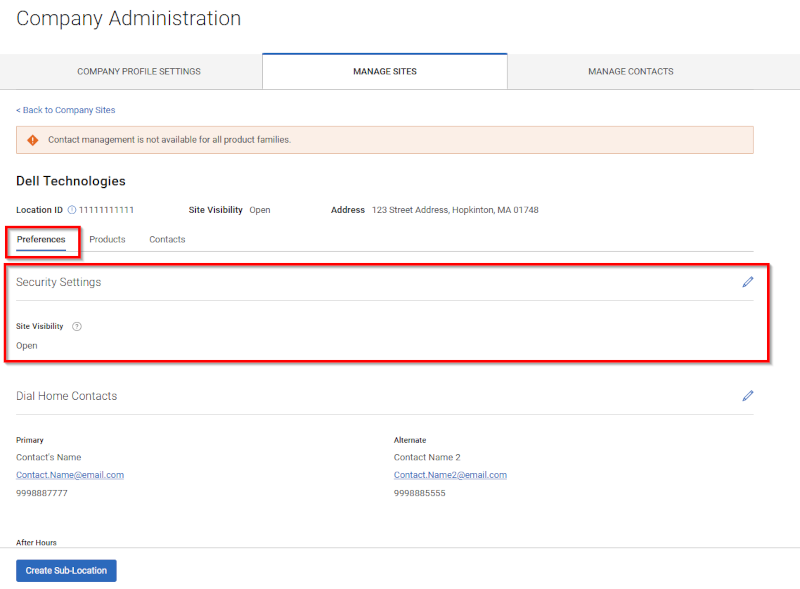
Figure 15: Manage Sites Location Preferences
A site can be defined as one of three distinct Security Levels:
- Open Site - accessible to all employees belonging to your organization. Employees within your organization inherit association to all such locations within your organization upon registering for a Dell Technologies online account. No maintenance is required as this is the default security level.
- Restricted Site - visible in the locations list for all employees in your organization but full access to the location must be requested by the employee and is granted only on a per-request basis. Access to the location must be granted by a Company Administrator within your organization by the Manage approvals subtab within the Manage Contacts tab of Company Administration.
- Blocked Site - only visible to Company Administrators from your organization and users explicitly granted access; locations are hidden from all other users. Access can only be granted when a contact is added directly to the blocked location by a Company Administrator from your organization.
NOTE: All third-party location relationships will retain access to the location when changing Site Visibility to Restricted or Blocked. Third-party access must be removed manually from the location by Company Administrators.
NOTE: Restricted & Blocked Site Visibility capabilities will sunset in the future, shifting to Access Group visibility controls as the preferred experience.
Specify Security Settings (Manage Sites > Company Sites > Site Details > Preferences)
To edit the Site Visibility setting, the Company Administrator should:
- Browse to the Company Sites subtab under Manage Sites.
- Click on the Location ID link from location list you want to set the Site Visibility for and select the pencil icon in Security Settings section of the Preferences subtab.
- Click the drop-down menu for Site Visibility and select the desired value.
- Click the checkmark that replaced the Pencil icon (or the "x" to discard changes).
Specify Location Dial Home Contacts (Manage Sites > Company Sites > Site Details > Preferences)
For autogenerated new case creation, Location-level Dial Home contact relationships are used by default for new case creation for self-diagnosis.
You can add Primary, Alternate and After Hours contact relationships respectively for locations within your organization. After triggering the Pencil edit icon of the Dial Home Contacts section, Add (or Remove) Contact, then search by First Name, Last Name, or email address. Add the contact of your choice and click the checkmark that replaced the Pencil icon to save the changes (or the "x" to discard changes).
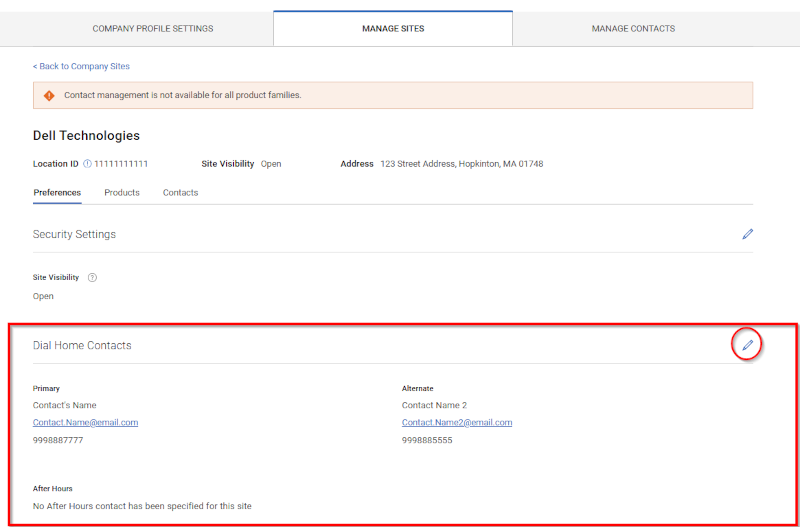
Figure 16: Sites Location Preferences Site Dial Home
<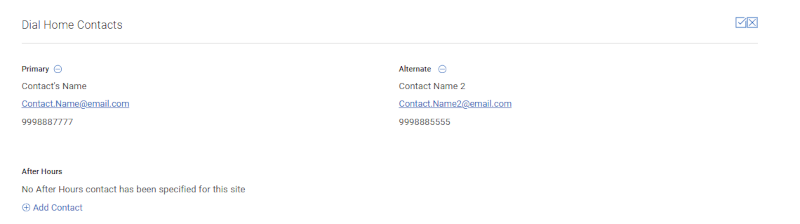
Figure 17: Manage Sites Location Preferences Site Dial Home Edit
Specify Onsite Scheduling Contacts (Manage Sites > Company Sites > Site Details > Preferences)
You can add a Primary and Secondary contact relationship respectively for your organization. After selecting Add (or Remove) Contact, you will have the ability to search by First Name, Last Name, or email address. Add the contact of your choice and click the checkmark that replaced the Pencil icon to save the changes (or the "x" to discard changes).
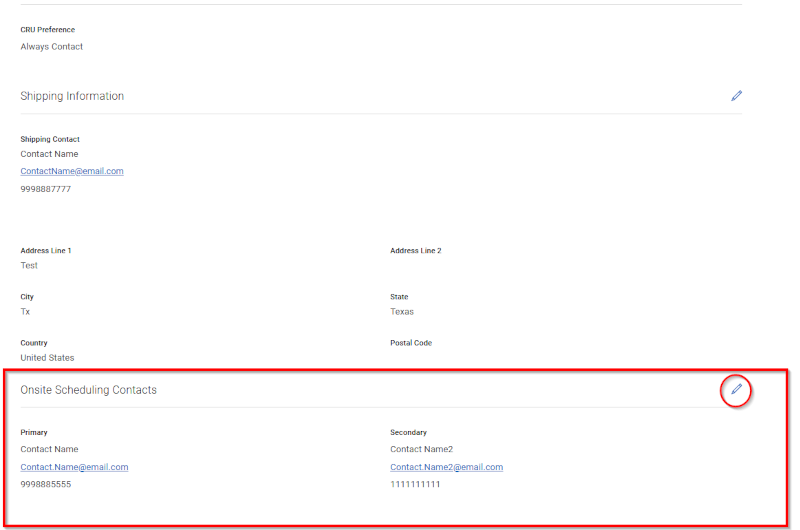
Figure 18: Manage Sites Location Preferences Onsite
Specify CRU Settings (Manage Sites > Company Sites > Site Details > Preferences)

Figure 19: Manage Sites Location Preferences CRU
CRU (Customer Replaceable Units) are specific assemblies, components, or individual parts of designated Dell Technologies equipment that a customer is authorized to self-replace. The CRU program allows customers to replace designated hardware components. In the event of a failure, the customer may replace a CRU by using Dell provided diagnostic tools and/or documentation. Assemblies or components not designated as CRU must be serviced or replaced by Dell or an authorized service partner.
For a list of the hardware components that are designated as CRU for a specific hardware system, go to the Dell Product Warranty & Maintenance Table. (English Only)
Company Administrators can specify their CRU preference for any service activity involving CRU eligible parts by the Company Sites subtab under Manage Sites. Then select the individual Location ID link from the list of locations.
In the Preferences subtab of the selected Location ID, trigger the Pencil edit icon of the CRU (Customer Replaceable Units) Settings section, make any selections/changes needed, and click the checkmark that replaced the Pencil icon to save the changes (or the "x" to discard changes).
Customer Replaceable Unit (CRU) Settings:
- Auto CRU Enabled - all eligible parts will automatically be sent to the shipping address provided. Your shipping contact will not be notified prior to shipment. Note: Shipping contact and address required for enrollment.
- Always Contact - your shipping contact will always be notified prior to shipment of the eligible part. Note: Shipping contact and address required for enrollment.
- CRU Option Declined - Dell will always contact you to schedule the onsite go to for part replacement.
- Drives Only - disk drive eligible parts will automatically be sent to the shipping address provided. Your shipping contact will not be notified before shipment. Note: Shipping contact and address required for enrollment.
If the Company Administrator declines to participate in the CRU program, the Onsite Scheduling Contact will be contacted by the Dell Technologies services team to schedule an onsite technician.
NOTE: Company Administrators will be unable to select CRU preferences for locations that are not supported by the CRU program. The CRU Preference column will display an N/A message to inform them when the program is not available in their region along with a tooltip offering additional information. Locations that are not supported will be supported by an in-country service delivery partner.
Specify Shipping Information or Shipping Contact (Manage Sites > Company Sites > Site Details > Preferences)
You can select the existing Location Address as the shipping address or enter a new address along with specifying a shipping contact.
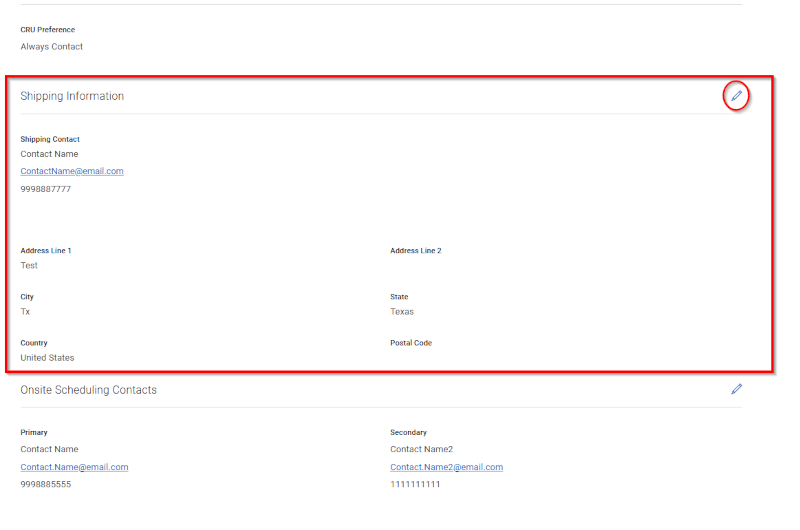
Figure 20: Manage Sites Location Preferences Shipping
Products (Manage Sites > Company Sites > Site Details > Products)
The Products subtab within Site Details will display all products at the location. Any asset-specific dial home contacts can be displayed.
NOTE: You may need to engage the "More filters" dropdown to include products with a Service Status of "Ended."
Depending on your role, you can view or manage asset-specific roles that are related to your install base. Administrators can set dial home contacts when the contacts for an asset must be different than the default location level dial home contacts.
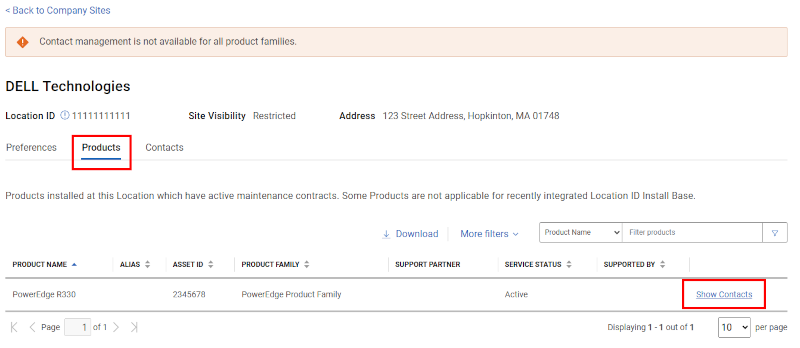
Figure 21: Products Subtab and Show Contacts
A user can click Show Contacts to view the list of asset-level contacts set for that specific asset. Asset level dial home contacts will be used as the primary contact if and when an automatic service request is created. This designation should only be used when the contact must be different than the location-level dial home contact.
- Primary - serves as the primary contact.
- Alternate - if primary contact is not available, the alternate contact can be contacted.
- After Hours - optional contact for weekend or after hours support if different than the primary.
A contact is required to have location level association before they can properly be defined as an asset‐level contact. Location association can occur through automatic inheritance, Secured Visibility access for any Restricted, or Blocked locations or be explicitly granted by third-party or Support Partner relationships.
Specify asset‐level Contacts (Manage Sites > Company Sites > Site Details > Products)
Specific Administrator privileges are required to perform the following tasks:
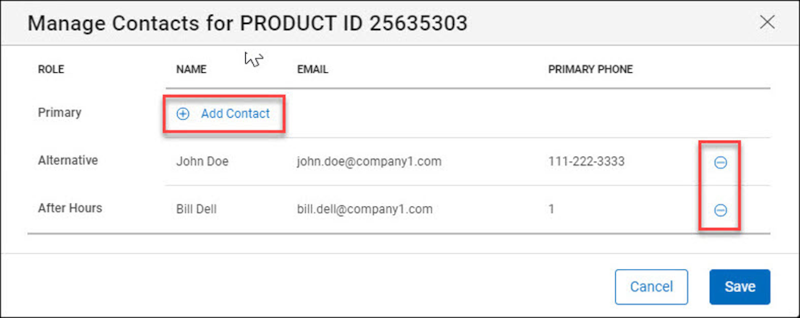
Figure 22: Products Add DH Contacts closeup
- Company Administrators can add or remove product-level contact relationships for any product within their organization unless a support partner is defined on the product.
- Add Contact relationship (Primary, Alternate or After Hours):
- Select Show Contacts next to the product for which you would like to update a contact.
- Click on the Add Contact option beside the contact role (Primary, Alternate, After Hours) you would like to add.
- A pop-up form will appear and allow you to search for a contact by First Name, Last Name, or email Address.
- From the search results, click Add Contact beside the person you would like to add.
- When done, select Save or Cancel to complete your transaction.
- Remove Contact (Primary, Alternate, After Hours):
- Select 'circle with minus' icon beside the contact relationship you want to remove.
- When done, select Save or Cancel to complete your transaction.
- When a Support Partner is defined on a product, only a Partner Administrator that is affiliated with the Support Partner can add or remove a Product Level Contact relationship by the My Customers' Sites tab.
A Business user will not be able to perform any actions from this view.
Contacts (Manage Sites > Company Sites > Site Details > Contacts)
The Contacts subtab will display further subtabs for managing Internal Contacts and External Contacts.
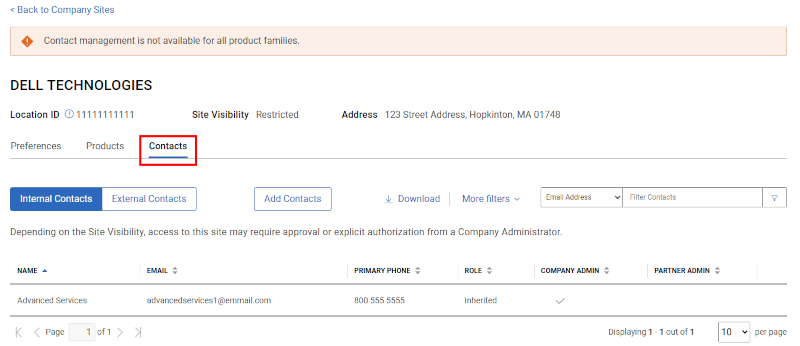
FIGURE 23: Contacts Sub TabSpecifying Internal Contacts for a location with a Restricted or Blocked Security Level (Manage Sites > Company Sites > Site Details > Contacts > Internal Contacts)
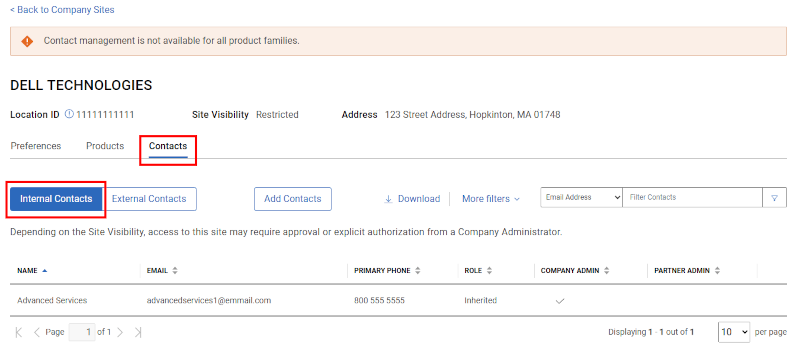
Figure 24: Contacts Internal ContactsWhen viewing the details for a specific location (Site Details), the Internal Contacts subtab (within Contacts subtab) represents any users belonging to the same organization to which the user belongs that have visibility to the location.
When a location has advanced Site Visibility levels applied (Restricted or Blocked), the Internal Contacts subtab will display anystandard Business users from the same organization that were explicitly granted access to the secured location.
Specifying Internal Contacts for a Restricted or BlockedLocation Relationship (Manage Sites > Company Sites > Site Details > Contacts > Internal Contacts)
- Add Internal Contact to a location with Secured Visibility (Restricted/Blocked).
A Company Administrator can add internal Contacts from their own organization to locations set with Restricted or Blocked Site Visibility.
To add an Internal Contact to a secured location, a Company Administrator should:
- Browse to the Internal Contacts tab of the secured location they want to add the internal contact to.
- Click the Add Contacts button and search for contacts by entering first name, last name, or email.
- Click the Add button next to any user in the results to add the account to the queue.
- Once satisfied with the internal users added in the queue, click on Save to run the transaction and grant the internal contacts access to the designated secured location.
- Remove Internal Contact from a location with Secured Visibility (Restricted/Blocked)
A Company Administrator can also remove internal contact relationships that were previously granted to locations set with Restricted or Blocked Site Visibility.
To remove an internal contact from a secured location, a Company Administrator should:
- Browse to the secured location from which they want to remove the internal contact relationship within the Manage Sites/Contacts/Internal Contacts subtab.
- Click the 'circle with minus' button next to the internal contact relationship they want to remove from the secured location.
- When the pop-up confirmation window appears, select Yes, Remove or No to cancel out of the remove transaction.
Internal Location Contacts for a Location with an Open Visibility Level (Manage Sites > Company Sites > Site Details > Contacts/Internal Contacts)
When viewing the details for a specific location, the Internal Contacts subtab (within Contacts subtab) represents any users belonging to the same organization to which the user belongs that have visibility to that location.
When Site Visibility level is set to Open, an Administrator will be presented with internal user information within the Internal Contacts subtab. Within this view, Administrators can export the list of internal contacts for open locations by the download button option.
Please note the following:
- The Internal Contacts subtab is this view is just a display of users that have access. To make updates to users, Administrators will have to use the Manage Contacts tab.
- The Internal Contacts subtab displays users from your entire organization. In the majority of situations, this properly reflects which users at your enterprise have access to a given location. For situations where a particular user is part of a subsidiary organization and is only provided access to sites within that subsidiary, the location still includes the user in the Internal Contacts subtab as they are within the Administrator's view of their overall organization.
External Contacts (Manage Sites > Company Sites > Site Details > Contacts > External Contacts)
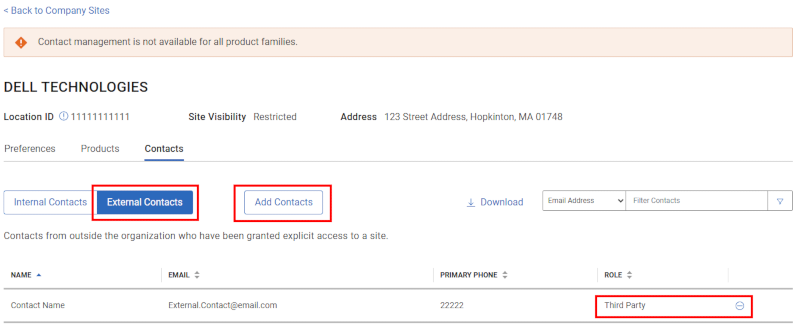
Figure 25: Contacts External ContactsWhen viewing the details for a specific location (Site Details) the External Contacts subtab (within the Contacts subtab) represents users from outside the user's organization who have been granted explicit access to the location. The most common example of such a location relationship is a third-party contact, a user from another company that has been granted access to the assets and service information for that location to provide support for the user's organization.
Business users can view, but not manage, users listed in this area.
Company Administrators can add or remove users in this area.
Add or Remove an External Site Relationship (Manage Sites > Company Sites > Site Details > Contacts > External Contacts)
A Company Administrator can add or remove registered users from outside their organization to a location by the External Contacts subtab (within the Contacts subtab). Typically this is seen as a third-party relationship. If the intended addition is not properly registered with a full Dell Technologies business account, they will not be available for association to the site.
- Add an External Contact to a location:
To add an External Contact to a location, a Company Administrator should:
- Browse to the External Contacts tab of the location they want to add the third-party contact.
- Click the Add Contacts button.
- Enter the exact email address of the Online Support user account they want to add as a third party to the location in the Search field.
- If the user is found and displayed in results; click the Add Contact button next to the record to add the user to the queue.
- Once the Company Administrator is satisfied with the users in the queue, click Save to perform the addition of the users as third-party relationships to the designated location.
- Remove an External Contact from a location:
To remove an External Contact, a Company Administrator should:
- Browse to the External Contacts tab of the location they want to remove the External Contact relationship from.
- Click the 'circle with minus' button next to the External Contact relationship they want to remove from the location.
- When the pop-up confirmation window is displayed, select Yes, Remove or No to cancel out of the remove transaction.
My Customers' Sites Subtab (Manage Sites)
The second subtab in the View/Manage Sites area is My Customers' Sites.
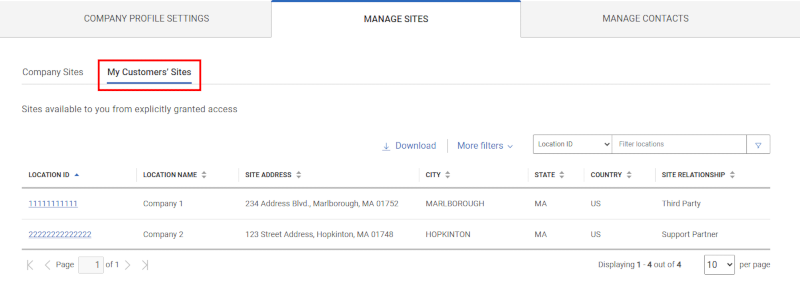
Figure 26: My Customers SitesAny locations and products found under the My Customers' Sites tab have had access granted and approved from outside of the user's company.
The users are granted access to these locations for one of the following reasons:
- The user may be a third-party consultant.
- Or is an authorized contact to a location that is not yet properly associated within the user's ecosystem.
- Or have a support partner relationship which is defined contractually to at least one product at the location (and will only see those contractually specified products).
NOTE: Users who have third-party or Authorized Contact relationships cannot edit location Security Visibility preferences or product level contact relationships.Accessing Site Details (Manage Sites > My Customers' Sites)
Click the Location ID within the My Customers' Sites list will display detailed settings for the location.
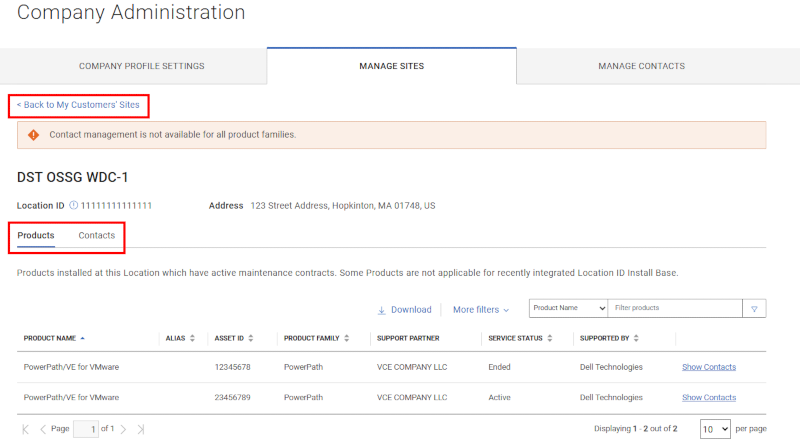
Figure 27: My Customers Sites Triggered SiteThe tabs in the Site Details area are:
- Products - a list of all products under contract for the location.
- Contacts - a list of external users not affiliated to the location's organization that has been granted a relationship to the location; a contact from a different company third-party relationship supporting the location.
Products (Manage Sites > My Customers' Sites > Site Details)
The Products subtab within Site Details will display all products properly under contract and related to the location that was selected.
Users without the Partner Administrator attribute will be unable to perform any actions from this view as the products within this tab are outside of their organization.
Depending on your role, you can view or manage asset-specific roles that are related to the Customers' Sites. Partner Administrators can set dial home contact relationships when the users for a specific asset must be different than the default location-level dial home contact relationships.
Specify Product-Level Contacts (Manage Sites > My Customers' Sites > Site Details > Products)
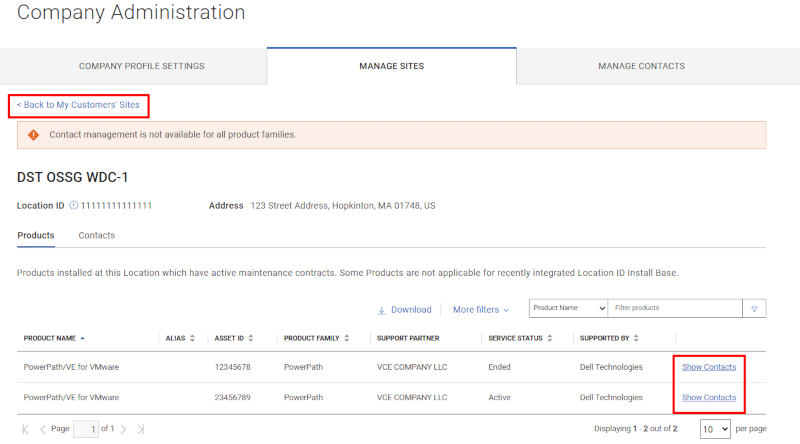
Figure 28: My Customers Sites Triggered Asset Show ContactSpecific Partner Administrator privileges are required to perform the following tasks:
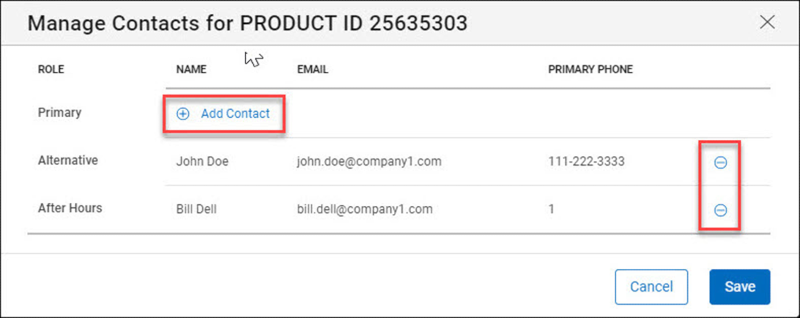
Figure 29: Customers Sites Triggered Site Contact AddSpecific Partner Administrator privileges are required to perform the following tasks within My Customers' Sites:
- Add Contact (Primary, Alternate or After Hours):
- Select Show Contacts next to the product for which you would like to update a contact.
- Click the Add Contact option beside the contact role (Primary, Alternate, After Hours) you would like to add.
- A pop-up form will display to allow for searching for a contact by First Name, Last Name, or email Address.
- From the search results, click Add Contact beside the person you would like to add.
- When done, select Save or Cancel to complete or cancel the transaction.
- Remove Contact (Primary, Alternate, After Hours):
- Select 'circle with minus' button beside the contact you want to remove.
- When done, select Save or Cancel to complete or cancel the transaction.
NOTE: When a Support Partner is defined on a product, only a Partner Administrator that is affiliated with the Support Partner can add or remove a Product Level Contact by the My Customers' Sites tab.A Business user will be unable to perform any actions from this view.
Contacts (Manage Sites > My Customers' Sites > Site Details)
The External Contacts subtab displays any Contacts from outside the organization that have been explicitly granted access to the selected location. These contacts include either:
- Third-party consultants, or
- Authorized Contacts who have been explicitly granted access to a location within their own organization as an override to resolve a temporary access issue. Once resolved, this temporary relationship would be inactivated.
NOTE: Support Partners have similar location associations that are determined by service contracts. All users associated to the Support Partner will automatically inherit that contractual relationship, so they will not be shown in the External Contacts tab. You will be unable to perform any actions from this view such as the Add or Remove Contact functions regardless of your Administrator attribute level as the contacts are outside of your organization. - Add Contact relationship (Primary, Alternate or After Hours):
This section provides guidance on how Administrators can view and manage all user accounts and relationships associated to their company ecosystem, grant and remove administrator rights, manage approval requests from Business users, disable obsolete users, and manage Access Groups functionality.
View or Manage Contacts
The View or Manage Contacts section within Company Administration displays all users within your organization that automatically inherit visibility to all sites for the organization set to the Open Site Visibility.
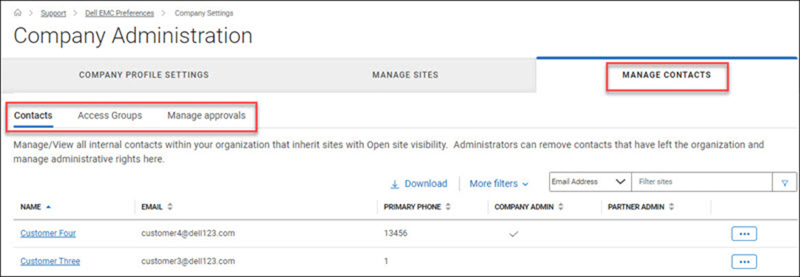
Figure 30: Manage Contacts Landing Page
There are three subtabs within View/Manage Contacts area:
- Contacts - Manage/View all internal users within your organization that inherit locations with Open Site Visibility. Administrators can remove users that have left the organization and manage administrative rights here.
- Access Groups - Applying an access group defines a business user's access to your company's locations and products. Users not assigned to an access group can access all locations with visibility set to open. To Learn more see Dell Knowledge Base article MyService360 Knowledge Center.
- Manage Approvals - Manage access requests from employees of your organization for locations that have Restricted Site Visibility.
Promote, Demote, or Remove users with Administrator Attributes (Manage Contacts > Contacts)
- To grant Company Administrators privilege Promote an Administrator role for a particular user, the Administrator should:
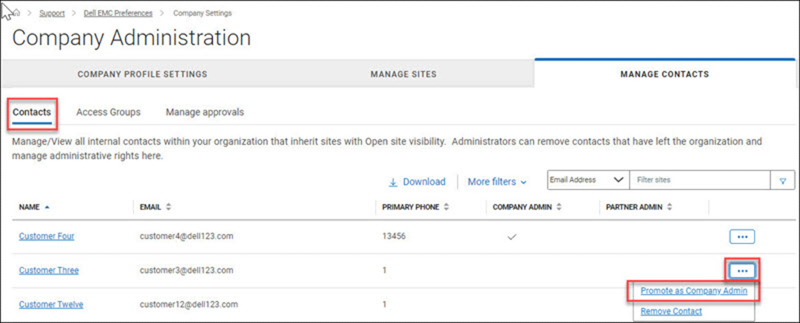
Figure 31: Manage Contacts Promote Admin
- Browse to the Manage Contacts area of Company Administration.
- Within the Contacts subtab, expand the icon with three dots beside a specific internal contact record that does not have a checkmark in the Company Administrator column and you want to promote.
- Select Promote as Company Admin.
- A pop-up will appear asking to confirm the choice. Select Yes, Promote or No to complete or cancel the transaction.
- To remove the Company Administrator role for a particular user, the Administrator should:
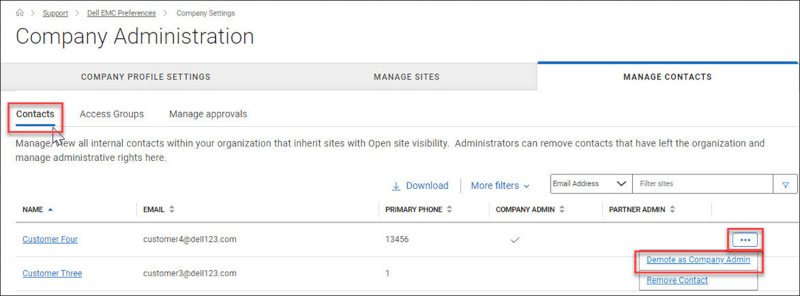
Figure 32: Manage Contacts Demote Admin
- Browse to the Manage Contacts area of Company Administration.
- Within the Contacts subtab, expand the icon with three dots beside a specific internal contact record that has a checkmark in the Company Administrator column that you want to demote.
- Select Demote as Company Administrator.
-
A pop-up will appear asking to confirm the choice. Select Yes, Promote or No to complete or cancel the transaction.
- Removing a contact:
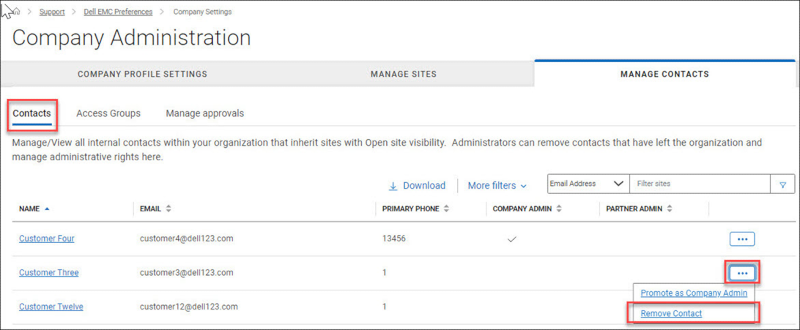
Figure 33: Manage Contacts Remove Contact
Company Administrators can remove users within their own organization should they no longer require access. Doing so removes access across ALL Dell Technologies secured websites and applications (not just https:///Dell Support site), so this should be done only when the contact no longer needs such access, typically when they have permanently left the company.
To remove a user that has left your organization (and no longer requires access to any Dell Technologies online applications including support, Partner Portal, Education, Licensing, so forth), a Company Administrator should:
- Browse to the Manage Contacts area of Company Administration.
- Within the Contacts subtab, expand the icon with three dots beside a specific internal contact record that you would like to remove.
- Select Remove Contact.
CAUTION: This will deactivate the account, blocking access to all online resources. Use this option when someone has left your organization.
- A pop-up will appear asking to confirm the choice. Select Yes, Remove or No to complete or cancel the transaction.
View Site Relationships and Product Roles (Manage Contacts > Contacts > Selected user record)
From the Manage Contacts area within Manage Contacts, Company, and Partner Administrators can view the details of each internal user within their organization by clicking the "Name" hyperlink of the user. Doing so will present the Administrator with the following details:
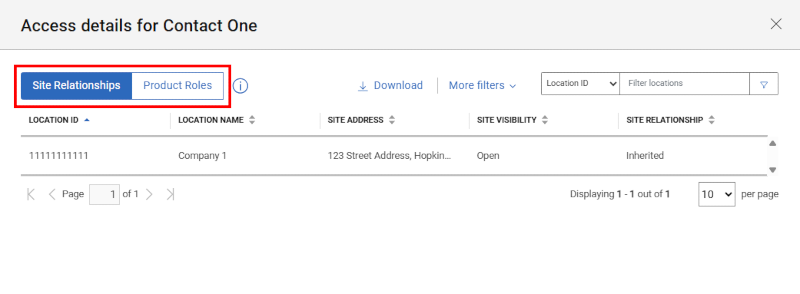
Figure 34: Manage Contacts Drilled Contact Site Relationships
- Site Relationships subtab: Displays locations that the contact has access to by inheritance, approved secured location access, or support partner defined access. Third party or any manually applied relationships may not be visible to the Administrator. Below are the different location relationships.
- Inherited - locations visible by your organization.
- Secure Site Access - approved access to Restricted or Blocked locations.
- Support Partner - for partners, locations with one or more assets contractually supported by your organization.
- Authorized Contact - exception override relationship granted until alignment shifts to "inherited."
- Product Roles subtab: Displays asset-specific dial home relationships for the selected user.
NOTE: Business users cannot explore details of other internal contacts to view the aforementioned details.
Company Administrators can delete a user completely (Remove Contact), for example, if a user is no longer working for the company. In addition, Company Administrators can promote and demote the Company Administrator role of any user within their organization.
Partner Administrators will also be able to promote and demote the Partner Administrator role in a similar fashion. If a user has both Company and Partner Administrator attributes, they can promote or demote based on both attributes' purpose.
Business users cannot perform any actions from this view.
View or Manage Site Access Groups (Manage Contacts > Access Groups)
Access Group functionality provides a powerful and flexible approach for Company Administrators to manage location visibility and security. To learn more, see Dell Knowledge Base article Company Administration - Create and Manage Access Groups.
View or Manage Approvals (Manage Contacts > Manage Approvals)
The View or Manage Approvals section in Company Administration presents a list of any pending location access requests related to the user's inherited locations affiliated with their organization.
For a Business user, the area will display any pending requests they themselves requested or any they were submitted for (and are awaiting approval). They will not see any other pending requests that are related to their organization.
In order to see their pending requests, a Business user, and Partner Administrator user should:
- Select the View Pending Requests subtab within View Contacts.
- Once in the area, Business users and Partner Administrator users can view their pending requests.
Company Administrators will be able to see and take action on (Approve or Deny) any request that are made for locations within their organization.
In order to manage requests, a Company Administrator should:
- Select the Manage Approvals subtab within Manage Contacts
- Approve / Deny requests by Approve or Deny buttons to the right of each pending request
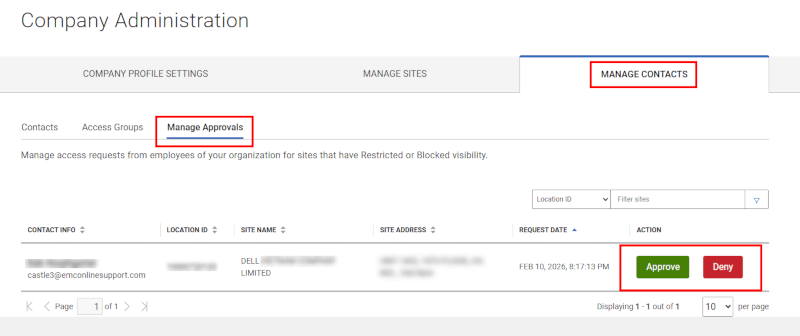
Figure 35: Manage Approval
Online Support help options
Need help? Get started from the Online Support links below. If applicable, please contact your Service Account Manager or Customer Success Manager.
|
Topics |
Help Links Tip: Be sure to sign in to the Online Support site to view all available support options. |
|---|---|
|
Get Technical Support for your products.
|
|
|
Enterprise Online Account assistance View and manage company information, contacts, and service requests.
|
Administrative Support
|
|
Asset / Install Base management. Product registrations
|
|
Affected Products
Data EraseArticle Properties
Article Number: 000183704
Article Type: How To
Last Modified: 02 Apr 2026
Version: 57
Find answers to your questions from other Dell users
Support Services
Check if your device is covered by Support Services.