Unisphere para PowerMax: Cómo verificar el dispositivo de ruta única de PowerMax/VMAX
Resumen: ¿Cómo verificar los dispositivos de ruta única de PowerMax o VMAX mediante Unisphere para PowerMax?
Instrucciones
En ocasiones, los usuarios deben verificar si existen riesgos para los dispositivos de una sola ruta antes de realizar tareas de mantenimiento (reemplazo de FRU), cambios en la configuración en línea, actualización de firmware en línea, etc.
Cuando el usuario obtiene la lista de dispositivos de una ruta de Dell EMC, el usuario debe determinar a qué host se asignan los dispositivos. Con las rutas de volúmenes de la vista de enmascaramiento de Unisphere, pueden verificar las rutas activas de los volúmenes de host.
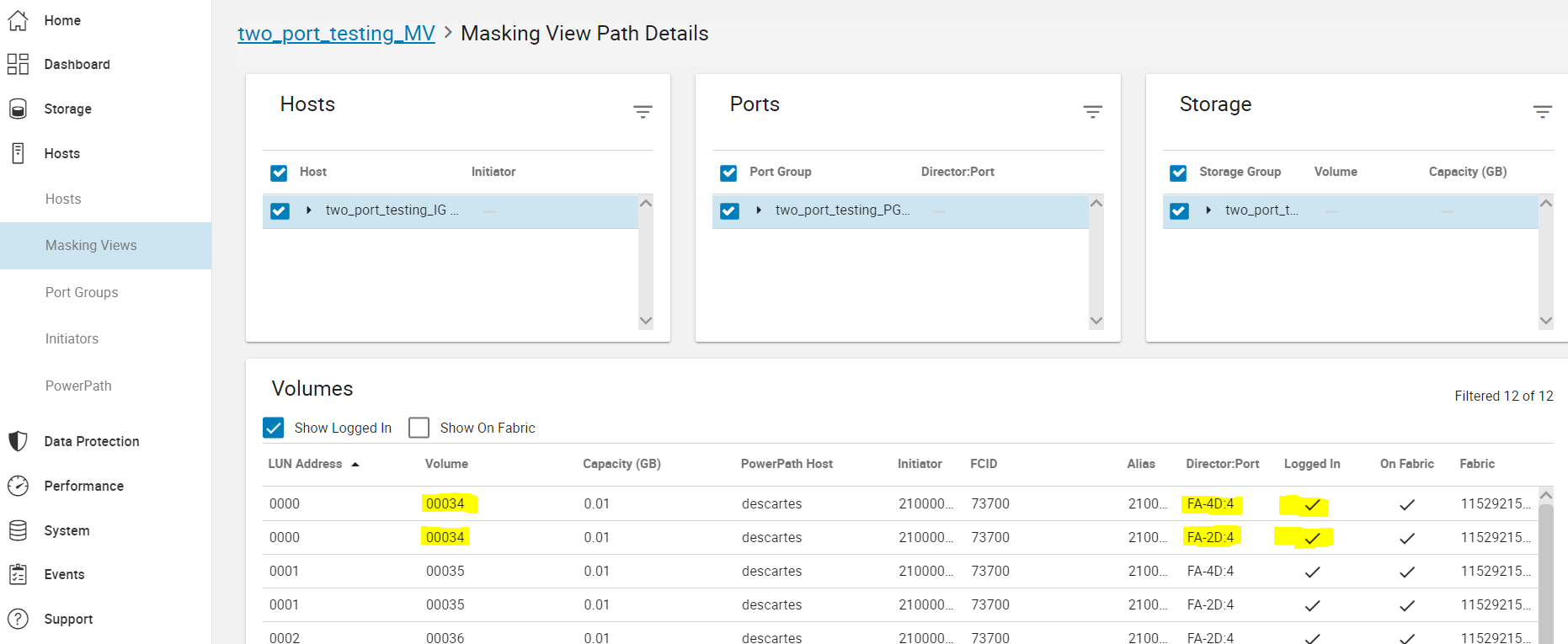
Las rutas activas se visualizan mediante Unisphere Array >Hosts >Masking Views>, seleccione Masking Views > y haga clic en View Path Details> Masking View Volume Paths.
Para un número de volumen específico, busque los puertos del director y cuente el número de registros que están marcados. De esta manera, podemos averiguar cuántas rutas activas se registran en el host. El usuario puede buscar y revisar dispositivos de ruta única en la lista.
Inicio de sesión
Indica si el iniciador inició sesión en el host o destino.
En fabric
Indica si el iniciador está zonificado en y en la red fabric.