Cómo instalar Phi-3.5-mini-instruct para su uso con Dell Pro AI Studio en plataformas Qualcomm
Resumen: En este artículo, se proporciona información sobre cómo instalar Phi-3.5-mini-instruct en computadoras Qualcomm para su uso con Dell Pro AI Studio en un solo dispositivo.
Este artículo se aplica a
Este artículo no se aplica a
Este artículo no está vinculado a ningún producto específico.
No se identifican todas las versiones del producto en este artículo.
Instrucciones
Productos afectados:
- Estudio de IA Dell Pro
Requisitos previos:
Antes de continuar, asegúrese de contar con lo siguiente:
- Tiempo de ejecución de escritorio de .NET ARM64 8.0.15 o posterior
- ASP.NET Core Runtime ARM64 8.0.15 o posterior
- C++ Redistributable ARM64 14.42.34438.0 o posterior
- Servicios principales de Dell
- Estudio de IA Dell Pro
- Phi-3.5-mini-instrucción
Nota: Se confirmó que la computadora Dell se encuentra en la sección Plataformas compatibles de la Guía de implementación de Dell Pro AI Studio para MECM o la Guía de Intune de Dell Pro AI Studio en Soporte para Manuales y documentos de Dell Pro AI Studio.
Para instalar Phi-3.5-mini-instruct:
En los siguientes pasos, se supone que ya descargó y extrajo los requisitos previos necesarios.
- Haga clic con el botón secundario en el menú de inicio de Windows y seleccione Terminal (administrador).
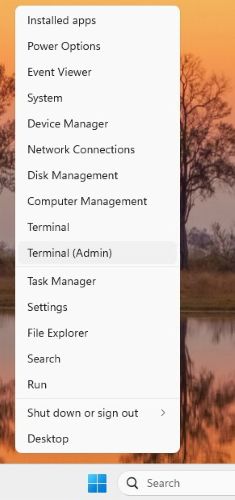 Nota: Haga clic en Sí si se lo solicita el Control de cuentas de usuario.
 - Cambie el directorio en el terminal en el que extrajo los archivos. Tipo de ejemplo
cd C:\DPAIS\ARM64y presione Intro.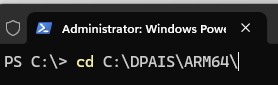
- En Terminal, escriba
.\windowsdesktop-runtime-8.0.15-win-arm64.exe /install /quiet /norestarty presione Intro.
- En Terminal, escriba
.\aspnetcore-runtime-8.0.15-win-arm64.exe /install /quiet /norestarty presione Intro.
- En Terminal, escriba
.\VC_redist.arm64.exe /install /quiet /norestarty presione Intro.
- En Terminal, escriba
.\Dell.Core.Services.Installer_Arm64.msi /qn /norestarty presione Intro.
- En Terminal, escriba
.\Dell.AI.Framework.arm64.msi /qn /norestarty presione Intro.
- En Terminal, escriba
.\Dell.Model.Phi-3.5-mini-instruct.NPU.Genie.arm64.msi /qn /norestarty presione Intro. Nota: El archivo Dell.Model.Phi-3.5-mini-instruct.NPU.Genie.arm64.msi espera que el archivo Phi-3.5-mini-instruct.zip esté en el mismo directorio o, de lo contrario, la instalación fallará.
 - Reinicie la computadora para finalizar el proceso de instalación.
Productos afectados
Dell Pro AI StudioPropiedades del artículo
Número del artículo: 000321686
Tipo de artículo: How To
Última modificación: 21 may 2025
Versión: 1
Encuentre respuestas a sus preguntas de otros usuarios de Dell
Servicios de soporte
Compruebe si el dispositivo está cubierto por los servicios de soporte.