Loading Default in BIOS Does Not Change the Secure Boot Mode from Audit Mode to Deployed Mode
Résumé: Learn why the Secure Boot Mode does not change from Audit Mode to Deployed Mode after loading default in BIOS.
Cet article concerne
Cet article ne concerne pas
Cet article n’est associé à aucun produit spécifique.
Toutes les versions du produit ne sont pas identifiées dans cet article.
Symptômes
Secure Boot Mode may not change from Audit Mode to Deployed Mode after loading default in BIOS.
Affected Platforms:
- Alienware m16 R1 AMD
- Alienware m18 R1 AMD
- Inspiron 14 5425
- Inspiron 14 5435
- Inspiron 14 7425 2-in-1
- Inspiron 14 7435 2-in-1
- Inspiron 16 5625
- Inspiron 16 5635
- Inspiron 16 7635 2-in-1
- Inspiron 7415 2-in-1
- Vostro 16 5635
- Vostro 5625
Cause
This option is not defined in the load default setting in the original design.
Résolution
Follow the steps to change the Secure Boot Mode change from Audit Mode to Deployed Mode manually.
- Press F2 key repeatedly after turning on the computer to boot to the BIOS setup menu.
- Select Security.
- Select Secure Boot.
- Select Deployed Mode.
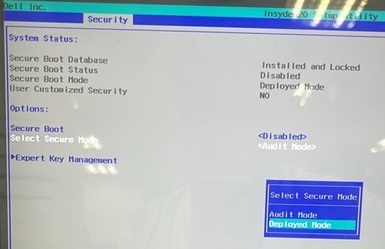
- Confirm the message and select Yes.

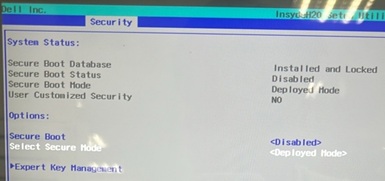
- See if it is changed to Deployment Mode.
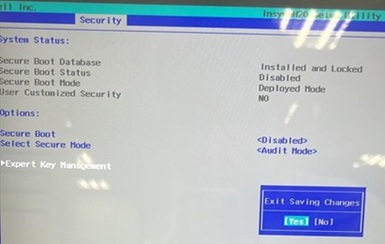
- Press F10. Select Yes when Exit Saving Changes appears.
Produits concernés
Alienware m16 R1 AMD, Alienware m18 R1 AMD, Inspiron 14 5425, Inspiron 14 5435, Inspiron 7415 2-in-1, Inspiron 14 7425 2-in-1, Inspiron 14 7435 2-in-1, Inspiron 16 5625, Inspiron 16 5635, Inspiron 16 7635 2-in-1, Vostro 5625, Vostro 16 5635Propriétés de l’article
Numéro d’article: 000388366
Type d’article: Solution
Dernière modification: 24 mai 2026
Version: 2
Trouvez des réponses à vos questions auprès d’autres utilisateurs Dell
Services de support
Vérifiez si votre appareil est couvert par les services de support.