PowerProtect: How to Upgrade Best Practices and Recommendations
Summary: Upgrade PowerProtect Data Manager with best practices: verify compatibility, take snapshots, follow security advisories, and use SolVe Procedure Generator.
Instructions
Upgrade and Deployment Documentation
Documentation for every PowerProtect Data Manager version can be found at the link below. Download and review each guide relevant to your environment.
PowerProtect Data Manager: Info Hub Product Documents and Information
The deployment guides show which versions are supported for upgrade. For example, upgrade to version 19.19 is supported only from versions listed in the table below. An upgrade from any version prior to these must be upgraded to one of the versions listed.
| Release version | Software version |
| 19.15 | 19.15.0-17 19.15.0-25 |
| 19.16 | 19.16.0-11 19.16.0-15 19.16.0-21 |
| 19.17 | 19.17.0-10 19.17.0-18 19.17.0-23 |
| 19.18 | 19.18.0-14 19.18.0-17 19.18.0-23 |
Table 1. Supported release and software versions
For upgrade instructions, review the deployment guide for the appropriate version, reviewing the section titled "Update PowerProtect Data Manager from versions…"
Agent Upgrade:
The same version information is true for Agent upgrade procedures.
Release Notes:
Review the release notes for the appropriate version which can be found with the guides under the same link posted above.
Under 'New features' 19.19 release notes, show:

In addition, the following sections include important information:
- New features
- Changed features
- Resolved issues
- Known issues
- Environment and system requirements
- Deployment and update considerations
- Where to get help
Tips for Upgrading:
- Only the Administrator role can perform updates.
- Check for running tasks and cancel them or allow them to complete.
- For on-premises deployments, it is recommended you take a snapshot of PowerProtect Data Manager before the update package is installed. For more information, see Taking a snapshot when installing an update package.
- Ensure that you have a current Server Disaster Recovery (DR) backup before attempting an update.
- Manually or automatically download an update package from the Software Update window, or directly download it from the Dell Technologies Support Drivers & Downloads website. To manually or automatically download an update package, see Managing update packages.
An update package can update one or more of the following:
- The PowerProtect Data Manager, including application agent installers stored on the PowerProtect Data Manager virtual machine
- External Virtual Machines (VM) Direct Engine
- Kubernetes support
- PowerProtect Search software
- Remote Cloud Disaster Recovery Server
In PowerProtect Data Manager, the update process automatically stops and removes most running jobs and puts the system into maintenance mode. If server Disaster Recovery is enabled, the system performs a Server DR backup.
You can check if the PowerProtect Data Manager system is ready to update by performing a precheck. For more information, see Perform a precheck on an update package.
Snapshots:
For PowerProtect Data Manager systems that are configured as VM, perform a virtual machine snapshot prior to performing the upgrade. Creating a snapshot prior to the upgrade ensures that the system can be restored to its previous state in the event any critical issues arise during or after the upgrade process.
Restricted mode:
You can enable restricted mode to prevent scheduled writes to storage. You may want to enable restricted mode to limit access to storage during a storage upgrade.
Enabling restricted mode during a storage upgrade provides the following benefits:
- Storage writes can be eliminated in a controlled manner. Once writes have stopped, storage can be upgraded.
- Storage writes can be tested after storage has been upgraded. Once testing is complete, storage can be returned to full production. Restricted mode prevents the following scheduled operations:
- Backups and replication
- Backup-copy deletion
- Server disaster-recovery backups
Restricted mode allows the following operations:
- Any jobs in progress or queued to run
- Manual backups and restores
- Discovery jobs
To enable restricted mode from the PowerProtect Data Manager user interface, click  , select Support > Restricted Mode, and then click Enable Restricted Mode.
Compatibility
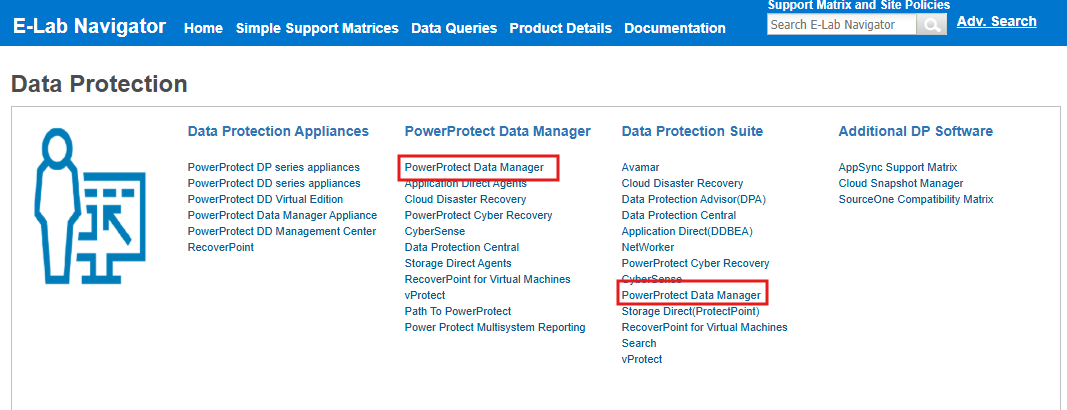
Verify Compatibility.
There are two types of Compatibility; Hardware and Software. Whenever hardware is upgraded, software compatibility must be met. The reverse is also true-whenever software is upgraded, hardware compatibility must be met.
- Hardware: Verify your NAS, SAN, Tape Library, Data Domain DDOS, Drivers, and Firmware of any devices that PowerProtect Data Manager may use is updated first. Verify that they are compatible with the new PowerProtect Data Manager or Agent versions.
- Software: Verify Compatibility between operating system versions such as Windows, Linux, or UNIX on Clients and Servers. Also verify that PowerProtect Data Manager agent versions are compatible to know what order to upgrade your computers. Also verify VMware versions if used. It is best to verify compatibility with databases and software modules for Exchange, SQL, NMM, Oracle, SAP, NMDA, VMware, Azure, and AWS as well.
Procedure Generator:
Use the 'SolVe' PowerProtect Data Manager Procedure Generator. It is a Best Practice tool for an install or upgrade. Go to the SolVe home page select the 'Upgrade' option and answer all the questions about your environment. The SolVe procedure generator provides tailored instructions to help with the upgrade.
Go to the Solve Procedure Generator at SolVe Online or you can download the Desktop Tool from the SolVe Home Page > Desktop.
Use the Latest Software.
Use the Latest software versions for PowerProtect Data Manager and all Agents.
End of life dates are detailed in the "DellSoftwareReleaseandEndofServiceLifeNotifications" attachment in article Dell End-of-Life Product List for Converged Infrastructure and Storage
Security advisories
To review the latest Dell Security advisories (DSAs), see the PowerProtect Data Manager Security Advisories website.