PowerFlex: Memory Insufficiency on KVM‑Hosts affecting MVM status and UI
Summary: PFMP UI shows a connection error, nodes are "NotReady," API calls time-out and health alerts disappear. The problem is insufficient 32 GB RAM on KVM‑hosted Morpheus Virtual Machine (MVM), leading to full memory usage. ...
This article applies to
This article does not apply to
This article is not tied to any specific product.
Not all product versions are identified in this article.
Symptoms
- The symptoms may not be visible on a newly deployed system, but evens like the
etcd certificate expirycan trigger them. - The PFMP UI no longer loads; the browser shows a generic connection error.
kubectl get nodesshows the local node Ready, while one or two other nodes are "NotReady":
NAME                STATUS     ROLES                       AGE    VERSION
mvm01               Ready      control-plane,etcd,master   102d   v1.33.2+rke2r1
mvm02               Ready      control-plane,etcd,master   102d   v1.33.2+rke2r1
mvm03               NotReady   control-plane,etcd,master   102d   v1.33.2+rke2r1
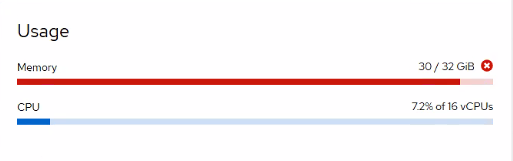
- Hypervisor metrics (KVM console) display ~100 % memory usage on all three MVMs (32 GB each):

- Attempts to run API calls may time out
Impact
- Slow responsiveness or complete loss of PFMP UI.
- Cluster health alerts are nonexistent or unreliable.
- PFMP API is not accessible.
Cause
The MVMs are provisioned by default with 32 GB of RAM each. This is insufficient in a KVM environment, where MVM memory usage can reach 45GB. Insufficient memory causes low responsiveness, UI unavailability, and resource congestion.
Resolution
Increase the allocated Memory from 32GB to 64GB, this can be done from the UI and from the command line, below are the command-line steps.
Before Starting:
Run the command kubectl get nodes on any MVM to check MVM names and status.
Note:
virsh Commands should run from KVM Console (Physical host not MVM VM), while Kubectl command to be run from MVM itself.
- From
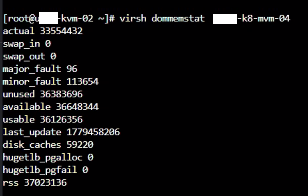
virsh, verify memory allocation on each MVM using the KVM console or monitoring tool (This command is to run from the KVM host not MVM):
virsh dommemstat <MVM Name>
Example Output:
- From inside the MVM, if the total memory of a given MVM is 32 GB, put it in maintenance and drain it (This command to run from the intended MVM):
kubectl label node <MVM Name> cmo.maintenance.mode=true
kubectl drain <MVM Name> --ignore-daemonsets --delete-emptydir-data
- From
virsh, shut down the node (This command to run from KVM host not MVM):
virsh shutdown <MVM Name>
- From
virsh, once shut down, increase the memory to 64 GB by adjusting the VM definition, and start it (This command to run from KVM host not MVM):
virsh setmaxmem <MVM Name> 64G --config
virsh setmem <MVM Name> 64G --live
virsh start <MVM Name>
- From inside the MVM, uncordon the MVM and allow K8s pods to start with the new resources (This command to run from the intended MVM):
kubectl uncordon <MVM Name>
kubectl label node <MVM Name> cmo.maintenance.mode-
- Once all pods are in Running state, go to the next MVM (Repeat Steps 1 to 5 for the next MVM) (This command to run from any MVM):
kubectl get pods –n powerflex
- Once done, verify that all nodes are displayed as Ready (This command to run from any MVM):
kubectl get nodes
- Validate UI is accessible.
Impacted Versions
PFMP 4.x
Fixed In Version
PFMP 4.8
Affected Products
PowerFlex rack, ScaleIOArticle Properties
Article Number: 000413045
Article Type: Solution
Last Modified: 26 مايو 2026
Version: 5
Find answers to your questions from other Dell users
Support Services
Check if your device is covered by Support Services.