NetWorker: How to Add NetWorker Packages to the repository using the Software Administration Wizard?
Summary: How to Add NetWorker Packages to the repository using the Software Administration Wizard?
This article applies to
This article does not apply to
This article is not tied to any specific product.
Not all product versions are identified in this article.
Instructions
NOTE: The NetWorker Update Guide describes how to use the Software Inventory and Software Repository panes to update the NetWorker software on active hosts. Support for NetWorker | Manuals & Documents
Preparing the Media Kit Location
The Media Kit Location contains the source NetWorker software packages that are used to update the NetWorker target hosts. You can specify a Media Kit Location, which is a directory that contains the extracted software packages. Ensure that the path to the Media Kit Location does not contain spaces or the following special characters: ) ( , '. If you place multiple versions of the NetWorker software in the Media Kit Location, create separate subdirectories for each version to avoid overwriting files and directories.
Creating or Updating the Software Repository from the NetWorker Management Console (NMC)
- Log in to the NMC console with a user that is both the Console Application Administrators and a member of the NetWorker server's Application administrators user group. For example, the default Administrator account.
- From the NMC Enterprise screen, connect to the NetWorker server.
- Go to the Hosts tab.
- In the Hosts tab, click Software Repository.

- In the Repository window. Any preconfigured repositories are listed. If a repository has not been configured, the window is empty.
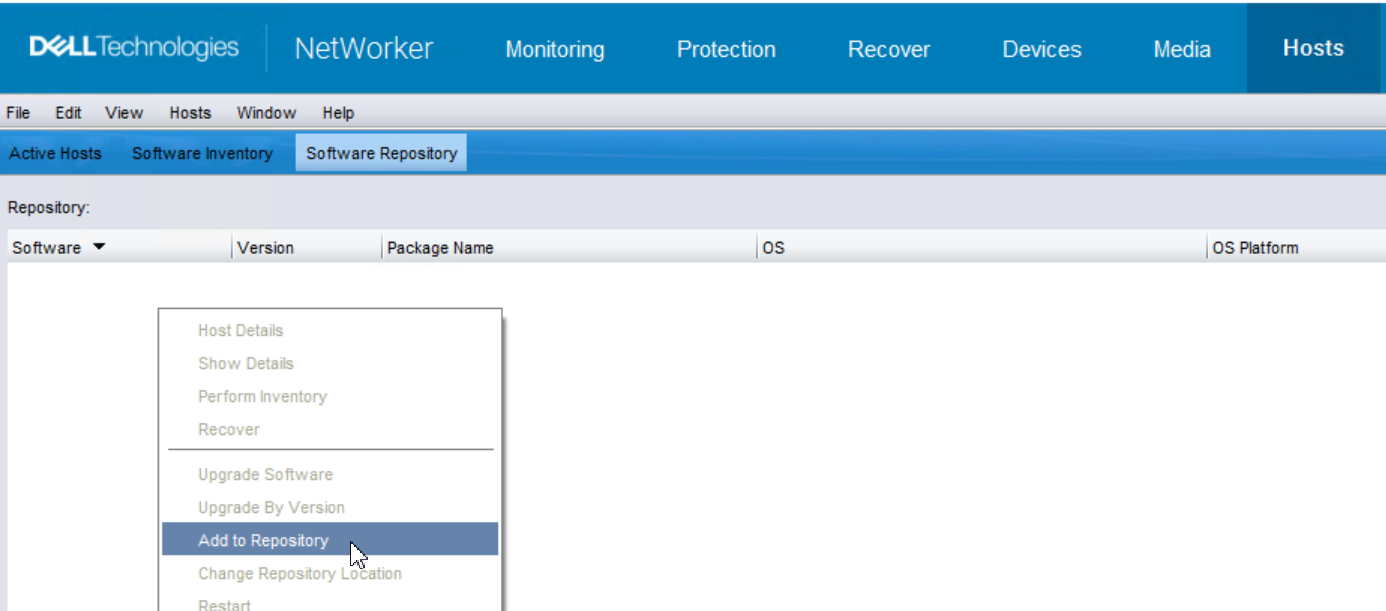
- To configure a new repository, right-click in the repository window, then click Add to repository.
-
- Browse to a location on the Server.
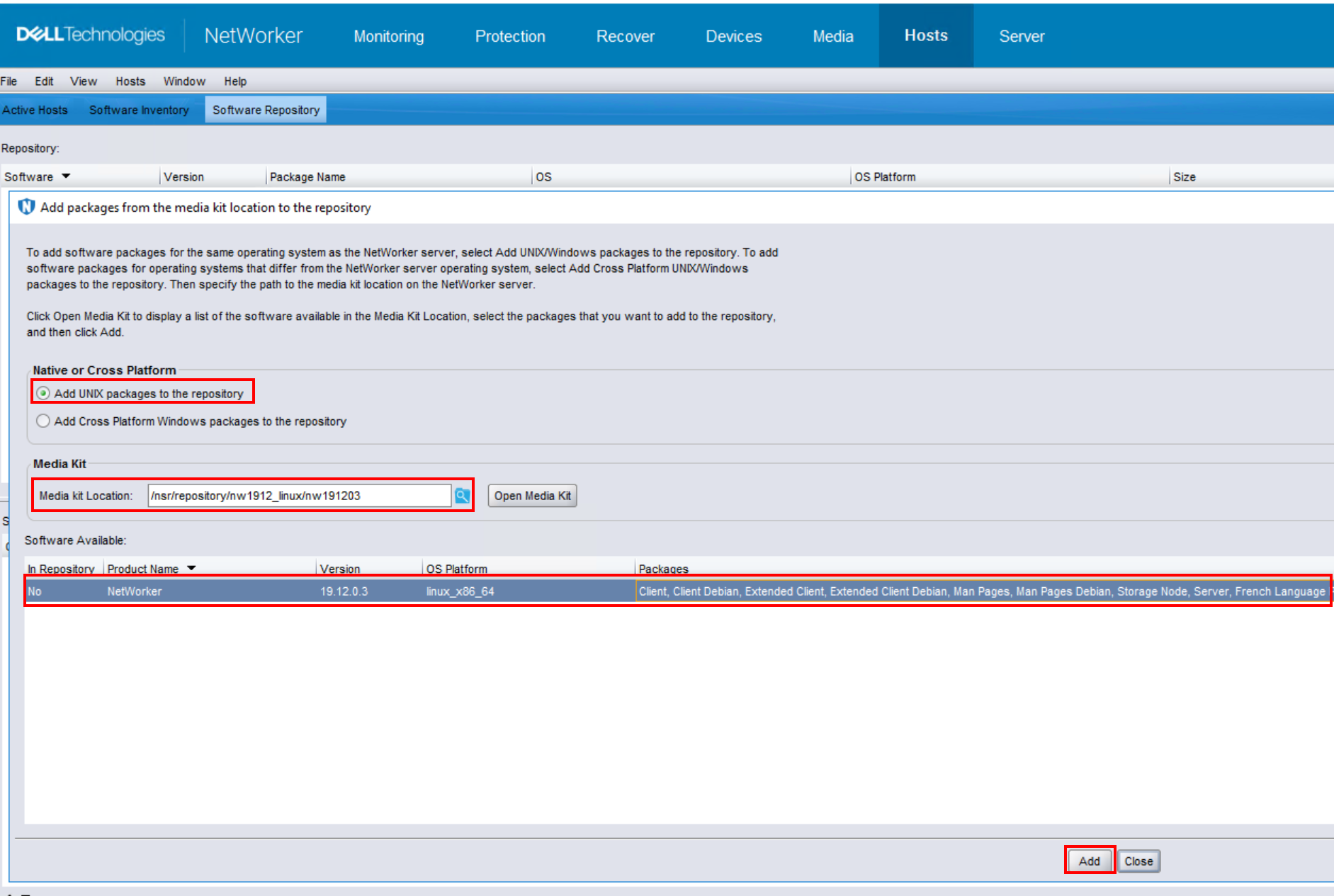
- On the Add packages from the media kit location to the repository window, select one of the following options:
-
-
- Add Windows/UNIX packages to the repository—Select this option to add software from a media kit location that is local to the NetWorker server.
- Native or Cross platform—Select Native when the packages that you want to add are for the same major platform as the NetWorker server and Cross platform when the packages that you want to add are not for the same major platform as the NetWorker server. For example, to add UNIX client packages to a Windows server or to add Windows packages to a UNIX server, select the Cross platform option to import packages. To add Solaris packages to a Linux server, select the Native option.
- In the Media Kit Location field, specify the path to the media kit location, and then click Open Media Kit. The Software Available window pane contains a list of the detected software packages in the media kit location.
- On the Software Available window pane, select the products to add to the repository, then click Add. Use the Control or Shift key to select multiple software packages. When the repository add operation completes, a confirmation message appears. Click OK.
-
Adding software to the repository by using the nsrpush command
Log in to the NetWorker server with the root user on Linux or the administrator user on Windows, and use the nsrpush command to add software to the software repository database.
NOTE: You cannot use the
nsrpush command to add the NMM software to the repository, use NMC only.
- Review the list of extracted products in the media kit location. The command to view the Windows and UNIX products differ:
-
- For Linux software products, type:
nsrpush -L -U -m media_kit_location - For Windows software products, type:
nsrpush -L -W -m media_kit_location
- For Linux software products, type:
- Use the
nsrpushcommand to add packages, one at a time, to the repository:nsrpush -a -p Product_Name -v version -P platform -R repo_location -U|-W -mmedia_kit_location
Where:
-
Product_Nameis the name of the product: NetWorker, NetWorker Module for SAP, NetWorker Module for Databases and ApplicationsNOTE: Product names are case sensitive and ensure that you enclose the module product names in quotation marks (" "). NMC can only upgrade NetWorker Module for Microsoft, and there is no CLI support for this product.versionis the version of the software product, for example, 19.13.platformis the operating system platform of the package, for example:win_x64orlinux_x86_64.
NOTE: Version and platform strings must be the exact match as in the output ofnsrpush -Las mentioned in Step 1.-R repo_locationspecifies the path to the repository. When you do not specify the-Roption, the repository is created in the following default locations:- Linux: /nsr/repository
- Windows (Default): C:\Program Files\EMC NetWorker\nsr\repository
-Uspecifies a Linux media kit and-Wspecifies a Windows media kit. Use the appropriate option for the package that you want to add to the repository.-m media_kit_locationis the path to the media kit.
Affected Products
NetWorkerProducts
NetWorkerArticle Properties
Article Number: 000023672
Article Type: How To
Last Modified: 23 يونيو 2026
Version: 9
Find answers to your questions from other Dell users
Support Services
Check if your device is covered by Support Services.