VxRail: Physical View shows "Server type is not supported" after upgrade or motherboard replacement
Summary: This KB article includes information about how to resolve the issue of "Server type is not supported" message from VxRail plugin Physical View.
Symptoms
The following message appears from the VxRail plugin Physical view: Server type is not supported
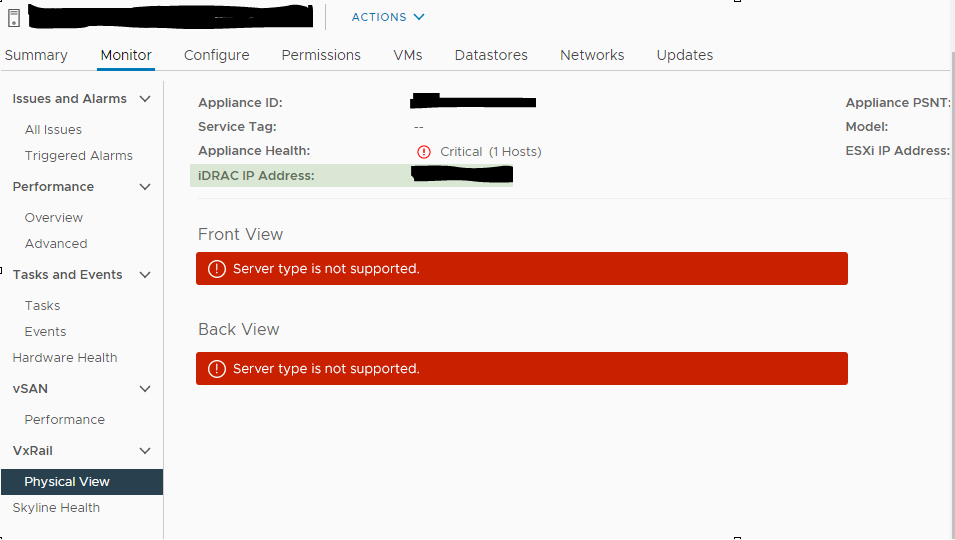
Figure 1. Physical View: Server type is not supported.
The iDRAC IP is present which means it can reach the iDRAC and fetch information.
Cause
There are two causes for this issue:
- The motherboard was replaced, but the BIOS settings are missing information.
- Upgrade from version 4.X to 7.X.
Resolution
The resolution requires ESXi to be in Maintenance Mode (MM) and to be rebooted.
Do not proceed until you get confirmation to proceed.
Prepare the ESXi host for the reboot process:
- Enter the ESXi host into MM with the Ensure Accessibility option.
- Make sure iDRAC is up and accessible.
- Open iDRAC virtual console and choose the next boot as
BIOS Setup.
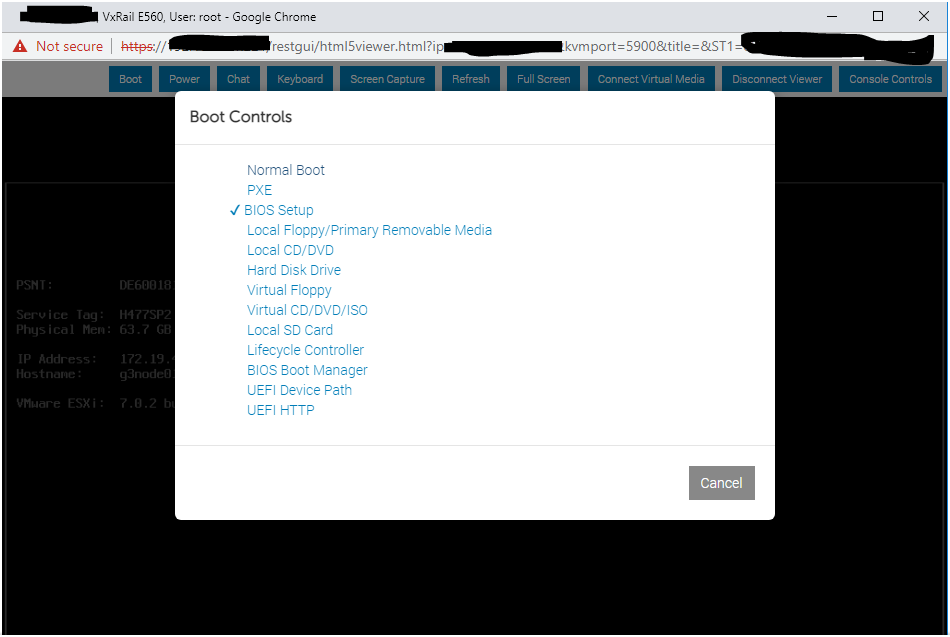
Figure 2. Boot Controls: BIOS Setup
- Change BIOS Miscellaneous Settings.
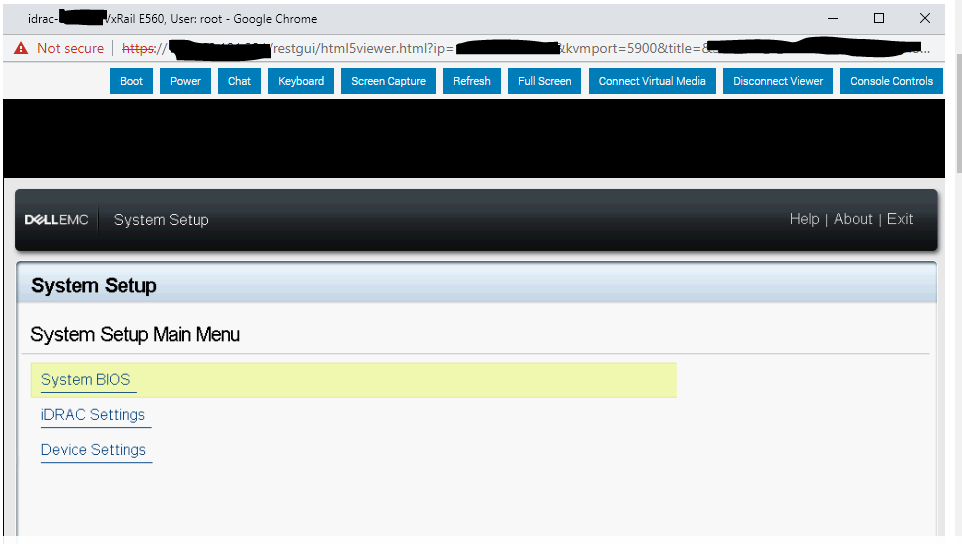
Figure 3. System Setup Main Menu: System BIOS
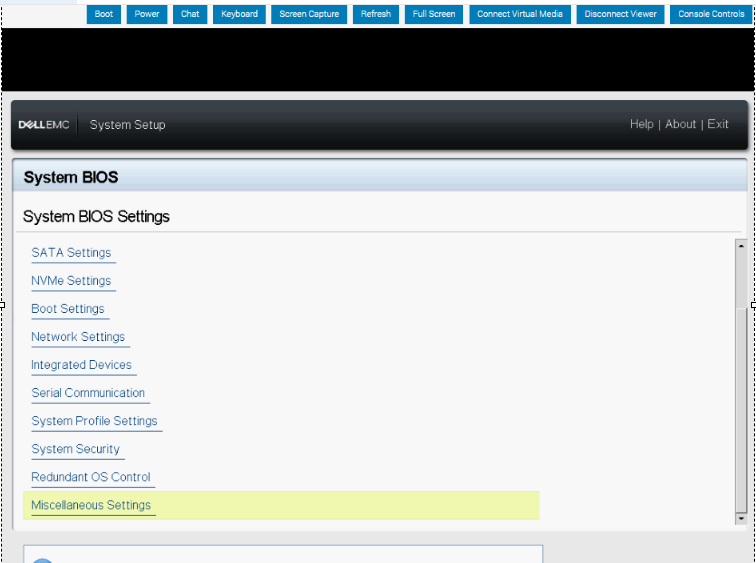
Figure 4. System BIOS Settings: Miscellaneous Settings
- Enter the ESXi host Service Tag or PSNT in the Asset Tag field > Click Back > Finish > Save BIOS Changes and reboot.
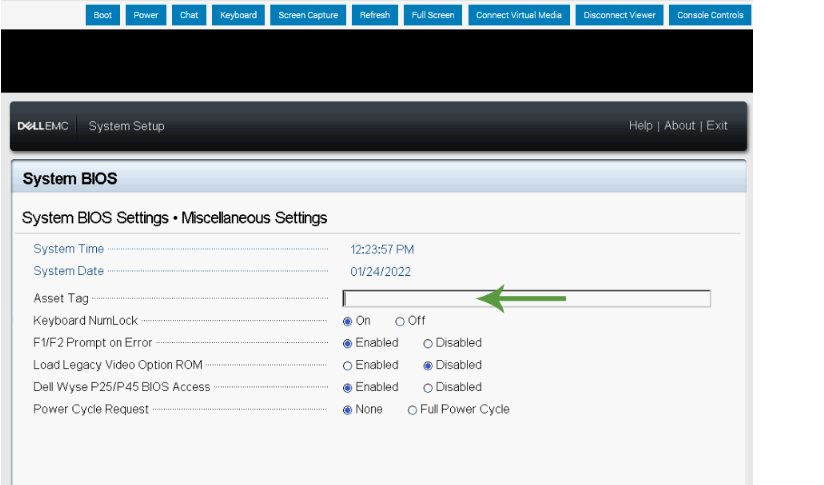 Figure 5. Insert Asset Tag
- After reboot, exit the ESXi host out of MM and wait approximately 15 minutes. You should have a normal look of the node from Physical View.
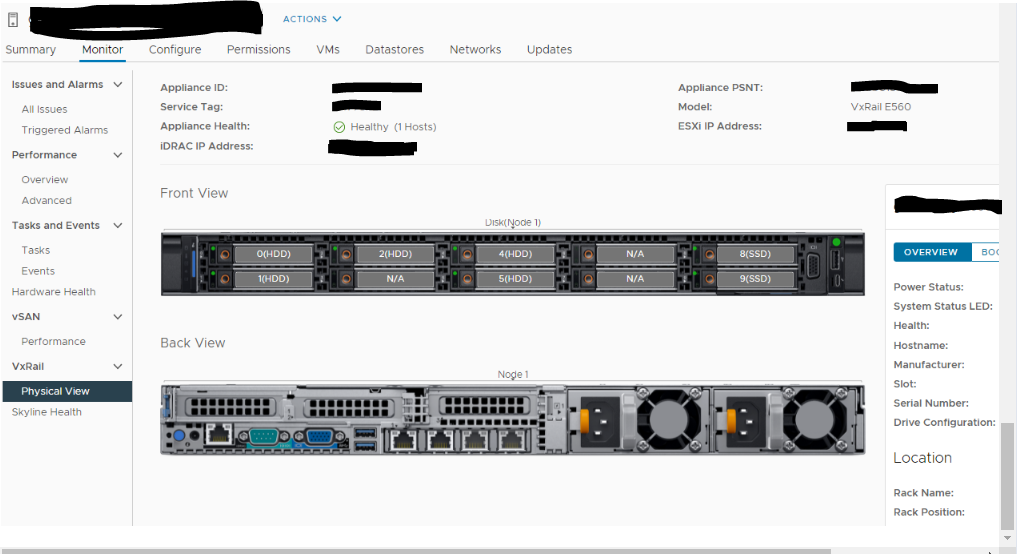
Figure 6. Healthy Host
Additional Information
You might observe a different error message that the server cannot communicate after reboot. If that is the case, attempt to SSH to the ESXi host and run the following commands without the need for a maintenance window:
/etc.d/init.d/DellPTAgent restart
/etc.d/init.d/dcism-netmon-watchdog restart
/etc.d/init.d/vxrail-pservice restart
If the Service Tag is not visible from the bottom left of the BIOS screen or for other issues, contact Support for assistance.