PowerFlex: PFX00102.0000206 - The Disk Space Diagnostic Failed
Summary: This article explains how to troubleshoot the alert PFX00102.0000206) The disk space diagnostic failed.
Instructions
Error code:
ID: 70402062 (PFX00102.0000206) The disk space diagnostic failed.
Symptom:
A disk space diagnostic failure event occurs when the disk space diagnostic fails three consecutive times for scheduled runs. Each scheduled run occurs every two minutes, so the alert is triggered after four to six minutes. In a manual, run every time the disk space diagnostic fails an event is raised and an alert is triggered.
Resolution and troubleshooting steps:
Problem Validation
- If the disk space usage is greater than 85%, the diagnostic results page displays a warning for the disk space diagnostic. If the disk space usage is greater than 95%, the diagnostic results display an error for the disk space diagnostic.
Expect the following impacts:
-
- Potential PowerFlex Manager resource failures
- Potential PowerFlex management platform data loss
Problem Resolution
MVM space cleanup using article PowerFlex: How to Perform MVM Cleanup and Space Reclamation
Additional Information
Additional Troubleshooting:
- Remove old logs and orphaned docker-registry directories. Delete PVs that are not attached to the docker registry. Ensure to NOT delete the PVs attached to the docker registry.
- Check the PV name attached to the docker registry,
- This command shows you the list of PVs filtered by the docker-registry name:
kubectl get pv | grep <docker-registry-name>Do not delete the PVs that return in this list.
- This command gives you the list of all PVs.
Kubectl get pvYou can delete those that are NOT attached to the docker registry by using the delete.
Command:
Kubectl delete pv- If this issue persists, contact Dell Technologies Support for assistance.
Resolution Validation
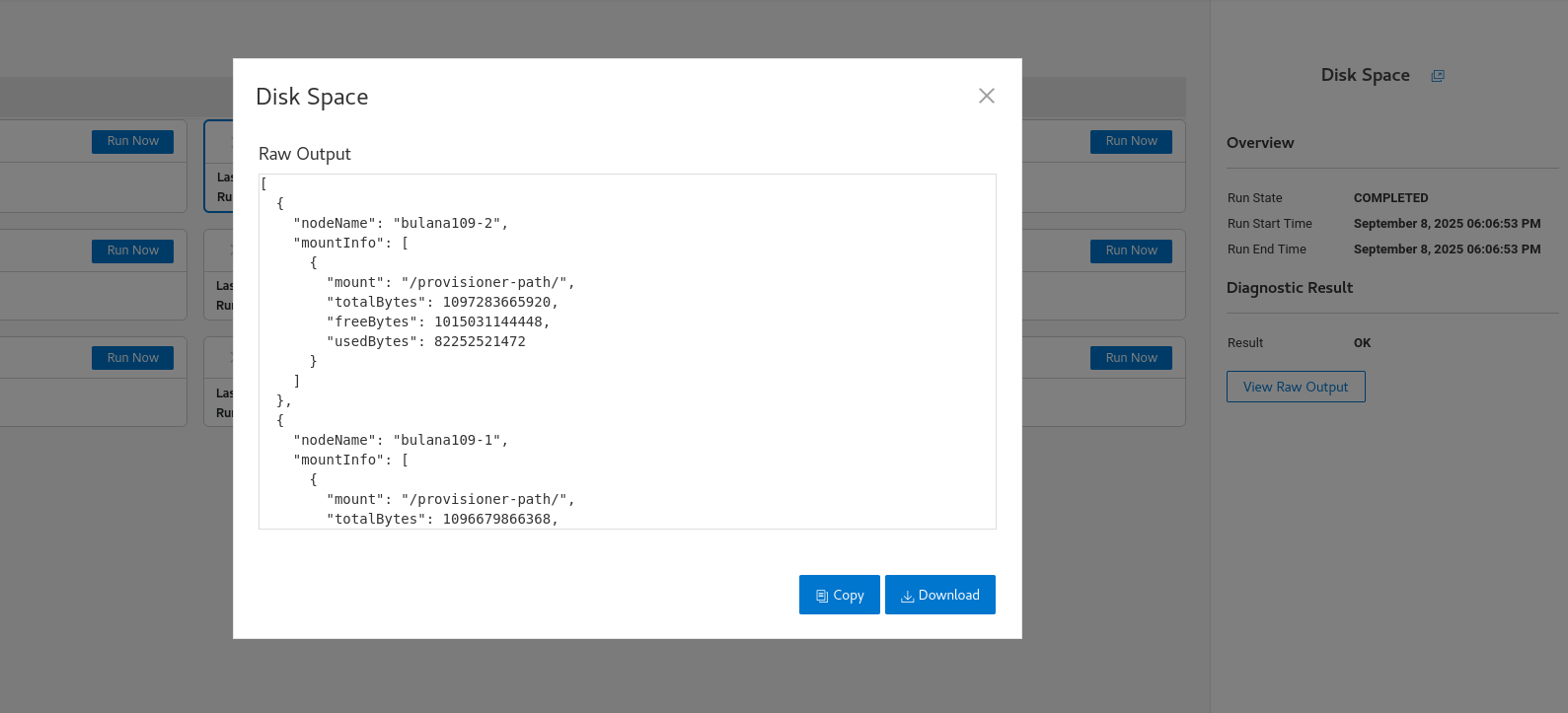
- Check the diagnostic results page for the current disk usage and verify that the diagnostic has been completed successfully.
- SSH into a node with the following command:
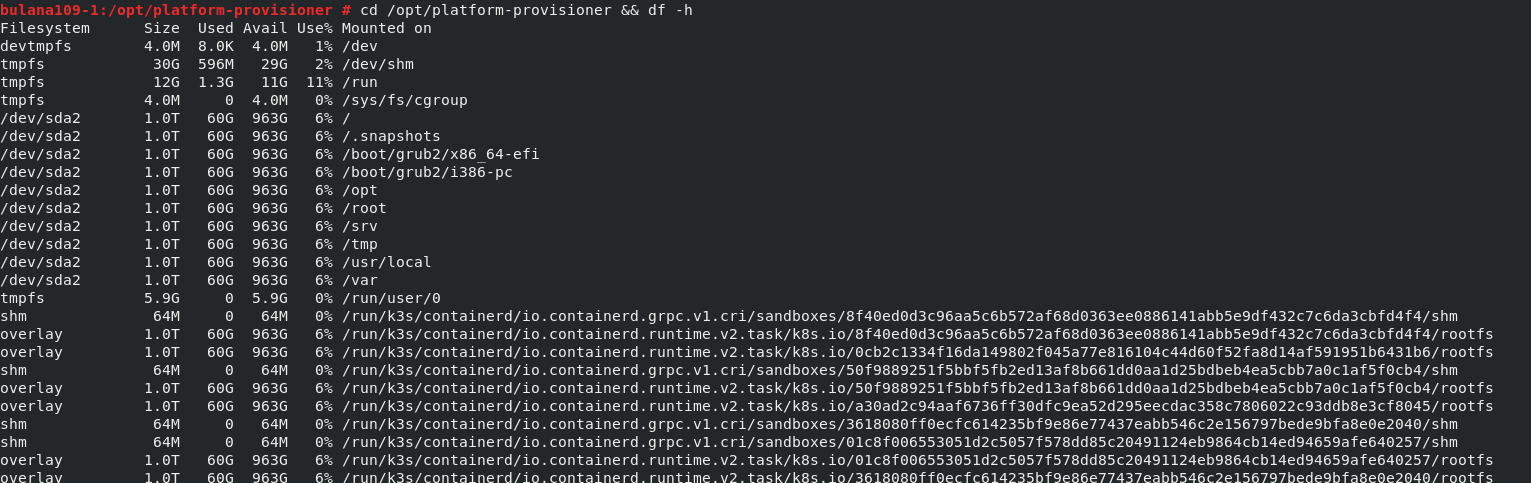
cd /opt/platform-provisioner && df –h
And review the output listing the disk usage.
- Show the raw output for each node on the diagnostic results page. (screenshot below)