PowerEdge: How to Import a Foreign Configuration in the RAID Controller Using the System Setup Menu
Summary: This article provides information about how to import a foreign configuration RAID array on the system setup (F2) menu.
Instructions
A foreign configuration is detected when the RAID controller identifies RAID metadata that is not synchronized with its current configuration. This can occur when disks or a virtual disk are moved between systems, or when a RAID set temporarily goes offline and later returns.
Before You Begin
When to Use This Procedure
Use this procedure only when either of the following conditions are true:
- After installing or replacing a new PERC.
- The original RAID configuration is expected to be intact and should be recovered.
- The entire RAID virtual disk (VD) is Offline or Failed with foreign disks detected.
- In this scenario, its advised to review the logs or have support help with reviewing the logs to understand why the array failed as there could be missing of failed disks that make it impossible to import.
When Not to Use This Procedure
Do not import a foreign configuration in the following situations:
- The virtual disk is Online or Degraded but still accessible.
- Only a single physical disk shows a foreign configuration while the RAID remains active.
In these cases, clear the foreign configuration on the affected disk and allow the RAID to rebuild. Importing a single-disk foreign configuration into an active array may cause data corruption.
Additional Notes
- On PowerEdge R/T x30 and x40 series systems running UEFI, the traditional RAID BIOS may not be available. Configuration is performed through System Setup (F2).
- Dell Technologies recommends contacting Dell Technical Support if the RAID state is unclear or if unexpected disk statuses are observed.
- For general guidance on when to import or clear a foreign configuration, see PowerEdge: Importing or Clearing Foreign Configurations on PERC controllers.
An administrator must first Check the Virtual and Physical Disk Status, then Import Foreign Configurations. Click the appropriate process link for details.
Check the Virtual and Physical Disk Status
- Turn on the system.
- Press the F2 key when prompted.
- Select Device Settings on the System Setup Main Menu.
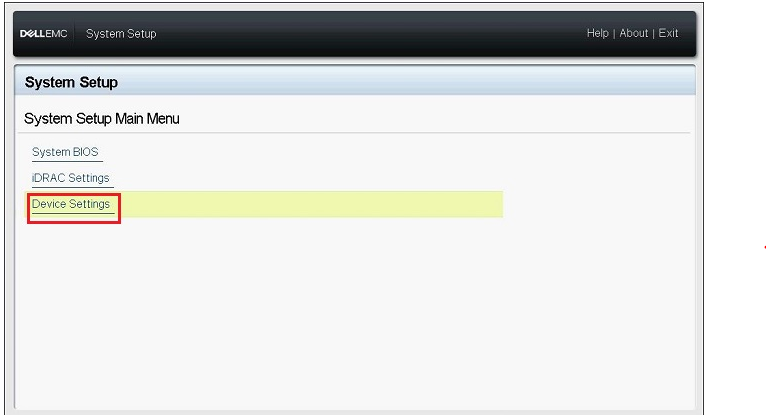
Figure 1: System Setup Device Settings
- Click the appropriate RAID controller on the Device Settings menu.
- Click Virtual Disk Management on the Main Menu.
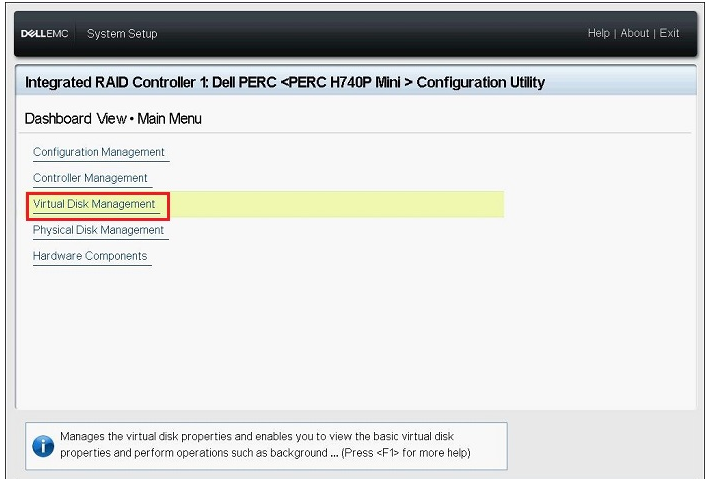
Figure 2: Virtual Disk Management
- Check the status of the appropriate virtual disk that is displayed and then click the virtual disk link.
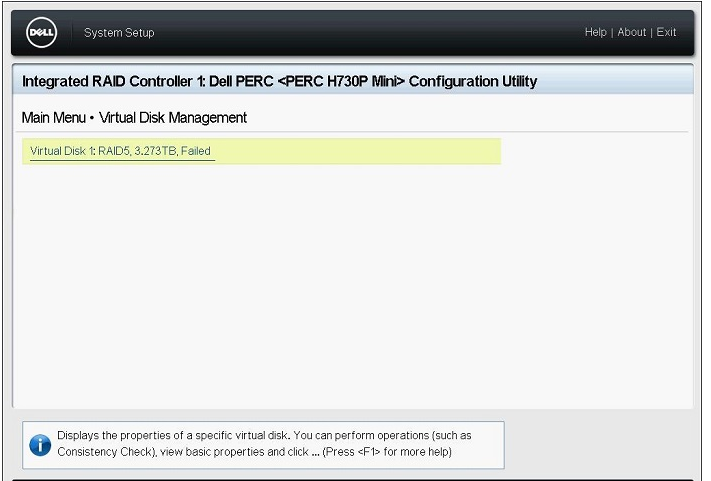
Figure 3: Selecting the virtual disk
- Check the information about the RAID Level, Status and Size, and then click View Associated Physical Disks.
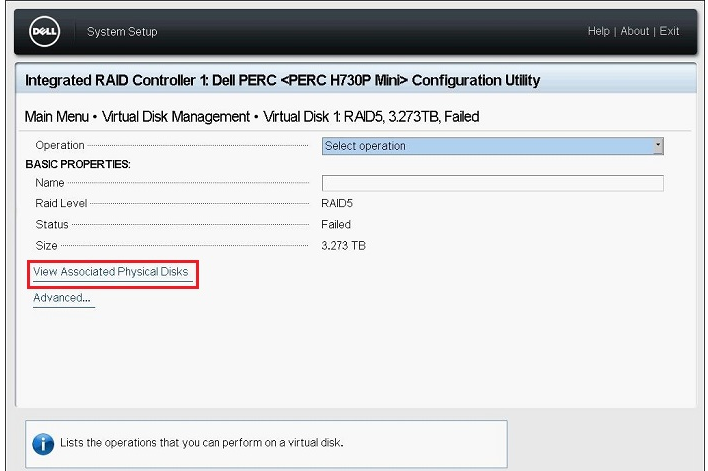
Figure 4: View Associated Physical Disks
- Check physical disks that are part of the virtual disk from the ASSOCIATED PHYSICAL DISKS field and then click Back until the screen returns to the Main Menu.
- Click Physical Disk Management from the Main Menu.
- Check the status of all displayed physical disks and click each disk to check the details.
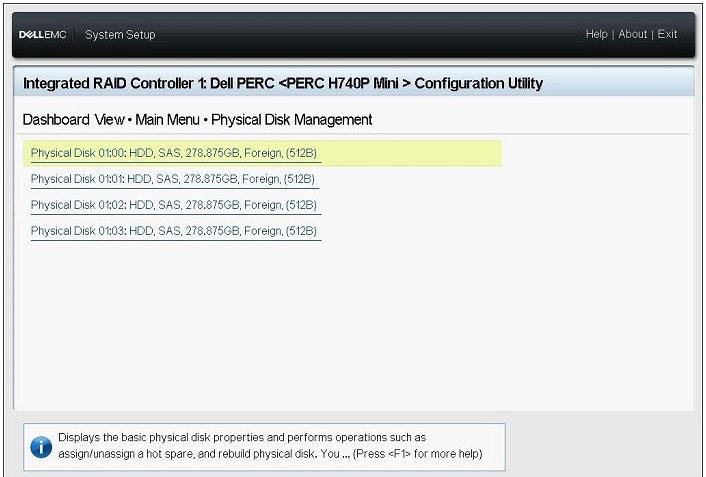
Figure 5: Physical disk details
- Check the following items on the disk details screen:
- PowerEdge R/T x30/x35 series: Physical Disk ID, Status, Size
- PowerEdge R/T x40/x45 series: Device ID, Backplane ID, Slot Number, Status, Size
- Check the status of all remaining physical disks in the same way and then return to the Main Menu.
Import Foreign Configurations
- Click Configuration Management on the Main Menu screen.
- Click Manage Foreign Configuration.
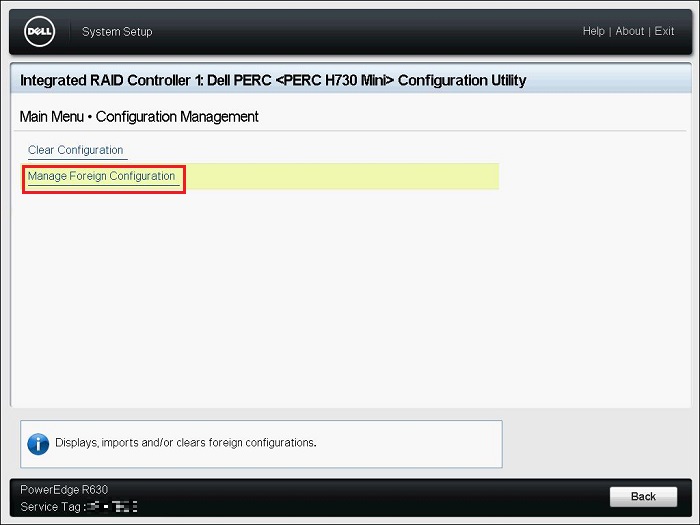
Figure 6: Manage Foreign Configuration.
- Click Preview Foreign Configuration.
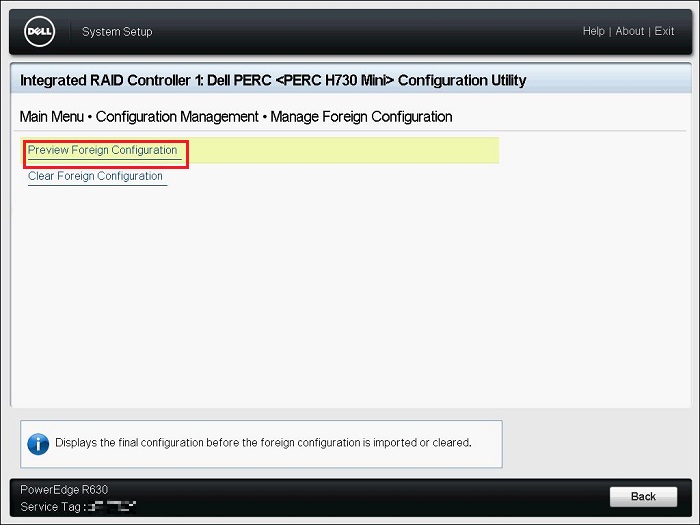
Figure 7: Preview Foreign Configuration
- Check if the status of the virtual disk displayed on the
"VIRTUAL DISKS INCLUDED AFTER FOREIGN CONFIGURATION IMPORT"is Ready or Degraded and then click Import Foreign Configuration.PHYSICAL DISKS INCLUDED AFTER FOREIGN CONFIGURATION IMPORT: Displays only disks in foreign configurationVIRTUAL DISKS INCLUDED AFTER FOREIGN CONFIGURATION IMPORT: Displays virtual disk after the import operation
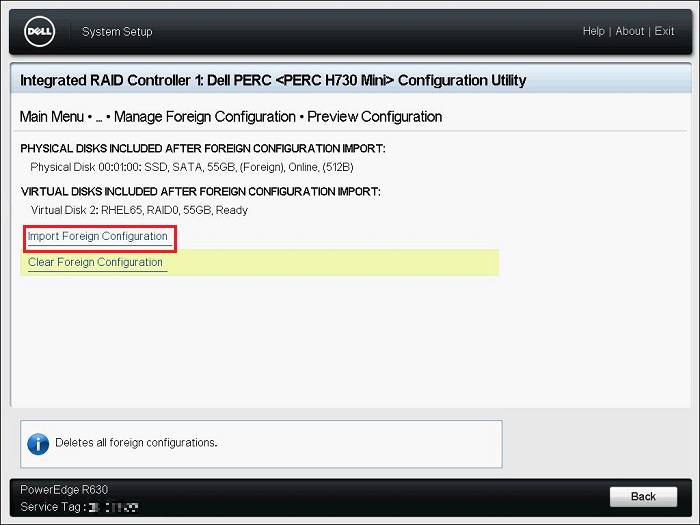
Figure 8: Manage Foreign Configuration.
- Read the displayed warning, select Confirm, and then click Yes.
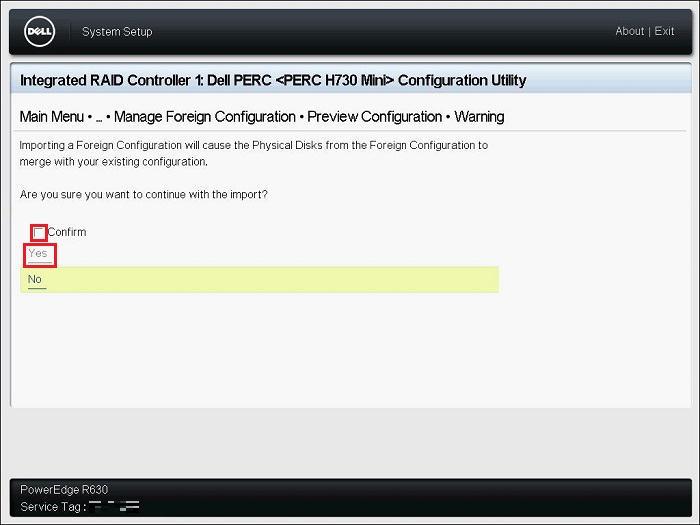
Figure 9: Confirming the warning
- Once the message
"The operation has been performed successfully"is displayed, click OK.
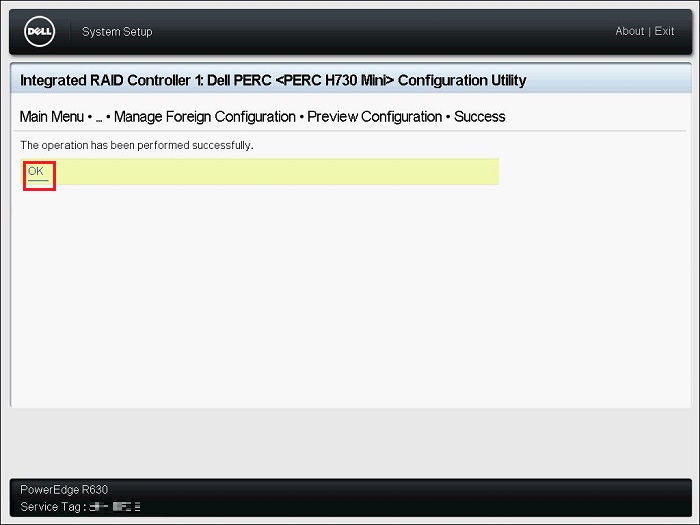
Figure 10: Foreign import success
- Click Back on the Configuration Management screen.
- Click Virtual Disk Management on the Main Menu screen, Check that the status of the virtual disk is Ready or Degraded.
If the status is Ready, go to Step 9.
If the status is anything other than Ready, follow the steps below to check the status.- Click the appropriate virtual disk and check the Status.
- Click View Associated Physical Disk and check the physical disks that are part of the virtual disk.
Contact Dell technical support if the disk status is anything other than Online status.
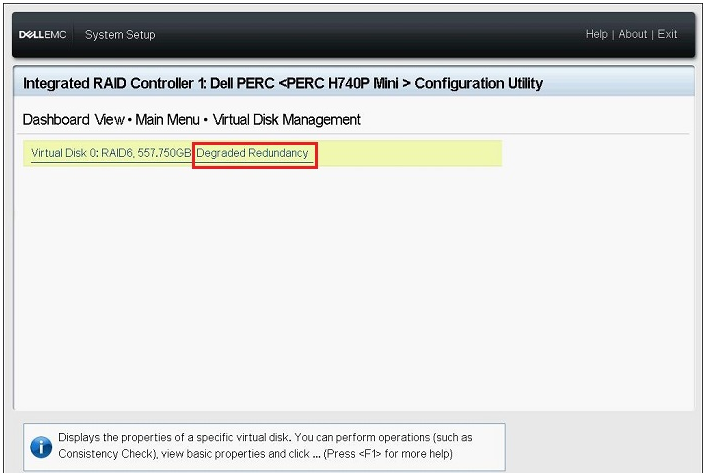
Figure 11: Example Degraded Redundancy Status
- Click Back, Finish, Finish, and then Finish. Once the warning,
"Are you sure you want to exit?"is displayed, click Yes. - The operating system boots.
After Successful Import
- If the import of the array was successful it is recommended to update the firmware of the PERC and the drives to the latest available versions.
- If the foreign configuration was not expected, meaning it was not due to migrating disks to another server or detection from a new PERC, it is advised to monitor the RAID VD health as it completes its rebuild, checking the Lifecycle logs or gathering a SupportAssist report for review.
Additional Information
How To Import A Foreign RAID Config On A Dell PowerEdge Server Using The System Setup
Duration: 00:01:56 (hh:mm:ss)
When available, closed caption (subtitles) language settings can be chosen using the CC icon on this video player.