PowerFlex 4.X: SMART_AGGREGATED_STATE_FAILED – zařízení DAX – SIO03.02.0000013
Summary: PowerFlex hlásí, že jedno ze zařízení dax brzy selže a mělo by být vyměněno. Opravitelné chyby paměti NVDIMM mohou způsobit, že se zařízení DAX v zařízení PowerFlex zobrazí jako "Failed Now", i když zařízení skutečně neselhalo. ...
Symptoms
K této chybě obvykle dochází u standardního zařízení PowerFlex. Doporučenou akcí v tomto případě je výměna disku, nicméně tento článek vysvětluje další kroky pro odstraňování problémů, pokud je daným zařízenímzařízení DAX, což je NVDIMM, nikoli disk.
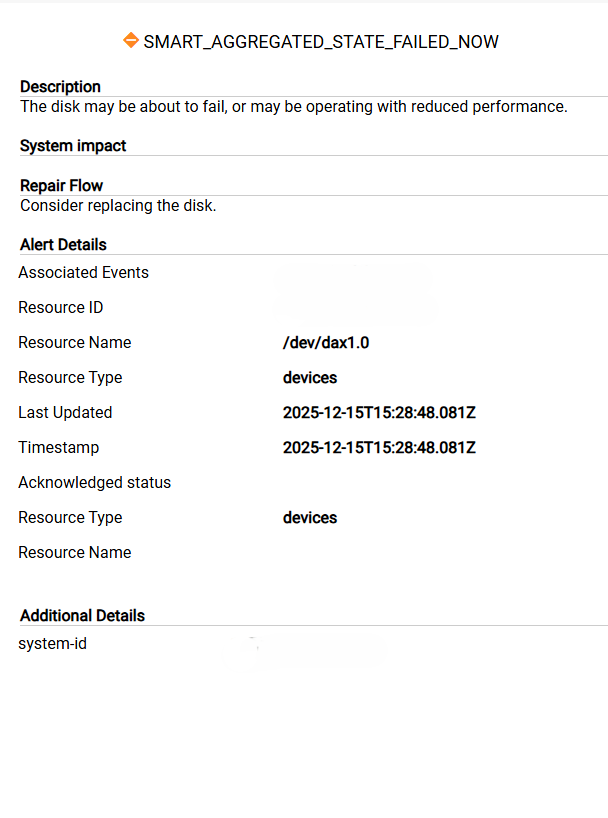
Platforma PowerFlex hlásí níže uvedenou výstrahu s upozorněním, že jedno ze zařízení dax brzy selže nebo pracuje se sníženým výkonem. To se odráží i ve formě upozornění DialHome:
SIO03.02.0000013
Disk může každou chvílí selhat nebo může fungovat s omezeným výkonem.
SMART_AGGREGATED_STATE_FAILED_NOW bezpečnostní list.
Device.SMART_Aggregated_State_Failed_Now Doporučená akce: Zvažte výměnu disku.
Cause
PowerFlex detekuje, že v jednom z modulů NVDIMM pro uzel úložiště došlo k opravitelné nebo neopravitelné chybě. Jakmile je zjištěna chyba, vygeneruje se chyba Smart Aggregated State Failed Now.
Resolution
Vymazání modulu NVDIMM může vyřešit problém bez výměny modulu NVDIMM. Modul NVDIMM vyměňte pouze v případě, že problém přetrvává i po opravě.
- U uzlů 15G můžete pouze vymazat všechny moduly NVDIMM – před provedením opravy odeberte všechna zařízení (zařízení SDS + zařízení DAX), aby nedošlo k poškození dat.
- U uzlů 14G můžete vymazat pouze jeden daný modul NVDIMM nebo všechny moduly NVDIMM. Postupujte podle níže uvedených kroků a identifikujte vadný modul NVDIMM.
Ověření chyby
1. krok: V nástroji PowerFlex Manager přejděte do části Block > Devices.
2. krok: Vyberte pole sloupců vpravo nahoře a přidejte do seznamu "S.M.A.R.T State".
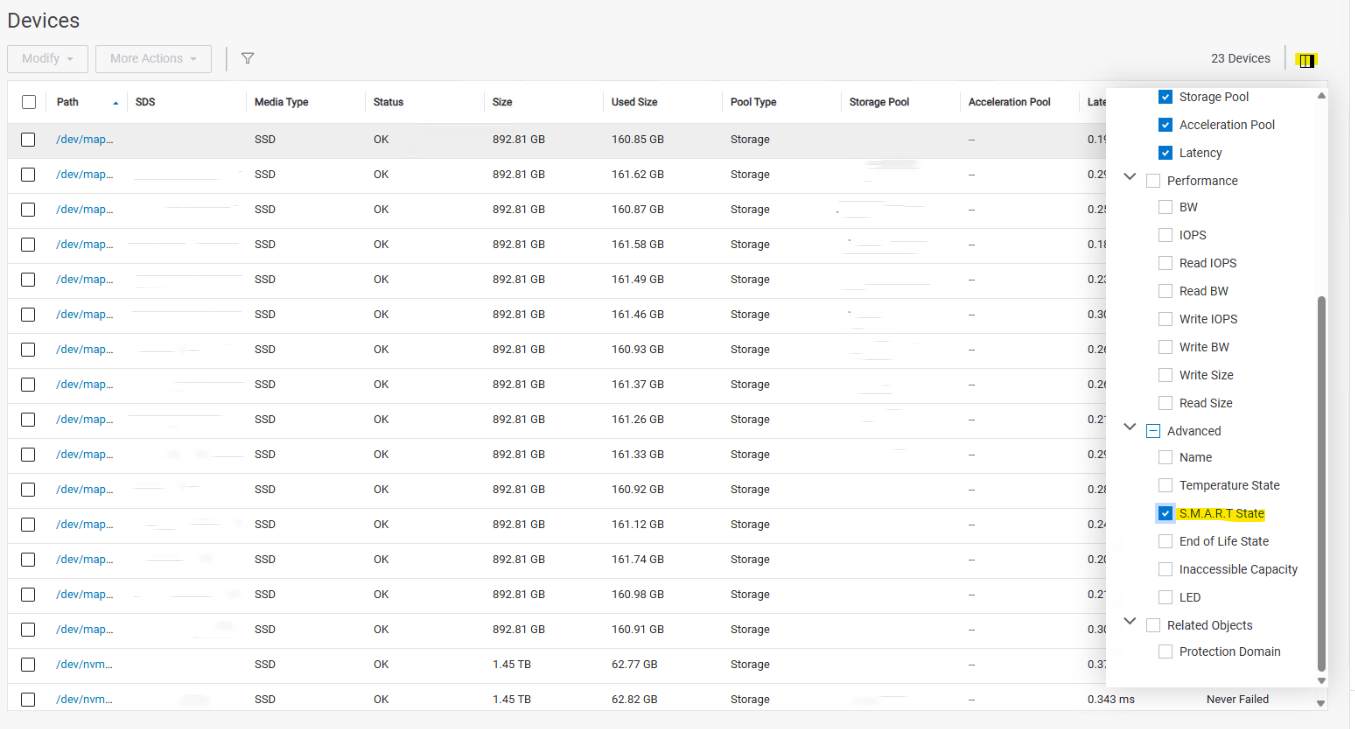
3. krok: Zkontrolujte seznam zařízení DAX a ověřte, zda se u některých zobrazuje chyba "Failed Now".
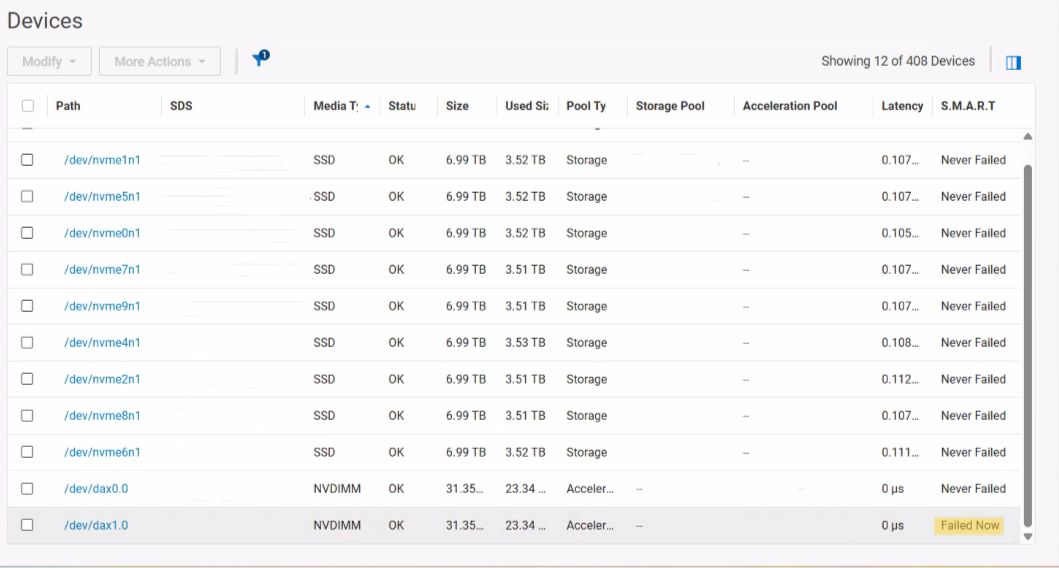
4. krok: Pro každé zařízení DAX ve stavu "Failed Now" určete, kterému SDS dax odpovídá a přihlaste se k řadiči iDRAC.
5. krok: Zjistěte, zda jsou pro každý modul NVDIMM v protokolech Life-Cycle zaznamenány nějaké opravitelné chyby.
- Opravitelné chyby paměti v modulech NVDIMM mohou způsobit, že zařízení DAX bude v systému PowerFlex zobrazovat hodnotu "Failed Now", přestože k selhání nedošlo.
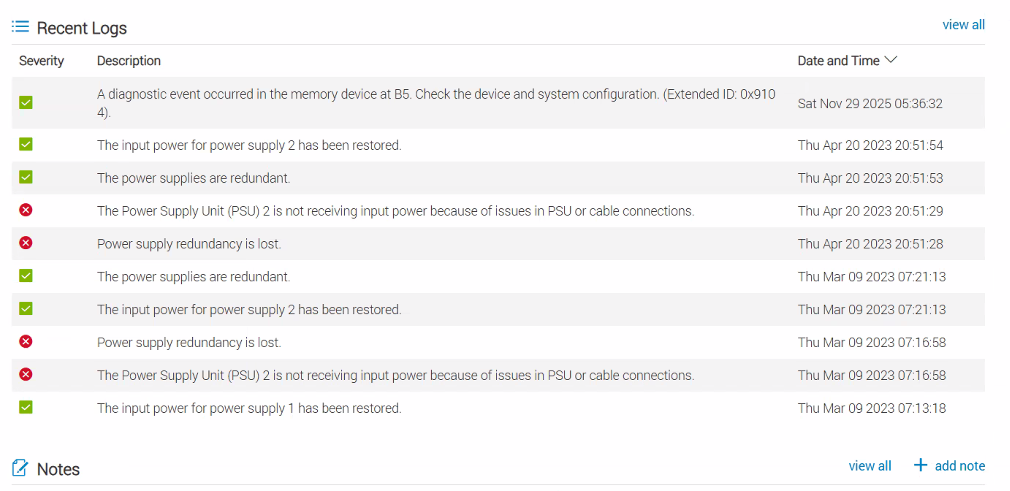
6. krok: Přihlaste se pomocí SSH k primárnímu uzlu MDM pro odpovídající cluster a spusťte následující příkazy. Slouží k ověření stavu modulu DAX, informací o slotu a výrobního čísla modulu NVDIMM, který zobrazuje selhání:
- Přihlaste se k primárnímu uzlu MDM jako uživatel admin. Použijte jednoduché uvozovky ' ', pokud heslo obsahuje speciální znaky
scli --login --username admin --password '<password>' --management_system_ip <pfmp_ip>
- Spuštěním následujícího příkazu zobrazte všechny podrobnosti o úložišti SDS:
scli --query_all_sdsPříklad:
SDS ID: 2e400d3800000004 Name: LAB10_SDS3 State: Connected, Joined IP: XXX
SDS ID: 2e400d3700000003 Name: LAB10_SDS2 State: Connected, Joined IP: XXX
SDS ID: 2e400d3600000002 Name: LAB10_SDS4 State: Connected, Joined IP: XXX
SDS ID: 2e400d3500000001 Name: LAB10_SDS1 State: Connected, Joined IP: XXX
SDS ID: 2e400d3400000000 Name: LAB10_SDS5 State: Connected, Joined IP: XXX
- Vyhledejte dotčený disk SDS, poznamenejte si název úložiště a poté spusťte následující příkaz:
scli --query_sds --sds_name <sds name>- Poznamenejte si cestu ke všem zařízením pro tento SDS, kterou později použijete k opětovnému přidání zařízení v kroku 8
- Poznamenejte si ID dotčeného zařízení a spusťte následující příkaz:
# scli --query_sds_device_info --device_id <device_id>Příklad výstupu:
# scli --query_sds_device_info --device_id XXXXX

        Device ID: _________ Name: /dev/dax1.0 Path: /dev/dax1.0

                ScaleIO Device Configuration:

                        Original Path: /dev/dax1.0

                        Acceleration Pool: _________

                        Used for RFcache: no

                        Capacity Limit: 31.4 GB (32107 MB)

                        Device State: Normal

                Physical Device Information:

                        Device Type: UNKNOWN

                        Media Type: NVDIMM

                        Auto Detected Media Type: UNKNOWN

                        Vendor Name: N/A

                        Model Name: nmem2

                        Serial Number: _________

                        Slot Number: B5

                        Firmware Version: N/A

                        Cache Look-ahead: not Active

                        Write Cache: not Active

                        ATA Security: not Active

                        Logical Sector Size: 0 B

                        Physical Sector Size: 0 B

                        Capacity: 0 GB

                        LED Setting: OFF

                Background Device Scanner Information:

                        Scanned: 0 MB

                        Error Fixes: 0

                        Compare Errors: 0

                SMART Information:

                        Aggregated State: FAILED_NOW

                        Temperature State: NEVER_FAILED

                                Current Value: 34 Worst Value: 34 Threshold: 0

                        Media Wearout Indicator State: NEVER_FAILED

                                Current Value: 95 Worst Value: 95 Threshold: 5

                RAID Controller Information:

                        Serial Number: N/A

                        RAID vDisk Status: N/A

                        RAID vDisk Type: N/A

                        RAID vDisk Cache: N/A
7. krok: Po zjištění, který port dax odpovídá zaznamenanému modulu NVDIMM, postupujte podle standardního postupu pro vymazání modulů NVDIMM prostřednictvím řadiče iDRAC, pokud jsou chyby opravitelné. Pokud jsou chyby neopravitelné, postupujte podle standardních pokynů pro odstraňování problémů s moduly NVDIMM.
- To vyžaduje povinné vyjmutí zařízení z bezpečnostního listu, aby nedošlo k poškození dat, postupujte podle nezbytných kroků uvedených v následujícím článku:
8. krok: Po vymazání modulů NVDIMM přidejte zpět zařízení DAX do SDS a poté zařízení Powerflex podle výše uvedené cesty k zařízení. Zařízení DAX se zobrazí jako "Never Fail". Odpovídající výstraha bude také automaticky vymazána z karty Výstrahy.
Podívejte se na kroky 9 a 10 v článku PowerFlex: Jak vyměnit modul NVDIMM v uzlu PowerEdge 15G a novějším.
Nakonec lze výstrahu vymazat pomocí článku PowerFlex 4.X: Jak ručně vymazat zablokované výstrahy z uživatelského rozhraní nástroje PowerFlex Manager
Additional Information
Jak dezinfikovat moduly NVDIMM: PowerFlex: Jak vymazat moduly NVDIMM a SDPM – video
Doporučení upozornění DialHome: Doporučené akce pro horní Dial Home zařízení PowerFlex