PowerProtect DD: How To Set and Change the System Passphrase
Summary: This article describes the steps to set and change the passphrase on a Data Domain (DD) system.
This article applies to
This article does not apply to
This article is not tied to any specific product.
Not all product versions are identified in this article.
Instructions
The system passphrase must be set before the system can support data encryption or request digital certificates.
Note: Be sure to record the passphrase somewhere safe. The passphrase cannot be recovered!
By default, the system passphrase length is not set. To determine if a minimum length is configured for the passphrase:
sysadmin@datadomain# system passphrase option show min-length
Option       Value
----------   ---------
min-length   (not set)
----------   ---------
Setting the passphrase from the command line (CLI):
sysadmin@datadomain# system passphrase set
Enter new passphrase:
Re-enter new passphrase:
Passphrases matched.
The passphrase is set.
Setting the passphrase from the DD web interface (GUI):
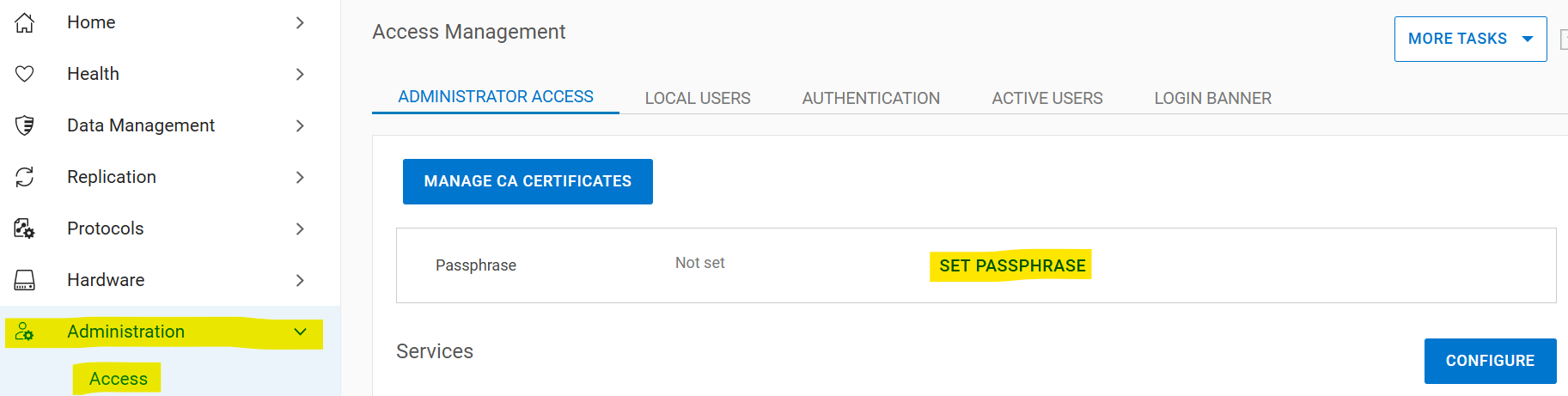
Select Administration > Access > Administrator Access > Set Passphrase. If the system passphrase is not set, the Set Passphrase button appears in the Passphrase area. If a passphrase is configured, the Change Passphrase button appears, and your only option is to change the passphrase.
Changing the system passphrase
Prerequisites for changing the passphrase:
- An account with security permissions must exist for two-user authentication
- Enable the security authorization policy
- Disable the file system
If there is no security officer:
- Create a security officer
sysadmin@datadomain# user add secuser role security Enter new password: Re-enter new password: Passwords matched. User "secuser" added. - Log in as the security officer and check if the security authorization policy is enabled.
secuser@datadomain# authorization policy show Runtime authorization policy is disabled. - Enable the authorization policy if it is disabled.
secusr@datadomain# authorization policy set security-officer enabled
Runtime authorization policy has been enabled.
From the CLI:
The file system must be disabled to change the passphrase. The passphrase change fails if the file system is enabled when the command is run.sysadmin@datadomain# filesys disable
This action will disable the file system.
Applications may experience interruptions
while the file system is disabled.
Are you sure? (yes|no) [no]: yes
ok, proceeding.
Please wait........
The filesystem is now disabled.
sysadmin@datadomain# system passphrase change
This command requires authorization by a user having a 'security' role.
Please present credentials for such a user below.
Username: secuser
Password:
Enter current passphrase:
Enter new passphrase:
Re-enter new passphrase:
Passphrases matched.
The system passphrase has changed
sysadmin@datadomain# filesys enable
Please wait..........
The filesystem is now enabled.From the GUI:
Select Administration > Access > Administrator Access > Change Passphrase:
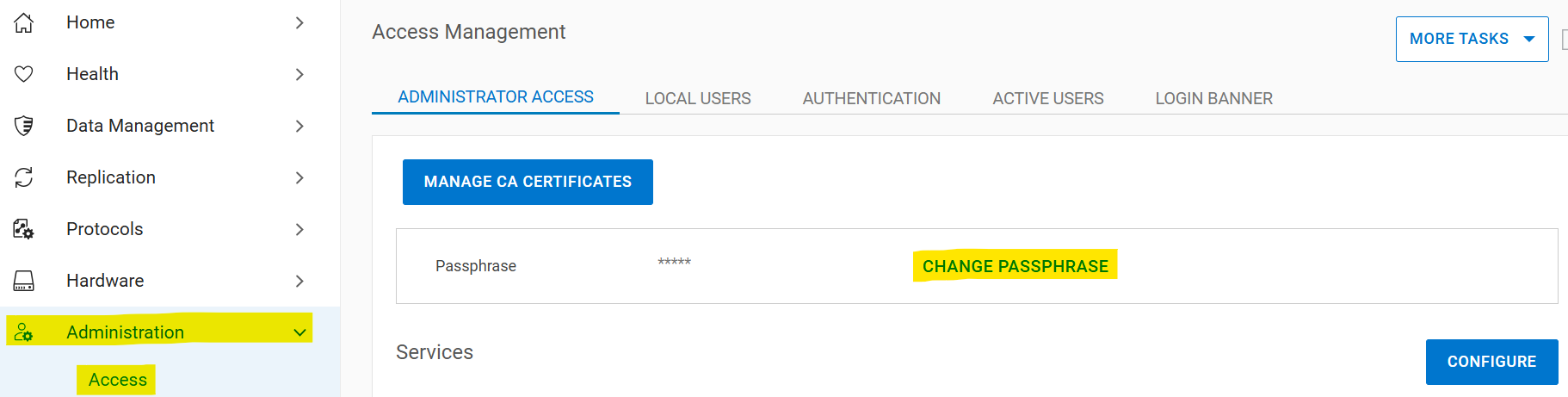
Enter security officer credentials, the current passphrase, and the new passphrase. Check the "Restart file system now" box:

If the issues with the passphrase are not fixed after following these steps, contact Dell Support.
Additional Information
This content is translated in different languages:
| https://downloads.dell.com/TranslatedPDF/PT-BR_KB535800.pdf |
| https://downloads.dell.com/TranslatedPDF/ZH-CN_KB535800.pdf |
| https://downloads.dell.com/TranslatedPDF/ES_KB535800.pdf |
| https://downloads.dell.com/TranslatedPDF/DE_KB535800.pdf |
| https://downloads.dell.com/TranslatedPDF/FR_KB535800.pdf |
| https://downloads.dell.com/TranslatedPDF/IT_KB535800.pdf |
| https://downloads.dell.com/TranslatedPDF/JA_KB535800.pdf |
| https://downloads.dell.com/TranslatedPDF/NL_KB535800.pdf |
| https://downloads.dell.com/TranslatedPDF/KO_KB535800.pdf |
| https://downloads.dell.com/TranslatedPDF/RU_KB535800.pdf |
| https://downloads.dell.com/TranslatedPDF/PT_KB535800.pdf |
| https://downloads.dell.com/TranslatedPDF/SV_KB535800.pdf |
Affected Products
Data DomainProducts
Data Domain, DD OS 6.2, DD OS, DD OS 6.0, DD OS 6.1Article Properties
Article Number: 000019730
Article Type: How To
Last Modified: 12 كانون الثاني 2026
Version: 5
Find answers to your questions from other Dell users
Support Services
Check if your device is covered by Support Services.