Data Domain: How to find event codes | Error Message Catalog
Summary: This article describes how to find a list of Data Domain event codes.
This article applies to
This article does not apply to
This article is not tied to any specific product.
Not all product versions are identified in this article.
Instructions
An .xml file listing Data Domain event codes can be downloaded from the Dell support site by following the below steps.
- Go to the Support product page and select the relevant Data Domain model (Dell Support login may be required).
- For example, for a DD9900:
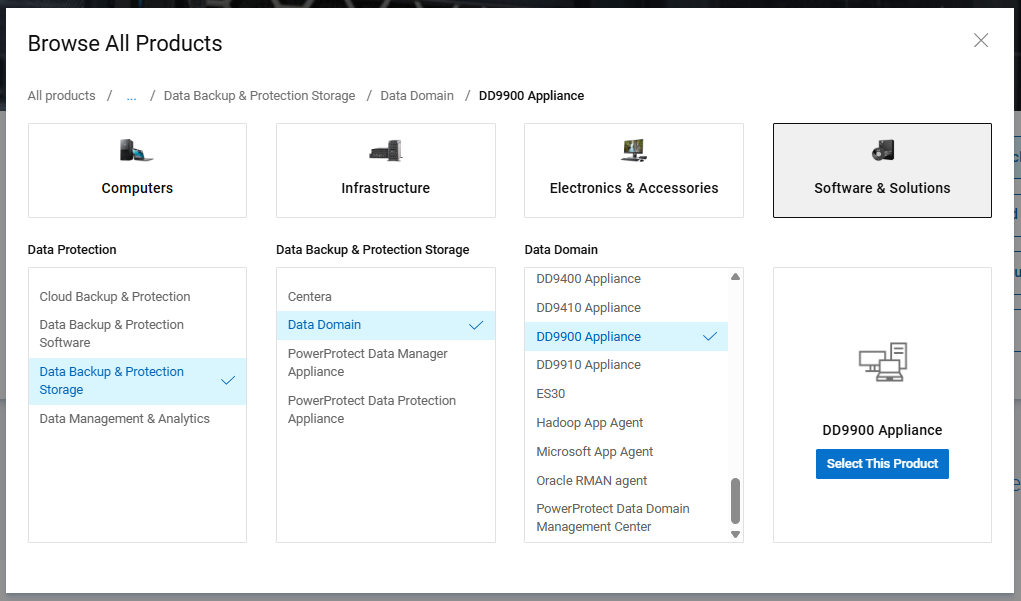
- For example, for a DD9900:
- Go to "Drivers & Downloads," scroll down, and locate the required DD OS version in the list.
- For example, for DD OS 8.3.1.10:
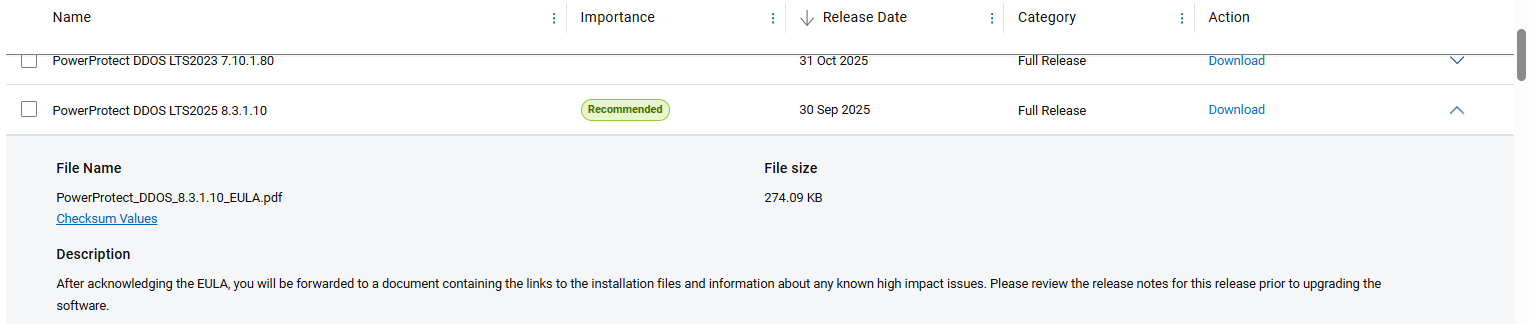
- For example, for DD OS 8.3.1.10:
- Click "Download." This takes you to a EULA .pdf.
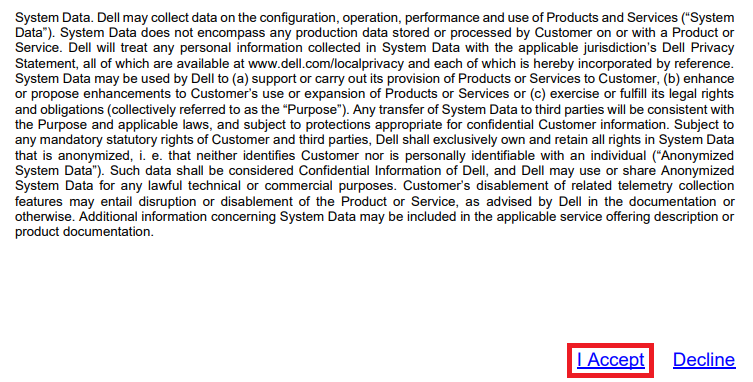
- Scroll to the bottom of the .pdf and click "I Accept" to accept the terms of service. This takes you to the Read Me First (RMF) .pdf.
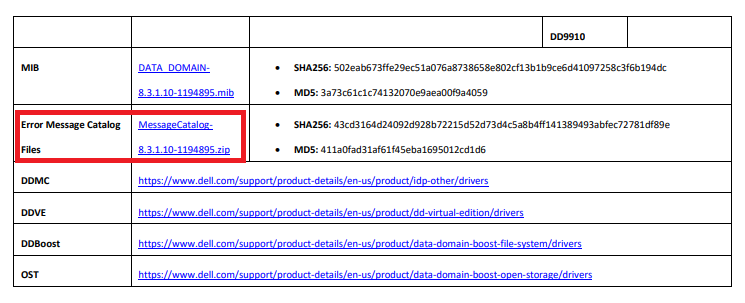
- Scroll to the bottom of the .pdf and locate the "Error Message Catalog Files" section. Click the file name to download a .zip file containing the event code definitions.
- Once the .zip file is downloaded, extract it locally and open the .xml file in a text editor such as Notepad++.
Affected Products
Data DomainProducts
Data DomainArticle Properties
Article Number: 000020930
Article Type: How To
Last Modified: 16 آذار 2026
Version: 4
Find answers to your questions from other Dell users
Support Services
Check if your device is covered by Support Services.