Dell Unity: How to Configure File Filtering
Summary: This article explains how to configure the file filtering feature on Dell Unity file systems.
Instructions
File Filtering Overview
The File Filtering feature allows administrators to restrict file operations based on file extensions. Restricted file types cannot be created or modified on the configured SMB share.
Note: Administrators are not subject to file filtering restrictions unless explicitly configured through permissions on the filter file.
| Setting | Value |
|---|---|
CIFS Server |
CIFSSERVERNAME |
| Share Name | DataShare |
| File Extension to Block | .mp3 |
Step 1: Access the File Filter Directory
Using a Domain Administrator account (or a Standalone SMB Administrator account), open Windows Explorer or select Start > Run, then enter the following UNC path:
\\CIFSSERVERNAME\c$\.etc\.filefilterThis opens the .filefilter directory on the SMB server.
Note: The .etc directory cannot be accessed by browsing through a mapped drive or by navigating to \\CIFSSERVERNAME\c$. The full path shown above must be entered directly.
Step 2: Create a Filter File
File filters use the following naming convention:
extension@sharenameBefore creating the file, ensure that File name extensions is enabled in Windows Explorer to prevent hidden file extensions from being appended to the file name.
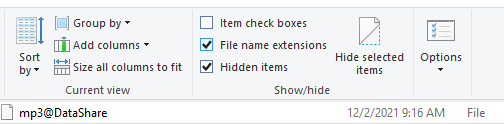
Figure 1: Window Explorer View Tab
Example:
To block .mp3 files on the DataShare share, create a new file in the .filefilter directory named:
mp3@DataShareImportant: Ensure the file name does not contain any hidden file extensions. Windows Explorer may hide extensions for known file types by default.
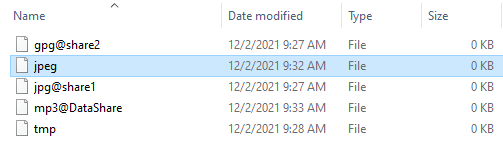
Figure 2: Window Explorer File Name List
Additional Examples
Block .jpg files on share1:
jpg@share1.gpg files on share2:
gpg@share2Block a File Type on All Shares
To block a file extension across all shares on a specific SMB server, create a file using only the extension name.
Examples:
Block all .tmp files:
tmp.jpeg files:
jpeg
When no share name is specified, the filter applies to every share hosted on that SMB server.
Note: If multiple SMB servers exist on the Unity array, the filter files must be created separately for each SMB server.
Note: Customizing the file filtering "Access Denied" message is not supported on Dell Unity systems.
Additional Information
A filter file named gif@engineering_files can be configured so that members of the Engineering group have access to .gif files, while users outside the group are denied access to .gif files on the share.
To exempt the Engineering group from .gif file filtering:
- Right-click the
gif@engineering_filesfilter file and select Properties > Security. - Click Add and add the Engineering group.
- Under Permissions, select Full Control. The related permissions (Modify, Read & Execute, Read, and Write) are selected automatically.
- Click Apply, and then click OK.
Members of the Engineering group can now access .gif files on the share, while file filtering continues to apply to all other users.