NetWorker: Troubleshooting NetWorker Licensing Capacity Entitlements
Summary: NetWorker: Troubleshooting NetWorker Licensing Capacity Entitlements
This article applies to
This article does not apply to
This article is not tied to any specific product.
Not all product versions are identified in this article.
Instructions
NOTE: This article provides a general overview of NetWorker licensing troubleshooting steps. More detailed information is available in the NetWorker version-specific Dell NetWorker Licensing Guide. All NetWorker documentation is available through: Support for NetWorker | Manuals & Documents
Issues include:
After installing a 25 TB license file, initially only 1 TB shows up.
Errors include:
Can't find license file.
Can't establish connection to the license server.
Can't find license file. Please obtain the license file.
NetWorker evaluation mode will expire in 30 days and the server will be disabled after that time.
License Server does not support the requested license.
nsrd NSR notice nsrlmc had problems with nsrd for CLP Capacity license - try again much later.
License server system does not support this feature.
Things to check:
- Ensure that the license file exists under
/nsr/licon Linux orC:\Program Files\EMC NetWorker\nsr\licon Windows- What type of license is in use, see: Dell NetWorker Licensing - Differences between served, unserved, and XML license files
- Verify license file name.
- Verify that the license file has read permission,
- Validate the license file:
nsrlic -C - For Served Licenses:
- Ensure that the Dell License Server service is operational.
- Linux:
lmstat - Windows: Use LMTOOLS software.
- Linux:
- Ensure proper name resolution and port connectivity between the NetWorker server and License server.
- Port 27000 must be open, see: NetWorker Processes and Ports
- Ensure that the Dell License Server service is operational.
- Restart NetWorker services.
- Linux:
systemctl restart networker - Windows (PowerShell):
net stop nsrd ; net start nsrd
- Linux:
Managing allocation of capacity entitlements in NMC:
The following section provides information about attributes that you can modify after installation and set up of the License Server.
To modify the CLP UOM and CLP refresh attributes:
You can use NMC to modify the following two new attributes:
- CLP - UOM allows to allocate more capacity to a specific data zone. Initially, only 1 TB is checked out. This amount can be changed if the request is greater than 0.
- CLP refresh - when set to any value, prompts the NetWorker server to search for an update to the license file, or, in the absence of a license file, forces the server to request a Capacity license and, where applicable, an Update license.
These attributes appear in NMC under the NetWorker Server Properties Licensing tab, as shown in the following screen.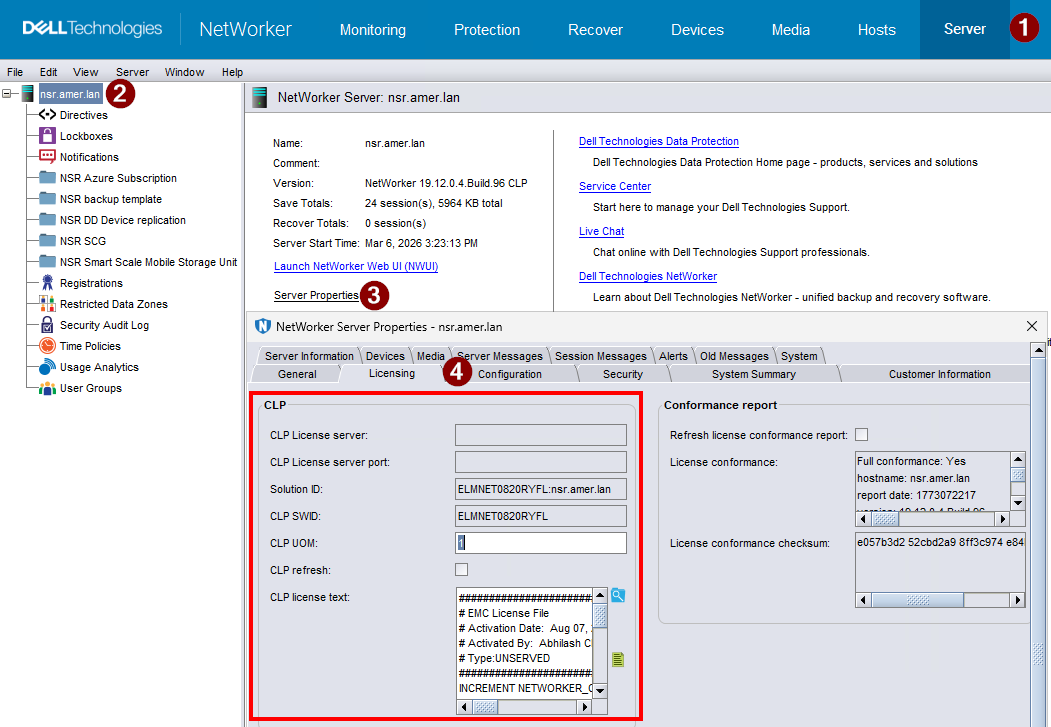
WARNING: Not all Licensing issues can be handled by NetWorker Support. If you contact NetWorker support for a licensing issue and the issue must be resolved by the Dell Licensing department, you are referred to the Dell Licensing department for resolution.
Additional Information
For additional information also, see:
- License Support: NetWorker Licensing Support
- Upgrade Support: NetWorker: How to Upgrade NetWorker and Best Practices Prior to Upgrade
Affected Products
NetWorkerProducts
NetWorkerArticle Properties
Article Number: 000071240
Article Type: How To
Last Modified: 09 آذار 2026
Version: 7
Find answers to your questions from other Dell users
Support Services
Check if your device is covered by Support Services.