PowerEdge: Panduit - How to Update the G5, G6, and G7 PDU Firmware
Summary: How to update the firmware on a G5, G6, and G7 Panduit PDU.
Instructions
- How to check the current PDU Firmware in the PDU Web UI
Click the home icon in the upper left menu< click identification < and scroll down to view the current Panduit PDU firmware.
- How to update the PDU firmware in the PDU Web UI for G5 and G6
-
Open the User interface in a web browser by entering the PDU IP address.
-
Log in with Administration credentials.
-
Go to Settings > System Management > Actions > Update Firmware.
-
In the Firmware Update dialog box, browse to the (Panduit.FW) firmware file.
(Panduit FW files are in RCM bundles)
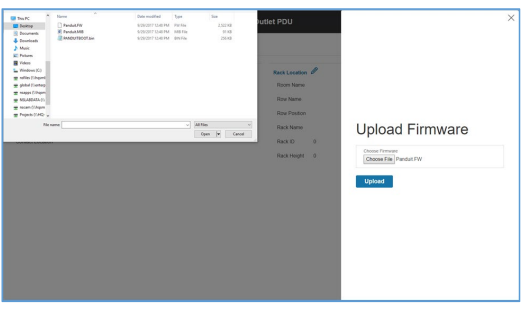 NOTE: The firmware file name must be retained as is.
 -
Select Upload. The system updates the newest firmware to the Intelligent Network Controller.
-
When the upload is finished, the system reboots automatically.
- How to update the PDU firmware in the PDU Web UI for G7
1. Download the firmware file from the web page.
2. Unzip the downloaded file.
3. Open the User interface in a web browser by entering the NMC IP address.
4. Login to with Administration credentials.
5. Go to Settings > Device Firmware Update > Actions > Upload Firmware.
6. In the Firmware Update dialog box, click on ‘Choose File’, then browse to the firmware file named ‘pdu-package-*.*.*.bin’.
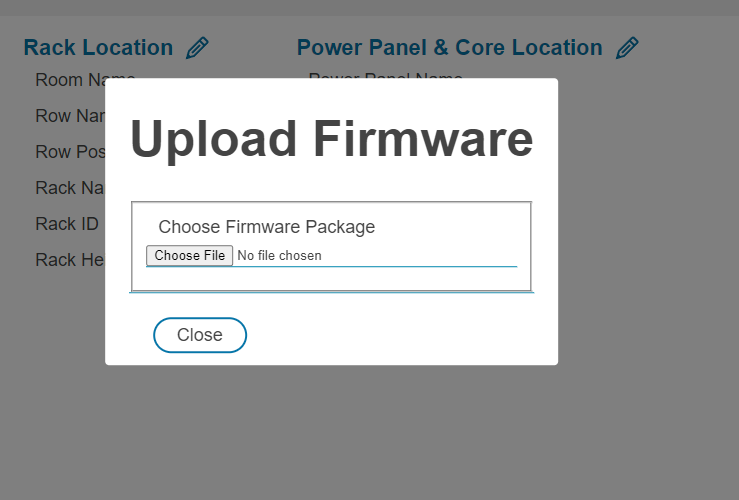
7. The system will update after selecting the file.
8. When the upload is finished, the system will reboot automatically.
9. In Daisy Chain Convention, once a user starts the firmware update on the primary PDU, all linked PDUs are automatically updated.
Additional Information
This article applies to G5, G6 and G7 PDUs.
https://www.panduit.com/content/dam/panduit/en/products/media/6/16/416/8416/111458416.pdf (External Link)