Panduit: How to Reset a Panduit PDU
Summary: This article introduces how to reset a PDU, a Panduit PDU, a G5 PDU, a G6 PDU, and a G7 PDU.
Instructions
How to reset a Panduit PDU
A PDU reset is a common troubleshooting practice to recover the PDU if the PDU cannot be reached via the PDU web UI, not responding to pings, not showing stats on the LED screen, not lighting up, or showing a red status light.
How to reset a G5 PDU
https://www.panduit.com/content/dam/panduit/en/products/media/9/69/669/7669/110537669.pdf
Soft Reset: Press and hold the Reset Button for 8 seconds to recover from an Intelligent Network Controller communication failure. This causes a reset of the iNC controller, all configurations are retained.
How to reset a G6 PDU
https://www.panduit.com/content/dam/panduit/en/products/media/6/16/416/8416/111458416.pdf
Soft Reset: Press and hold the Reset Button for 8 seconds to recover from an Intelligent Network Controller communication failure. This causes a reset of the iNC controller, all configurations are retained.
How to reset a G7 PDU
Soft Reset: To perform a system reset, press and hold the RESET button, located on the front of the NMC, for 2 seconds to reboot the NMC. This causes a reboot of the NMC controller; all configurations are retained.

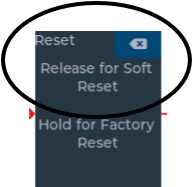
If the above does not work you can try a reseat of the NMC
Additional Information
If you can ssh into the PDU, you can also soft reset the PDU via CLI by running “sys rst”. This will perform a soft reset.
