NetWorker: Azure Snapshot Protection Troubleshooting Guide
Summary: This article is intended to assist Support and NetWorker Administrators when troubleshooting Azure Snapshot protection-related issues.
Instructions
NetWorker 19.11 introduced Azure Snapshot protection into NetWorker. This integration involves installing the NetWorker extended‑client software on Azure Virtual Machines (VM). The clients are added on the NetWorker server using the 'Cloud' type. The client's local file system is not backed up. Instead the save sets are configured as RESOURCE_GROUP:VM_NAME. These clients act as "proxies" and perform client‑direct backups of Azure VM snapshots to Data Domain storage. More information regarding configurations and limitations is available in the NetWorker version-specific Azure VM Snapshot Integration Guide. NetWorker documentation is available through Support for NetWorker | Manuals & Documents. You must sign in to the Dell support site with your support account to have access to NetWorker guides.
Communication:
- NetWorker requires communication between the NetWorker server and "proxy" clients on the NetWorker service ports (default 7937-9936), see:
- The NetWorker server and "proxy" clients must have port 111, 3009, 2049, 2052 communication to the Data Domain systems.
- Linux:
curl -v DD_HOSTNAME:PORT - Windows (PowerShell):
tnc DD_HOSTNAME -p PORT
- Linux:
Azure Subscription Resources:
Azure subscriptions are registered in NetWorker from the command-line or the NetWorker Web User Interface (NWUI):
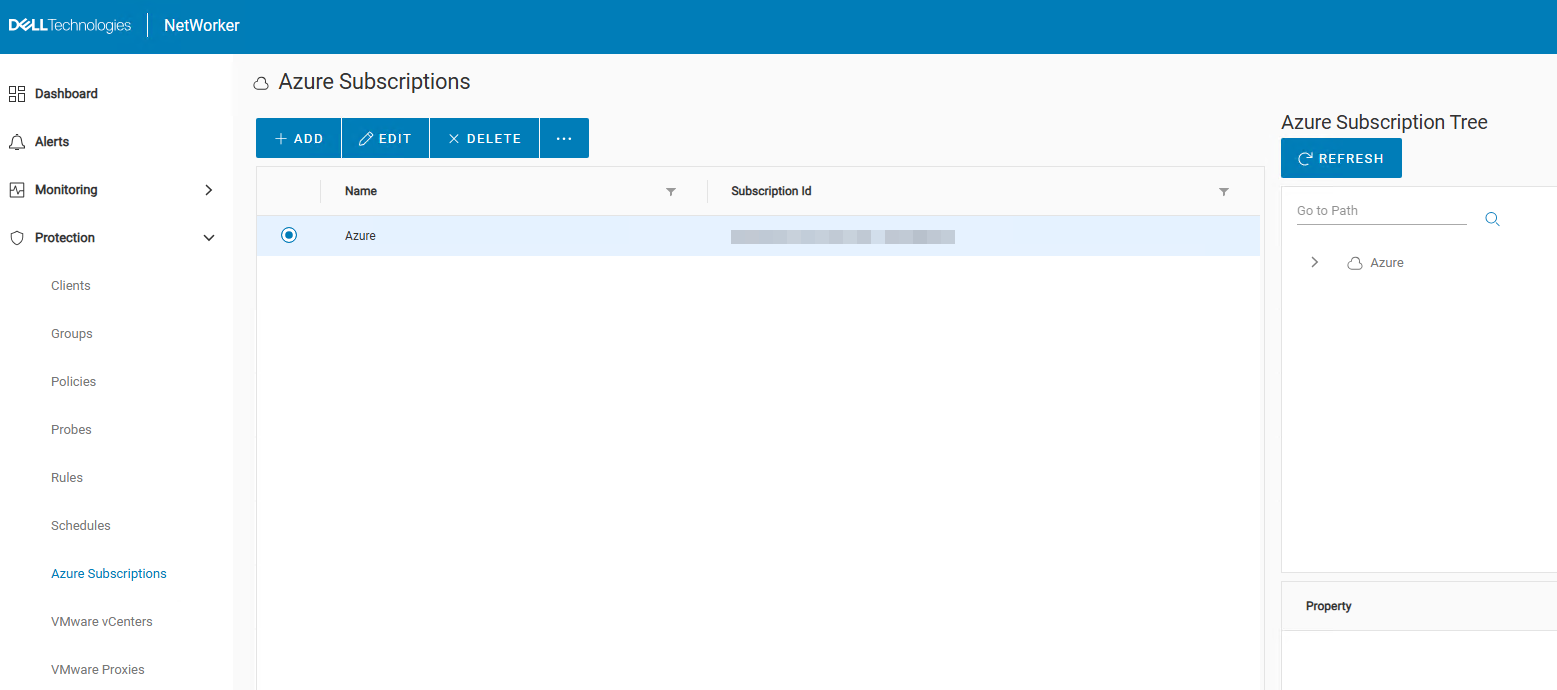
The Azure subscriptions can also be seen from an nsradmin prompt on the NetWorker server:
- From an elevated prompt run:
nsradmin - From the nsradmin prompt, run:
print type nsr azure subscription
azure-nve:~ # nsradmin
NetWorker administration program.
Use the "help" command for help, "visual" for full-screen mode.
nsradmin> print type: nsr azure subscription
                        type: NSR Azure Subscription;
                        name: AZURE_SUBSCRIPTION_RESOURCE_NAME;
                     comment: ;
                   tenant id: 94XXXXXX-XXXX-XXXX-XXXX-XXXXXXXXX2dd;
             subscription id: 50XXXXXX-XXXX-XXXX-XXXX-XXXXXXXXXfe3;
                   client id: 3bXXXXXX-XXXX-XXXX-XXXX-XXXXXXXXX38b;
               client secret: *******;
                    endpoint: management.azure.com;
                     command: nsrazure_discovery;
nsradmin> quit
The Tenant ID, Subscription ID, Client ID, and Client Secret are all collected from within the Azure portal.
If the Azure subscription is visible from nsradmin, but is missing from NWUI, see:
Azure VM Discovery:
Azure VM discovery runs as an automated task that runs hourly.
The Azure discovery process uses the nsrazure_discovery command.
Logs for the discovery process are on the NetWorker server under:
-
- Linux:
/nsr/logs/azure_subscription/SUBSCRIPTION-NAME_TIMESTAMP.log - Windows (Default):
C:\Program Files\EMC NetWorker\nsr\logs\azure_subscription\SUBSCRIPTION-NAME_TIMESTAMP.log
- Linux:
Discovery can be run from the command-line:
nsrazure_discovery [-D <Debug_level_1-9>] [-s <NW Server>] -n <NSR Azure Subscription Resource Name> [-L] [-r <resource_group>]
[] are optional. Optionally, you can redirect the output to a file.
Example:
azure-nve:~ # nsrazure_discovery -n Azure -L -r DD-PERF
nsrazure_discovery starting on host azure-nve.local.
                Azure Subscription Azure VM List:
| Resource group | VM Name                          | VM Id                                | Location       |
| DD-PERF        | dd-perf-scheduler-osl-longrun    | d4a47d4a-85dd-4e3b-bdbb-58b96b7fcc82 | westus         |
| DD-PERF        | perf-ddperf-client-osl-longrun-0 | 187ac9de-5739-426d-bfb2-720fa92abc0f | westus         |
| DD-PERF        | perf-ddperf-client-osl-longrun-1 | 19fb8c4e-e6c8-4f67-96ec-28c48c2d9629 | westus         |
| DD-PERF        | perf-ddperf-client-osl-longrun-2 | 989144cc-5eae-44b6-9857-b2f062c1230d | westus         |
| DD-PERF        | perf-ddperf-client-osl-longrun-3 | e8adac3a-995a-4d84-b5ef-d751d5ee2512 | westus         |
| DD-PERF        | perf-ddperf-client-osl-longrun-4 | 1d27b303-f5d8-44e0-bb1a-4ffb63260cfe | westus         |
| DD-PERF        | perf-ddperf-client-osl-longrun-5 | b21a902a-e8fc-4f70-8194-a1cab6b8cf19 | westus         |
| DD-PERF        | perf-ddperf-client-osl-longrun-6 | c231e32c-70c3-4739-96b2-e175829a4d28 | westus         |
| DD-PERF        | perf-ddperf-client-osl-longrun-7 | 3d64d531-a472-48b7-9181-c4a1cbc814c8 | westus         |
| DD-PERF        | perf-westus-256tb-1              | 15965ad9-f1fa-4234-91bd-f8669ab9c218 | westus         |
| DD-PERF        | perf-westus-linux-jumpbox        | 6514f563-cb47-4ec4-99a8-d113a2d7af53 | westus         |
| DD-PERF        | azure-ubuntu                     | be6d6dd8-d5b8-43ec-9602-d77e2d6d701a | southcentralus |
| DD-PERF        | azure-win2k22                    | a7b8cc3d-aa7f-4d2b-918f-579fd97a5509 | southcentralus |
| DD-PERF        | perf-ddperf-jumpbox-sles-longrun | 4859e7aa-da2f-4bef-9ba0-cea3ef8f9676 | southcentralus |
| DD-PERF        | test_recover_summary_fix         | 36e9f900-2e17-4bca-af15-590eb0237af5 | southcentralus |
| DD-PERF        | test_recover_summary_fix2        | caa86cba-9eda-4cc1-90bd-8ffa06202874 | southcentralus |
| DD-PERF        | test_recover_summary_wrong       | 7614dc1d-d799-46b3-9881-03927923fea6 | southcentralus |
nsrazure_discovery exiting successfully.
Permissions:
Required permissions are documented in the Azure VM Snapshot Integration Guide under the Azure authentication process. If backup or restore operations are failing with a permissions-related error, you must validate that the documented permissions on the Azure Subscription.
Use the following command from the Cloud Shell in the Azure management portal:
az role definition list --custom-role-only true --output json
The above command lists all custom roles. The Azure VM Snapshot Integration Guide recommends creating the role with the name NWBackupAdminRole. To check permissions of this account, run:
az role definition list --name "NWBackupAdminRole" --output json > NWBackupAdminRole.json
Permissions-related errors typically appear using HTTP error codes, for example:
"Response Code: 403. This request is not authorized to perform this operation"
Backup Issues:
Azure backups are performed using the nsrazure_save command on the NetWorker client. The client backs up Azure VM disks depending on the RESOURCE_GROUP:VM_NAME save sets defined in the client resource.
The number of VM disk sessions that run simultaneously depends on the client parallelism value in the client properties.
Successful Azure VM backups appear in the media database (mm) as:
azure-nve:~ # mminfo -avot
 volume        type   client           date     time         size ssid      fl   lvl name
azure_nve.local.dddefault.002 Data Domain azure-nve.local 01/26/26 21:00:11 10 GB 4135066668 cb full DD-PERF:azure-win2k22:Data_Disk-1
azure_nve.local.dddefault.002 Data Domain azure-nve.local 01/26/26 21:00:12 133 GB 4118289452 cb full DD-PERF:azure-win2k22:azure-win2k22_OsDisk_1_423227d3ef284695803c23cd47e8b839
azure_nve.local.dddefault.002 Data Domain azure-nve.local 01/26/26 23:40:26 10 KB 4101521850 cb full Azure
Azure'. This save set is created by the psuedo_saveset process from the backup workflow and contains all the metadata about all the VMs backed up in that workflow. If the Azure save set is missing, this is indicative of a psuedo_saveset failure. When psuedo_saveset fails, the workflow is marked as failed.
cb in the media database. See: NetWorker: Understanding Save Set Flags
psuedo_saveset fails, it is not possible to recover the Azure VMs from NWUI; however, the VM disk save sets can be recovered from command-line. This is covered in Restore Issues.
Logs:
Backup logs are under the policy logs location on the NetWorker server:
-
- Linux:
/nsr/logs/policy/POLICY_NAME/WORKFLOW_NAME/backup_JOBID_logs - Windows (Default):
C:\Program Files\EMC NetWorker\nsr\logs\policy\POLICY_NAME/WORKFLOW_NAME/backup_JOBID_logs
- Linux:
There is one log for the savefs process, and another log for the nsrazure_save process.
jobsdb retention (default 72 hours). Once the retention window has passed, the logs are removed from the system.
Debugging:
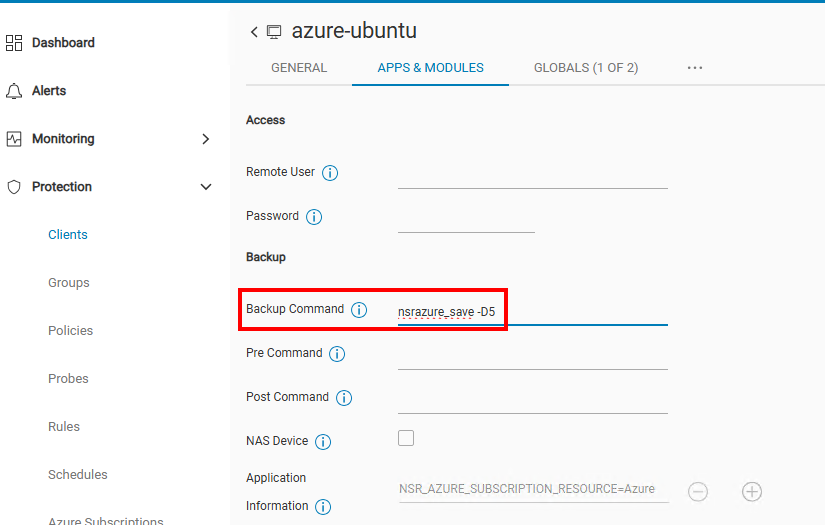
Debugging can be enabled in the NetWorker client by appending a debug level [1-5] to the Backup Command field:
Restore Issues:
The Azure VM restore is performed using the nsrazure_recover process. This process is typically started on the NetWorker server when the restore is started through the NWUI.
As stated in the Backup Issues section, in order to perform an Azure VM restore from NWUI, psuedo_saveset must successfully save the Azure save set. If The Azure save set fails to create, backups may appear to be missing from NWUI.
See: NetWorker: Azure VM Backups Not Shown In NWUI Recovery Tab
The general process for performing an Azure VM restore is outlined in: NetWorker: How to perform Azure VM snapshot restore from NWUI
Monitoring and Logs:
-
- NWUI: Monitor → Recover Jobs
- NMC: Active Sessions
- NetWorker server command line:
nsrwatch - Monitor the recover log:
- Linux NetWorker Server:
/nsr/logs/adhoc/adhoc_job_JOBID - Windows NetWorker Server (Default Path):
C:\Program Files\EMC NetWorker\nsr\logs\adhoc\adhoc_job_JOBID
- Linux NetWorker Server:
Completed logs can be found under:
-
-
- Linux:
/nsr/logs/adhoc/nsrazure_recover - Windows (Default):
C:\Program Files\EMC NetWorker\nsr\logs\adhoc\nsrazure_recover
- Linux:
-
You can also get specific information about the recovery from jobquery.
- From an elevated prompt on the NetWorker server, run:
jobquery - From the
jobqueryprompt, run:print type: recover job
Example:
azure-nve:~ # jobquery
NetWorker jobs query utility.
Use the "help" command for help.
jobquery> show command; job id; start time; end time; job log file; job state; completion status
jobquery> print type: recover job
                     command: \
"nsrazure_recover -N 'Azure' -R 'DD-PERF' -A 'networkerstorageaccount' -n 'DD-\
PERF:azure-win2k22' -V 'azure-win2k22-RESTORE' -E 'DPADDFS-storage-pe-vnet' -T\
 'DPADDFS-storage-pe-subnet-1' -c 'azure-nve.local' -t \"01/26/2026 11:40:26 P\
M\" -D5";
           completion status: succeeded;
                    end time: 1769383282;
                      job id: 2912131;
                job log file: /nsr/logs/adhoc/nsrazure_recover/2912131.log;
                   job state: COMPLETED;
                  start time: 1769377505;
jobquery> q
azure-nve:~ #
jobquery output follow the jobsdb retention (default 72 hours). Once the retention time has passed, the logs and job records are purged.
Debugging:
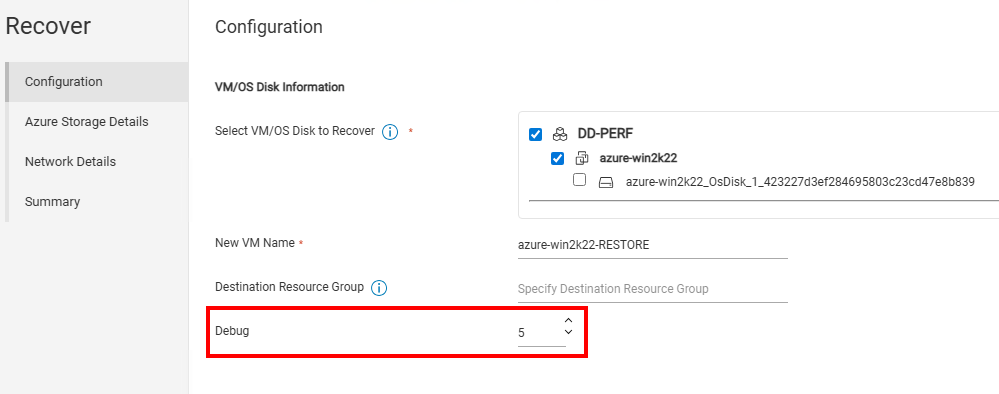
Debug can be applied in the NWUI Recover Wizard:
Command-Line restores can also be performed using debug:
Performance Issues:
For Azure VM protection, it is important to understand the underlying components involved. Performance can be greatly impacted depending on various factors:
-
- Some VM sizes have limitations that can impact snapshot consistency or extension timeout. Large disks may take longer snapshot freeze times; Azure factors this into backup run time.
- Azure VM backups are only supported to Data Domain devices.
- Is the Data Domain a physical Data Domain or DD Virtual Edition (DDVE) in the Azure cloud?
- For DDVE, the type of DDVE (sizing) and disk configuration can impact the read/write performance.
- Azure environment:
- Is everything (NetWorker server, NetWorker client, Azure VMs backed up, Data Domain) in the same Azure subscription?
- Azure networking configurations.
- Does any backup traffic traverse Azure subscriptions, Azure regions, or WAN.
The DDPCONCHK utility can be run from the NetWorker client to check DD Boost write performance: NetWorker: How to use the DDPCONNCHK tool to test DD ddboost connectivity from NetWorker Hosts
While DDPCONCHK may provide a general overview of throughput between the client and DD, it does not reflect a 1:1 relationship to backup or restore operations.
Log Collection:
- Collect NSRGET log bundles from both the NetWorker server (and clients involved, for backup issues): NetWorker: How to Use the NSRGet NetWorker Data Collection Tool
- Zip the process-specific logs identified in this article, these may not be collected by NSRGET.
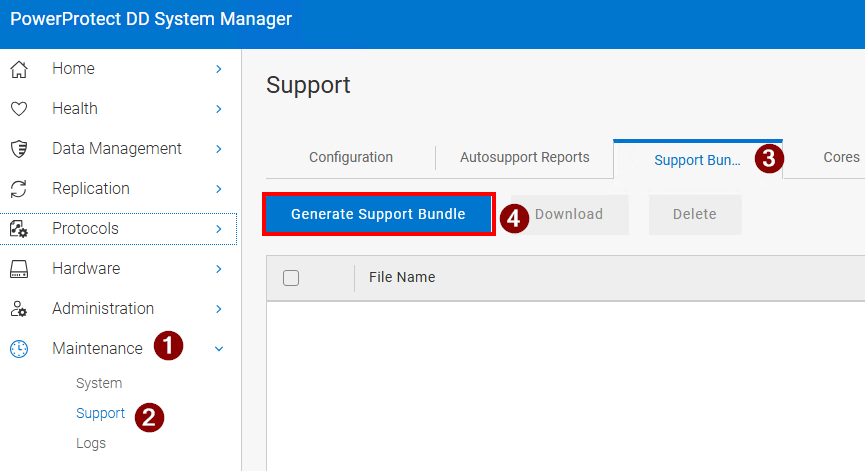
- Depending on the issue, it may also be required to collect a DD support bundle:
Additional Information
Since Azure protections operations use the NWUI, issues specific to actions performed from NWUI may require NWUI log analysis or debugging: NetWorker Management Web UI (NWUI): Triage and Troubleshooting Guide