PowerProtect Data Manager: How to deploy TSDM in VMware Cloud Foundation 9.1
Summary: Broadcom support of Transparent Snapshot Data Mover (TSDM) was returned in VMware Cloud Foundation version 9.1. This changed with the VMware vCenter Lifecycle Manager (vLCM) components requiring usage of the Application Programming Interface (API). With PowerProtect Data Manager 20.1, there is a manual method of deploying TSDM in VMware Cloud Foundation. ...
Instructions
This article provides information about importing ESXi images with the TSDM component included, in VMware cloud foundation 9.1, and applies to the following scenarios:
VCF related steps for TSDM vSphere Installation Bundle (VIB) handling apply only if this is a VCF managed VCenter.
Specifically, it applies for the following use cases that are orchestrated directly from the VCF operations UI or from the SDDC manager UI:
- Create a new workload domain cluster or a new cluster in an existing workload domain.
- Deploy the TSDM component in an existing workload domain cluster
- Deploy the TSDM component in an existing management domain cluster
If the environment does not use VCF but uses VMware vSphere Foundation 9.1, follow KB article PowerProtect Data Manager: TSDM 20.1.0.0 Backups with vSphere 9.1 Require Manual Managing to deploy TSDM.
Create a new workload domain using a TSDM enabled ESXi Image:
Below are the steps for deploying TSDM in a new workload domain cluster.
- Build an ESXI 9.1 image that includes the TSDM component using vLCM. The Image with TSDM component should exists either in the vCenter of the Management domain or vCenter of the Workload domain.
- Import the image in VCF. This can be achieved either by VCF operations UI or the SDDC manager UI.
To import the image in VCF using VCF operations UI do the following:
Log in to the VCF Operations UI. Select the Build tab, then Lifecycle -> Image Management -> Import Image
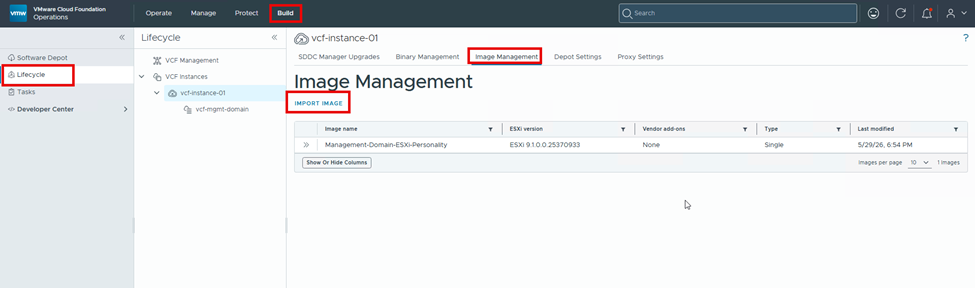
Figure 1. Import Image
Select the image to import. The image being selected below has TSDM component included:
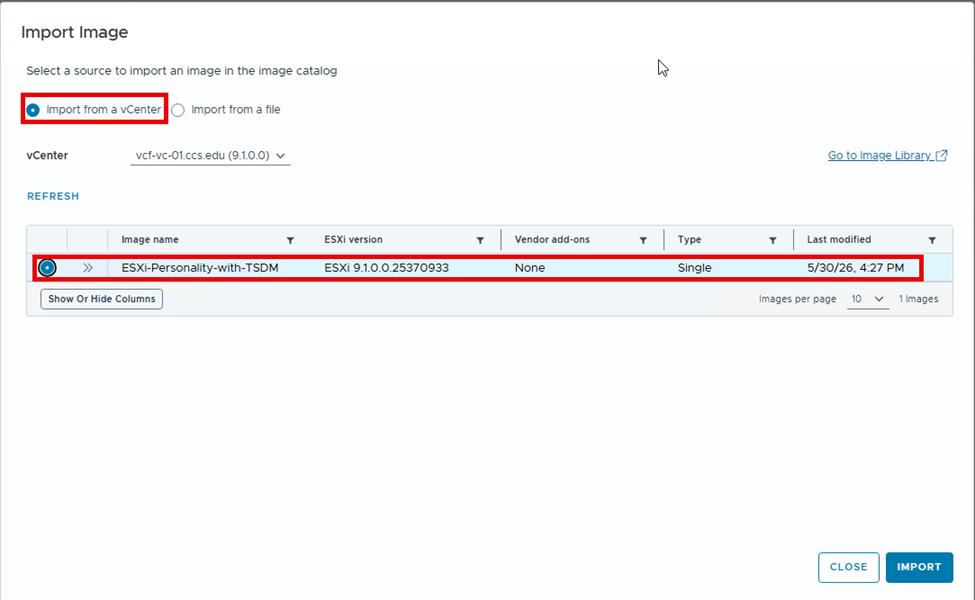
Figure 2. Import the Image
If using SDDC Manager UI, the Import steps look like this:
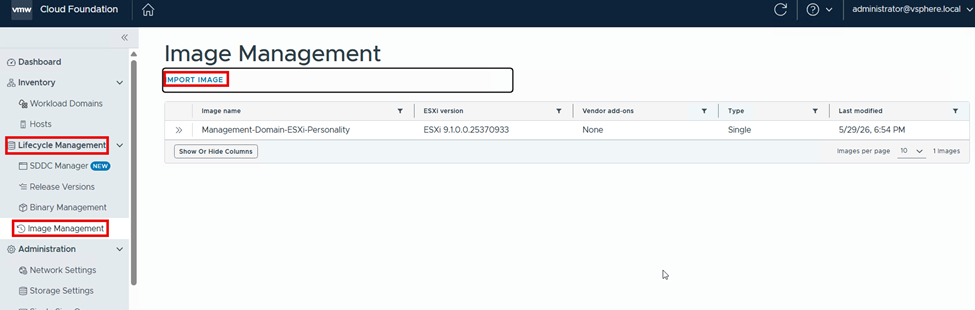
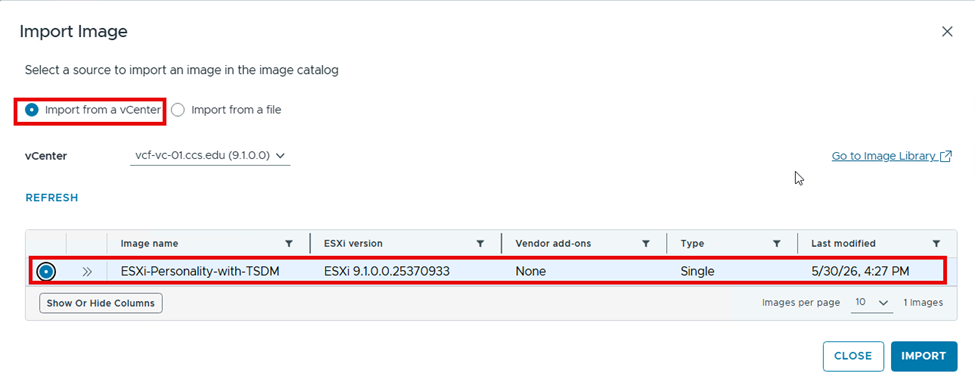
Figure 3. Import Steps
In the above, the ESXi-Personality-with-TSDM image exists in the vSphere Lifecycle Manager (vLCM) of the vCenter server vcf-vc.ccs.edu.
Monitor the import progress from Tasks:

Figure 4. Tasks View - Import Progress
Confirm the import is successful:

Figure 5. Successful Import
Once Imported, the image appears in the VCF image library in the VCF operations UI:
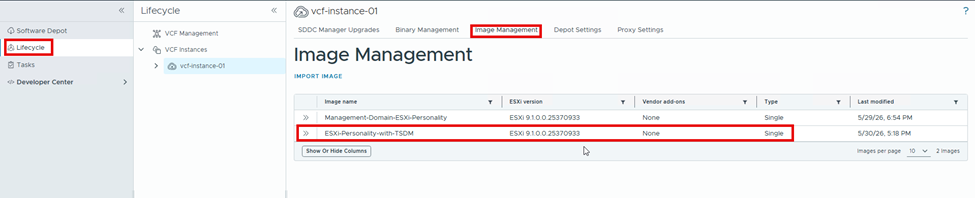
Figure 6. Image Management
When deploying new workload domain clusters, select this image in the wizard to create the Workload Domain, as shown below:
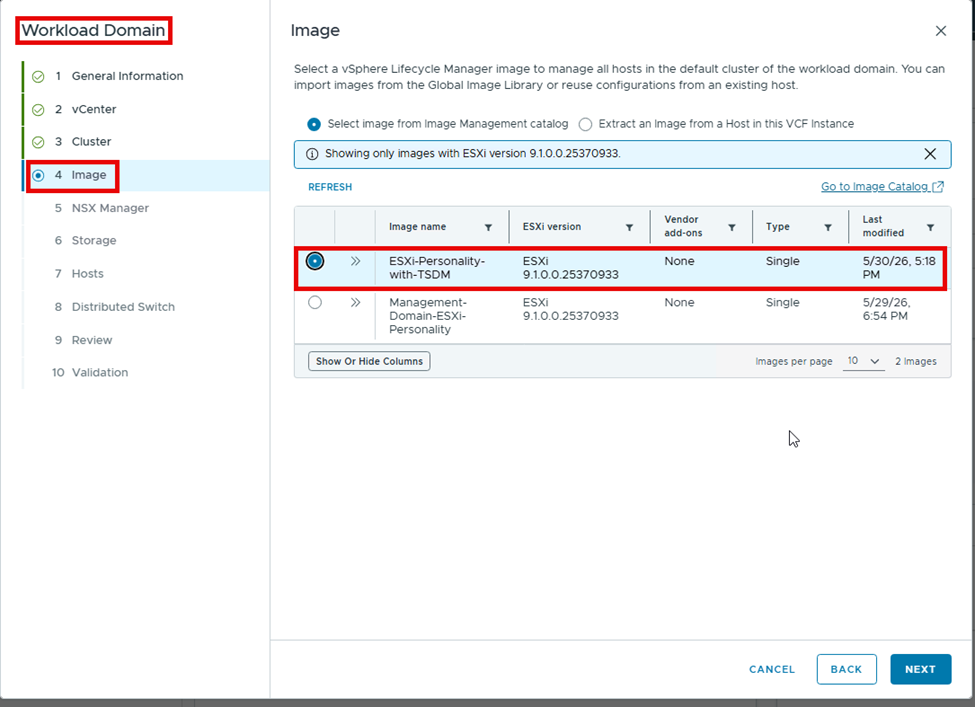
Figure 7. Workload Domain
The complete procedure to deploy a new Workload Domain cluster is not shown here. Refer to Broadcom documentation for the detailed procedure.
After deployment of the new workload domain cluster, verify that tsdm is installed and that the startup policy is set to start and stop with host:
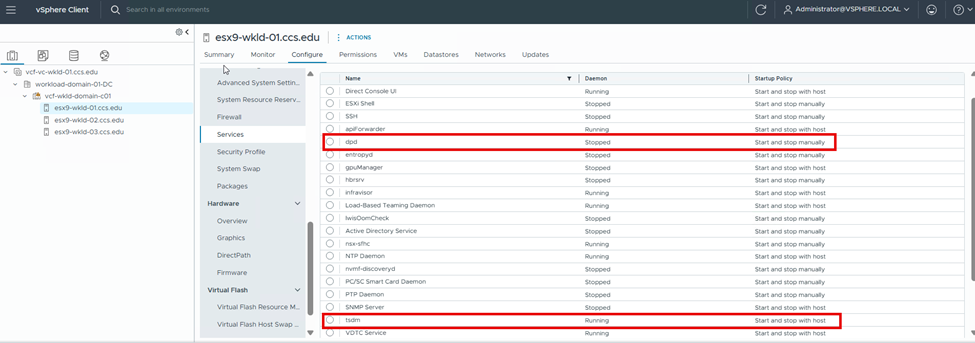
Figure 8. tsdm is installed
Modify the startup policy for dpd service to Start and stop with host and start the dpd service:
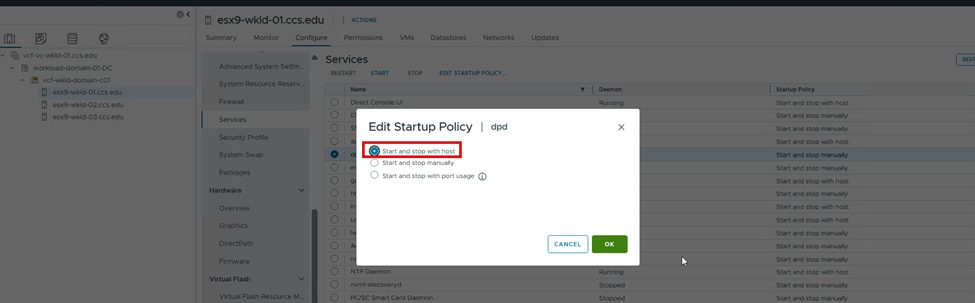
Figure 9. Start and stop with host
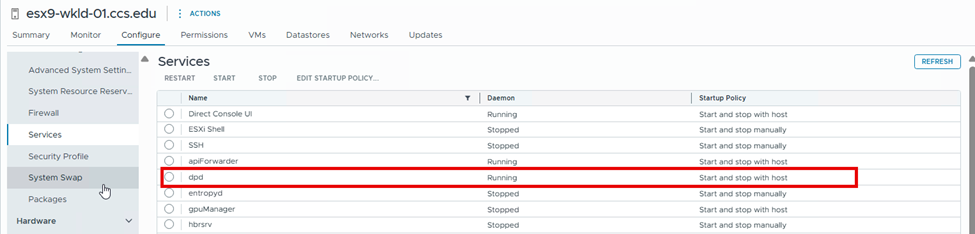
Figure 10. dpd is running
Upgrade existing workload domain and Management Domain cluster: (For scenario 2,3 above)
To deploy TSDM in an existing workload domain cluster and management domain cluster, log in to the respective vCenter server UI and edit the image of the cluster to add the TSDM component. The detailed steps are documented in PowerProtect Data Manager: TSDM 20.1.0.0 Backups with vSphere 9.1 Require Manual Managing.