Data Domain: Pre-check Error for Existent License in the System is Deprecated
Summary: Data Domain system gives a pre-check alert for licenses going deprecated.
Symptoms
When performing a DDOS pre-check on a system configured with legacy licenses, the following warning messages may be displayed:
sysadmin@ddsystemxxx# system upgrade status
Current Upgrade Status: DD OS upgrade Failed
Node   Severity   Issue                           Solution
----   --------   ------------------------------  --------
0      WARNING    The existent license in the     Please visit Software
                  system is being deprecated      License Central to update
                  and will be unavailable in      your license.
Cause
Starting with DDOS 8.6.x and subsequent releases, support for legacy licensing formats (.lic and .xml) is being phased out as Dell Dynamic Licensing (DL) becomes the preferred licensing model.
Resolution
This pre-upgrade check generates a warning only and does not prevent the upgrade from proceeding. The upgrade can continue and is expected to complete successfully.
After completing the upgrade to a version that supports Dynamic Licensing, customers are encouraged to migrate their existing licensing configuration to the Dynamic Licensing.
The procedure is outlined below.
Procedure
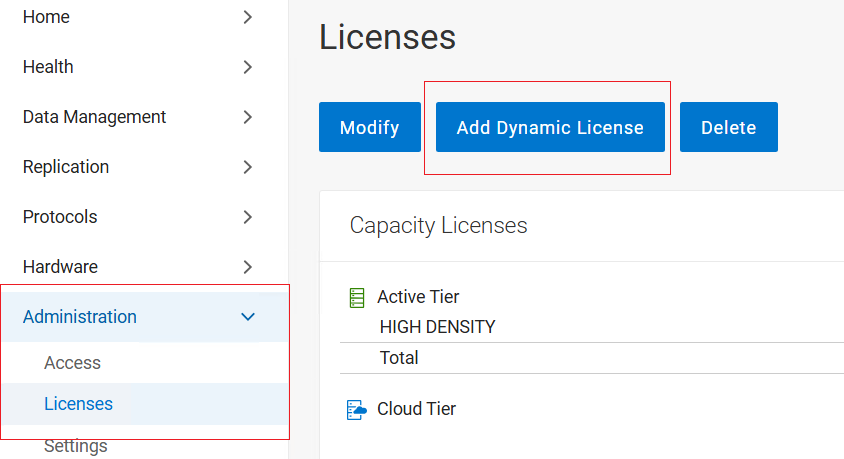
From the Data Domain UI, navigate to Administration > Licenses, and select the Add Dynamic License option from the right pane.
Option 1:
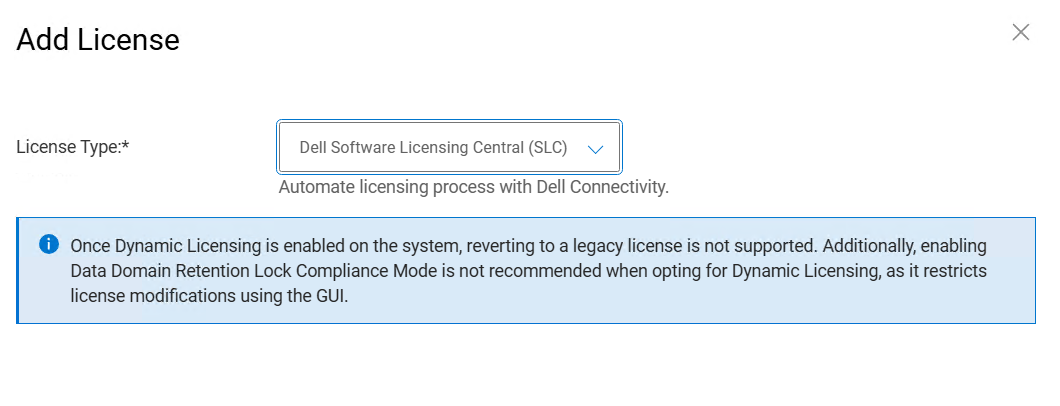
The Dell Software Licensing Central (SLC) option is recommended for systems connected through Dell Connectivity Services or a Secure Connect Gateway (SCG).
Click on Apply button and Verify that the message The license was applied successfullyis displayed.
Option 2:
Select License Type Offline Registration File and click the Upload button to browse and select .dl file, click Apply.

Verify that the message The license was applied successfully is displayed and that the license details are visible on the Licenses page.