PowerFlex 4.X: Configure SupportAssist Directly and Using SCG
Summary: Use this procedure to enable SupportAssist using the connect directly mode or using SCG
Instructions
Configure SupportAssist using the connect directly mode
Use this procedure to enable SupportAssist using the connect directly mode.
Steps
- Log in to PowerFlex Manager.
- Click Settings > Events and alerts.
- Click Notification Policies.
- On the Destinations pane, click SupportAssist.
- Accept the license and telemetry agreement on the connect support assist page and click Next.
- Choose the connection type Connect Directly.
- Click Connect to cloudIQ.
It enables PowerFlex Manager to transport telemetry data, alerts and analytics to assist Dell Technologies in providing support.
- On the Authentication details page, provide the following details.
- Access key and PIN, see Generate Access Key and PIN for Dell Products You need the software ID for generating the access key and PIN.
- Choose the Device type to be registered like rack, appliance or software.
- In the Enterprise License Management Systems file, enter the software ID used in step 2 while generating the access key and pin.
- The Solution serial number must be provided by customer.
- In the Site ID field, provide the site ID location. If you do not have one, contact Dell Technologies Support to generate one.
- Click Next, provide the contact details for customer, and click Finish.
A window appears on the bottom of the screen configuring SupportAssist and another window appears once it is successfully configured.
- To activate the policy, click Configure Now and enable the policy by making it active.
Once the policy is active, the policy will move from grayed out mode to available and active mode.
Connect SupportAssist using the secure connect gateway
Use this procedure to enable SupportAssist using the secure connect gateway.
Prerequisites
Configure the secure connect gateway.
Steps
- Log in to PowerFlex Manager.
- Click Settings > Events and alerts.
- Click Notification Policies.
- On the Destinations pane, click SupportAssist.
- Accept the license and telemetry agreement on the Connect to SupportAssist page and click Next.
- Choose the connection type connect via gateway.
- Provide the SCG IP address and Port number.
- Click Connect to CloudIQ.
It enables PowerFlex Manager to transport telemetry data, alerts, and analytics to assist Dell Technologies in providing support.
- Enable the Remote Support button and click Next.
- On the Authentication Details page, provide the following details.
- Access key and PIN, see Generate Access Key and PIN for Dell Products
- Choose the Device type to register like rack, appliance, or software.
- In the Enterprise License Management Systems file, enter the software ID used in step 4 while generating the access key and PIN.
- The Solution serial number must be provided by the customer.
- In the Site ID field, provide the site ID location. If you do not have one, contact Dell Technologies Support to generate one.
- Click Next, provide the contact details for the customer, and click Finish.
A popup appears on the bottom of the screen configuring SupportAssist and another pop up appears once it is successfully configured.
- To activate the policy now, click Configure Now and enable the policy by making it active. Once the policy is active, it will remove from grayed out mode to available and active mode.
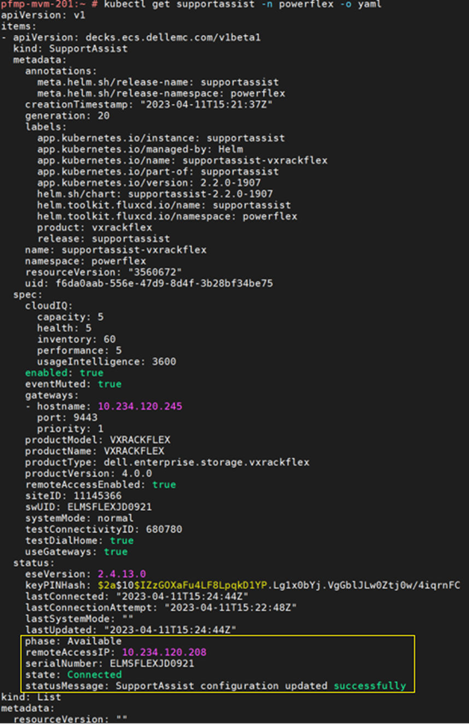
- To verify the registration, check the PowerFlex management platform log to monitor registration status, type: =
kubectl get supportassist -n powerflex -o yaml
Example of a successful registration: