Unisphere for PowerMax: How to export UPV, CSV, and XML reports
Summary: Unisphere for PowerMax allows customers to export performance data for offline viewing in Unisphere Performance Viewer (UPV). The resulting files can be imported on a virtual machine (VM) running the Performance Viewer but must first be exported from the Unisphere for PowerMax host. ...
Instructions
The report creation is common to all the variants and versions; however, the download method varies.
To create the report:
Select the array > Performance > Reports or directly go to Performance > Reports from the Overview window. Enter the details as per the requirements and click OK:
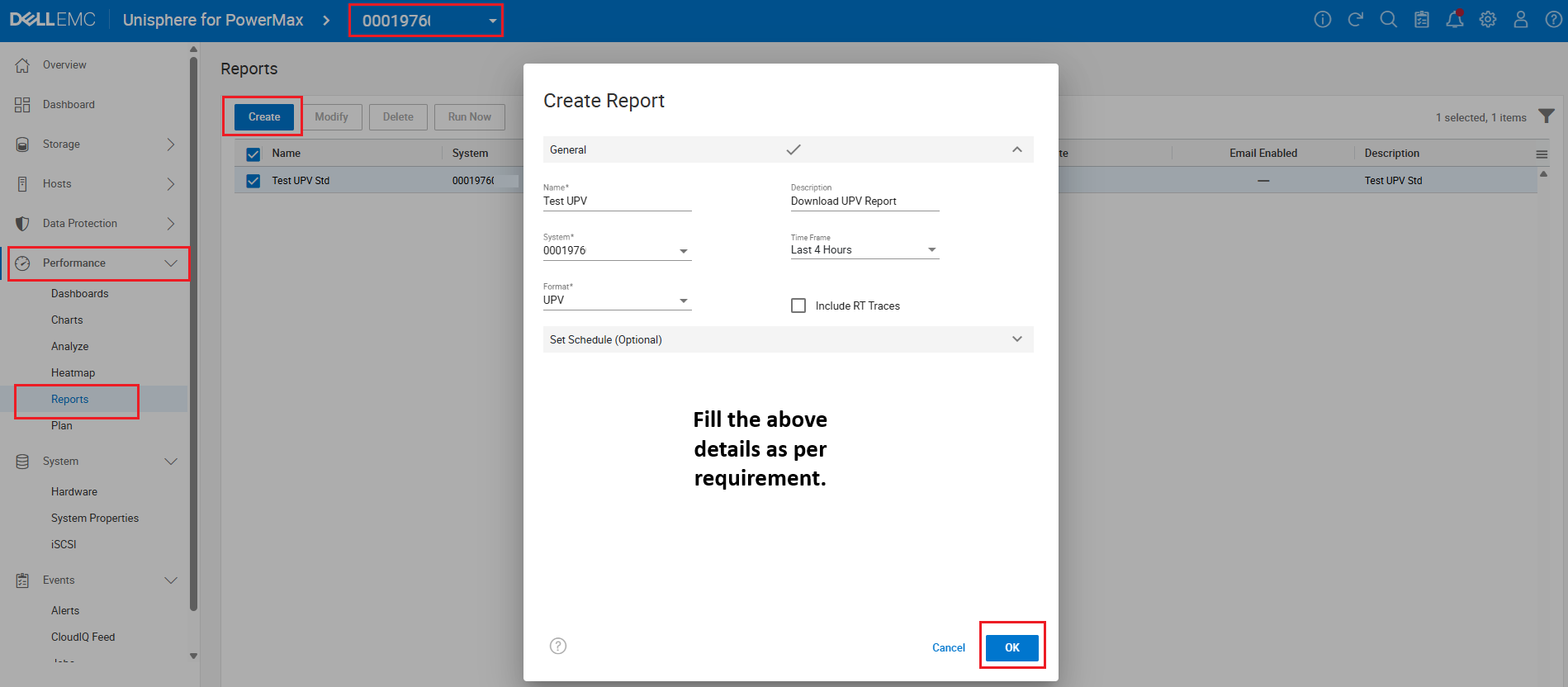
Figure 1. Create a Report.
Select the required report, and click Run Now:

Figure 2. Run the Selected Report.
The following pop-up appears, click OK:
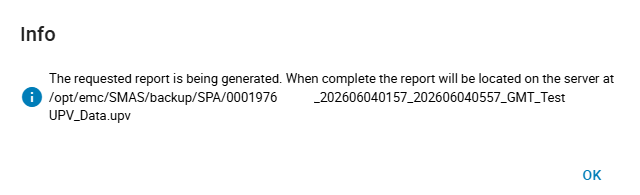
Figure 3. Report is being generated.
Wait for the report to process in the backend.
Download procedure as follows:
For Standalone Unisphere for PowerMax 9.x and 10.x and Embedded Unisphere for PowerMax 10.x:
Select the required report and click the three dots > Download:
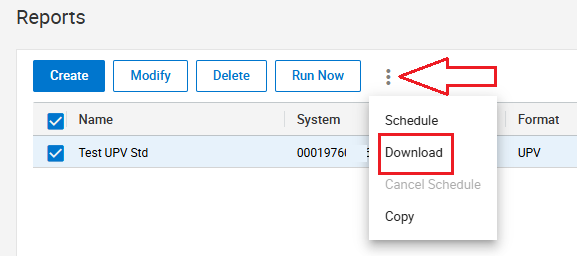
Figure 4. Download the Report.
Select the required report and click Download:
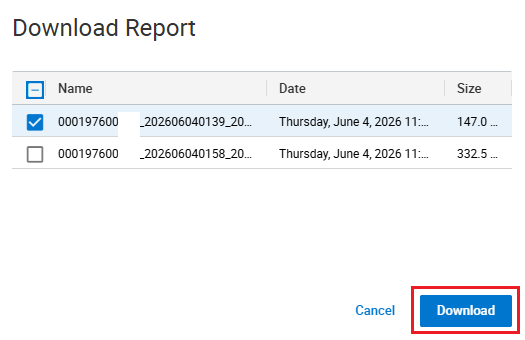
Figure 5. Downloaded Report
The following success pop-up appears, click OK:
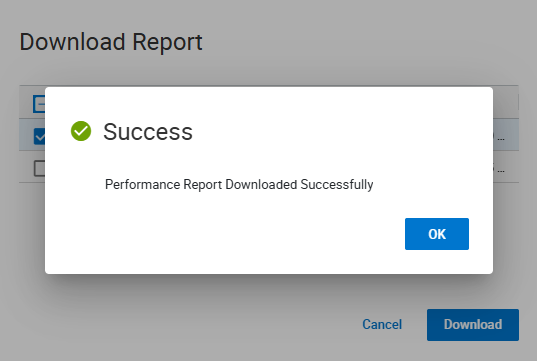
Figure 6. Successful Download
Embedded Unisphere for PowerMax 9.2:
The download procedure involves vApp Manager to download the files.
There are vApp Managers on the Active and the Passive MGMT containers. Make sure the download is attempted using the Active vApp Manager only. The reports cannot be found in the Passive side:
Log in to vApp Manager and go to DOWNLOAD > Export Logs and Data Files:
Click Performance Data > Next:
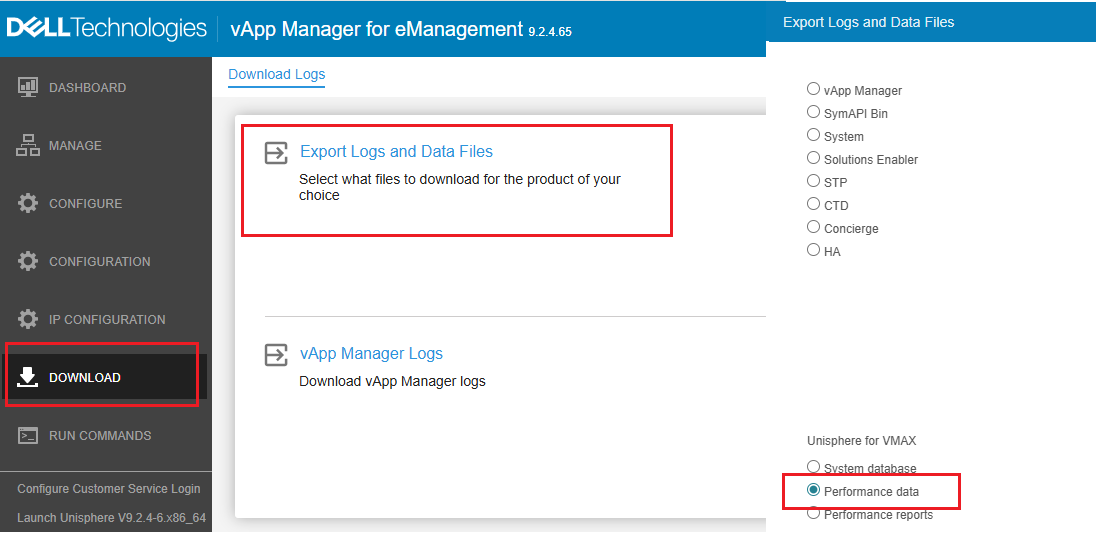
Figure 7. Export Logs and Data Files
Select the required files and click Next:
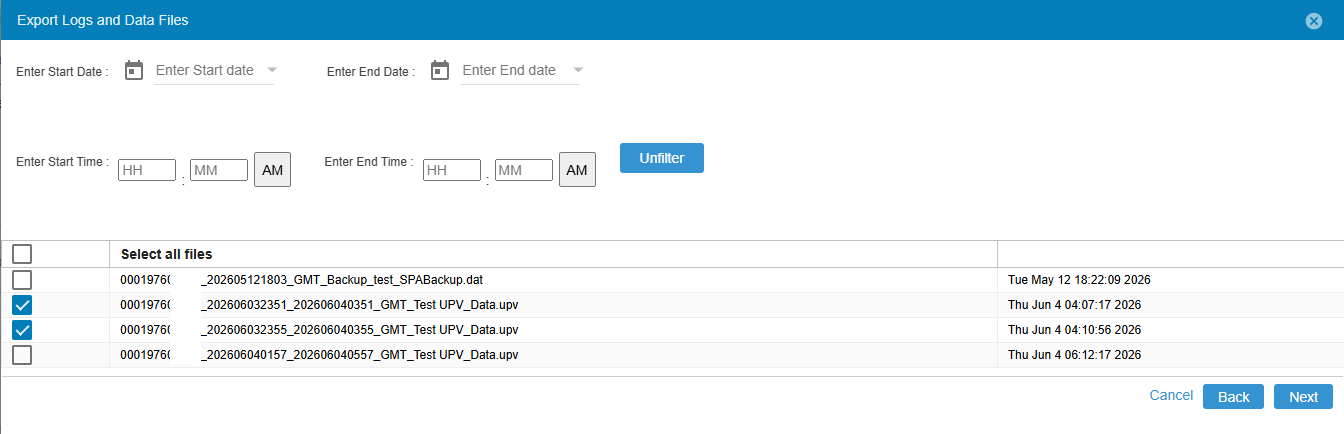
Figure 8. Select Files for Download.
Click YES to download the files then click Finish:
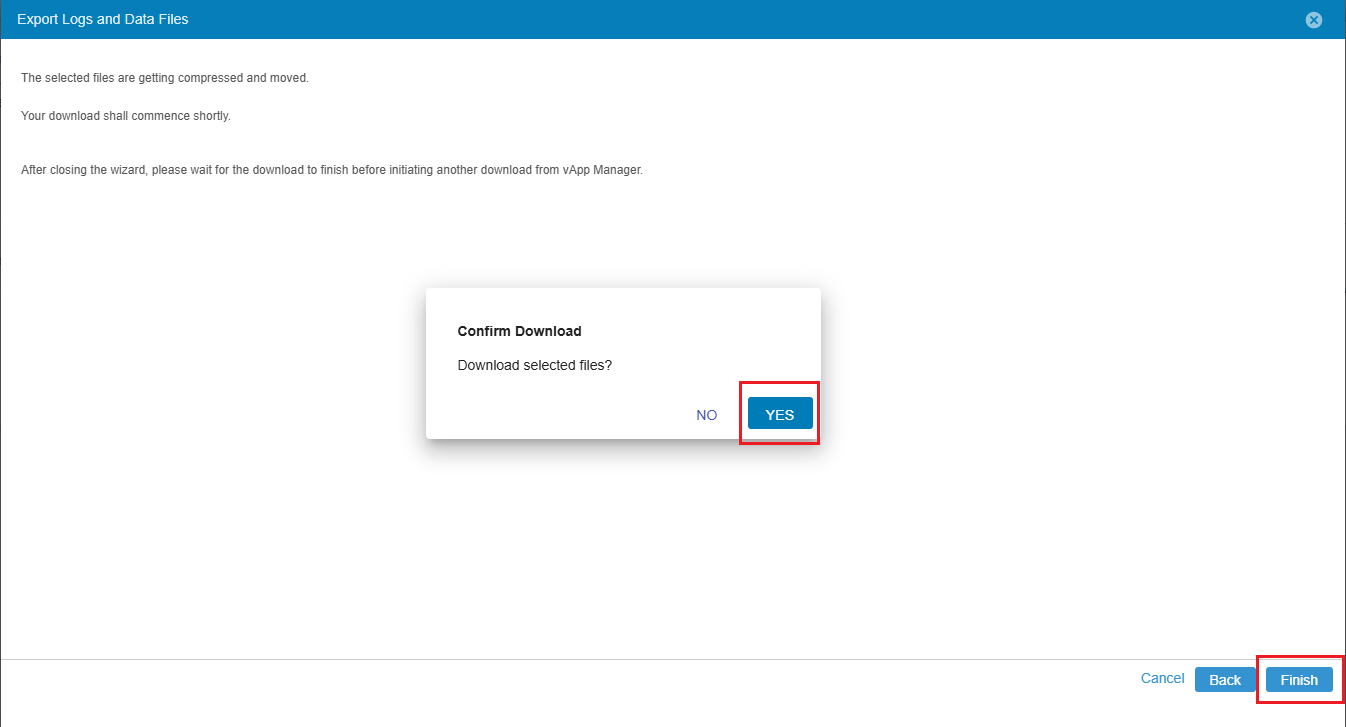
Figure 9. Confirm Downloads.
The files are downloaded locally.
Alternative method to download files from a standalone host:
On Linux systems including Standalone Unisphere for PowerMax vApp, the files are located in the following directory:
/opt/EMC/SMAS/backup/SPAOn Windows systems, files are located in the following location:
<Unisphere install location>\EMC\SMAS\backup\SPA