NetWorker: How to backup and recover client data using AES encryption
Summary: This article provides information regarding the usage of Advanced Encryption Standard (AES) encryption in NetWorker data protection operations.
Instructions
Defining the AES pass phrase
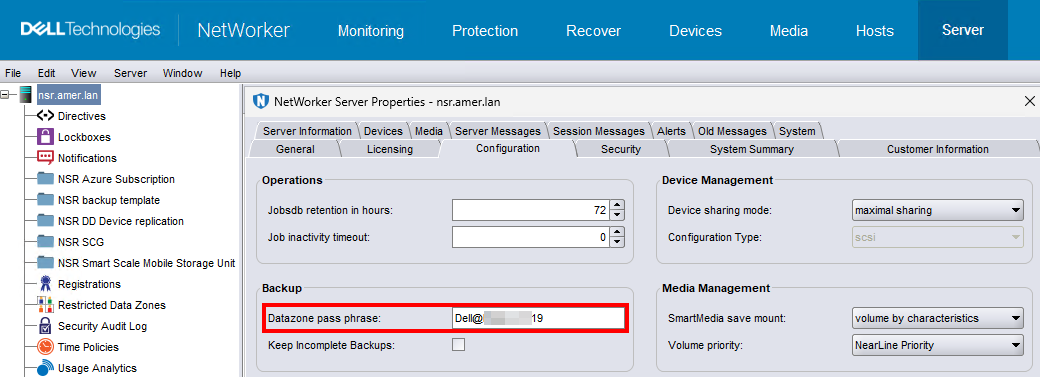
NetWorker uses a pass phrase to generate the datazone encryption key that backup and recovery operations use. Specify the Advanced Encryption Standard (AES) pass phrase in the NetWorker Server Resource (NSR) to enable backup data encryption.
Use the NetWorker Management Console (NMC) to connect to the NetWorker server with a user that is a member of the Application Administrators or Database Administrators user group. For example, the default "Administrator" account. If you do not specify a data zone pass phrase and you configure clients to use the AES directive to encrypt backups, NetWorker uses a default pass phrase. To define the AES pass phrase that NetWorker uses to generate the data zone encryption key,
Perform the following steps.
- On the Administration window, click Server.
- In the left navigation pane, right-click the NetWorker server, and then select Properties.
- On the Configuration tab in the Datazone pass phrase field, specify the pass phrase. It is recommended that you specify a pass phrase that meets the following requirements:
-
- Nine or more characters in length
- Contains at least one numeric character
- Contains at least one uppercase and one lowercase letter
- Contains at least one special character, for example
#or!
- Click OK.
Configuring the client resource to use AES encryption.
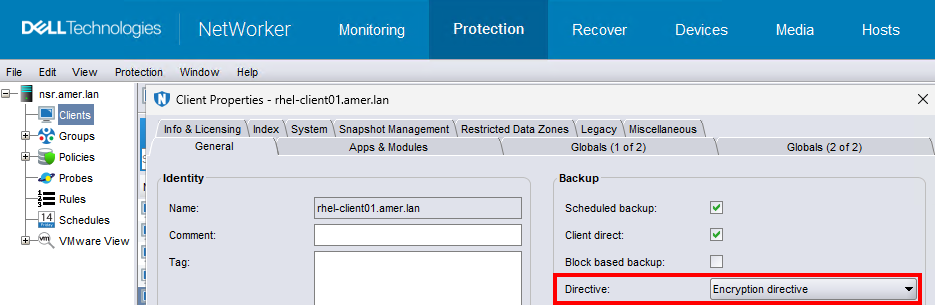
To implement AES data encryption, apply the Encryption global directive to individual clients by using the Directives attribute in the Client resource. Use the NMC to connect to the NetWorker server with a user that is a member of the Application Administrators or Database Administrators user group. For example, the default "Administrator" account.
- On the Administration window, click Protection.
- In the left navigation pane, select Clients.
- Right-click the client, and then select Modify Client Properties.
- On the General tab, from the Directive attribute select Encryption Directive.
- Click OK.
When not to use AES ASM:
- Do not use AES encryption when you backup Windows Encrypted File System (EFS) encrypted files.
- NetWorker will not encrypt or compress a file already encrypted by Windows.
- NetWorker does not backup the encryption keys, or keep a copy of the keys to ensure a successful recovery of EFS encrypted files to an EFS that you reinstall after a disaster.
- The backup is reported as successful, but recovery of the file fails and the following message is written to the NetWorker log file:
recover: Error recovering
filename. The RPC call completed before all pipes were processed.
- Do not use the in-flight encryption feature and the AES encryption feature together. Combining the encryption types is redundant and could increase the duration of the backup.
- When recovering encrypted files to an encrypted folder that has been removed, consider the following:
- If you recover the encrypted files and the encrypted folder, the recovered folder and files are all encrypted.
- If you recover only individual encrypted files (but do not recover the encrypted folder that contains them), the individual recovered files are encrypted but the re-created folder is not encrypted. Windows documentation provides instructions on encrypting the re-created folder.
- Windows EFS encrypted data is backed up and recovered in its encrypted state.
Configure encryption for a client-initiated backup.
To configure a NetWorker client to use AES encryption, use the NetWorker User program on Windows, or the save command.
Configuring encryption for client-initiated backups on Windows by using NetWorker User
You can use AES to encrypt data that you backup by using the NetWorker User program.
- On the Windows host, start the NetWorker User program.
- On the NetWorker User toolbar, select Backup.
- On the Options menu, select Password.
- When prompted, specify a password, and then click OK.
NOTE: The NetWorker User program creates the
C:\NETWORKR.CFGfile, which contains the password in an encrypted format. - On the Backup window, mark the files for backup.
- On the Backup toolbar, select Encrypt.
NOTE: An
Eappears in the Attributes column for each marked file and directory. - Start the backup operation.
- NetWorker uses AES encryption to back up the data based on the value specified in the Datazone pass phrase attribute of the NSR resource on the NetWorker server at the time of the backup.
Configuring AES encryption by using the save command.
To perform an AES encrypted backup from the command line, you must create a local AES directive file that the save program uses during backup.
- On the client host, create a directive file.
-
- On Windows, create a text file named
nsr.dir. - On Linux/UNIX, create a text file named
.nsr.NOTE: You can create the file in any directory on the host.
- On Windows, create a text file named
- Add the following two lines to the directive file:
<< / >>
+aes: *
- Save the directive file.
- Perform the backup by using the
savecommand with the-foption.
save -f full_path_to_directive_file backup_object
c:\data on a Windows host where you created the nsr.dir file in the c:\directives folder, type the following command:
save -f c:\directive c:\data
Recover encrypted data.
You can recover AES encrypted data by using the NMC Recovery Wizard, the NetWorker User program, or the recover command.
Recovering AES encrypted data by using NetWorker User
You can use the NetWorker User program to recover AES encrypted data on a Windows host. To specify the Datazone pass phrase value that was used to encrypt the backup, perform the following steps.
- Start the NetWorker User program with the following command:
winworkr -p pass_phrase....
When you recover data that requires different pass phrases, use additional -p pass_phrase options to specify each required pass phrase.
- Confirm that the recover operation successfully recovers the data.
- NetWorker creates 0kb files but does not recover the data into the files.
- The recover output reports a message similar to the following:
Invalid decryption key specified
Recovering AES encrypted data by using the NMC Recovery wizard
You can use the NMC Recovery wizard to recover AES encrypted data. The NetWorker Administration Guide describes how to use the NMC recovery wizard.
Use NMC to connect to the NetWorker server with a user that is a member of the Application Administrators or Database Administrators user group.
To specify the Datazone pass phrase value that was used to encrypt the backup, perform the following additional steps on the Select the Recovery Options window of the NMC Recovery wizard:
- Select Advanced Options.
- In the Pass phrases field, specify the pass phrase(s) used at the time of the backup.
Recovering AES encrypted data by using the recover command
Use the recover command to run recover AES encrypted data from a command line. Perform the following steps with the root account on Linux or an Administrator account on Windows.
- To specify a pass phrase, use the -p option with the recover command. For example:
recover -a -p pass_phrase filesystem_object
Where:
-
pass_phraseis the pass phrase that is specified in the Datazone pass phrase attribute of the NSR resource on the NetWorker server at the time of the backup. When you recover data that requires different pass phrases, use additional-p pass_phraseoptions to specify each required pass phrase.filesystem_objectis the full path to the data that you want to recover.
- Confirm that the recover operation successfully recovers the data.
When you specify an incorrect pass phrase:
- NetWorker creates 0kb files but does not recover the data into the files.
- The recover output reports a message similar to the following:
Invalid decryption key specified