How to Identify AC Adapter Damage on Dell Systems
Summary: This article provides information about how to identify damage to the AC adapter of Dell computers. What are the different types of damage that can occur compared to normal wear and tear? ...
Instructions
Before You Begin
Ensure that you have already completed these essential troubleshooting steps from our Laptop Battery Not Charging: Resolve AC Adapter Issues guide.
Overview
This article addresses physical damage identification, advanced diagnosis, and adapter compatibility — topics not covered in the basic troubleshooting guide. If you have not yet completed the basic steps from the Support Library page, start there first.
The AC adapter on Dell systems can be damaged due to accidental damage or improper usage. Damage can occur on the AC adapter brick, the AC adapter cable, or the power cable. If the AC adapter or cables are damaged, frayed, exposed, or have broken or bent pins, it can stop the computer from powering on or charging the battery.
Section 1: Types of Physical AC Adapter Damage
Frayed or Exposed Cables
Cables can get frayed at either end of the AC adapter cable — from the AC adapter brick to the DC-in power port on the computer, or along the power cable.
A cut in the cable may appear at the flexible joints near the adapter brick or the connector. These flexible joints are designed to allow the cable to bend when being wrapped around the adapter brick, but over time the cable can become brittle and cuts may appear. A cut may also appear if the cable is rubbing against the edge of an object, like a desk or chair.
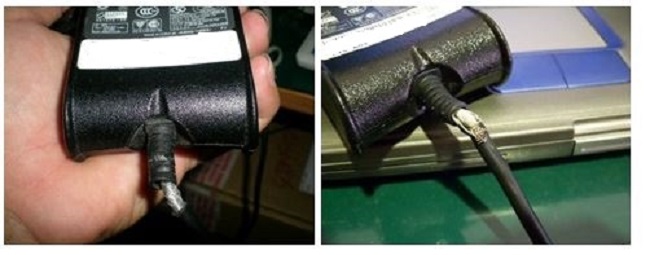
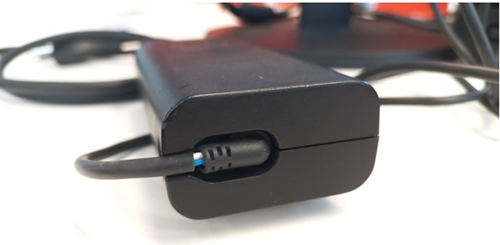
Figure 1: Example of a Frayed Cable on an AC Adapter
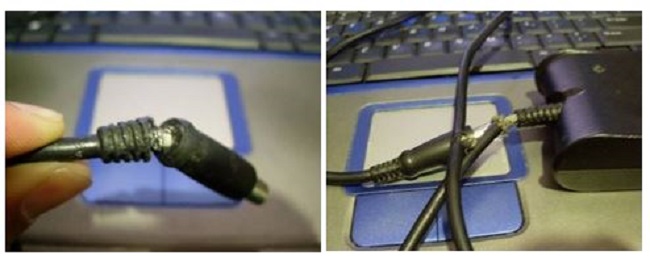
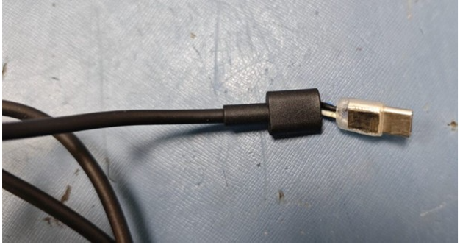
Figure 2: Example of an Exposed Wired on the AC Adapter Plug
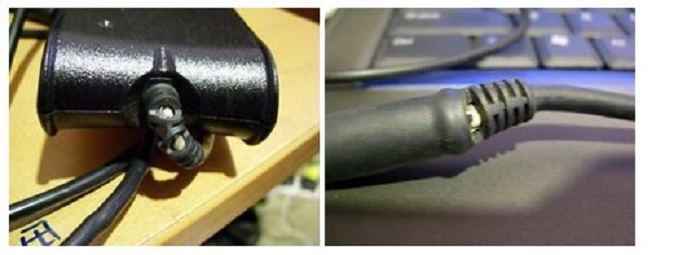
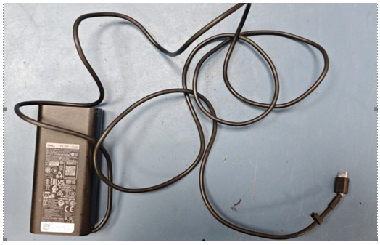
Figure 3: Example of a Cut in the Cable.
Bent or Broken Pins
The adapter pin may become bent or break entirely if it is not plugged into the DC-in power port of the computer correctly. Removing or inserting the cable at an angle or forcing an incorrect AC adapter may cause the center pin of the adapter or the DC-in power port to become bent or broken.
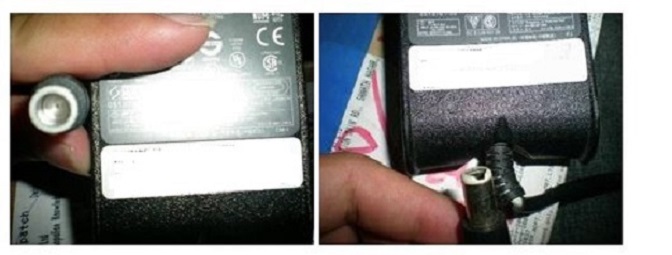
Figure 4: Example of a Pin That is Bent or Broken Inside the AC Adapter Plug.
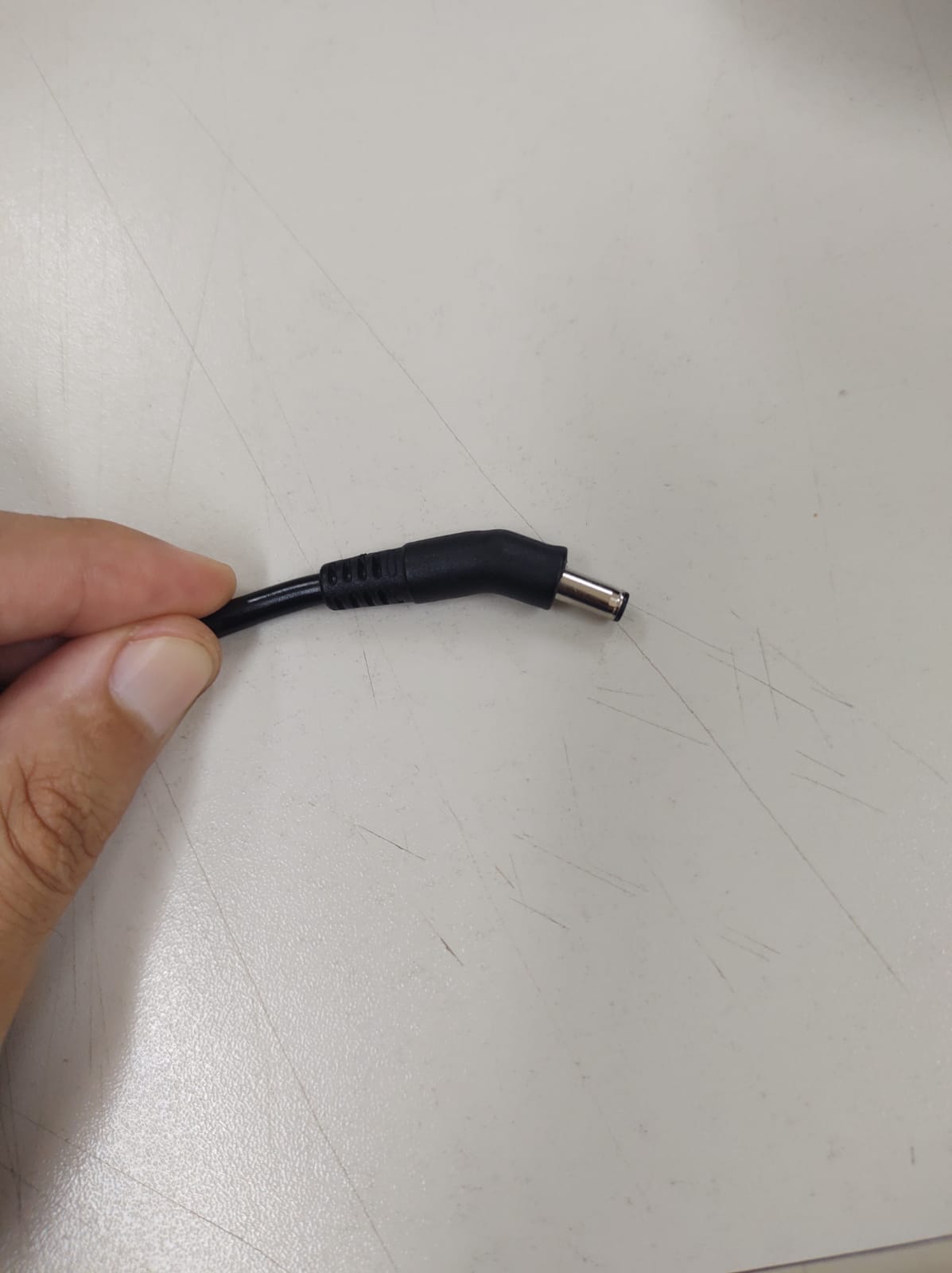
Figure 5: Example of a Bent AC Adapter Plug
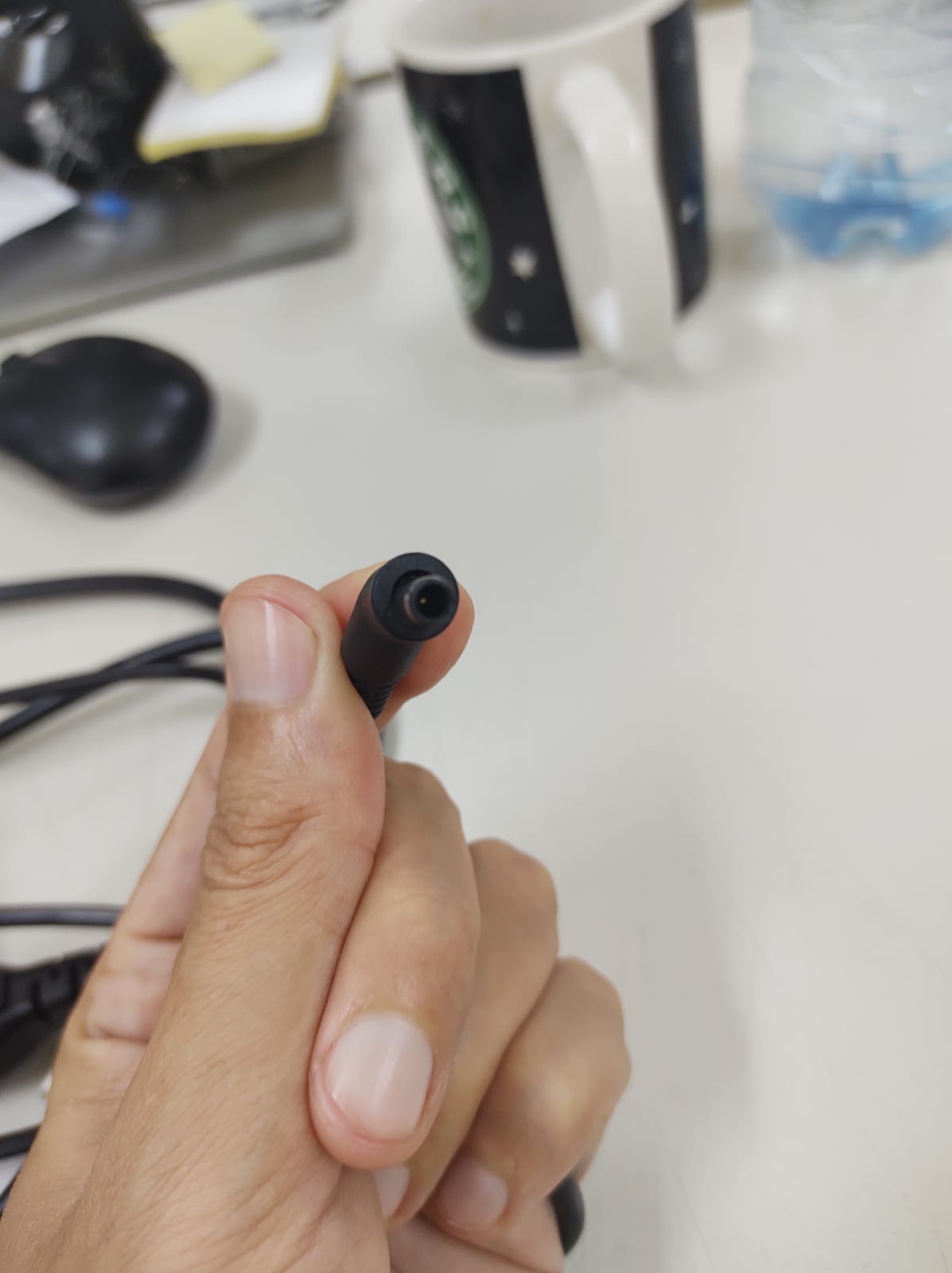
Figure 6: Example of a Bent Pin in an AC Adapter Plug
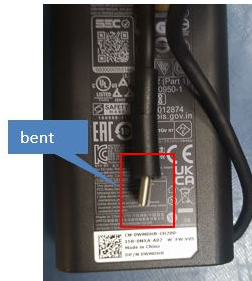
Figure 7: Example of a Bent USB Type-C Connector
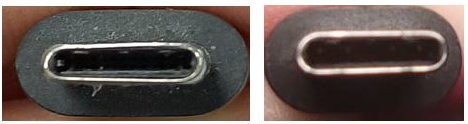
Figure 8: Example of a Deformed USB Type-C Connector vs Normal USB Type-C Connector
Loose Cable Connections
If you have a cable that is loose, try disconnecting and reconnecting it, and ensure it is firmly connected. If the cable continues to be loose, check for bent or broken pins or damage to the connector on the computer or cable. If there is damage to the cable causing the issue, the adapter and/or cable must be replaced.
Section 2: Common Causes of AC Adapter Damage
The AC adapter or cables can get damaged due to improper handling, incorrectly wrapping the cords, or disconnecting the cables by pulling on the cord instead of holding the plug.
|
Damage Type
|
Common Cause
|
Risk
|
|---|---|---|
|
Frayed cable
|
Bending at joints, edge abrasion
|
Electric shock, no charge
|
|
Bent or broken pin
|
Incorrect angle insertion
|
No power, port damage
|
|
Loose connector
|
Pulling cable instead of plug
|
Intermittent charging
|
|
Adapter overheating
|
Poor ventilation, incompatible charger
|
Component failure, safety hazard
|
|
Buzzing sound
|
Electrical fault
|
Potential electrical failure; discontinue use immediately and contact Dell Technical Support.
|
Section 3: Verifying AC Adapter Status in BIOS
- Turn off your personal computer.
- Ensure that the AC adapter is plugged into a wall socket and the computer.
- Turn the system back on and repeatedly tap the F2 key to access the BIOS.
- Systems manufactured after 2021: Click Overview. In the battery section, make note of the battery health and AC adapter status.
- Systems manufactured before 2021: Expand the General tab and click Battery Information, make note of the battery health and AC adapter status.
What "Unknown" Adapter Status Means
This error occurs when the system cannot correctly identify the connected AC power adapter. It may lead to:
- Reduced performance (CPU throttling)
- Battery charging failure
The root cause is usually related to the adapter, DC-in port, or motherboard charging circuit.
Symptoms of an Unidentified Adapter
- A message during POST or in the BIOS reads: "The AC power adapter wattage and type cannot be determined."
- BIOS shows AC Adapter = Unknown.
- The battery may not charge.
- Reduced performance (CPU throttling) may be observed.
Section 4: Running Hardware Diagnostics
Dell Technologies recommends running diagnostics on your AC power adapter to ensure that it is working correctly.
For detailed instructions, see Dell Knowledge Base article How to Run Dell Preboot Diagnostics and Hardware Tests on Your Dell Computer.
Section 5: Advanced Charging and BIOS Battery Settings
Your BIOS controls how your laptop manages battery charging. Incorrect settings can prevent proper charging or limit battery capacity.
Advanced Battery Charge Configuration
Some Dell laptops offer Advanced Battery Charge Configuration.
- Turn off your personal computer.
- Turn the system back on and repeatedly tap the F2 key to access the BIOS.
- Click Power tab.
- Review the options listed, and make the wanted changes.
- Click APPLY CHANGES, and then Exit.
Reading the Battery Charging LED
With your laptop turned off, plug in the AC adapter and look at the battery charging LED (usually near the power port):
|
LED Color
|
Status
|
|---|---|
|
Solid white or green
|
The battery is charging normally.
|
|
Amber or orange
|
The battery is charging, but health may be degraded.
|
Intel Management Engine Interface (MEI) Driver
The Intel Management Engine Interface (MEI) helps manage power delivery on Intel-based Dell laptops. An outdated MEI driver can cause charging problems.
To update:
- Type
SupportAssistin the Search box, and open the app. - On the Home tab, select Update software
- Click Start.
- Click View updates.
- Select which updates you want, and click Install, follow the on-screen instructions to complete the installation and restart your computer if prompted.
Section 6: AC Adapter Compatibility and Wattage
Dell AC adapters are rated to work with all electrical outlets worldwide. Modern Dell chargers support a wide range of input voltages (typically 100-240V) and frequencies (50-60Hz); use the appropriate plug adapter for your region.
Barrel vs. USB-C Adapters
Dell has adopted USB-C charging across a wide range of product lines, including many XPS, Latitude, Inspiron, Vostro, Precision, and some Alienware models. However, some Dell laptops still use traditional barrel-pin adapters, and some performance models may support USB-C charging only under certain conditions.
Wattage Requirements
The wattage output is crucial for proper charging performance:
For model-specific Wattage Requirements and charging connector port type and location, see the manual for your computer. For information about how to obtain the manual for your computer see Dell Knowledge Base article Manuals and Documentation for your Dell Product
Key considerations:
- Matching the original wattage is important because a charger that is too weak may charge slowly, show warnings, or fail to charge the laptop properly under load.
- Using third-party adapters — even those meeting nominal specs — may trigger "AC adapter wattage is insufficient" warnings or disable fast charging features.
- OEM Dell adapters include embedded EEPROM chips that communicate model ID, serial number, and safety certifications to the system BIOS.
USB-C Power Delivery Notes
USB-C (including Thunderbolt 3 and Thunderbolt 4) devices can act as both a power supply and a power consumer. Dell laptops accept various power delivery voltages and currents.
USB-C devices requiring higher voltages or current may not work properly without an additional power source other than the computer (from the AC adapter or battery).
For model-specific USB-C power delivery capabilities, see the manual for your computer. For information about how to obtain the manual for your computer see Dell Knowledge Base article Manuals and Documentation for your Dell Product.
Section 7: Best Practices for AC Adapter Use
- Use Dell-approved chargers. Avoid third-party chargers to prevent compatibility and safety issues.
- Plug the adapter directly into a wall outlet instead of using power strips or extension cords.
- Ensure good airflow around the charger; do not cover or enclose it.
- Monitor the LED indicator. Ensure that the LED light on your charger stays on when plugged in. If the LED turns off, contact Dell Technical Support for repair options.
- Inspect regularly. Check for damage to the charger, cables, or pins. Check the AC adapter status in BIOS settings and ensure that the wattage is correctly recognized. If it shows "Unknown," the charger may be incompatible or malfunctioning.