Dell Networking OS10:介面中繼模式組態
Summary: 如何在介面上設定 OS10 中繼模式。
This article applies to
This article does not apply to
This article is not tied to any specific product.
Not all product versions are identified in this article.
Instructions
先決條件:
交換器為原廠預設組態,已設定 VLAN 10 和 11。
指示
設定管理介面網路連線的指示:
-
使用 S 系列交換器的主控台或管理 IP 開啟 CLI。
-
以預設管理員登入資料登入具備權限的 exec 模式。(OS10: user=
admin、密碼=admin)。 -
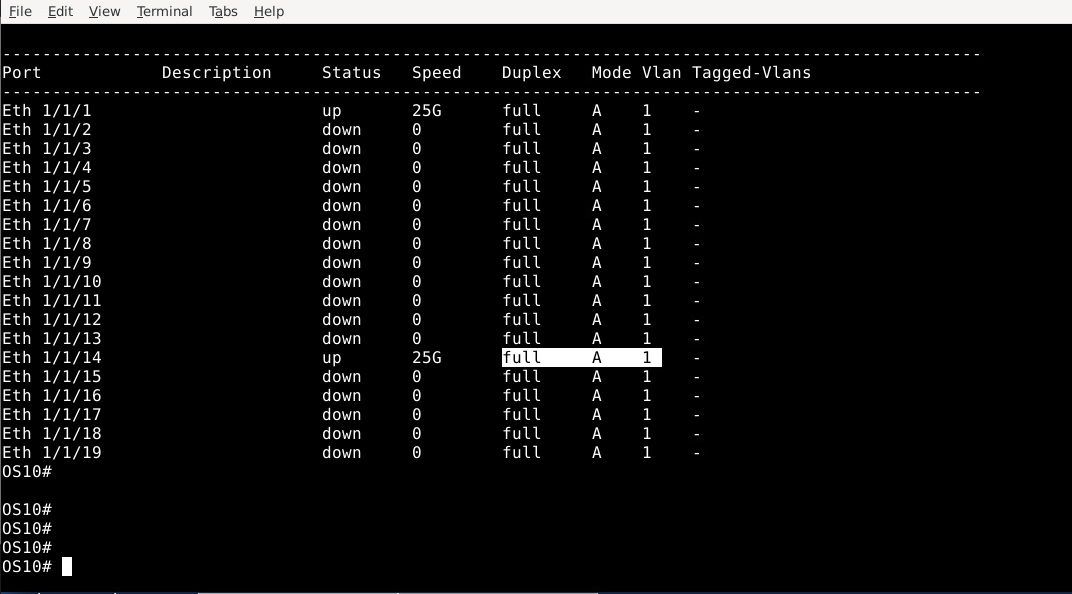
顯示介面狀態,注意 A 代表「存取」模式:
OS10# show interface status
請查看下面突出顯示的 Eth 1/1/14 介面。它處於模式 A 以進行存取。
-
若要修改交換器組態,請執行下列命令,然後按下 Enter 鍵。
OS10# configure terminal
OS10(config)#
-
若要設定乙太網路 1/1/14 介面,請輸入下列命令:
OS10(config)# interface ethernet 1/1/14
OS10(conf-if-eth1/1/14)#
-
使用下列命令將介面模式變更為中繼:
OS10(conf-if-eth1/1/14)# switchport mode trunk
OS10(conf-if-eth1/1/14)#
-
設定將指派至介面的中繼 VLAN。
OS10(conf-if-eth1/1/14)# switchport trunk allowed vlan 10,11
OS10(conf-if-eth1/1/14)#
-
使用下列命令設定將指派給連接埠的存取 vlan
OS10(conf-if-eth1/1/14)# switchport access vlan 1
OS10(conf-if-eth1/1/14)#
-
使用下列命令離開介面和組態回到 exec 模式:
OS10(conf-if-eth1/1/14)# end
OS10#
-
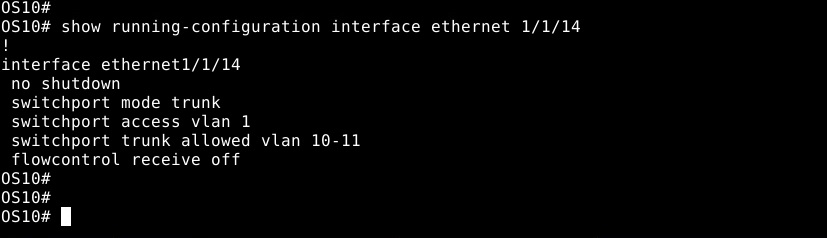
使用以下命令驗證在介面上所做的設定變更:
show running-configuration interface ethernet 1/1/14
-
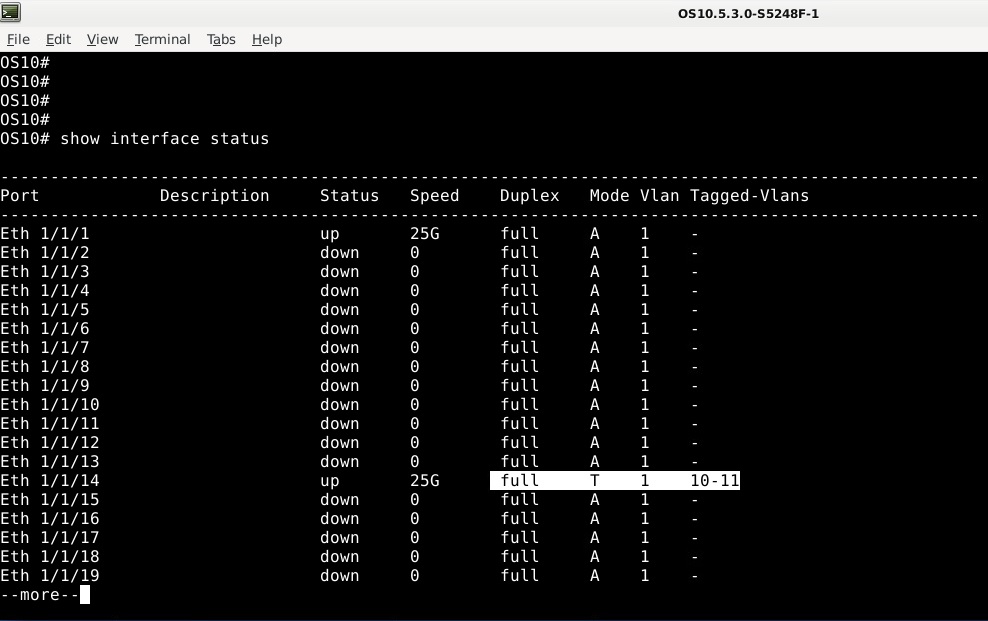
使用命令驗證對介面的變更:
show interface status。確認中繼的模式現在是 T。已套用存取 VLAN 1,並同時指派已標記的 VLAN 10 和 11。
-
若要儲存設定變更,請使用下列命令。
OS10# write memory
OS10#
如需進一步協助,請參閱 Dell EMC SmartFabric OS10 使用者指南說明文件 ,或聯絡 Dell 技術支援部門。
Additional Information
請參閱此影片:
Affected Products
Enterprise SONiC DistributionArticle Properties
Article Number: 000201923
Article Type: How To
Last Modified: 03 حزيران 2026
Version: 3
Find answers to your questions from other Dell users
Support Services
Check if your device is covered by Support Services.