NVP vProxy: NetWorker nsrvim process runs every 15 minutes causing a high workload on vCenter Server and potential VPXD unavailability
Summary: The VMware vCenter server is observing VPXD service unavailability or is unresponsive due to high workload from NetWorker server. This KB provides details on how to tune the NetWorker vCenter inventory discovery process (nsrvim). ...
Symptoms
- The NetWorker server has been configured for VMware protection of a vCenter server.
- The vCenter server observes issues with the VMware Virtual Provisioning X Daemon (VPXD) service availability or general high workload.
Cause
NetWorker's vCenter inventory process (nsrvim) is initiated during service startup then runs every 15 minutes (default). This process also runs anytime a VMware protection job runs against the vCenter. Depending on how many NetWorker servers are connected to the vCenter, and the amount or frequency of VMware protection policy operations. This causes several inventory query requests against the vCenter server in a short window.
This task is observed in the daemon.log on the NetWorker server as:
106637 MM/DD/YYY HH:MM:SS AM/PM  1 3 0 15204 8080 0 NSR_HOSTNAME nsrdisp_nwbg RAP notice job 'nsrvim' progress message: nsrvim starting on NSR_HOSTNAME (process 10852).
106637 MM/DD/YYY HH:MM:SS AM/PM  1 3 0 15204 8080 0 NSR_HOSTNAME nsrdisp_nwbg RAP notice job 'nsrvim' progress message: Connecting to NetWorker on 'NSR_HOSTNAME'.
106637 MM/DD/YYY HH:MM:SS AM/PM  1 3 0 15204 8080 0 NSR_HOSTNAME nsrdisp_nwbg RAP notice job 'nsrvim' progress message: Querying NSR hypervisor resource 'VC_HOSTNAME'
106637 MM/DD/YYY HH:MM:SS AM/PM  1 3 0 15204 8080 0 NSR_HOSTNAME nsrdisp_nwbg RAP notice job 'nsrvim' progress message: Connecting to service at https://VC_HOSTNAME/sdk
106637 MM/DD/YYY HH:MM:SS AM/PM  1 3 0 15204 8080 0 NSR_HOSTNAME nsrdisp_nwbg RAP notice job 'nsrvim' progress message: Starting session with infrastructure services daemon.
106637 MM/DD/YYY HH:MM:SS AM/PM  1 3 0 15204 8080 0 NSR_HOSTNAME nsrdisp_nwbg RAP notice job 'nsrvim' progress message: Querying for inventory at https://VC_HOSTNAME/sdk
106637 MM/DD/YYY HH:MM:SS AM/PM  1 3 0 15204 8080 0 NSR_HOSTNAME nsrdisp_nwbg RAP notice job 'nsrvim' progress message: Querying for categories from infrastructure services daemon.
106637 MM/DD/YYY HH:MM:SS AM/PM  1 3 0 15204 8080 0 NSR_HOSTNAME nsrdisp_nwbg RAP notice job 'nsrvim' progress message: Updating NSR hypervisor resource 'VC_HOSTNAME'
106637 MM/DD/YYY HH:MM:SS AM/PM  1 3 0 15204 8080 0 NSR_HOSTNAME nsrdisp_nwbg RAP notice job 'nsrvim' progress message: Finished updating NSR hypervisor resource 'VC_HOSTNAME'
106637 MM/DD/YYY HH:MM:SS AM/PM  1 3 0 15204 8080 0 NSR_HOSTNAME nsrdisp_nwbg RAP notice job 'nsrvim' progress message: nsrvim exiting on NSR_HOSTNAME (process 10852).
The same messaging appears when a VMware protection policy runs.
Resolution
Create the NSRVIM_TIME_INTERVAL environment variable on the NetWorker server to adjust the nsrvim schedule. Adding or changing this variable requires a NetWorker Server (nsrd) daemon restart. To create the environment variable, perform the following depending on the operating system of the NetWorker server:
nsrvim interval was added in NetWorker 19.10. NetWorker 19.9 (and older) are End of Support Life (EOSL). The NetWorker server must be 19.10.x or newer to use this functionality.
Linux:
/nsr/nsrrc:
sudo vi /nsr/nsrrc
2. Add the following lines to the file:
NSRVIM_TIME_INTERVAL=60
export NSRVIM_TIME_INTERVAL
3. Restart the NetWorker server services:
sudo systemctl restart networker
Microsoft Windows:
Use one of the following methods.
Windows Command Line
- Open an Administrator PowerShell prompt.
- Run the following command
setx /m NSRVIM_TIME_INTERVAL 60
- From a new PowerShell prompt, run:
echo $env:NSRVIM_TIME_INTERVAL
This should return the value set in step 2.
- Reboot the server.
Windows User Interface
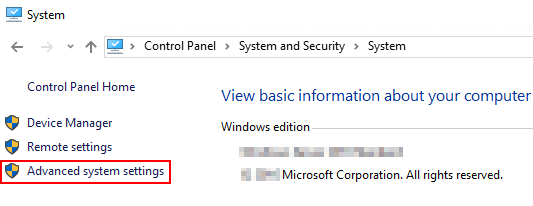
- Open Control Panel, then click System and Security, then click System.
- Click Advanced System Settings.
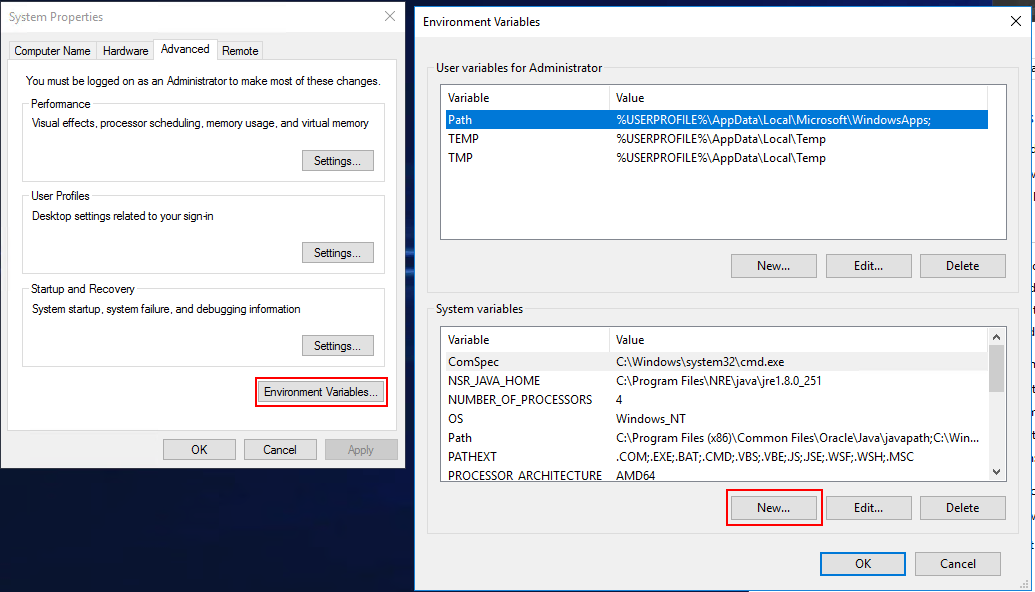
- From System Properties, click Environment Variables.
- Under System Variables, click New:
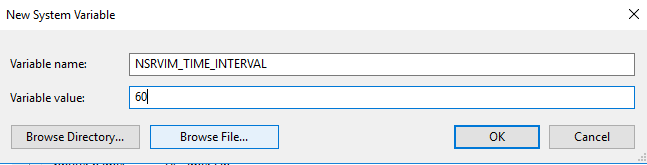
- In the Variable Name field, enter: NSRVIM_TIME_INTERVAL
- In the Variable Value field, enter a number from 15 to 60 (this number corresponds to minutes).
nsrvim action. Any time a VMware protection workflow starts, a user opens a new NMC session, or VMware restore is initiated from the NMC, a nsrvim process is started and each hypervisor is inventoried.
Additional Information
- NVP vProxy: Large number of sessions causing the vCenter's VPXD service to fail or run out of HTTP sessions.
- NVP vProxy: VM backups failing with "Unable to fetch data from vCenter: HTTP Error"
- NetWorker: VMware View Refresh Fails "Dispatcher Request Timed Out"
- NetWorker: VMware groups failing with error failed to load inventory from vCenter