Unisphere for PowerMax: How to configure Remote Syslog
Summary: This article discusses how to configure Unisphere for PowerMax Remote Syslog.
Instructions
Procedure:
- Click Settings in the main Unisphere Dashboard:

- Click Security > Remote Syslog, add the IP Address or Host Full Name, Certificate Trust chain, then click Apply:
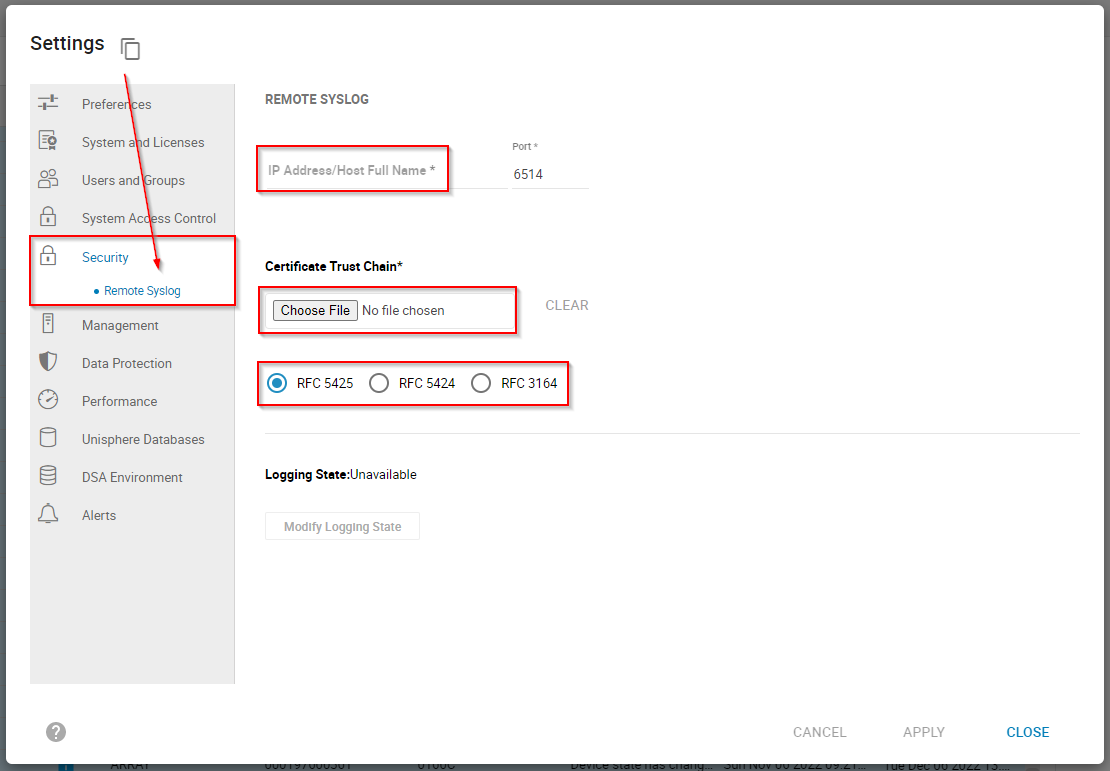 Figure 2: Add the IP Address or Host Full Name, Certificate Trust chain, and click Apply.
The Secure Remote Syslog default port is port 6514 (syslog-tls). For secure log message transfer, Syslog must work over TCP 6514 with secure Transport Layer Security (TLS) certificate-based authentication (RFC 5425).
Certificate Trust Chain
A Certificate Trust Chain, also known as a Certificate Chain or Trust Chain, is a series of digital certificates. These certificates verify the authenticity and trustworthiness of public key infrastructure (PKI) entities, such as a server or a device.
In the context of remote syslog, a Certificate Trust Chain plays a crucial role in ensuring the secure transmission of log messages between a syslog client (such as a network device) and a syslog server.
For Unisphere for PowerMax v10.2 and earlier versions, the requirements are:
- Root Certificate Authority (CA): The trust chain starts with a trusted Root CA, which is a well-known and trusted entity that issues certificates to other CAs. The Root CA's public key is embedded in the client's trust store, allowing the client to trust certificates issued by the Root CA.
- Intermediate Certificate Authority (CA): The Root CA issues a certificate to an Intermediate CA, which is a subordinate CA that issues certificates to end entities, such as servers or devices. The Root CA signs the Intermediate CA's certificate, establishing a chain of trust.
- Server Certificate: The Intermediate CA issues a certificate to the syslog server, which includes the server's public key and identity information (such as, hostname, IP address). The Intermediate CA signs the server certificate, linking it to the trust chain.
PowerMax 10.3.x (and later) certificate handling:
-
CA‑signed leaf certificates (for example, the LDAP/EE certificate) cannot be uploaded through the UI starting with Unisphere for PowerMax 10.3.x:
- The only certificate that may be imported for an LDAP,
rsyslog, VMware, and so forth configuration is the root CA (or a self‑signed leaf that is treated as a root). - This restriction eliminates the “EE‑certificate‑pinning” loophole that could be identified during security audits.
- The only certificate that may be imported for an LDAP,
-
Self‑signed leaf certificates are still allowed because they function as a root certificate; they do not require a separate CA hierarchy.
-
Upgrade path from 10.2.x → 10.3.x:
- The existing security lockbox (the stored root‑CA) is preserved, so the upgrade itself succeeds.
- After the upgrade, any attempt to disable/enable or edit the LDAP configuration will fail if the uploaded certificate is not a root (or a self‑signed leaf). An error message is returned, forcing the administrator to replace the uploaded file with the appropriate root certificate.
-
Reference – The Install Guide for PowerMax 10.3.x explicitly states:
“Unisphere for PowerMax 10.3.x, and later, no longer supports EE certificate pinning and subordinate CA imports.If you are upgrading from 10.2.x to 10.3.x, or later, you must upload any required certificates at the appropriate configuration page, for example, for rsyslog, LDAP, or VMware.” (see the “Before upgrading Unisphere for PowerMax” section of the guide).
RFC 5425
This RFC focuses on the transport of syslog messages over the Transmission Control Protocol (TCP).
It defines the following:
- The use of TCP as a transport protocol for syslog messages
- The syslog TLS protocol, which provides encryption and authentication for syslog messages
- The syslog Datagram Transport Layer Security (DTLS) protocol, which provides encryption and authentication for syslog messages over User Datagram Protocol (UDP).
- RFC 5425 provides a secure and reliable way to transport syslog messages over TCP, which is essential for remote syslog configurations.
RFC 5424
This RFC updates the syslog protocol to address the limitations of RFC 3164.
The main differences include:
- Improved timestamp format with millisecond resolution
- Introduction of a structured data element, which allows for more flexible and extensible logging
- Support for IPv6 and Transport Layer Security (TLS) encryption
- Enhanced security features, such as authentication and authorization
- RFC 5424 is backward compatible with RFC 3164, allowing for a smooth transition to the new protocol.
RFC 3164
This RFC describes the original syslog protocol.
It defines the syslog message format, which includes the following components:
- Priority (a combination of facility and severity)
- Timestamp
- Hostname
- Message
RFC 3164 is still widely used today, but it has some limitations, such as a lack of authentication and encryption.
When remote syslog is successfully configured, Unisphere for PowerMax sends five logs from the Unisphere host:
SMASRUNSTOREVNTDSTORSRVDSYMAPI
The content of all the above logs is tailed or sent over to the syslog host.
There can be confusion between secure remote syslog and standard syslog for alert notifications.
If the objective is to trap array events, then the syslog feature in Settings > Alerts > Enable Syslog should be used:
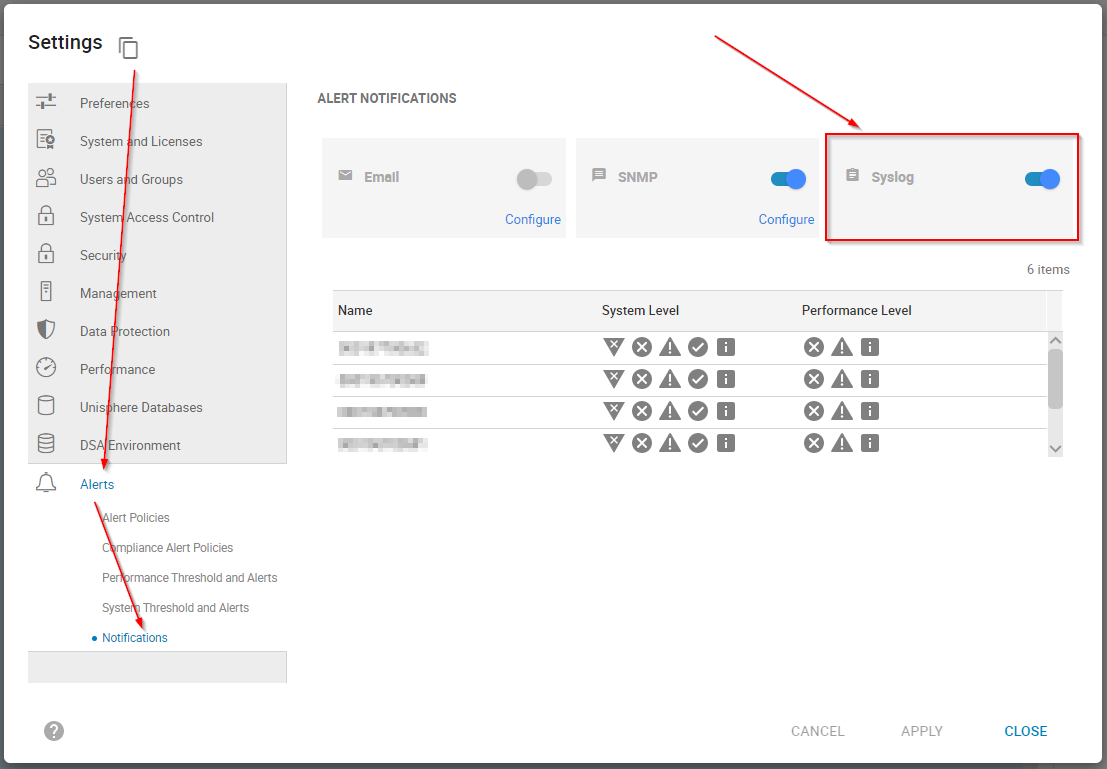
The detailed settings explaining how to configure this standard syslog feature can be reviewed in How to configure syslog in embedded Unisphere for VMAX/PowerMax. (Log in to Dell Support as a registered user is required.)
Go to the PowerMax Product Page on Dell Support > Knowledgebase Articles > PowerMax: InfoHub Product Documentation and Videos > Manage and Monitor Storage-Open Systems > Troubleshooting > Dell Events and Alerts for PowerMax and HYPERMAX User Guide to view helpful information about:
- Asynchronous Events
- Unisphere policy name - Alert ID mapping
Additional Information
The maximum allowed Unisphere for PowerMax certificate file size is 80KB.