Data Domain: How To Collect a Data Domain Support Bundle
Summary: A support bundle (SUB) is a compressed archive of various log and configuration files from a Data Domain (DD). DD support and engineering use its contents when investigating issues. As a result, support agents are likely to ask for a SUB while working a support case. This article describes various methods to generate and collect a SUB and upload it for review. ...
This article applies to
This article does not apply to
This article is not tied to any specific product.
Not all product versions are identified in this article.
Instructions
The main body of the article describes the most commonly used methods for achieving the above. No matter what method is used, generating a support bundle is not immediate and can take up to 15 minutes on larger systems. Supplementary information is available in the "Additional Information" section of this article.
Table of Contents:
STEP 1: GENERATING A SUPPORT BUNDLE
a. Generating a support bundle using the Data Domain command-line interface (CLI):
- Log in to the CLI
- Use the following command to generate a SUB with default contents:
Example:# support bundle create default# support bundle create default Compressing files... Bundle created...
b. Generating a support bundle using the System Manager user interface (GUI):
These steps assume that web-based access to the DD is enabled. See the "Additional Information" section of this article for steps to confirm this.
- Access the Data Domain IP or hostname in a web browser.
- Log in with a user that has system administration privileges.
- Select Maintenance.
- Select Support.
- Select the Support Bundles tab.
- Click the Generate Support Bundle button and if asked, select Complete Support Bundle. Support often requires a complete set of logs for investigation.
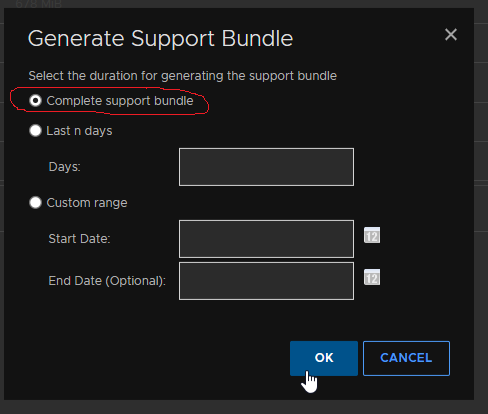
Video instructions for generating and collecting a SUB from the GUI:
NOTE:
- The web page may have to be refreshed to ascertain if the support bundle generation is complete. See the 'Last Modified' field to locate the latest support bundle.
- The maximum number of support bundles that is allowed is five. If the maximum of five is reached, the system automatically deletes the oldest bundles.
- An incomplete support bundle has a file name ending with four or more digits. This indicates that one of the above tasks is still running, that is, the support bundle is still being generated.
- A complete support bundle has a file name ending with the string ".tar.gz."
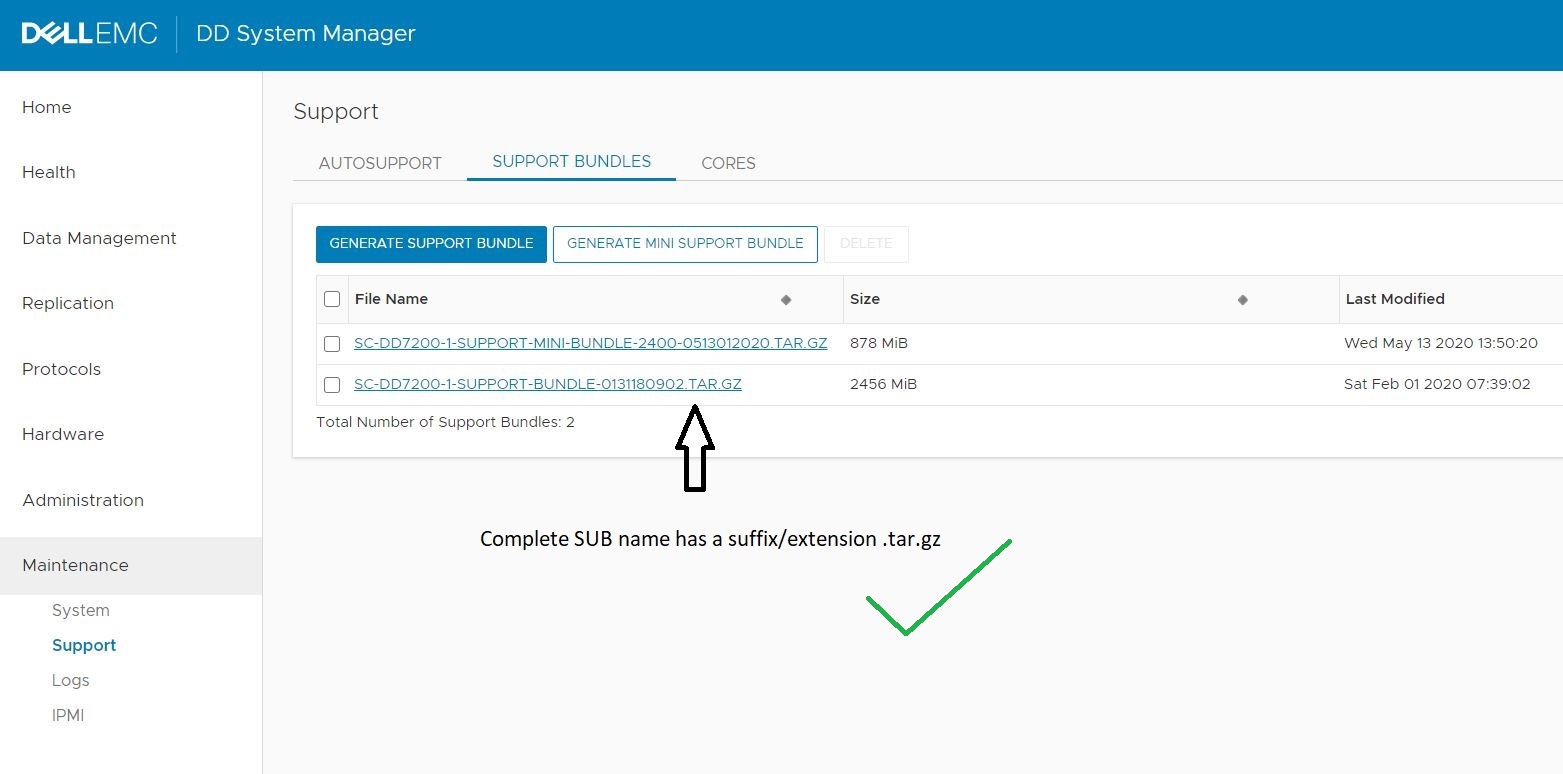
STEP 2: COLLECTING A SUPPORT BUNDLE
After generating the SUB, collect it from the DD and transfer it to another system for upload (for example, a desktop system or other system in the environment with Internet access).
View available SUBs either in the 'Support Bundle' section of the GUI as described above, or with the following command:
# support bundle list# support bundle list
File Size Time Created
(KiB)
------------------------------------------- ------- ------------------------
datadomain-support-bundle-0825053311.tar.gz 2247001 Fri Aug 25 05:33:11 2023
datadomain-support-bundle-0825053311.tar.gz 2224574 Wed Aug 30 07:45:05 2023
------------------------------------------- ------- ------------------------
Generally the required file is the most recently created SUB. Once identified, collect the file from the DD and upload to Data Domain support. Use one of the methods described below to collect the SUB.
a. Collecting a support bundle using the GUI:
- Open a web browser, access the GUI, and browse to the 'Support Bundles' view as described above
- Determine which SUB to collect - generally this is the most recently modified file at the bottom of the list.
- Click the name of the file - the web browser prompts to start downloading the file to the local system. Pop-up windows may need to be enabled for this to work as expected.
- If necessary, browse to the save location and click OK.
b. Collecting a support bundle using the FTP/FTPS protocols:
Note: Graphical tools such as WinSCP are not compatible with Data Domain. Use the command line instead. See: Data Domain: WinSCP Does Not Work with Data Domain or DDMC
These steps assume that FTP/FTPS access to the DD is enabled. See the "Additional Information" section of this article for steps to confirm this.
- Connect to the DD using an FTP/FTPS client. The DD will prompt for credentials to establish the connection. The account used must have a role of admin on the DD:
$ ftp 1.2.3.4 Connected to 1.2.3.4. 220 (vsFTPd 3.0.3) Name (host:user): sysadmin 331 Please specify the password. Password: 230 Login successful. Remote system type is UNIX. Using binary mode to transfer files. ftp> - Make sure the file transfer mode is "binary":
ftp> bin 200 Switching to Binary mode. - Navigate to the 'support' directory:
ftp> cd support 250 Directory successfully changed. - List files within the directory:
ftp> ls 229 Entering Extended Passive Mode (|||42258|) 150 Here comes the directory listing. ... -rw-r--r-- 1 0 0 2300929601 Aug 25 12:33 datadomain-support-bundle-0825053311.tar.gz -rw-r--r-- 1 0 0 2277964304 Aug 30 14:45 datadomain-support-bundle-0830074505.tar.gz ... 226 Directory send OK. - Download the required file to the local system:
ftp> get datadomain-support-bundle-0825053311.tar.gz local: datadomain-support-bundle-0825053311.tar.gz remote: datadomain-support-bundle-0825053311.tar.gz 229 Entering Extended Passive Mode (|||61930|) 150 Opening BINARY mode data connection for datadomain-support-bundle-0825053311.tar.gz (2300929601 bytes). 100% |****************************************************************| 3155 KiB 1.04 MiB/s 00:00 ETA 226 Transfer complete. - Terminate the connection:
ftp> bye
221 Goodbye.
c. Collecting a support bundle using the NFS protocol:
These steps assume that NFS access to the DD is enabled and that there is an NFS export for the /ddvar/support directory. See the "Additional Information" section of this article for steps to confirm this.
- On an NFS client, mount the /ddvar/support directory from the DD. For example:
$ mkdir /root/mnt $ mount 1.2.3.4:/ddvar/support /root/mnt - List files within the support directory:
$ ls -1 /root/mnt ... datadomain-support-bundle-0825053311.tar.gz datadomain-support-bundle-0830074505.tar.gz ... - Copy the required file to the local system:
$ cp /root/mnt/datadomain-support-bundle-0825053311.tar.gz /tmp
d Collecting a support bundle using the CIFS protocol:
These steps assume that CIFS access to the DD is enabled and that there is a CIFS share for the /ddvar directory. See the "Additional Information" section of this article for steps to confirm this.
- Browse to the CIFS share from a client system
- If prompted for credentials, enter the username and password of an existing user on the DD
- Change to the 'support' directory
- Locate the required file and copy it to the local system
e. Collecting a support bundle using the SCP protocol:
Note: Graphical tools such as WinSCP are not compatible with Data Domain. Use the command line instead. See: Data Domain: WinSCP Does Not Work with Data Domain or DDMC
These steps assume that SCP access to the DD is enabled. See the "Additional Information" section of this article for steps to confirm this.
Use an SCP client to copy the required file to the local system. Enter the username and password of an existing user on the DD to authenticate the connection.
For example, using a native Linux client:
$ scp sysadmin@1.2.3.4:/ddvar/support/datadomain-support-bundle-0825053311.tar.gz ./
Data Domain OS
Password:
datadomain-support-bundle-0825053311.tar.gz       100% 2194MB   1.7MB/s   21:31
STEP 3: UPLOADING A SUPPORT BUNDLE TO DATA DOMAIN SUPPORT
When uploading a SUB for further review:
- The SUB must be available on a client system with Internet access.
- A corresponding service request must already be open with Data Domain support.
Then use one of the methods described below to upload the SUB.
a. Temporary FTP account:
A Data Domain support engineer can provide details of a temporary FTP account, which remains available for use for one week from creation. Access the temporary account using:
- A web browser (using the HTTPS protocol), or
- FTP/SFTP
To get details for a temporary FTP account and how to use it, contact the Data Domain support engineer dealing with the corresponding service request.
b. Upload to existing service request:
- Use a web browser to access the existing service request. Locate your service request here.
- Click "Attach Files."
- Follow the on-screen prompts to complete upload of the file.
Note: The Service Center portal has a maximum file size limit of 2 GB. If the file is larger than this, request a temporary FTP account for upload instead.
STEP 4: NOTIFY DATA DOMAIN SUPPORT THAT FILES HAVE BEEN UPLOADED
Inform the Data Domain support engineer handling your service request once the upload is complete. Specify the upload method used and the names and sizes of files uploaded. Failure to inform the support engineer may cause delays in further analysis.
For assistance with any of the steps in this article, contact your contracted support provider quoting details of this article.
Additional Information
A. DETERMINING WHETHER WEB-BASED ACCESS IS ENABLED:
- Log in to the DD CLI
- Check whether HTTP and/or HTTPS access are enabled using the following command:
For example:# adminaccess show# adminaccess show Service Enabled Allowed Hosts ------- ------- ------------- ... http no - <=== HTTP access over port 80 (by default) https no - <=== HTTPS access over port 443 (by default) ------- ------- -------------
ENABLING WEB-BASED ACCESS:
If web-based access is disabled (as shown above), enable it as follows:
- Log in to the DD CLI
- Enable HTTP and/or HTTPS access:
For example, to enable https access to a DD:# adminaccess enable < http | https ># adminaccess enable https HTTPS Access: enabled
Note: Connections to the DD from a web browser may not work for up to 5 minutes after enabling web-based access. This is because it takes some time for the embedded web server to start up.
B. DETERMINING WHETHER FTP OR FTPS ACCESS IS ENABLED:
- Log in to the DD CLI
- Check whether FTP or FTPS access are enabled using the following command:
For example:# adminaccess show# adminaccess show Service Enabled Allowed Hosts ------- ------- ------------- ... ftp no - <=== FTP access ftps no - <=== FTPS access ... ------- ------- -------------
ENABLING FTP OR FTPS ACCESS:
- Log in to the DD CLI
- Enable FTP or FTPS access to the DD using the following command:
# adminaccess enable < ftp | ftps > - FTP and FTPS access are mutually exclusive - only one of these can be enabled at a time. As a result, it may be necessary to disable an existing service before enabling the required service. For example:
# adminaccess enable ftps Enabling FTPS Failed: Disable FTP before enabling FTPS # adminaccess disable ftp FTP Access: disabled # adminaccess enable ftps FTPS Access: enabled - To allow FTP/S access to the DD for a specific client system, use the following command with the required service and IP address of the client:
Alternatively, to allow FTP/S access to the DD by all clients, use the following command (again, specify the required service as necessary):# adminaccess ftp add 9.8.7.6 Security access lists updated The ftp access list is: 9.8.7.6# adminaccess ftp add * Security access lists updated The ftp access list is: *
C. DETERMINING WHETHER NFS ACCESS IS ENABLED:
- Log in to the DD CLI
- Check whether NFS access is enabled using the following command:
For example:# nfs enable# nfs enable NFS server is already enabled.
ENABLING NFS ACCESS TO /ddvar/support:
- Verify whether an NFS export already exists for the
/ddvar/supportdirectory. If it does, verify whether the corresponding NFS client has access. In this case, the directory is not exported:# nfs show clients Path Client Options ----------------- ------ ------------------------------------------------------ /data/col1/backup * (sec=sys,rw,no_root_squash,no_all_squash,secure,nolog) ----------------- ------ ------------------------------------------------------ - If no NFS export for
/ddvar/supportexists or the NFS client does not have access to an existing export, create a new export. - To allow access to the
/ddvar/supportexport for a specific client system, use the following command:# nfs add /ddvar/support 9.8.7.6 NFS export for "/ddvar/support" added. - Alternatively, use the following command to allow access to the
/ddvar/supportexport from all client systems:
Specific client systems can be identified using hostname or IP address; however, hostnames must be resolvable by the DD if used.# nfs add /ddvar/support * NFS export for "/ddvar/support" added.
D. DETERMINING WHETHER CIFS ACCESS IS ENABLED:
- Log in to the DD CLI
- Check whether CIFS access is enabled using the following command:
For example:# cifs enable# cifs enable The filesystem is enabled and running. Starting CIFS access...
ENABLING CIFS ACCESS TO /ddvar:
- Verify whether a CIFS share already exists for the
/ddvardirectory. If it does, verify whether the corresponding CIFS client has access. In this case, the directory is not shared:# cifs share show Shares information for: all shares --------------- share backup --------------- path: /data/col1/backup clients: * enabled: yes Shares displayed: 1 - If no CIFS share exists for the
/ddvardirectory, create a new share. Specify the explicit hostname or IP address of the required CIFS clients:
Alternatively, give access to all CIFS clients:# cifs share create ddvar path /ddvar clients 9.8.7.6 Share "ddvar" has been created.# cifs share create ddvar path /ddvar clients * Share "ddvar" has been created. - If an existing CIFS share exists for the
/ddvardirectory but the required CIFS client is not listed against the share, add the client:# cifs share modify ddvar clients 9.8.7.6 Share "ddvar" is modified for new connections.
E. DETERMINING WHETHER SCP ACCESS IS ENABLED:
- Log in to the DD CLI
- Check whether SCP access is enabled using the following command:
For example:# adminaccess show# adminaccess show Service Enabled Allowed Hosts ------- ------- ------------- ssh yes - scp yes (same as ssh) ...
ENABLING SCP ACCESS:
- To enable SCP access to a DD, use the following command:
For example:# adminaccess enable scp# adminaccess enable scp SCP Access: enabled
It is not possible to specify which clients have access to the DD using SCP. Instead, all clients with SSH access automatically have SCP access once SCP is enabled.
F. CREATING SUPPORT BUNDLES WITH NON-DEFAULT CONTENTS:
You can create SUBs with non-default contents. For example:
- To create a SUB with default contents plus additional files:
# support bundle create default with-files <file name> - To create a SUB without default contents and only include specific files:
# support bundle create files-only <file name> - To create a SUB containing only the contents of the /ddr/var/traces directory:
# support bundle create traces-only
In the above examples:
- If a file name is specified:
- The path must start with
/ddvarrather than/ddr/var. - The file must exist in one of the following directories:
/ddvar/certificates/ddvar/core/ddvar/log/ddvar/releases/ddvar/traces
- The resulting archive file name contains the string "
support-files" rather than "support-bundle."
- The path must start with
- If the traces-only option is specified, the resulting archive name contains the string "
support-traces" rather than "support-bundle." - The resulting archive file appears in the output of "
support bundle list," but may NOT appear in the "Support Bundles" section of the GUI. In these cases, the file cannot be collected from the GUI.
Affected Products
Data DomainProducts
Data DomainArticle Properties
Article Number: 000022926
Article Type: How To
Last Modified: 09 فبراير 2026
Version: 6
Find answers to your questions from other Dell users
Support Services
Check if your device is covered by Support Services.