NetWorker: How to specify a time frame in the gstclreport command
Summary: This article shows how to set a time range with the gstclreport command for generating NetWorker Management Console (NMC) reports.
This article applies to
This article does not apply to
This article is not tied to any specific product.
Not all product versions are identified in this article.
Instructions
The gstclreport command is used to generate NMC reports using command line on the NetWorker Management Console (NMC) server.
usage: gstclreport [-h] -r reportname -u username
     [-P password] [-a chartselector] [-c charttype]
     [-f filename] [-n fontfamily] [-o orientation]
     [-v viewtype] [-x exporttype] [-C Category argument]
     [-C "Event Time" argument] [-C "Object Name" argument]
     [-C "Object Type" argument] [-C Operation argument]
     [-C "Server Name" argument] [-C "Server Type" argument]
     [-C "User Name" argument]
where:
    -h                          Print this help message
    -r  reportname      The name of the report to run, or full path name like "/Reports/Users/User List"
    -u  username        Log into GST server with given name
    -P  password        Log into GST server with given password
    -a  chartselector   The set of Y axis to display in a chart
    -c  charttype       The chart type [bar | pie | plot | "stacking bar"]
    -f  filename        The name of the export file
    -n  fontfamily      A font family to override the default(COURIERNEW). Please note if invalid
    -o  orientation     The orientation [portrait | landscape]
    -v  viewtype        The view type [table | chart]
    -x  exporttype      The type of export [ pdf | postscript | html | csv | print]
    -C  Category argument       Where argument is a comma separated list of Categorys
    -C  "Event Time" argument   Where argument is a From and To date. Date & Time format is MM/DD/YY & hh:mm:ss
    -C  "Object Name" argument  Where argument is a single Object Name
    -C  "Object Type" argument  Where argument is a single Object Type
    -C  Operation argument      Where argument is a comma separated list of Operations
    -C  "Server Name" argument  Where argument is a comma separated list of Server Names
    -C  "Server Type" argument  Where argument is a single Server Type
    -C  "User Name" argument    Where argument is a comma separated list of User Names
Different reports use different time operators:
- All Policy Statistics, except for Action Details, use "Workflow Start Time." The Action Details report uses "Action Start Time"
- All Recover Statistics use "Start Time."
- Device Utilization uses "Time."
- User Audit uses "Event Time."
gstclreport -r "REPORT_PATH -u USER_NAME -P 'PASSWORD' -x REPORT_TYPE -f FILE_NAME -v REPORT_FORMAT -C "OPERATOR" "MONTH DD, YYYY HH:mm AM/PM" "MONTH DD, YYYY HH:mm AM/PM"
Or:
gstclreport -r "REPORT_PATH -u USER_NAME -P 'PASSWORD' -x REPORT_TYPE -f FILE_NAME -v REPORT_FORMAT -C "OPERATOR" "MM/DD/YY HH:mm:SS AM/PM" "MM/DD/YY HH:mm:SS AM/PM"
Example:
nve:/opt/lgtonmc/bin # ./gstclreport -r "/Reports/Users/User Audit" -u administrator -P '!Password1' -x pdf -f test  -v table -C "Event Time" "February 13, 2026 12:00 AM" "February 18, 2026 11:59 PM"
java version "17.0.17" 2025-10-21 LTS
Java(TM) SE Runtime Environment (build 17.0.17+8-LTS-360)
Java HotSpot(TM) 64-Bit Server VM (build 17.0.17+8-LTS-360, mixed mode, sharing)
java version "17.0.17" 2025-10-21 LTS
Java(TM) SE Runtime Environment (build 17.0.17+8-LTS-360)
Java HotSpot(TM) 64-Bit Server VM (build 17.0.17+8-LTS-360, mixed mode, sharing)
Generated report "User Audit" as file test.pdf
The report is generated with the time range specified: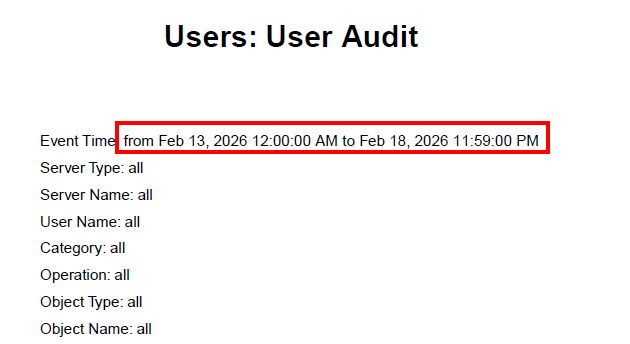
Additional Information
Affected Products
NetWorkerProducts
NetWorkerArticle Properties
Article Number: 000023243
Article Type: How To
Last Modified: 19 فبراير 2026
Version: 7
Find answers to your questions from other Dell users
Support Services
Check if your device is covered by Support Services.