Dell Rugged Active Pen PN720R Support Center
Summary: This article contains general information about the Dell PN720R Rugged Active Pen.
Symptoms
No symptom information is available.
Cause
No cause information is available.
Resolution
Table of Contents:
- Information
- Compatible Computers
- Setup
- Buttons Functionality
- Troubleshooting
- Frequently Asked Questions
Information

The Dell PN720R Rugged Active Pen lets you write and draw on the Latitude 7220 and 7230 Rugged Extreme Tablet. The pen and tablet connect using the Microsoft Pen Protocol (MPP) software. The pen is IP-55 rated and can store four replacement nibs in the cap of the pen for a worry-free field experience.
Compatible Computers
The Dell PN720R Rugged Active Pen is only compatible with the Latitude 7220 and 7230 Rugged Extreme Tablet and is not backwards compatible with other Rugged Latitude laptops.
Setup
You must install the e-Galax Dr. Touch application first.
- Browse to the Dell Drivers & Downloads page:
- Select the Operating System.
- Under Category, select Application.
- Locate the latest version of the e-Galax Touch Mode Application.
- Click Download and save the file to your computer.
- Open File Explorer and browse to the location where the downloaded file is saved.
- Double-click the BIOS setup file and follow the on-screen instructions to complete the installation process.
- A computer restart is required to finalize the installation.
The Dell PN720R Rugged Active Pen uses the Microsoft Pen Protocol (MPP) to connect to the Latitude 7220 and 7230 Rugged Extreme Tablet.
The following link can be used to get more information about how to connect and change the pen settings in Windows 10 and 11: Microsoft Change Pen Settings

Buttons Functionality
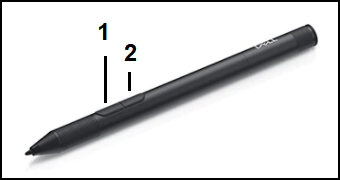
| Barrel Button | Functionality |
|---|---|
| 1 - Bottom Barrel Button |
|
| 2 - Top Barrel Button |
|
Troubleshooting
| Problems | Possible Causes | Possible Solutions |
|---|---|---|
| Pen Does Not Work | ||
| The system is not supported. | The pen is only compatible with the Latitude 7220 and 7230 Rugged Extreme Tablet. | |
| The battery is inserted incorrectly. | Ensure that the battery is inserted with the positive sign facing in. | |
| The battery is out of charge. | Insert a new battery. | |
| Touch Function Does Not Work | Out dated firmware. | Install the latest version of the Dell Touch Firmware Update Tool for the 7220 and 7230 Rugged Extreme Tablet. It is listed under Applications. |
Frequently Asked Questions
- How do I pair the pen with my computer using Bluetooth?
There is NO Bluetooth feature for this pen.
- What is the recommended battery type?
An alkaline battery is recommended for this pen. The pen uses one AAAA battery.
- How do I preserve battery life?
To preserve battery life, ensure that the tip is not pressed when the pen is not in use. For example: When storing the pen, ensure that the pen is secure so that the tip is not accidentally pressed. Pressing the tip is equivalent to writing and this drains the battery.
- Does the pen have a power off option?
The pen does not have a power off option. When the pen is not in writing mode, the power consumption is lower.
- What information is required when contacting Dell Tech Support?
Before contacting Dell Tech Support, get the following information ready:- Order Number
- System Service Tag
- PPID is found on the box or on the label inside the pen. The PPID starts with CN