NetWorker: Troubleshooting Fiber Channel connectivity from NetWorker Clients using DDPCONNCHK.
Summary: Guide to demonstrate the details needed to troubleshoot Fiber Channel connectivity from NetWorker clients.
Instructions
Confirm and record all the required details.
Client hostname:
Client IP address:
Client operating system & bit version:
Client HBA details:
NetWorker client software version:
Data Domain hostname:
Data Domain IP address:
Data Domain operating system:
DDBoost version used:
Fiber Channel hostname of the Data Domain (DFC server name):
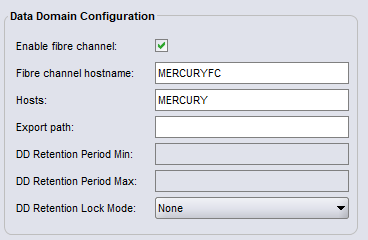
Note: In the below example, the Fiber Channel hostname is "MERCURYFC" and the IP hostname is "MERCURY"
Make sure that the DFC server name is not the same as the Data Domain's IP hostname.
In other words, the DFC Server name cannot be resolvable in IP.
    sysadmin@MERCURY# ddboost fc dfc-server-name show

    DDBoost dfc-server-name: MERCURYFC

    Configure clients to use "DFC-MERCURYFC" for DDBoost FC.


    sysadmin@MERCURY# hostname

    The Hostname is: MERCURY
-------------------------------------
Next, download the DDPCONNCHK tool onto the affected client.
Use the latest DDBOOST version available and the correct version for the client's OS / bit version.
DDPCONNCHK can be obtained here: https://central.dell.com/solutions/Networker-Tools (Requires Dell Support Account sign-in)
------------------------------------
Verify the DDBOOST user is not locked by running this command on the Data Domain: user show list
-------------------------------------
Test the IP connection from the client to the Data Domain:
./<ddpconnchkfilename> -s <IP-Hostname> -u <ddboost_user> -p <ddboost_user_password> -T writeimage -i1G -n4
./ddpconnchk -s MERCURY -u DDBOOST -p YouShallNotPass! -T writeimage -i1G -n4
Confirm backup is going over IP while ddpconnchk is running by executing this command on the Data Domain: ddboost show connections detailed
You should four active connections on the IP interface the Data Domain's IP hostname resolves to.
--------------------------------------
If the DDPCONNCHK works fine over IP, then start to test the Fiber Channel. Capture the output of the following command.
./<ddpconnchkfilename> -D scan_all
----------------------------------
To test the Fiber Channel connection from client to the Data Domain:
./<ddpconnchkfilename> -s DFC-<FC-Hostname> -u <ddboost_user> -p <ddboost_user_password> -T writeimage -i1G -n4
Example:
./ddpconnchk -s DFC-MERCURYFC -u DDBOOST -p YouShallNotPass! -T writeimage -i1G -n4
Confirm backup is going over FC while ddpconnchk is by running by executing this command on the Data Domain: ddboost show connections detailed
You should see 4 active connections on the Fiber Channel interface.
Note: We add "DFC-" to the start of the FC hostname (DFC server name) for the -s flag so the DDPCONNCHCK recognizes that it is a Fiber Channel hostname (DFC server name).
In the NMC device configuration do not add the "DFC-" suffix.
Example below of what this would look like in the NMC device configuration...
Additional Information
DDPCONNCHK detailed flags.
-s <server_name/ip> # For primary server
-u <username>
-p <passwd> # NOTE: will prompt if -u, but not -p, is specified
-l <lsu_name> # NOTE: Optional. Default for extended tests: DDPCONNCHK_SU_SRC
-S <server_addr/ip> # For destination server (opt-dup target)
-U <username>
-P <passwd>
-L <lsu_name> # NOTE: Optional. Default for extended tests: DDPCONNCHK_SU_DST
-T optdup | writeimage # Select extended test
-i <image_size in k/m/g> # NOTE: Optional. Default 256KB. Max 1 GB. Only for extended tests
-n <num_streams> # NOTE: Optional. Default 1. Only for extended tests
-D <scan_all | gen_scsi_devname | DFC-server-name> # DFC evaluation
-v # Verbose output. Sets log level to DDP_INFO
-B #Use builtin OST API (not libDDBoost.so)