Comment rendre le stockage géré dans PowerPath for Windows
Summary: Si le client signale que les disques ne sont pas visibles et dans les options d’affichage Powermt si vous remarquez que la baie de stockage n’est pas gérée, comment la rendre gérée ?
This article applies to
This article does not apply to
This article is not tied to any specific product.
Not all product versions are identified in this article.
Instructions
Dans certains cas, lorsqu’un client signale qu’il ne remarque aucun disque fourni par la baie de stockage dans PowerPath. Lorsque vous exécutez les options d’affichage powermt, si vous remarquez que la baie de stockage est « non gérée », dans un environnement Windows avec PowerPath. Veuillez suivre le plan d’action recommandé dans cet article de la base de connaissances pour effectuer la même chose que « Géré ».
Voici un scénario dans lequel le client a présenté des disques de la baie de stockage Symmetrix et a signalé qu’il n’était pas en mesure de découvrir les disques dans PowerPath après la mise à niveau.
La sortie des « options d’affichage powermt » affiche :
** OPTIONS D’AFFICHAGE POWERMT **
Afficher les noms des LUN CLARiiON : True
Path Latency Monitor : Off
Persist Path Information : Sur
l’analyseur de performances : désactivé
Veille automatique : IOs per Failure (iopf) : enabled
iopf aging period : Limite 1 d
iopf : 6000
Auto Host Registration: disabled
Storage
System Class Attributes
------------ ----------
Symmetrix periodic autorestore = on
reactive autorestore = on
status = unmanaged
proximity based autostandby = on
proximity based autostandby threshold = default
CLARiiON periodic autorestore = on
reactive autorestore = on
status = unmanaged
proximity based autostandby = N/A
Invista periodic autorestore = on
reactive autorestore = on
status = managed
proximity based autostandby = N/A
Hitachi periodic autorestore = on
reactive autorestore = on
status = unmanaged
proximity based autostandby = N/A
HP xp periodic autorestore = on
reactive autorestore = on
status = unmanaged
proximity based autostandby = N/A
Ess periodic autorestore = on
reactive autorestore = on
status = unmanaged
proximity based autostandby = N/A
Generic periodic autorestore = on
reactive autorestore = on
status = managed
proximity based autostandby = N/A
VPLEX periodic autorestore = on
reactive autorestore = on
status = managed
proximity based autostandby = on
proximity based autostandby threshold = default
VNX periodic autorestore = on
reactive autorestore = on
status = unmanaged
proximity based autostandby = N/A
NetApp periodic autorestore = on
reactive autorestore = on
status = unmanaged
proximity based autostandby = N/A
XtremIO periodic autorestore = on
reactive autorestore = on
status = managed
proximity based autostandby = N/A
Unity periodic autorestore = on
reactive autorestore = on
status = unmanaged
proximity based autostandby = N/A
SC periodic autorestore = on
reactive autorestore = on
status = managed
proximity based autostandby = off
Notice how some of the storage array and especially Symmetrix here is "unmanaged"
Here are the steps along with the screenshot from our lab server , how to make it "Managed"
Open Control Panel :
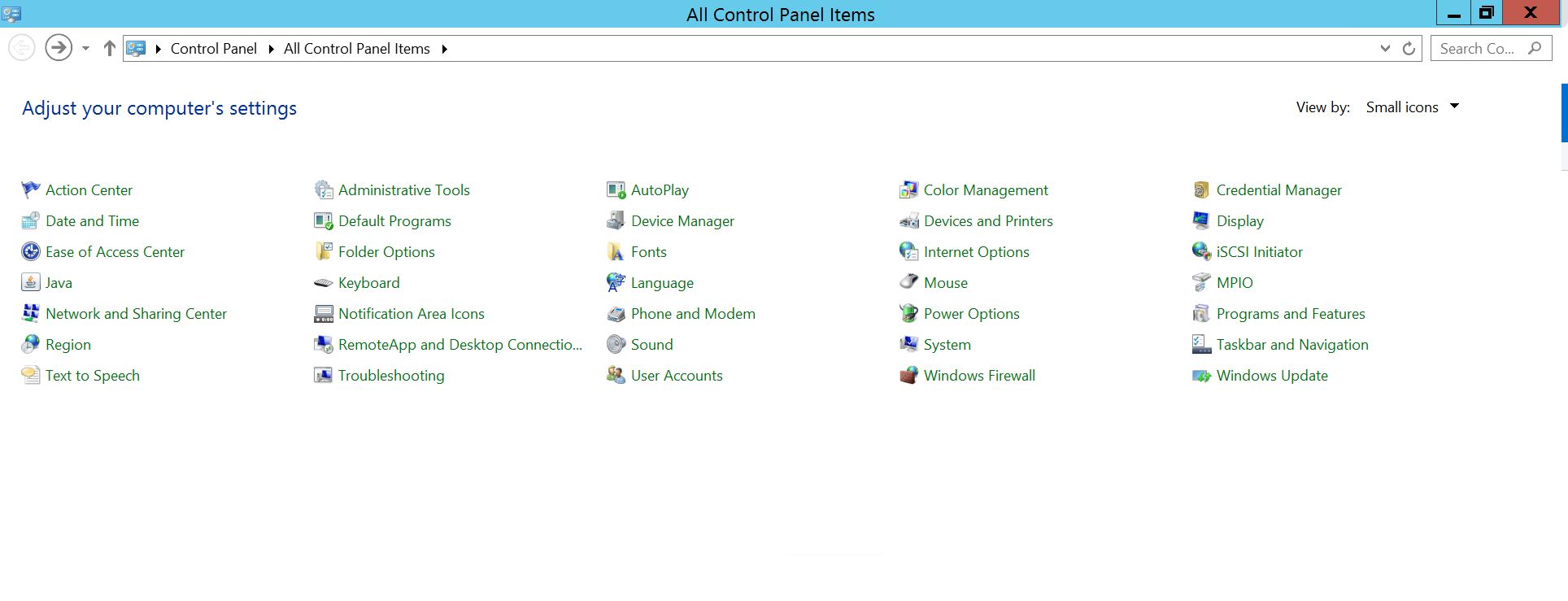
Sélectionnez Programme et fonctionnalités
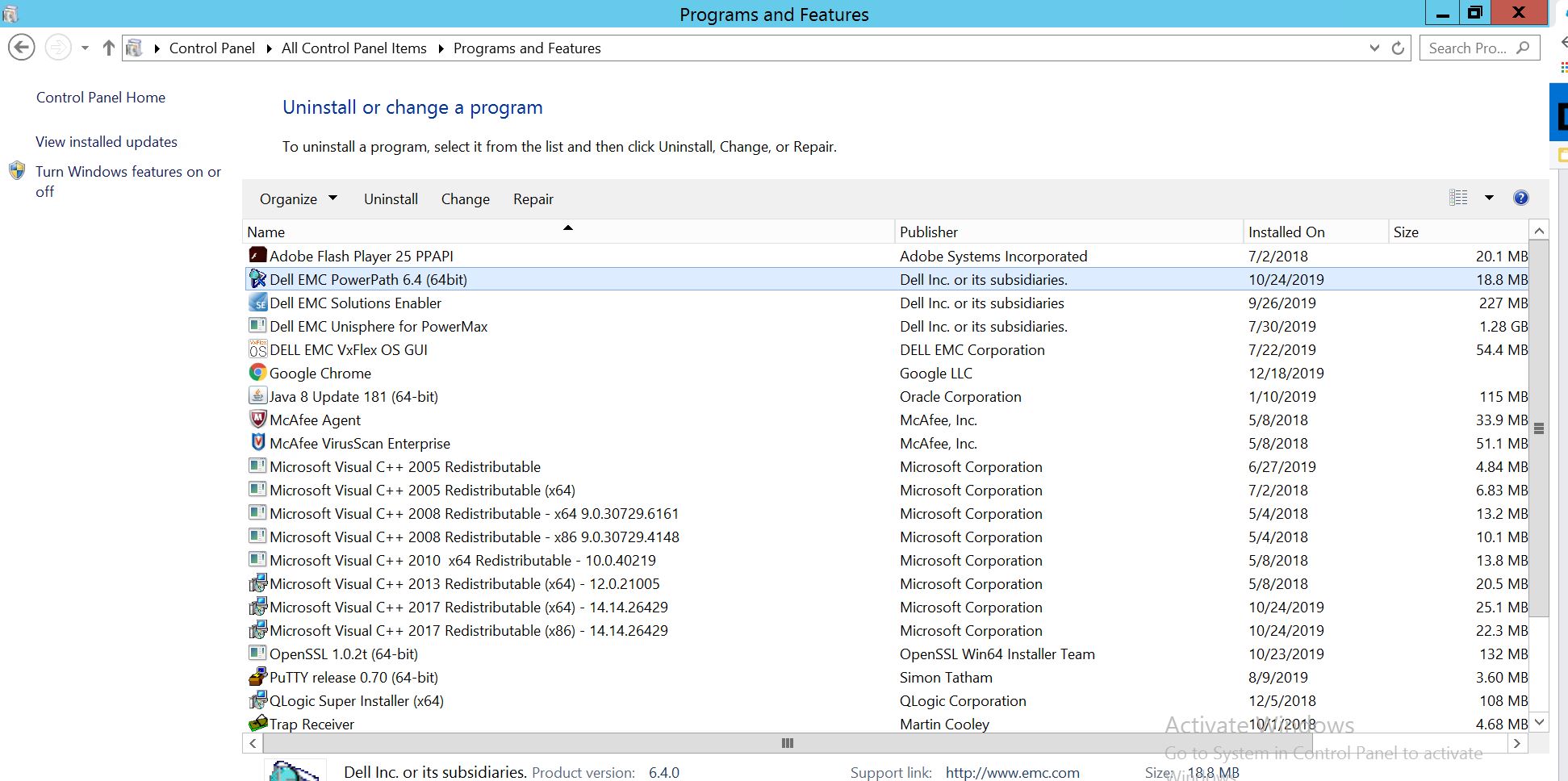
. Sélectionnez PowerPath et choisissez Modifier/Modifier, ce qui ouvrira l’invite du programme d’installation :
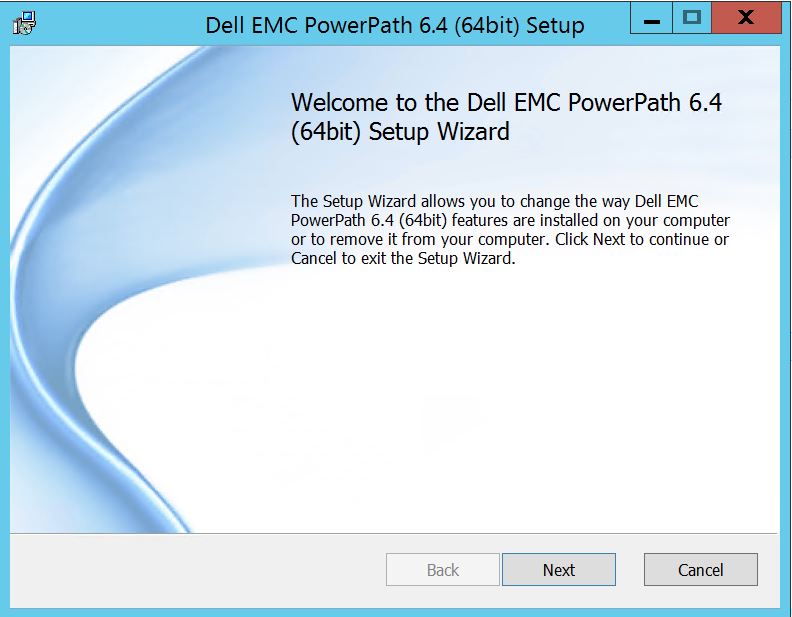
Cliquez sur Suivant et suivez la sélection de la modification :
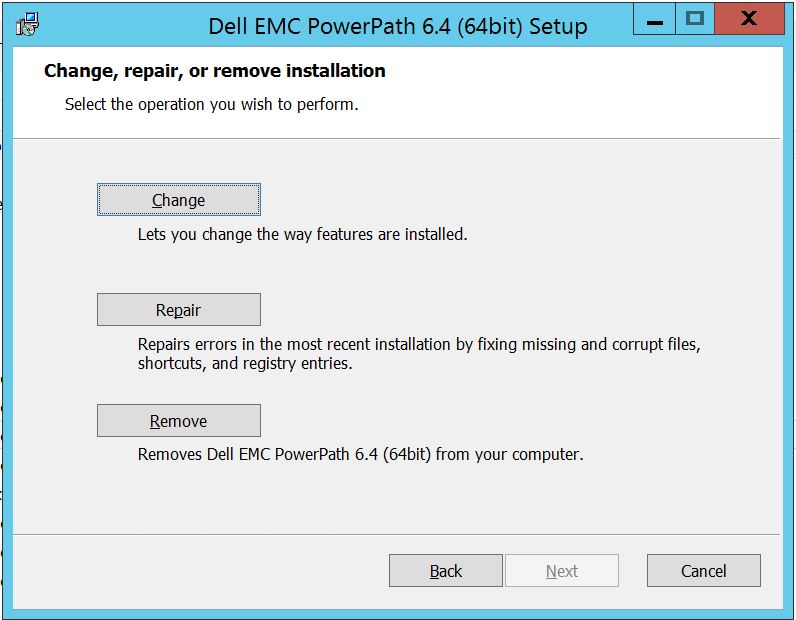
Ce qui vous amènera à Configuration personnalisée :
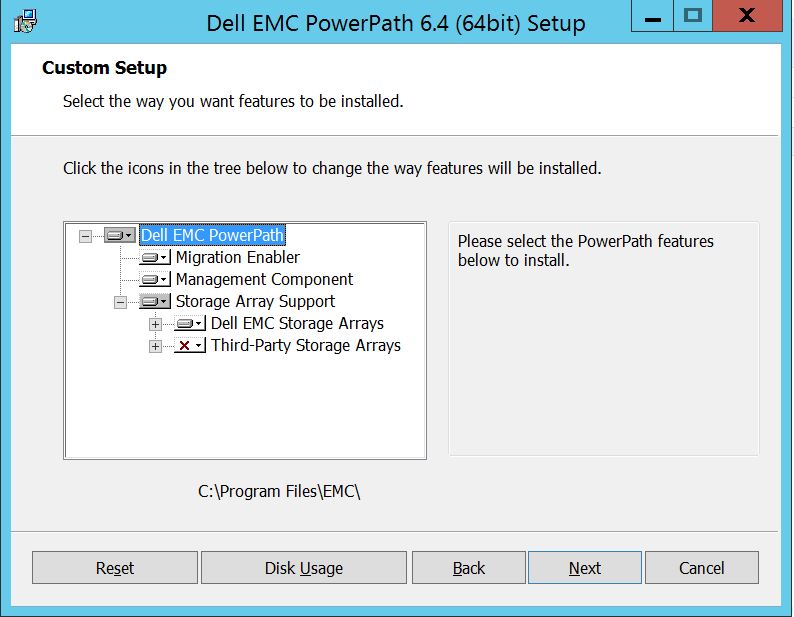
Vous pouvez désormais étendre la prise en charge des baies de stockage, si ce n’est pas déjà fait, et également développer les baies de stockage Dell EMC, ce qui affiche toutes les baies de stockage prises en charge sous PowerPath :
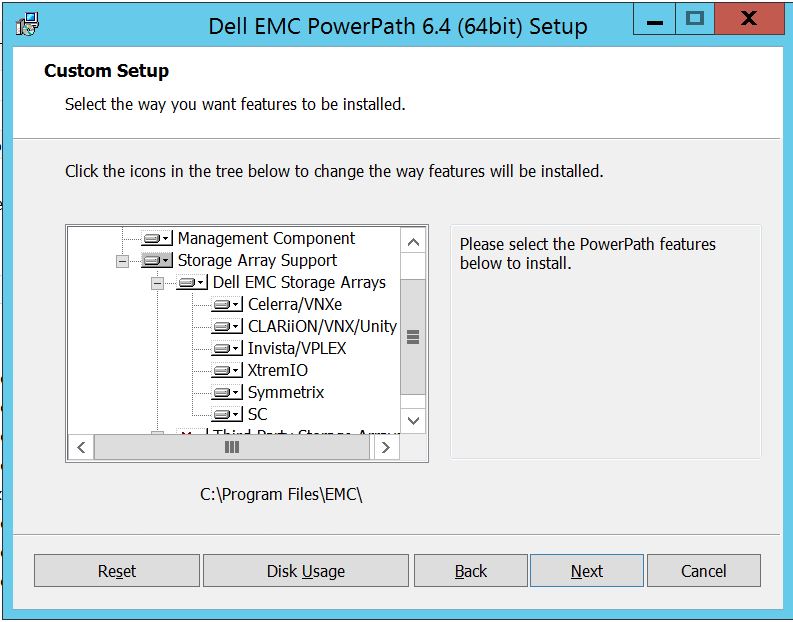
Vous pouvez ensuite utiliser la petite touche entrante à proximité de n’importe quel stockage. Par exemple, prenons Symmetrix. Il affichera en outre 2 options :
1. Sera installé sur le disque
dur local 2. L’intégralité de la fonctionnalité sera installée sur le disque
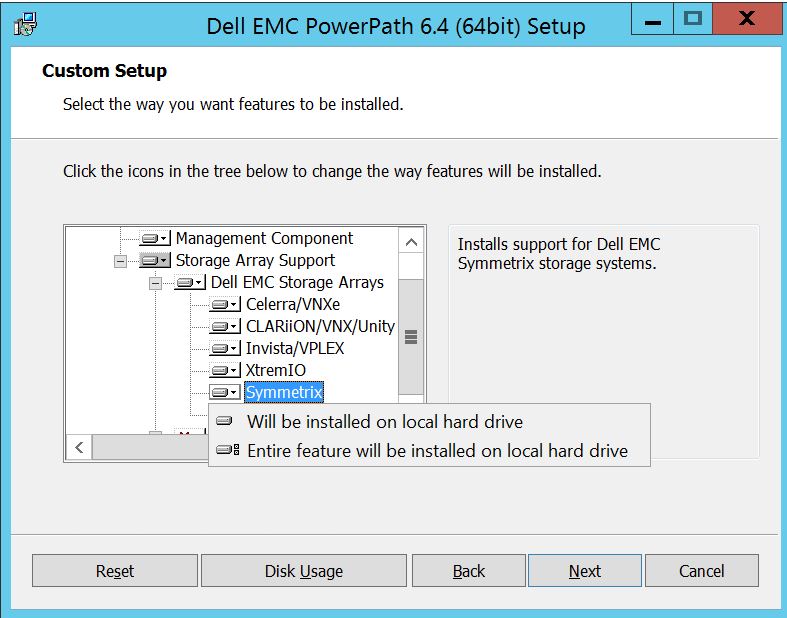
dur localSi vous souhaitez que toutes les baies de stockage Dell EMC soient gérées ( ce qui correspond essentiellement à la valeur par défaut ),
vous pouvez faire de même dans la liste déroulante Baie de stockage Dell EMC :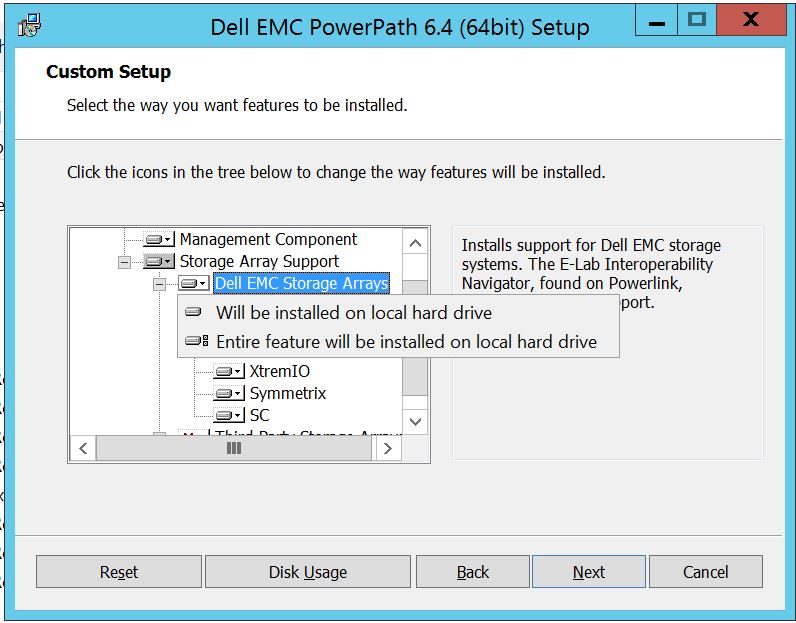
Une fois que vous avez terminé, sélectionnez Next
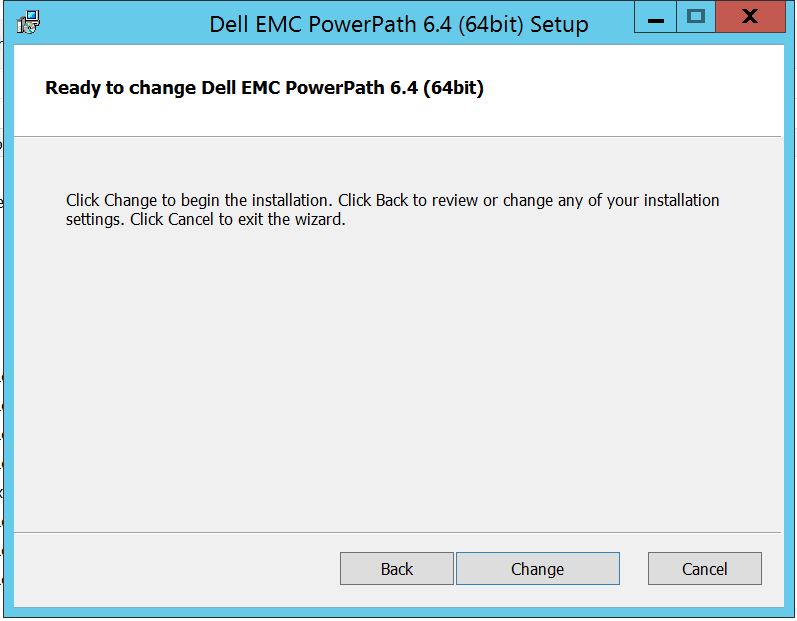
. Cliquez sur Change pour effectuer les modifications nécessaires :
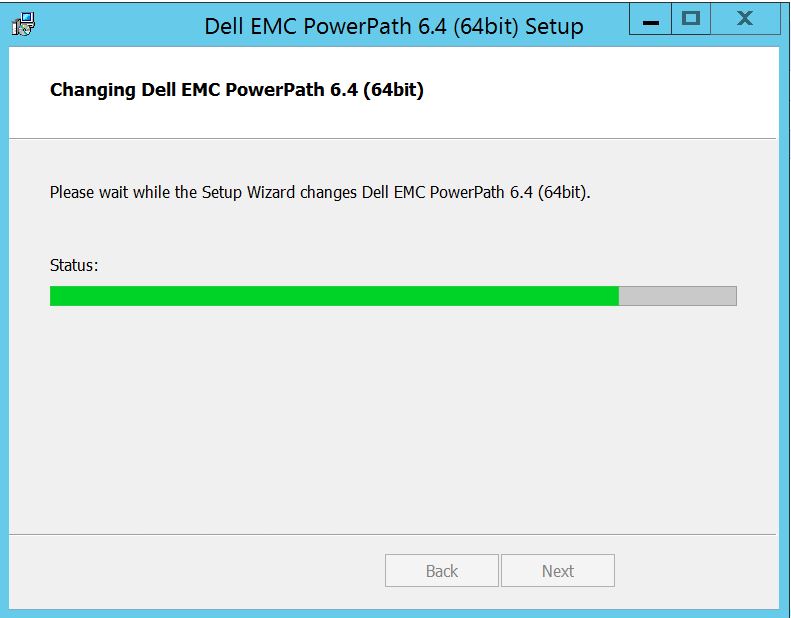
Après la publication, vous devriez voir ici où vous pouvez sélectionner « Terminer ».
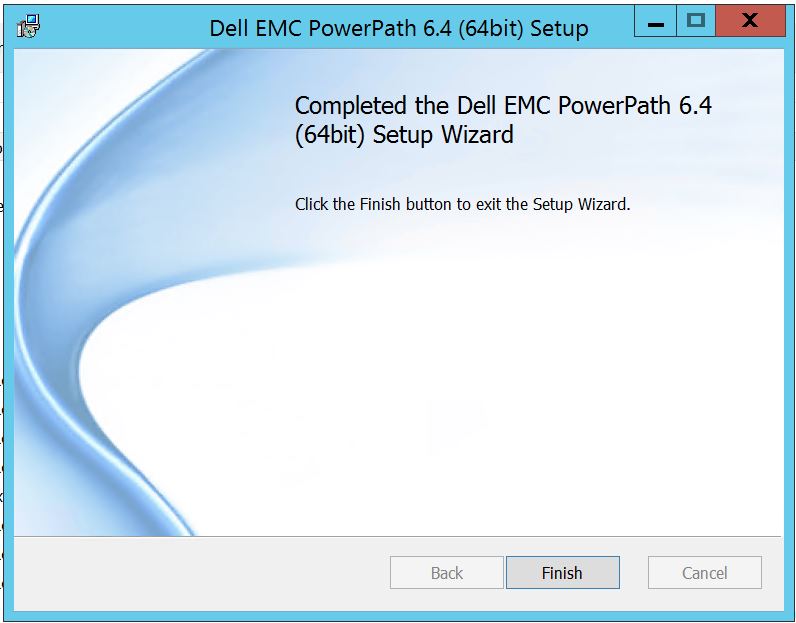 Après avoir terminé, une fenêtre contextuelle vous demande de redémarrer. Veuillez sélectionner cette option pour redémarrer le serveur. Les modifications doivent être implémentées au niveau du serveur, ce qui rend ensuite les disques de la baie de stockage visibles dans PowerPath.
Après le redémarrage, lorsque vous exécutez les options d’affichage powermt, voici à quoi ressemblera le résultat :
** OPTIONS D’AFFICHAGE POWERMT **
Afficher les noms des LUN CLARiiON : True
Path Latency Monitor : Off
Persist Path Information : Sur
l’analyseur de performances : désactivé
Veille automatique : IOs per Failure (iopf) : enabled
iopf aging period : Limite 1 d
iopf : 6000
Storage
System Class Attributes
------------ ----------
Symmetrix periodic autorestore = on
reactive autorestore = on
status = managed
proximity based autostandby = off
auto host registration = enabled
app finger printing = enabled
device to array performance report = enabled
device in use to array report = enabled
CLARiiON periodic autorestore = on
reactive autorestore = on
status = managed
proximity based autostandby = N/A
auto host registration = disabled
app finger printing = N/A
device to array performance report = N/A
device in use to array report = N/A
Invista periodic autorestore = on
reactive autorestore = on
status = managed
proximity based autostandby = N/A
auto host registration = N/A
app finger printing = N/A
device to array performance report = N/A
device in use to array report = N/A
Hitachi periodic autorestore = on
reactive autorestore = on
status = unmanaged
proximity based autostandby = N/A
auto host registration = N/A
app finger printing = N/A
device to array performance report = N/A
device in use to array report = N/A
HP xp periodic autorestore = on
reactive autorestore = on
status = unmanaged
proximity based autostandby = N/A
auto host registration = N/A
app finger printing = N/A
device to array performance report = N/A
device in use to array report = N/A
Ess periodic autorestore = on
reactive autorestore = on
status = unmanaged
proximity based autostandby = N/A
auto host registration = N/A
app finger printing = N/A
device to array performance report = N/A
device in use to array report = N/A
Generic periodic autorestore = on
reactive autorestore = on
status = managed
proximity based autostandby = N/A
auto host registration = N/A
app finger printing = N/A
device to array performance report = N/A
device in use to array report = N/A
VPLEX periodic autorestore = on
reactive autorestore = on
status = managed
proximity based autostandby = on
proximity based autostandby threshold = default
auto host registration = N/A
app finger printing = N/A
device to array performance report = N/A
device in use to array report = N/A
VNX periodic autorestore = on
reactive autorestore = on
status = managed
proximity based autostandby = N/A
auto host registration = disabled
app finger printing = N/A
device to array performance report = N/A
device in use to array report = N/A
NetApp periodic autorestore = on
reactive autorestore = on
status = unmanaged
proximity based autostandby = N/A
auto host registration = N/A
app finger printing = N/A
device to array performance report = N/A
device in use to array report = N/A
XtremIO periodic autorestore = on
reactive autorestore = on
status = managed
proximity based autostandby = N/A
auto host registration = N/A
app finger printing = N/A
device to array performance report = N/A
device in use to array report = N/A
Unity periodic autorestore = on
reactive autorestore = on
status = managed
proximity based autostandby = N/A
auto host registration = disabled
app finger printing = N/A
device to array performance report = N/A
device in use to array report = N/A
SC periodic autorestore = on
reactive autorestore = on
status = managed
proximity based autostandby = N/A
auto host registration = N/A
app finger printing = N/A
device to array performance report = N/A
device in use to array report = N/A
Voici un scénario dans lequel le client a présenté des disques de la baie de stockage Symmetrix et a signalé qu’il n’était pas en mesure de découvrir les disques dans PowerPath après la mise à niveau.
La sortie des « options d’affichage powermt » affiche :
** OPTIONS D’AFFICHAGE POWERMT **
Afficher les noms des LUN CLARiiON : True
Path Latency Monitor : Off
Persist Path Information : Sur
l’analyseur de performances : désactivé
Veille automatique : IOs per Failure (iopf) : enabled
iopf aging period : Limite 1 d
iopf : 6000
Auto Host Registration: disabled
Storage
System Class Attributes
------------ ----------
Symmetrix periodic autorestore = on
reactive autorestore = on
status = unmanaged
proximity based autostandby = on
proximity based autostandby threshold = default
CLARiiON periodic autorestore = on
reactive autorestore = on
status = unmanaged
proximity based autostandby = N/A
Invista periodic autorestore = on
reactive autorestore = on
status = managed
proximity based autostandby = N/A
Hitachi periodic autorestore = on
reactive autorestore = on
status = unmanaged
proximity based autostandby = N/A
HP xp periodic autorestore = on
reactive autorestore = on
status = unmanaged
proximity based autostandby = N/A
Ess periodic autorestore = on
reactive autorestore = on
status = unmanaged
proximity based autostandby = N/A
Generic periodic autorestore = on
reactive autorestore = on
status = managed
proximity based autostandby = N/A
VPLEX periodic autorestore = on
reactive autorestore = on
status = managed
proximity based autostandby = on
proximity based autostandby threshold = default
VNX periodic autorestore = on
reactive autorestore = on
status = unmanaged
proximity based autostandby = N/A
NetApp periodic autorestore = on
reactive autorestore = on
status = unmanaged
proximity based autostandby = N/A
XtremIO periodic autorestore = on
reactive autorestore = on
status = managed
proximity based autostandby = N/A
Unity periodic autorestore = on
reactive autorestore = on
status = unmanaged
proximity based autostandby = N/A
SC periodic autorestore = on
reactive autorestore = on
status = managed
proximity based autostandby = off
Notice how some of the storage array and especially Symmetrix here is "unmanaged"
Here are the steps along with the screenshot from our lab server , how to make it "Managed"
Open Control Panel :
Sélectionnez Programme et fonctionnalités
. Sélectionnez PowerPath et choisissez Modifier/Modifier, ce qui ouvrira l’invite du programme d’installation :
Cliquez sur Suivant et suivez la sélection de la modification :
Ce qui vous amènera à Configuration personnalisée :
Vous pouvez désormais étendre la prise en charge des baies de stockage, si ce n’est pas déjà fait, et également développer les baies de stockage Dell EMC, ce qui affiche toutes les baies de stockage prises en charge sous PowerPath :
Vous pouvez ensuite utiliser la petite touche entrante à proximité de n’importe quel stockage. Par exemple, prenons Symmetrix. Il affichera en outre 2 options :
1. Sera installé sur le disque
dur local 2. L’intégralité de la fonctionnalité sera installée sur le disque
dur localSi vous souhaitez que toutes les baies de stockage Dell EMC soient gérées ( ce qui correspond essentiellement à la valeur par défaut ),
vous pouvez faire de même dans la liste déroulante Baie de stockage Dell EMC :
Une fois que vous avez terminé, sélectionnez Next
. Cliquez sur Change pour effectuer les modifications nécessaires :
Après la publication, vous devriez voir ici où vous pouvez sélectionner « Terminer ».
Après avoir terminé, une fenêtre contextuelle vous demande de redémarrer. Veuillez sélectionner cette option pour redémarrer le serveur. Les modifications doivent être implémentées au niveau du serveur, ce qui rend ensuite les disques de la baie de stockage visibles dans PowerPath.
Après le redémarrage, lorsque vous exécutez les options d’affichage powermt, voici à quoi ressemblera le résultat :
** OPTIONS D’AFFICHAGE POWERMT **
Afficher les noms des LUN CLARiiON : True
Path Latency Monitor : Off
Persist Path Information : Sur
l’analyseur de performances : désactivé
Veille automatique : IOs per Failure (iopf) : enabled
iopf aging period : Limite 1 d
iopf : 6000
Storage
System Class Attributes
------------ ----------
Symmetrix periodic autorestore = on
reactive autorestore = on
status = managed
proximity based autostandby = off
auto host registration = enabled
app finger printing = enabled
device to array performance report = enabled
device in use to array report = enabled
CLARiiON periodic autorestore = on
reactive autorestore = on
status = managed
proximity based autostandby = N/A
auto host registration = disabled
app finger printing = N/A
device to array performance report = N/A
device in use to array report = N/A
Invista periodic autorestore = on
reactive autorestore = on
status = managed
proximity based autostandby = N/A
auto host registration = N/A
app finger printing = N/A
device to array performance report = N/A
device in use to array report = N/A
Hitachi periodic autorestore = on
reactive autorestore = on
status = unmanaged
proximity based autostandby = N/A
auto host registration = N/A
app finger printing = N/A
device to array performance report = N/A
device in use to array report = N/A
HP xp periodic autorestore = on
reactive autorestore = on
status = unmanaged
proximity based autostandby = N/A
auto host registration = N/A
app finger printing = N/A
device to array performance report = N/A
device in use to array report = N/A
Ess periodic autorestore = on
reactive autorestore = on
status = unmanaged
proximity based autostandby = N/A
auto host registration = N/A
app finger printing = N/A
device to array performance report = N/A
device in use to array report = N/A
Generic periodic autorestore = on
reactive autorestore = on
status = managed
proximity based autostandby = N/A
auto host registration = N/A
app finger printing = N/A
device to array performance report = N/A
device in use to array report = N/A
VPLEX periodic autorestore = on
reactive autorestore = on
status = managed
proximity based autostandby = on
proximity based autostandby threshold = default
auto host registration = N/A
app finger printing = N/A
device to array performance report = N/A
device in use to array report = N/A
VNX periodic autorestore = on
reactive autorestore = on
status = managed
proximity based autostandby = N/A
auto host registration = disabled
app finger printing = N/A
device to array performance report = N/A
device in use to array report = N/A
NetApp periodic autorestore = on
reactive autorestore = on
status = unmanaged
proximity based autostandby = N/A
auto host registration = N/A
app finger printing = N/A
device to array performance report = N/A
device in use to array report = N/A
XtremIO periodic autorestore = on
reactive autorestore = on
status = managed
proximity based autostandby = N/A
auto host registration = N/A
app finger printing = N/A
device to array performance report = N/A
device in use to array report = N/A
Unity periodic autorestore = on
reactive autorestore = on
status = managed
proximity based autostandby = N/A
auto host registration = disabled
app finger printing = N/A
device to array performance report = N/A
device in use to array report = N/A
SC periodic autorestore = on
reactive autorestore = on
status = managed
proximity based autostandby = N/A
auto host registration = N/A
app finger printing = N/A
device to array performance report = N/A
device in use to array report = N/A
Affected Products
PowerPath for WindowsProducts
PowerPath for WindowsArticle Properties
Article Number: 000158477
Article Type: How To
Last Modified: 17 أكتوبر 2025
Version: 4
Find answers to your questions from other Dell users
Support Services
Check if your device is covered by Support Services.