Avamar: Data Domain Showing Red in AUI or Administrator Console (Resolution Path)
Summary: The Data Domain appearing as "red" in the Avamar User Interface (AUI) or Avamar Administrator console can be caused by several different issues. This guide provides a structured troubleshooting path and directs to relevant articles for diagnosing and resolving these conditions. ...
Symptoms
filesystem is enabled and running, NFS is active and running, and ddboost is enabled. Confirm using the following commands while connected to the Data Domain:
filesys statusnfs statusddboost status
Scenario 1
Data Domain showing red in AUI or Administrator console due to certificate issues, which may also be causing backup and or replication failures.
Scenario 2
Data Domain is showing red in the AUI or Administrator console due to incorrect Simple Network Management Protocol (SNMP) configuration.
Scenario 3
Data Domain is showing red in AUI or Administrator console due to missing and or incorrect ddr_key.
Scenario 4
Expired certificates.
Scenario 5
The parameter hfsaddr in mcserver.xml is configured as IP address instead of hostname, while the subject of imported-ca is Avamar hostname.
Cause
Certificate, SNMP, or Public Key misconfiguration.
Resolution
Goav Tool Automation
The detailed scenarios in this article can be followed manually, or the Goav command line (CLI) tool can be used to automatically detect issues and resolve them.
See the article for more details on using Goav to resolve the issues described in Avamar: Information About Goav dd check-ssl Feature.
The above video is also available on YouTube.
Session Security Configuration is enabled.
Check if Session Security is enabled as root:
enable_secure_config.sh --showconfig

Current Session Security Settings
----------------------------------
"encrypt_server_authenticate"                           ="false"
"secure_agent_feature_on"                               ="false"
"session_ticket_feature_on"                             ="false"
"secure_agents_mode"                                    ="unsecure_only"
"secure_st_mode"                                        ="unsecure_only"
"secure_dd_feature_on"                                  ="false"
"verifypeer"                                            ="no"

Client and Server Communication set to Default (Workflow Re-Run) mode with No Authentication.
Client Agent and Management Server Communication set to unsecure_only mode.
Secure Data Domain Feature is Disabled.
The output above indicates that the Avamar Session Security Configuration is disabled. Anything other than the output shown above indicates enabled.
Example:
enable_secure_config.sh --showconfig

Current Session Security Settings
----------------------------------
"encrypt_server_authenticate"                           ="true"
"secure_agent_feature_on"                               ="true"
"session_ticket_feature_on"                             ="true"
"secure_agents_mode"                                    ="secure_only"
"secure_st_mode"                                        ="secure_only"
"secure_dd_feature_on"                                  ="true"
"verifypeer"                                            ="yes"

Client and Server Communication set to Authenticated mode with Two-Way/Dual Authentication.
Client Agent and Management Server Communication set to secure_only mode.
Secure Data Domain Feature is Enabled.
Symptoms:
DDR result code: 5049, desc: File not found
DDR result code: 5341, desc: SSL library error "failed to import host or ca certificate automatically"
DDR result code: 5008, desc: Invalid argument
Cause:
- All these result codes on failure to backup to Data Domain when
Session Security Configurationis enabled relate to certificate issues.
Resolution:
- Here are the steps to ensure that certificate imports are automatic and correct.
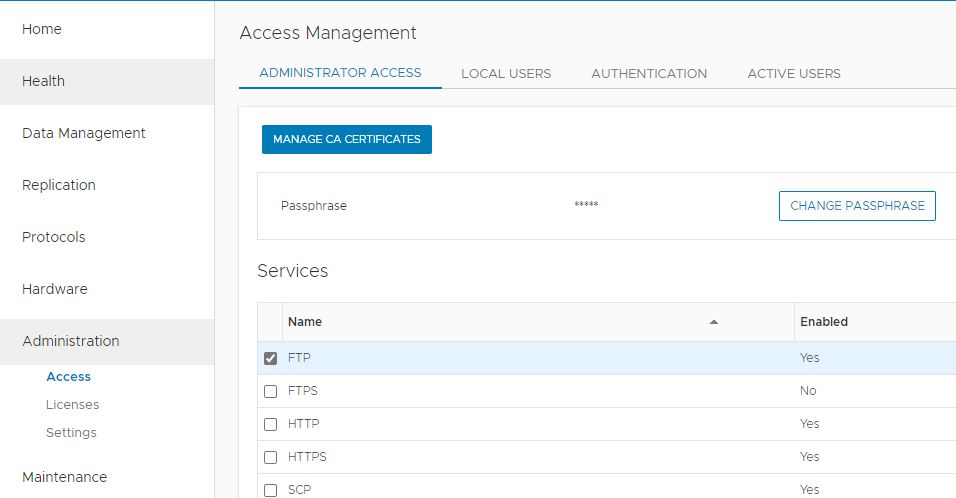
- Verify that there is a system passphrase set on Data Domain before proceeding to check certificates. On Data Domain Enterprise Manager User Interface, go to
Administration > Access > Administrator Access. The button labeled"CHANGE PASSPHRASE"shows that the system passphrase is set.
- On Data Domain, check the current certificates.
ddboost@ddserver# adminaccess certificate show
Subject                               Type            Application   Valid From                 Valid Until                Fingerprint
-----------------------------------   -------------   -----------   ------------------------   ------------------------   ------------------------------------------------------------
ddserver.net                          host            https         Sun Nov  5 12:16:05 2017   Wed Oct 28 18:16:05 2048   5B:58:0A:83:C4:3E:06:91:51:C7:87:F2:45:82:48:95:99:E4:48:B5
ddserver.net                          ca              trusted-ca    Tue Jun 26 16:36:14 2012   Fri Jun 19 16:36:14 2043   44:DD:C1:61:14:5B:54:BE:41:1F:BF:40:9C:2E:6F:A3:02:2F:18:9A
ddserver.net                          imported-host   ddboost       Wed Jan 19 12:22:07 2022   Mon Jan 18 12:22:07 2027   63:50:81:4B:B3:9B:2A:29:38:57:62:A8:46:2E:A9:D7:EF:32:12:F5
avaserver.com                         imported-ca     ddboost       Thu Jan  6 10:16:07 2022   Tue Jan  5 10:16:07 2027   FC:57:B7:1B:5B:F0:FA:79:54:B0:B4:52:1B:D8:15:2F:CE:9D:F5:10
-----------------------------------   -------------   -----------   ------------------------   ------------------------   ------------------------------------------------------------
ddboost@ddserver#
- Delete any imported certificates for the Avamar that is experiencing backup failures using the following command, for example:
avaserver.com:
ddboost@ddserver# adminaccess certificate delete subject avaserver.com
ddboost@ddserver#
- Delete the
imported-host ddboostcertificate.
ddboost@ddserver# adminaccess certificate delete imported-host application ddboost
ddboost@ddserver#
- Check current certificates after the deletion.
ddboost@ddserver# adminaccess certificate show
Subject                               Type            Application   Valid From                 Valid Until                Fingerprint
-----------------------------------   -------------   -----------   ------------------------   ------------------------   ------------------------------------------------------------
ddserver.net                          host            https         Sun Nov  5 12:16:05 2017   Wed Oct 28 18:16:05 2048   5B:58:0A:83:C4:3E:06:91:51:C7:87:F2:45:82:48:95:99:E4:48:B5
ddserver.net                          ca              trusted-ca    Tue Jun 26 16:36:14 2012   Fri Jun 19 16:36:14 2043   44:DD:C1:61:14:5B:54:BE:41:1F:BF:40:9C:2E:6F:A3:02:2F:18:9A
ddboost@ddserver#
- Check the Avamar
mcserver.xmlparameters.
- On Avamar version 19.3 and below:
admin@avaserver:~/>: grep -i manual /usr/local/avamar/var/mc/server_data/prefs/mcserver.xml
              <entry key="ddr_security_feature_manual" value="false" />
admin@avaserver:~/>:
- On Avamar version 19.4 and later:
admin@avaserver:~/>: egrep -i "manual|ddr_host" /usr/local/avamar/var/mc/server_data/prefs/mcserver.xml
              <entry key="ddr_host_cert_auto_refresh" value="false" />
              <entry key="ddr_security_feature_manual" value="false" />
admin@avaserver:~/>:
- Ensure that the manual security feature is set to false. This allows the certificates to be automatically import to the Data Domain.
- On Avamar 19.3 and below, if it is set to true then set it to false and restart MCS.
<entry key="ddr_security_feature_manual" value="false" />
- On Avamar 19.4 and later, set both flags to false and restart MCS.
<entry key="ddr_host_cert_auto_refresh" value="false" />
<entry key="ddr_security_feature_manual" value="false" />
- Restart MCS.
mcserver.sh --stop
mcserver.sh --start
- On Data Domain, restart the
ddboost.
ddboost disable
ddboost enable
- Open the Avamar user interface and or AUI, and update and or edit the Data Domain System.
- Open the Data Domain server in the Avamar Administrator.
- In Avamar MCGUI, go to Server > Server Management, select the DD server, click Edit Data Domain System icon and click OK in the display window.
- In Avamar Administrator, click the Server launcher button. The Server window appears.
- Click the Server Management tab.
- Select the Data Domain system to edit.
- Select Actions > Edit Data Domain System. The Edit Data Domain System dialog box appears.
- Click OK.
No changes are required for the Data Domain configuration.
- After the edit is complete the certificates should be automatically imported to the Data Domain.
ddboost@ddserver# adminaccess certificate show

Subject                           Type            Application   Valid From                 Valid Until                Fingerprint
-------------------------------   -------------   -----------   ------------------------   ------------------------   ------------------------------------------------------------
ddserver.net                      host            https         Sun Nov  5 12:16:05 2017   Wed Oct 28 18:16:05 2048   5B:58:0A:83:C4:3E:06:91:51:C7:87:F2:45:82:48:95:99:E4:48:B5
ddserver.net                      ca              trusted-ca    Tue Jun 26 16:36:14 2012   Fri Jun 19 16:36:14 2043   44:DD:C1:61:14:5B:54:BE:41:1F:BF:40:9C:2E:6F:A3:02:2F:18:9A
ddserver.net                      imported-host   ddboost       Fri Feb 25 13:29:36 2022   Wed Feb 24 13:29:36 2027   4F:B3:68:1C:F7:EB:25:F5:F1:81:F1:38:3B:B7:06:6B:DD:04:C1:33
avaserver.com                     imported-ca     ddboost       Mon Feb  7 13:30:20 2022   Sat Feb  6 13:30:20 2027   FC:57:B7:1B:5B:F0:FA:79:54:B0:B4:52:1B:D8:15:2F:CE:9D:F5:10
-------------------------------   -------------   -----------   ------------------------   ------------------------   ------------------------------------------------------------
ddboost@ddserver#
- Resume the backup scheduler on Avamar if needed.
dpnctl start sched
If this procedure fails to import the certificates, check that weather Avamar and Data Domain times are synchronized, otherwise Contact Dell Support for assistance and mention this article number 000197106.
Data Domain is showing red in the AUI and or user interface due to incorrect SNMP configuration.
Symptoms:
- In the Java user interface and or AUI, DD showing red on the main screen.
Cause:
- Incorrect DD SNMP Configuration can also cause the DD to show red or zero in the user interface and or AUI.
Resolution:
- Verifying and or Correcting DD SNMP Configuration
- The easiest way to verify and or correct DD SNMP version 2 is using the DD web interface.
https://<data_domain_fqdn>
- Navigate the interface to Administration > Settings > SNMP > SNMP V2C Configuration.
- Create a read-only community string or use an existing one.
- Create a trap host which is the Avamar hostname, port 163, and select the community string.
- Go to the Avamar Java user interface or AUI, and edit the Data Domain system, Select SNMP tab, and update the SNMP community string that was configured for trap host.
- Restart the "
mcddrnsmp" service on Avamar, as root:
mcddrsnmp restart
Related article Data Domain: Common SNMP configuration and Issues causing Monitoring Services disabled in Integrated Backup Software or DPA
Data Domain is showing red in AUI and or user interface due to missing and or incorrect ddr_key.
DDSSH. The DDSSH interface requires authentication of the Avamar system, which is achieved by generating a pair of SSH keys (private and public) on the Avamar system and sharing the public key with the Data Domain system.
- On Avamar, log in and load the keys.
ssh-agent bash
ssh-add ~admin/.ssh/admin_key
- Check the
ddr_keyandddr_key.pubare already in the folder/home/admin/.ssh/:
ls -lh /home/admin/.ssh/ddr*
- Open the
ddr_key.pubwith cat and copy its content. It is useful to paste on Data Domain later.
cat /home/admin/.ssh/ddr_key.pub
- Copy the entire content of the file s it is required later. It looks like this:
ssh-rsa AAAAB3NzaC1yc2EAAAOSDFkNBGH177bvYPHrAqW5nXEw6uZwV7q0k9SLHgirfv2AztJcCuJIW8LKN0MBTYArGhRJRWE9etR3hH[...]0NxtMIZyhIWKas+PJ0J/AgJhl admin@avamarhostname
- Log in to the Data Domain system by typing:
ssh <ddboost>@<DataDomainHostname>
- Check the
ssh-keys
adminaccess show ssh-keys
- Use the Data Domain command adminaccess add
ssh-keysto open the keystore on the Data Domain system:
adminaccess add ssh-keys user <ddboost>
- Where
ddboostis the username assigned to the Avamar system on the Data Domain system. The utility prompts for the key:
ddboost@datadomain# adminaccess add ssh-keys user ddboost
- Enter the key and then press
Control + D, or pressControl + Cto cancel. - Paste the
SSH public keyof the Avamar system (ddr_key.pub) at this prompt - Complete the entry of the key by pressing
Ctrl + Dto save it. The utility adds the public key to the keystore on the Data Domain system. - Log out of the Data Domain system.
exit
- Back to Avamar, load the
ddr keys.
ssh-agent bash
ssh-add ~/.ssh/ddr_key
- Test the log into the Data Domain system without providing a password by typing:
ssh <ddboost>@<DataDomainHostname>

admin@avamar:~/#: ssh ddboost@DataDomainHostname
EMC Data Domain Virtual Edition
Last login: Tue Dec  3 01:17:07 PST 2019 from 10.x.x.x on pts/1
Welcome to Data Domain OS 6.2.0.10-615548
-----------------------------------------
ddboost@DataDomainHostname#
- The Avamar
server/gsancertificates have expired, causing backups to fail. - The Data Domain
imported-host ddboostcertificate has expired, causing backups to fail. - If the Avamar
server/gsancerts have expired, regenerate ALL certificates using theSession Security AVP. Select ALL certificates because theavamar_keystoremust get new root keys in order to make newserver/gsancertificates from those keys. - Use the article Avamar: Use SessionSecurityConfiguration to Fix Certificate Error in Backup or Replication to regenerate all certificates.
- After regenerating the certificates, the Data Domain must get the new imported-ca
ddboost(Avamarchain.pem).
Contact Dell Support for assistance and mention this article number 000197106.