VxRail: Tips for a successful upgrade
Summary: Tips for performing a successful VxRail upgrade
Instructions
-
Perform a health check on your environment a few days ahead of the upgrade to ensure that your environment is in good shape
-
If there is an opportunity to do so prior to the upgrade, reboot each host ahead of the upgrade. If issues are likely to happen due to pinned VMs or other such items, they likely happen during the host reboot cycle of the upgrade, so rebooting each host ahead of time ensures that these issues are addressed prior to the upgrade.
-
Ensure that the host you are performing the upgrade from is located on the VxRail cluster or has adequate bandwidth for the bundle upload.
-
If possible, VC if it is internal to ensure that all services are running correctly prior to the upgrade.
-
In vCenter Server UI,
Select the vCenter VM > Actions > Power > Guest OS > Restart
(This option is not available in the ESXi interface)
-
-
Reset IDRAC on each host prior to the upgrade:
The Graphical User Interface (UI) of the iDRAC provides an option to perform a soft reset: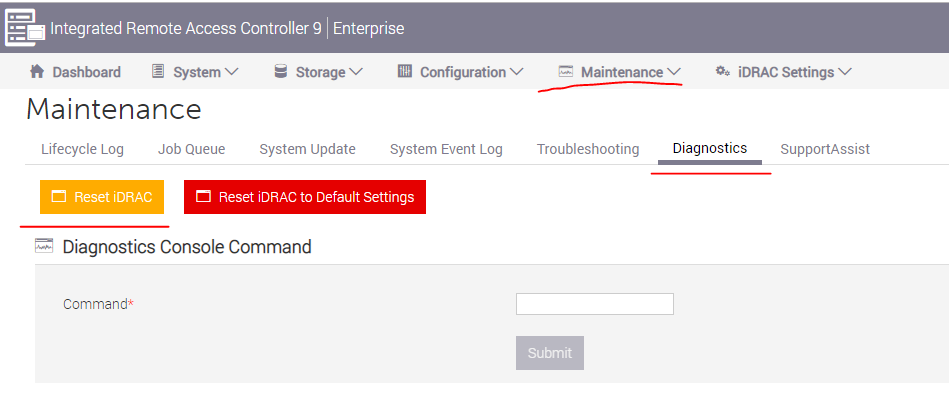 A. Connect to the iDRAC
B. Log in to the interface by entering the username and password
C. Click "Maintenance" tab on top
D. Click "Diagnostics" subtab
E. Click Reset iDRAC.
F. Confirm the action
G. The iDRAC will not be reachable for a few minutes, while the system performance is not affected.