Configurazione di rete completamente convergente di Dell Azure Stack HCI
Summary: Questo articolo fornisce un esempio di come configurare una rete completamente convergente per un host cluster Dell Technologies Solutions Microsoft Azure Stack HCI. Le informazioni contenute in questo articolo sono tratte da "Istruzioni di deployment per la configurazione di una rete completamente convergente", disponibile all'https://infohub.delltechnologies.com/en-us/l/e2e-deployment-and-operations-guide-with-scalable-networking-windows-1/fully-converged-network-configuration-38/2/. ...
Instructions
Tutti i passaggi seguenti vengono eseguiti utilizzando PowerShell. La gestione del cluster e il traffico di rete di storage utilizzano lo stesso Switch Embedded Team (SET). Le tre reti vengono eseguite su tre schede virtuali separate. La configurazione dello switch SET, delle VLAN e delle schede virtuali è inclusa di seguito.
Non eseguire il wrapping dei comandi PowerShell riportati di seguito oppure avranno esito negativo dopo la copia di ampie sezioni dello script nella finestra di PowerShell. Lo script di configurazione riportato di seguito deve essere eseguito su tutti i nodi del cluster.
L'immagine seguente è un diagramma hardware di una convergente rete Azure Stack HCI configurata che utilizza un SET per la gestione e la comunicazione di rete di storage:
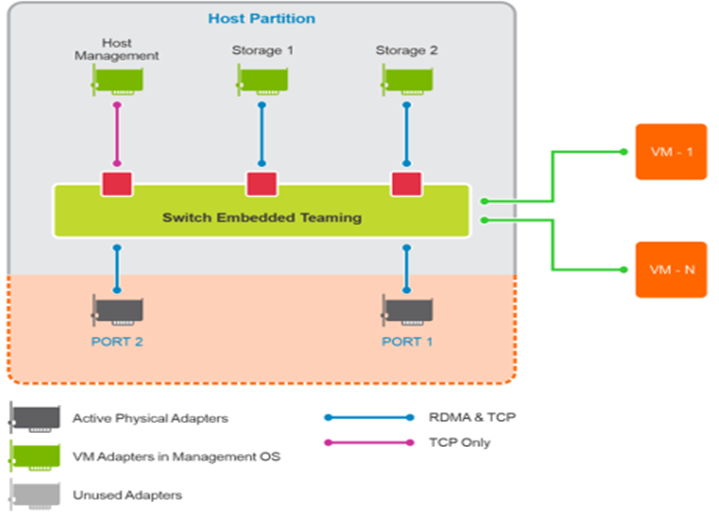
Figura 1: Diagramma di una rete completamente convergente in Azure Stack HCI
Le istruzioni di script riportate di seguito devono essere eseguite a un prompt amministrativo di PowerShell:
$ErrorActionPreference = 'Stop'
#region Variables for the scenario
# You must specify 2 or 4 network adapter port names
$netAdapterName = @('SLOT 4 PORT 1','SLOT 4 PORT 2')
$switchName = 'S2DSwitch'
# Management Adapter Parameters
$managementAdapterName = 'Management'
# VLAN ID for host management traffic; if no VLAN is preferred set this to 0
$managementVlanId = 102

# Management Gateway address
$managementGateway = '10.0.0.1'

# DNS server address
$managementDns = '10.0.0.19'

# Set this to a string 'DHCP' for a dynamic IP address
$managementIPAddress = '10.0.0.51'

# Management address prefix (24 translates to subnet mask 255.255.255.0)
$managementAddressPrefix = 24

# Storage Adapter Parameters
$storageAdapterPrefix = 'Storage'

# You must specify 1 or 2 or 4 VLANIDs
# You can use 0 as the value if you don't want to use VLANs for storage traffic
$storageVlanId = @(103,104)

# You must specify 2 or 4 IP Addresses
# DHCP as a value is accepted if you want dynamically assigned IP addresses
$storageIPAddress = @('171.16.101.51','172.16.102.51')

# You can specify 1 or 2 or 4 prefix length values
$StorageAddressPrefix = @(24)

#endregion

## Create a VM switch for management and Storage traffic
$null = New-VMSwitch -Name $switchName -AllowManagementOS 0 -NetAdapterName $netAdapterName -Verbose

## Add VM Network Adapters and configure VLANs and IP addresses as needed
### Management Adapter
$managementAdapter = Add-VMNetworkAdapter -SwitchName $SwitchName -ManagementOS -Passthru -Name $managementAdapterName -Verbose

if ($managementVlanId -and ($managementVlanId -ne 0))
{
Set-VMNetworkAdapterVlan -VMNetworkAdapter $managementAdapter -Access -VlanId $managementVlanId -Verbose
Start-Sleep -Seconds 5
}
if ($ManagementIPAddress -ne 'DHCP')
{
$null = New-NetIPAddress -InterfaceAlias "vEthernet ($managementAdapterName)" -IPAddress $managementIPAddress -DefaultGateway $managementGateway -PrefixLength $managementAddressPrefix -Verbose
Set-DnsClientServerAddress -InterfaceAlias "vEthernet ($managementAdapterName)" -ServerAddresses $managementDns -Verbose
}

### Storage Adapters
for ($i = 0; $i -lt $netAdapterName.Count; $i++)
{
$storageAdapterName = "${storageAdapterPrefix}$($i+1)"
# if there is a single VLAN for storage use the first and only element
if ($storageVlanId.Count -eq 1)
{
$storageVlan = $storageVlanId[0]
}
else
{
# else use the right index to get the VLAN ID
$storageVlan = $storageVlanId[$i]
}

# Check if only one prefix is provided
if ($StorageAddressPrefix.Count -eq 1)
{
$StoragePrefix = $StorageAddressPrefix[0]
}
else
{
# if more than one, use the right index to get the address prefix
$StoragePrefix = $StorageAddressPrefix[$i]
}
$storageAdapter = Add-VMNetworkAdapter -SwitchName $SwitchName -ManagementOS -Passthru -Name $storageAdapterName -Verbose

 if ($storageVlan -and ($storageVlan -ne 0))
{
# Set VM Network adapter VLAN only if the VLAN ID specified is other than 0
Set-VMNetworkAdapterVlan -VMNetworkAdapter $storageAdapter -Access -VlanId $storageVlan -Verbose
Start-Sleep -Seconds 5
}
if ($StorageIPAddress[$i] -ne 'DHCP')
{
$null = New-NetIPAddress -InterfaceAlias "vEthernet ($storageAdapterName)" -IPAddress $StorageIPAddress[$i] -PrefixLength $StoragePrefix -Verbose
}
## Set VMnetwork adapter to Physical adapter mapping
Set-VMNetworkAdapterTeamMapping -VMNetworkAdapterName $storageAdapterName -ManagementOS -PhysicalNetAdapterName $netAdapterName[$i]
}