VxRail: Upgrade Cannot Continue Because the VMware NSX Vib Is an Incompatible Version on the Host
Summary: During the VxRail Update process from 4.7.212 to 7.0.320, the Lifecycle Manager process failed with the message: "Upgrade cannot continue because the VMware NSX VIB is an incompatible version on host XXX." This can occur from version 7.x to 8.x as well. ...
Symptoms
During the LCM update process, we received the below error on the VxRail Plugin (Update tab).
We have NSX-T version 3.2.1.2 with an external vCenter Server:

VxRail Update ran into a problem...
Failure occurred while running an upgrade for bundle: VXRAIL_COMPOSITE-SLIM-7.0.320-27377804_for_4.7.x.zip.
The error message: Upgrade cannot continue because the VMware NSX VIB is an incompatible version on host XXX.
The same behavior from VxRail 7 to VxRail 8 can occur. In this instance, NSX-T version 4.1.2.3 is installed with an external vCenter Server.
VxRail Update ran into a problem...
Failure occurred while running an upgrade for bundle: VXRAIL_COMPOSITE-SLIM-8.0.213-28667925_for_7.0.x.zip.
The error message: Upgrade cannot continue because the VMware NSX VIB is an incompatible version on host XXX..
Cause
The NSX host component's reported operating system version 6.7.0 does not match this host's vCenter-reported operating system version 7.0.3. However, we have a mismatched component version between the NSX Manager database and the vCenter Server. The VxRail LCM process will not update or change anything related to the NSX, so it must be fixed manually.
Note: A similar behavior could happen if migrating the vSphere 7 to vSphere 8 with NSX 4. Access the NSX Manager and click under "NSX Installed Failed" or "Install Failed" to understand the exact error the host faced in your case.
After seeing the error, access the NSX Manager UI (Fabric --> Hosts). The message "NSX Install Failed" on the updated ESXi host will display.
The following figure is from an NSX Manager version 3.x:
Resolution
- Access the NSX Manager UI.
- On the NSX Manager UI, click System --> Fabric --> Host Transport Nodes.
- On the host with "NSX Install Failed" status, click "NSX Install Failed" and then click "RESOLVE," such as in the below figure.
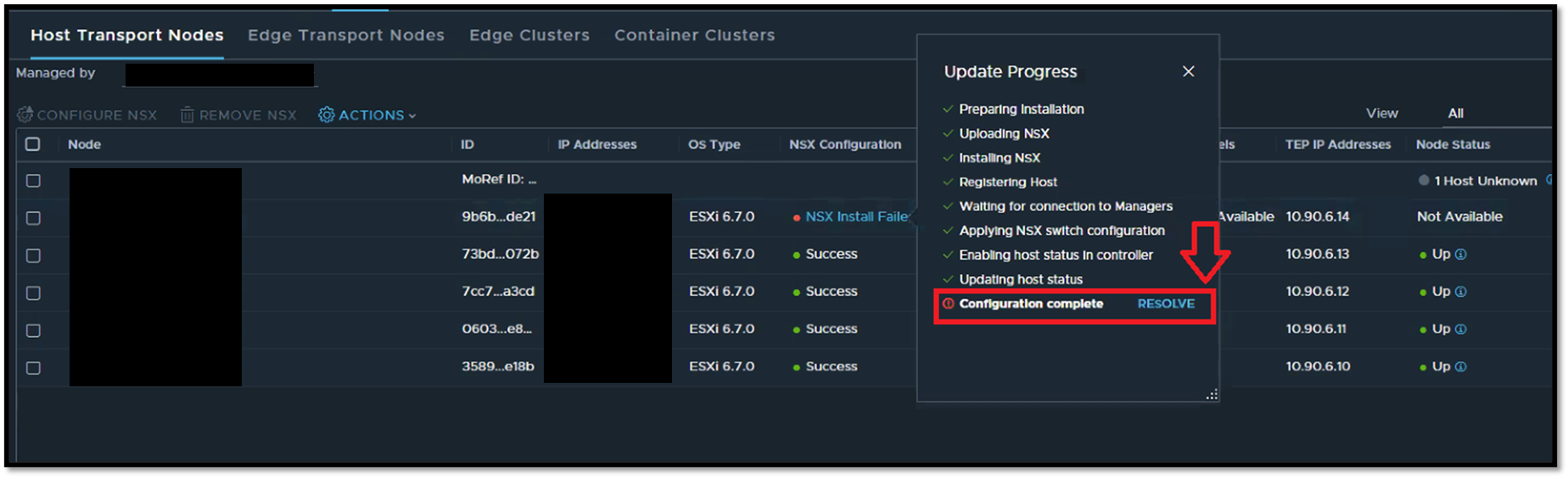

4. Click again on RESOLVE to confirm the process.
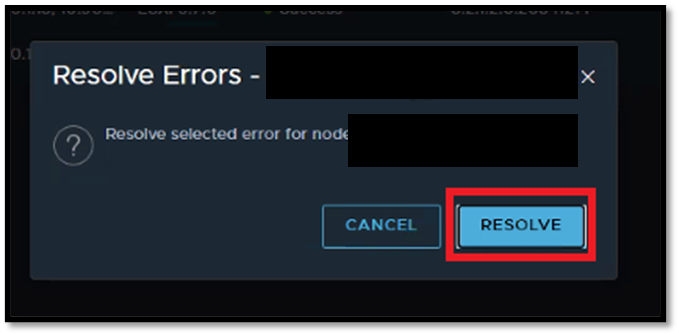
5. The NSX Manager reinstalls all NSX VIBs and does the configuration to fix the issue.
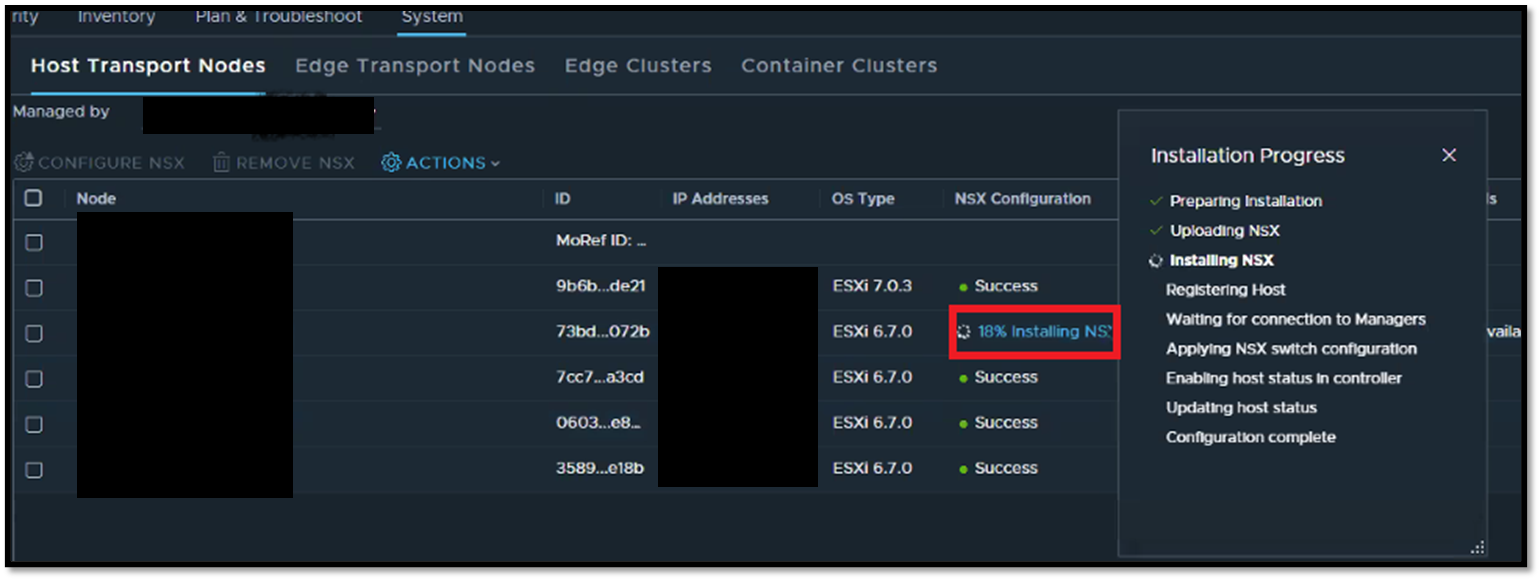
6. After a few minutes, the host transport node status will be "Success".
7. Go back to the VxRail Update Tab and click "retry" on the update process.
Additional Information
https://interopmatrix.vmware.com/Interoperability