PowerFlex 3.X: Protected Maintenance Mode from PFxM
Summary: Steps to enter Protected Maintenance Mode from PowerFlex Manager.
Instructions
Protected Maintenance Mode
- PowerFlex distributes data among the nodes in its clusters and creates a copy of the data as primary and secondary. The SDC only deals with primary data.
- Placing a SDS node in Maintenance Mode takes the storage node capacity out of the available total storage capacity.
- Also, the data stored in that node become secondary, and the SDC will use data stored in other nodes as they become primary. It will also dedicate a small space from each node on the cluster and use it for new writes.
- If another node is lost (while we have one in Maintenance Mode), the SDC loses access to that data and cause Data Unavailability (DU).
- At PowerFlex version 3.5 and later, Protected Maintenance Mode (PMM) was introduced to address DU while one node is already in Maintenance Mode. PMM dedicates more space on nodes to accommodate more copies of data and more temporary space for new writes.
- PMM enables you to perform maintenance that requires longer than 30 minutes in a safe and protected manner. When you use protected maintenance mode, PowerFlex makes a temporary copy of the data so that the cluster is fully protected from data loss. Protected maintenance mode applies only to hyperconverged and storage-only services. All new writes synchronize with the data stored in the node placed in MM (Maintenance Mode) once it is taken out of MM.
- PMM requires more time as multiple copies of data will be created and require more space as well.
You cannot use PMM if no sufficient space is available.
Entering Protected Maintenance Mode within PowerFlex Manager -
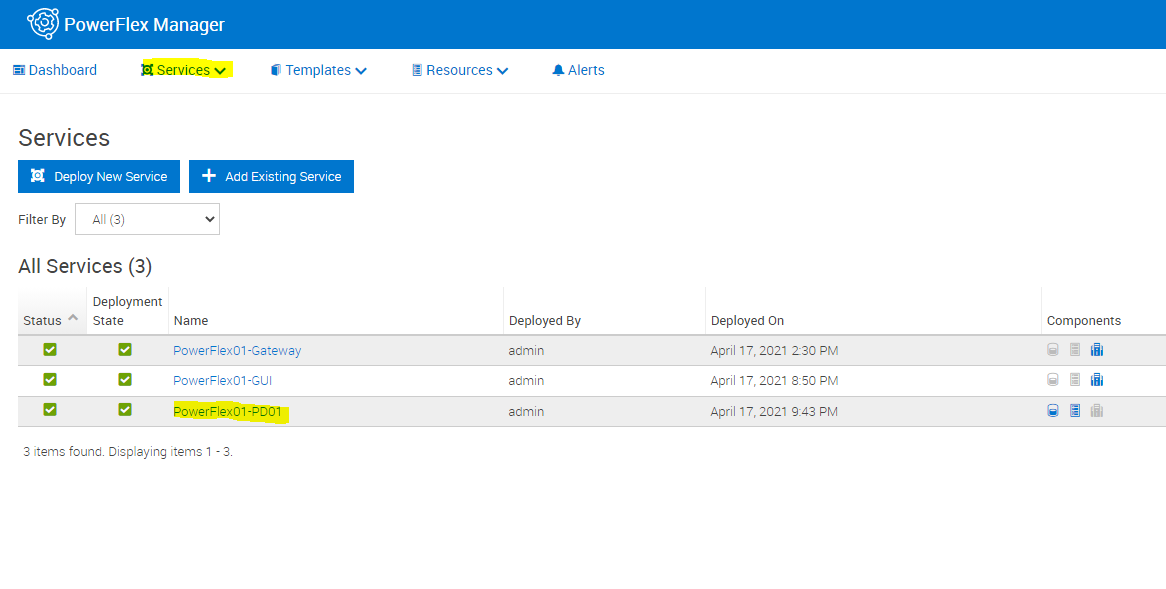
1. Within PowerFlex Manager, select the services tab and then click on the name of the service containing the node that must go into maintenance mode.
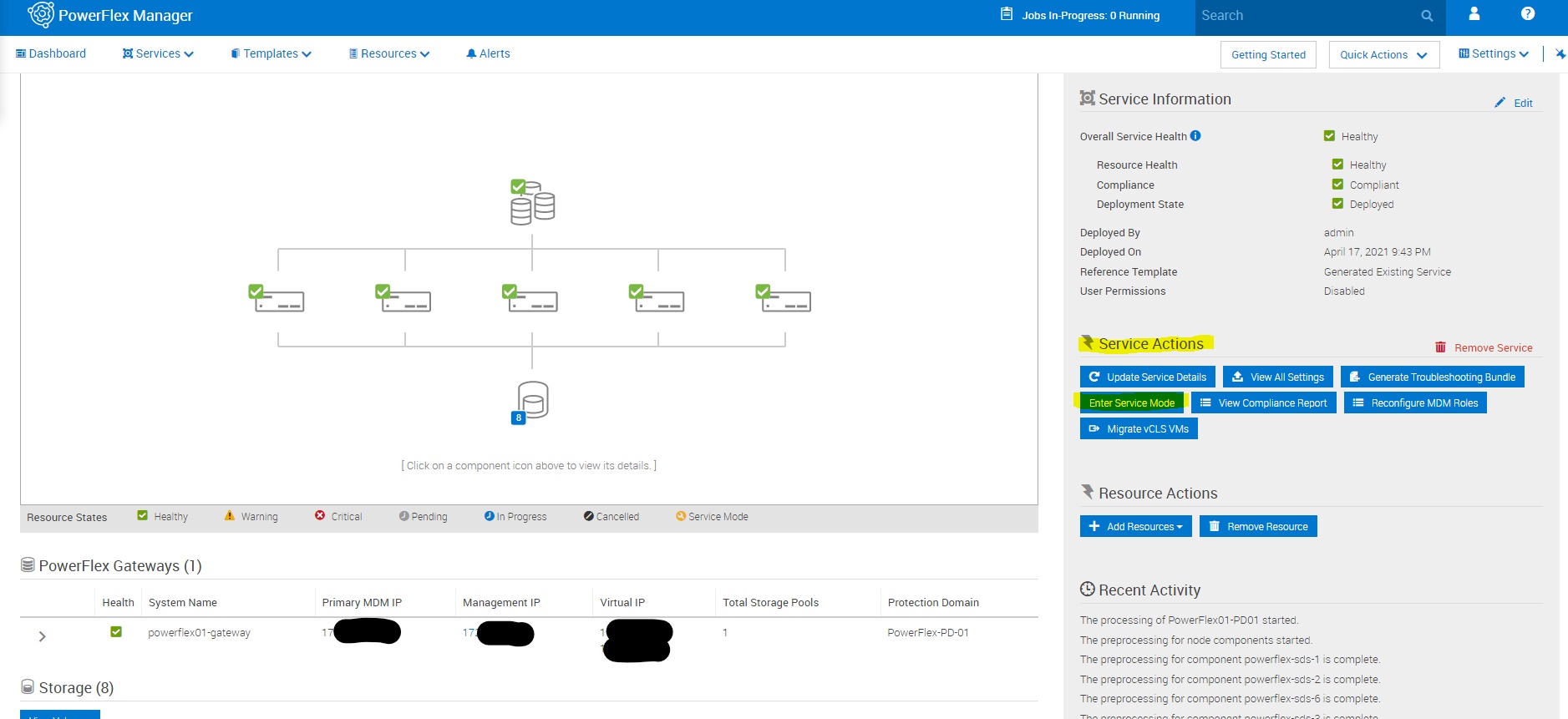
2. After choosing the appropriate service, select the 'Enter Service Mode' option under the 'Service Actions' section.
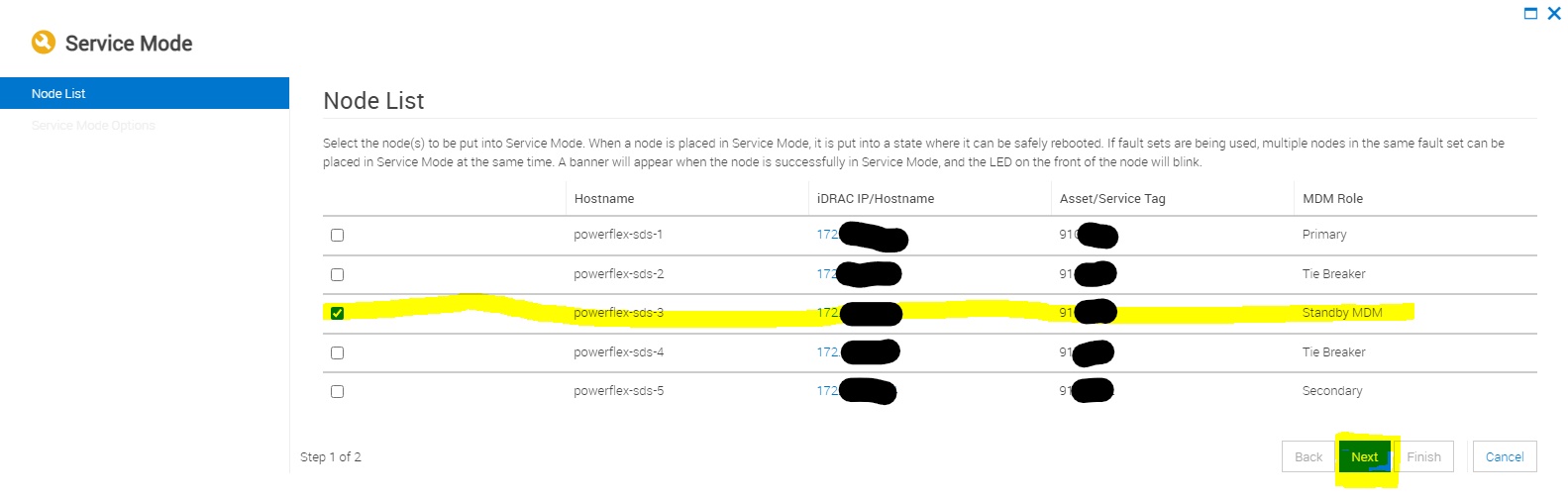
3. Once 'Enter Service Mode' is selected a pop-up appears with a list of the nodes in the service. Select the node that must be placed into Protected Maintenance Mode and choose 'Next'.
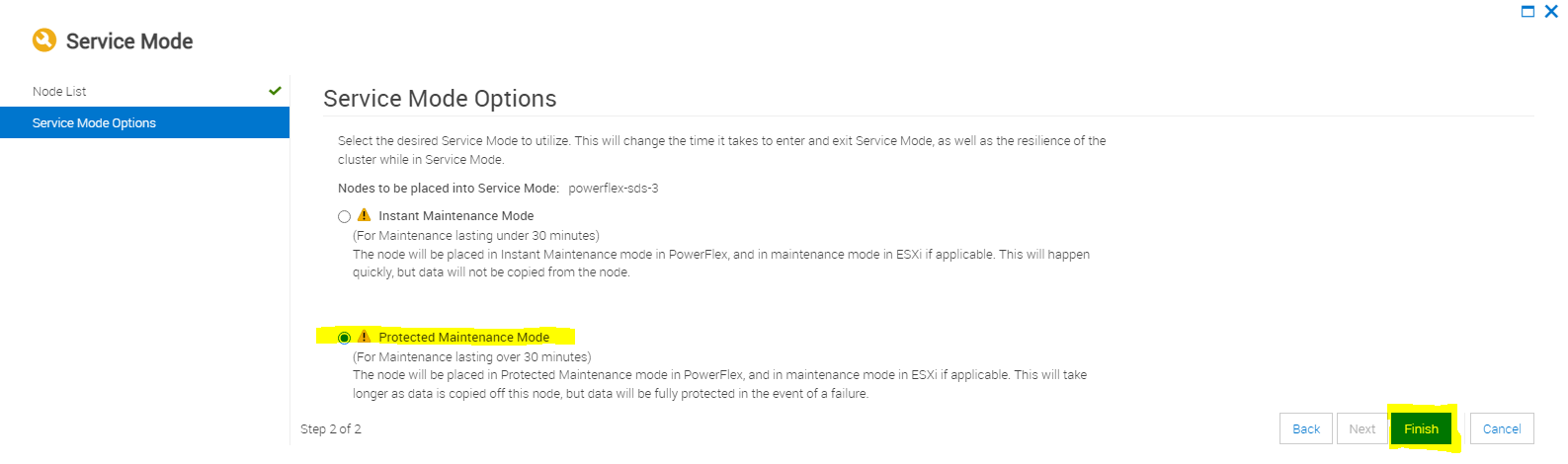
4. Select 'Protected Maintenance Mode' and select 'Finish'.