NetWorker: "NetWorker Version" in client properties not updating after NetWorker client upgrade
Summary: After upgrading the NetWorker client software on a system, the client's "NetWorker version" is not updated in the client properties.
Symptoms
After upgrading the NetWorker client software on a system, the client's "NetWorker version" is not updated in the client properties.
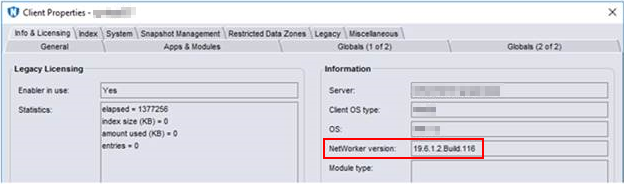
The following commands show what the version of NetWorker is installed on the client:
Linux:
strings /usr/sbin/nsrexecd | grep "@(#) Release"
wmic product where "PackageName = 'NwClientMsi.msi'" get Name, Version
Windows PowerShell:
Get-CimInstance Win32_Product | Where-Object { $_.Name -like "NetWorker" } | Select-Object Name, PackageName, Version
The client is not configured in a Protection Group as indicated by the ! next to the client name:

Cause
When the NetWorker client software is upgraded, the "NetWorker version" shown in the client will not be updated until the client is backed up. This is as per design.
When the client shows ! next to the name it means it is not protected in a NetWorker protection group. And no backups of the client are performed.
Example scenario where this might be observed. The client whose version is not correct in the client properties is the physical node of a cluster. The cluster shared data is protected through a client resource created using the logical cluster name. The physical nodes and their local file systems are not being backed up, or are backed up infrequently.
Whether the example scenario is applicable or not, if there has been no backup of the client since the NetWorker client software was updated, the "NetWorker Version" details in the client properties is not updated to reflect the new client version.
Resolution
NetWorker is functioning as designed.
In order for the client's NetWorker version details to be updated on the server, the client must be backed up after a client software update.
Additional Information
If you would like for the version details to be updated outside of the backup workflow mechanism, you must contact your Dell account or sales representative regarding a Request For Enhancement (RFE).