PowerStore: PowerStore Manager UI is unresponsive after third party certificate import
Summary: PowerStore Manager UI is unresponsive after third party certificate import.
This article applies to
This article does not apply to
This article is not tied to any specific product.
Not all product versions are identified in this article.
Symptoms
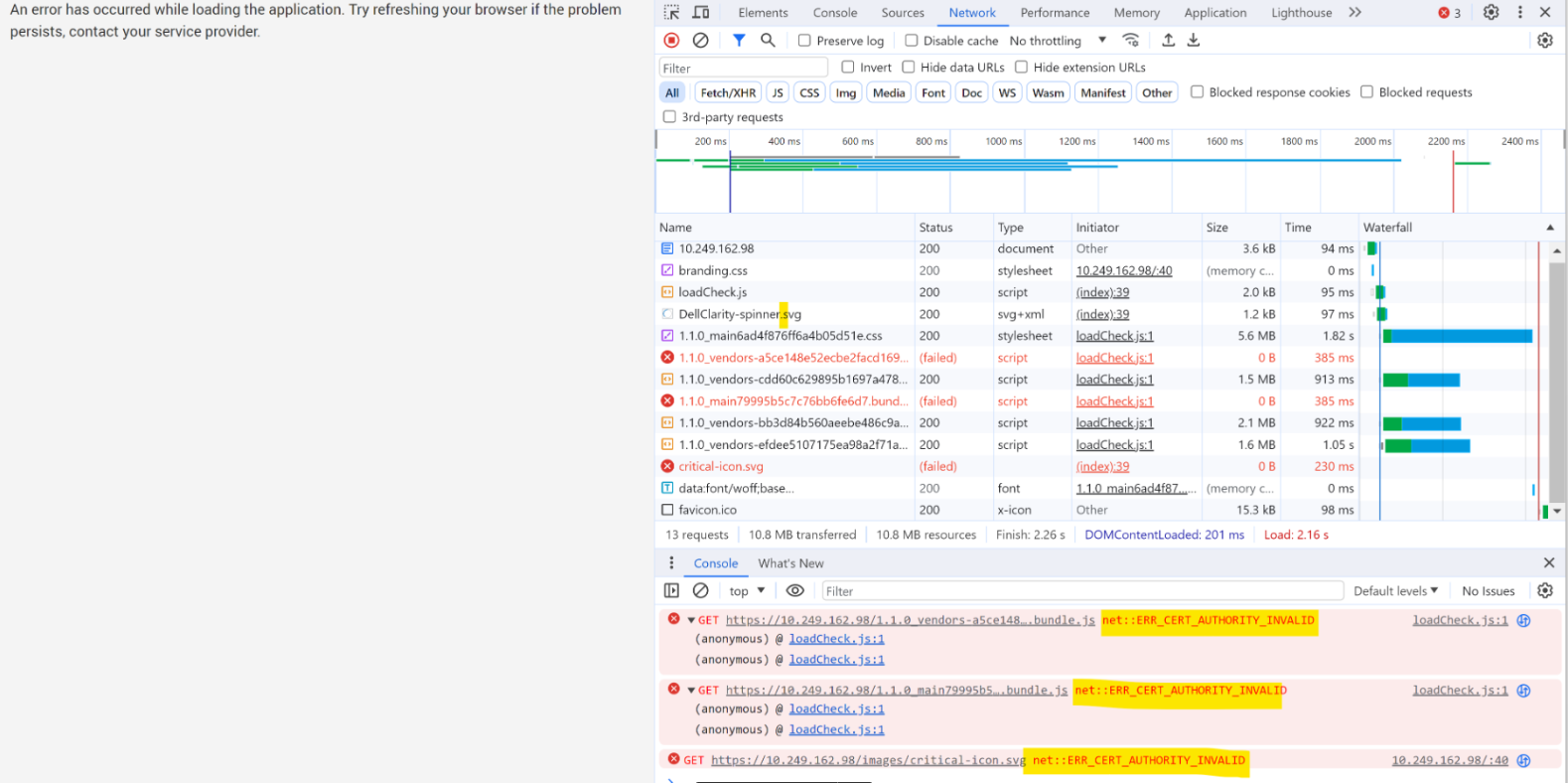
After the server certificate is reset or a third-party certificate is imported, the UI may be unresponsive:
Cause
When the signing CA of the PowerStore server certificate is not present in the user's local trust store, opening the browser prompts the user to accept the risk associated with an unknown CA. If the server certificate is not reset or a third-party certificate is not imported into PowerStore, the browser/UI cannot prompt the user to accept exceptions when trying to establish a new connection to the backend. This results in an unknown CA error, which causes the UI to malfunction.
Resolution
By adding the third-party signing CA to the user’s local trust store before starting the importing process or by adding PowerStore signing CA before resetting the server cert, users avoid this problem.
Option 2: For Firefox, we could add CA to Firefox's trust store.
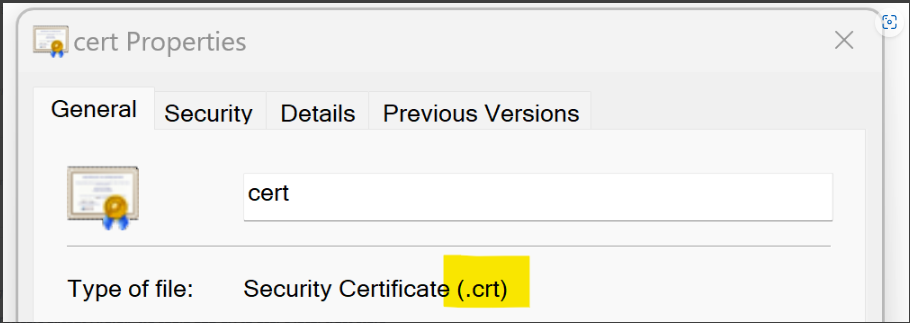
- Save the CA as .crt file
- Add the CA to the trust store (Chrome, Edge, and Firefox)
Option 1. For Chrome, Edge and other browsers except Firefox, we could add CA to user's local trust store
- Type "certmgr.msc" in the Start menu Search field, and then press Enter, and expand Trusted Root Certification Authorities, and then select Certificate.
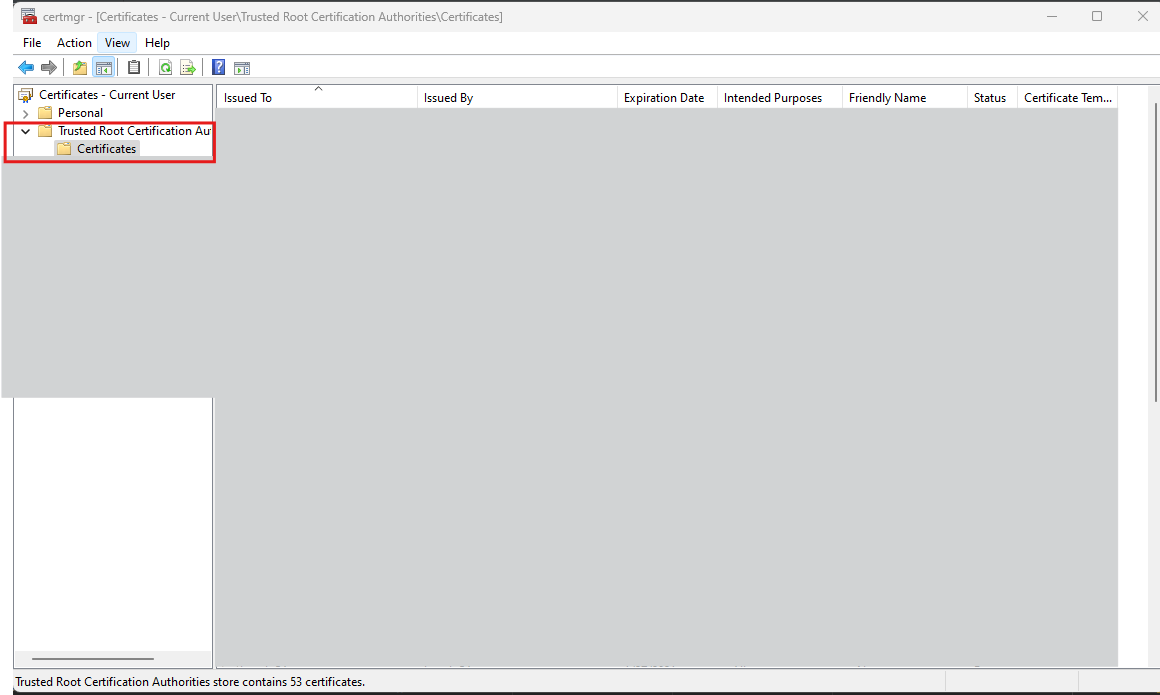
- Right-click on the empty space, and then select All tasks > Import.
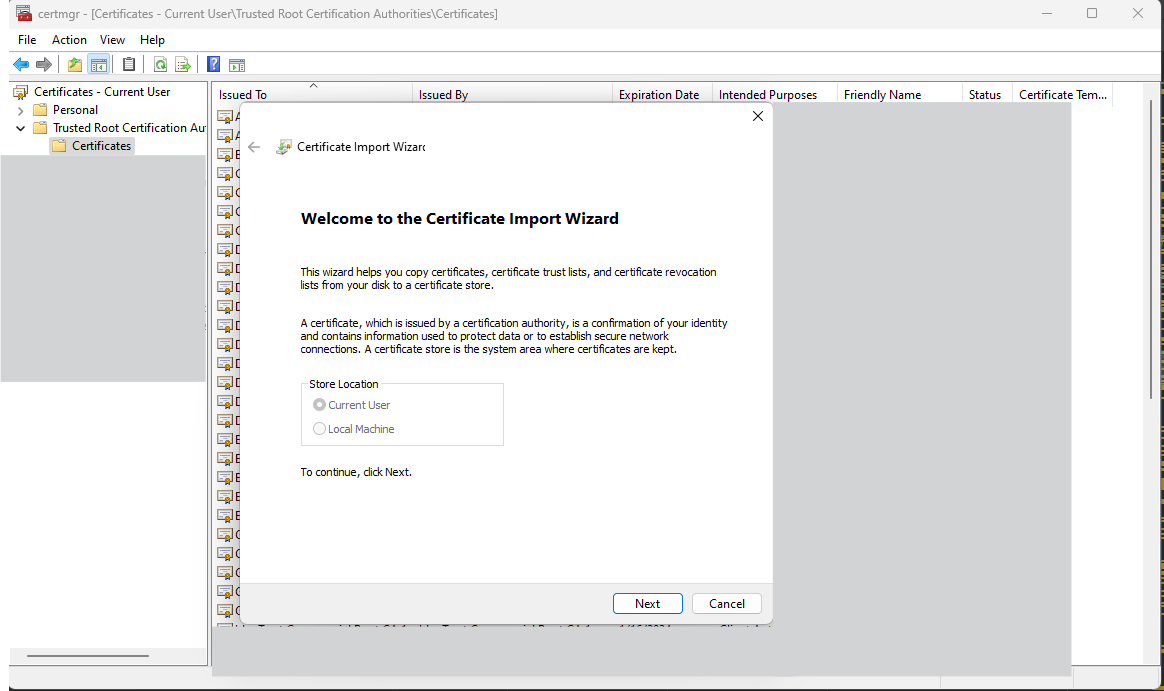
- Click Next in the Certificate Import Wizard window and click Browse and select the CA that you want to import.
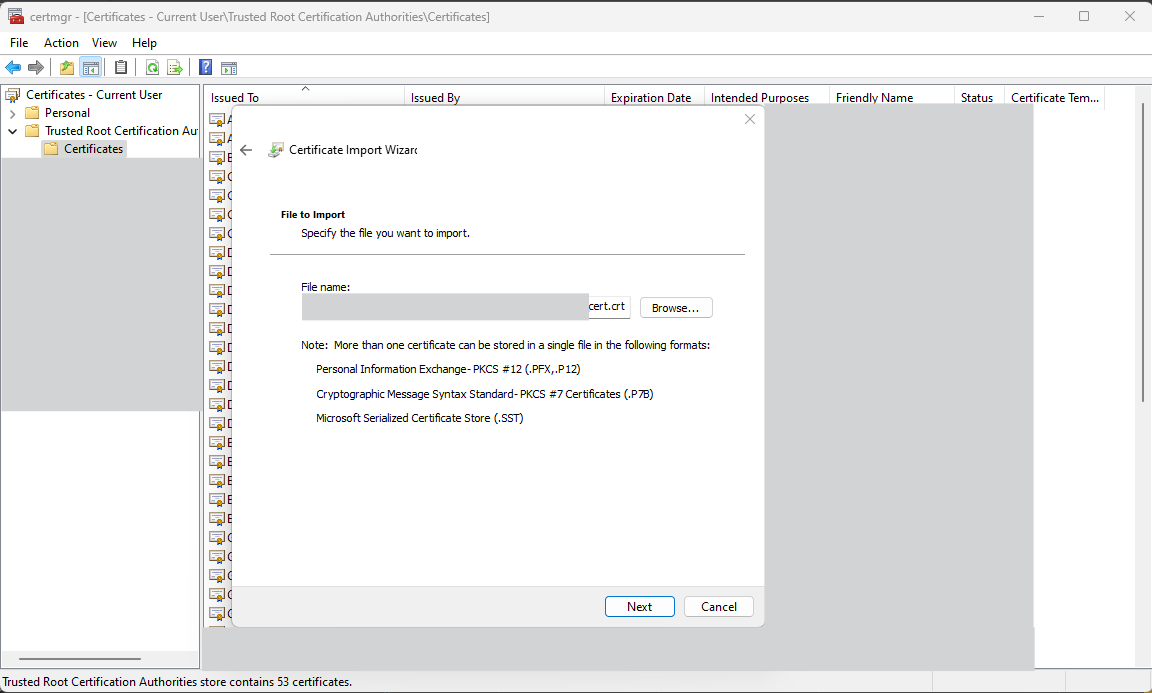
- Click Next, select the Place all certificates in the following store option to store the CA securely, then click Browse, and then select Trust Root Certification Authorities as certificate store.
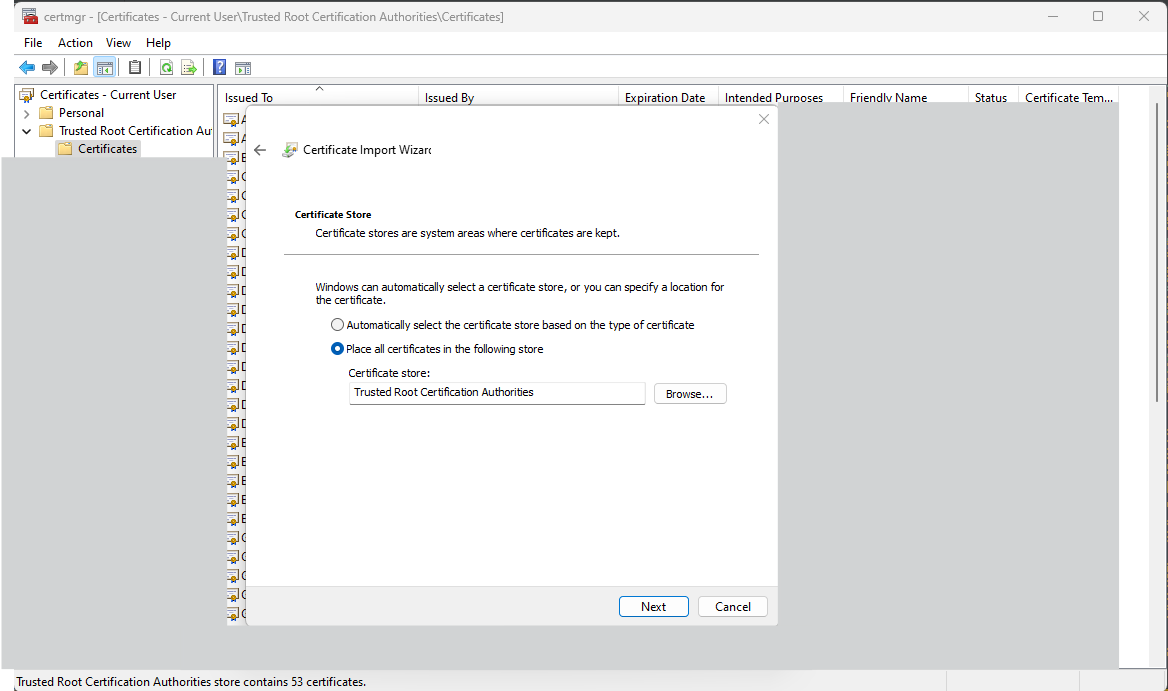
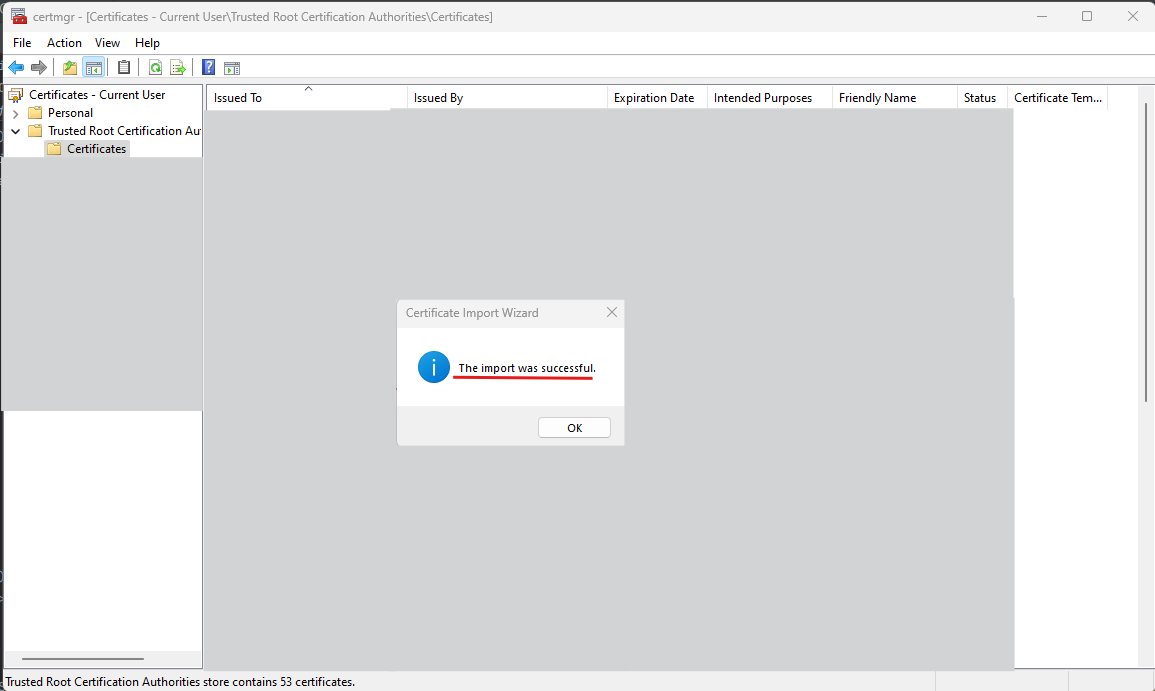
- Click Next, and then Finish to import the certificate. The Certificate Import Wizard shows that "The import was successful."
Option 2: For Firefox, we could add CA to Firefox's trust store.
- Click the Firefox menu, select Settings, then click Privacy & Security.
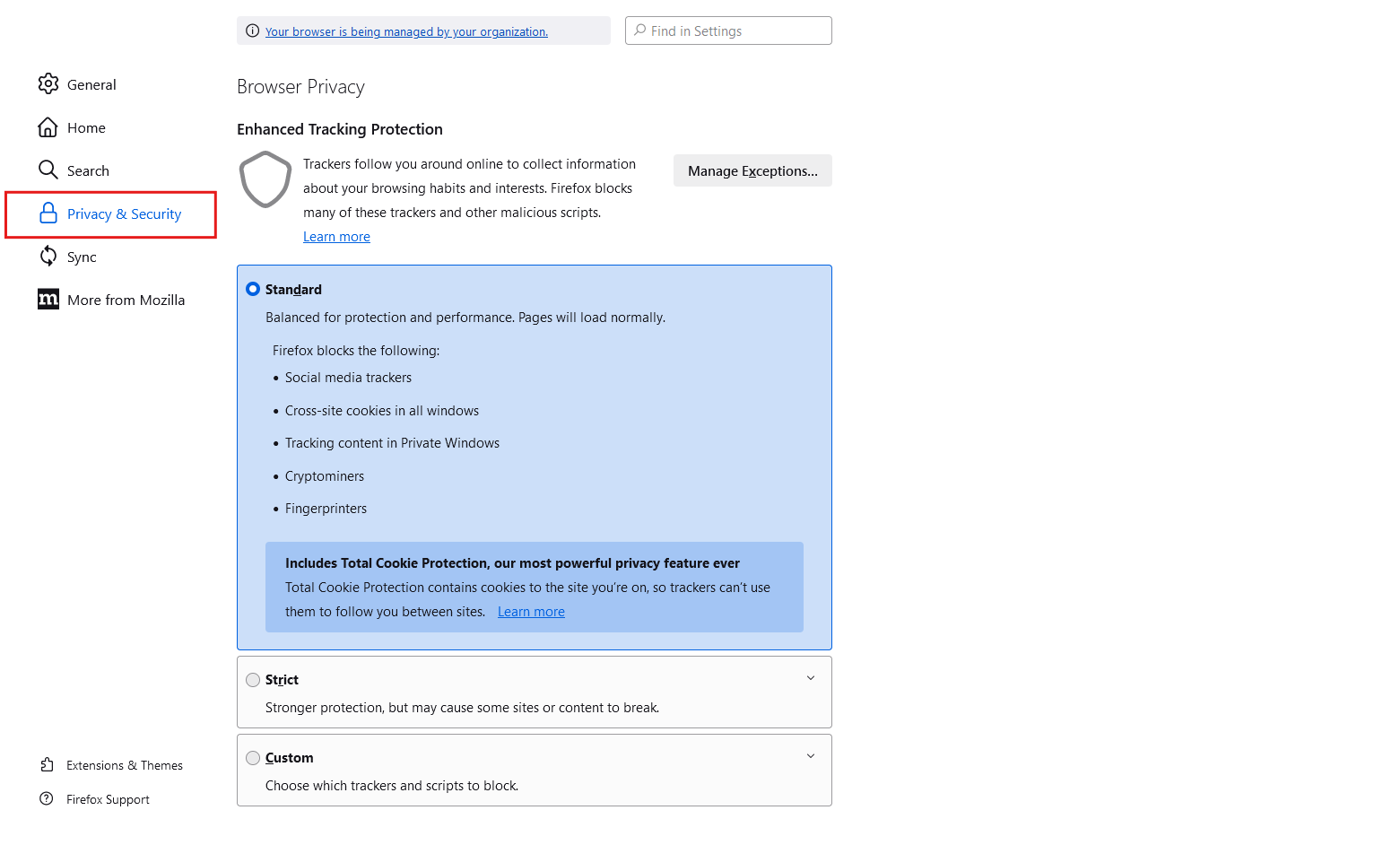
- Scroll down to the Security section and click View Certificates.
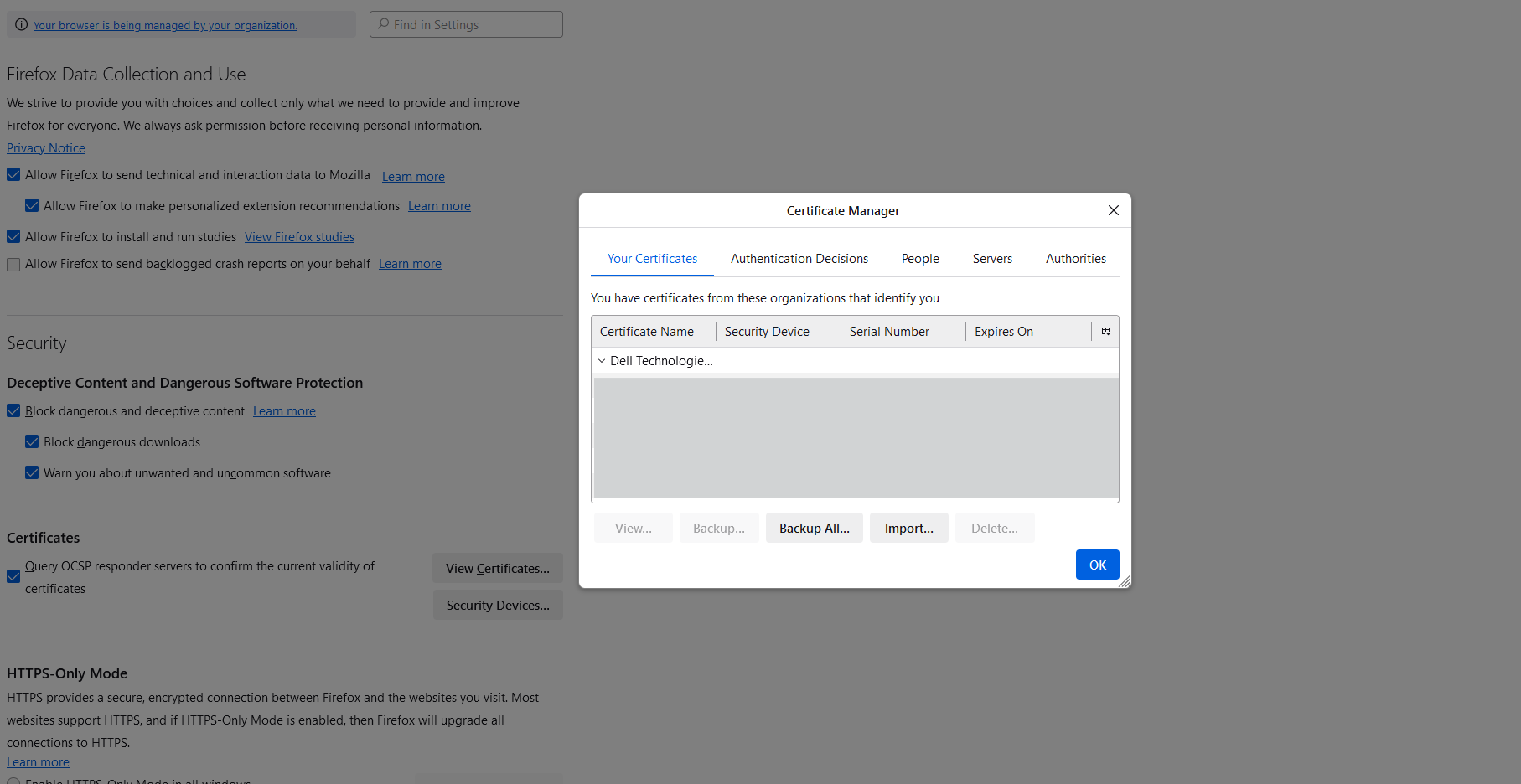
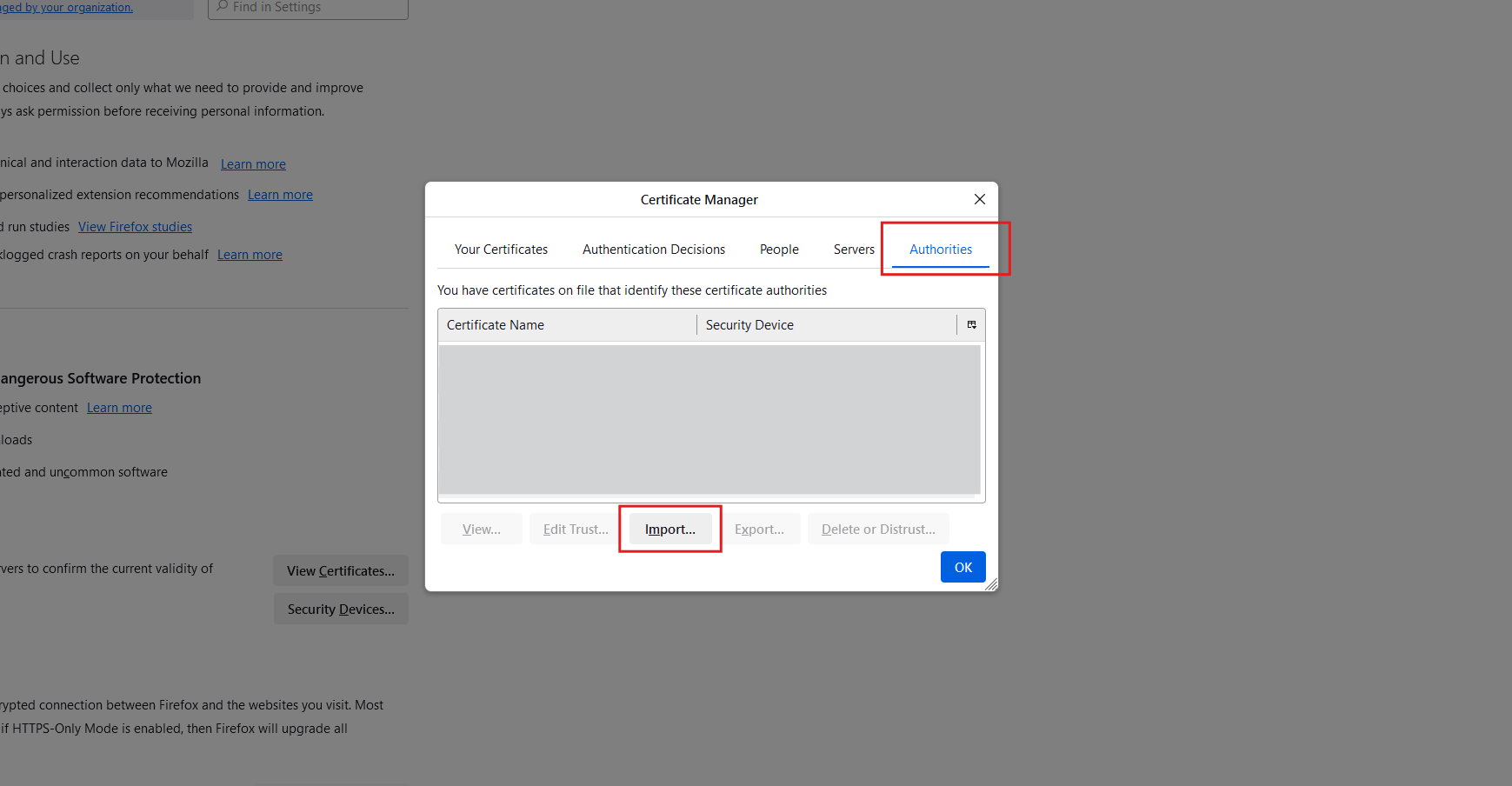
- On the tab Authorities, select Import and select the CA that you want to import.
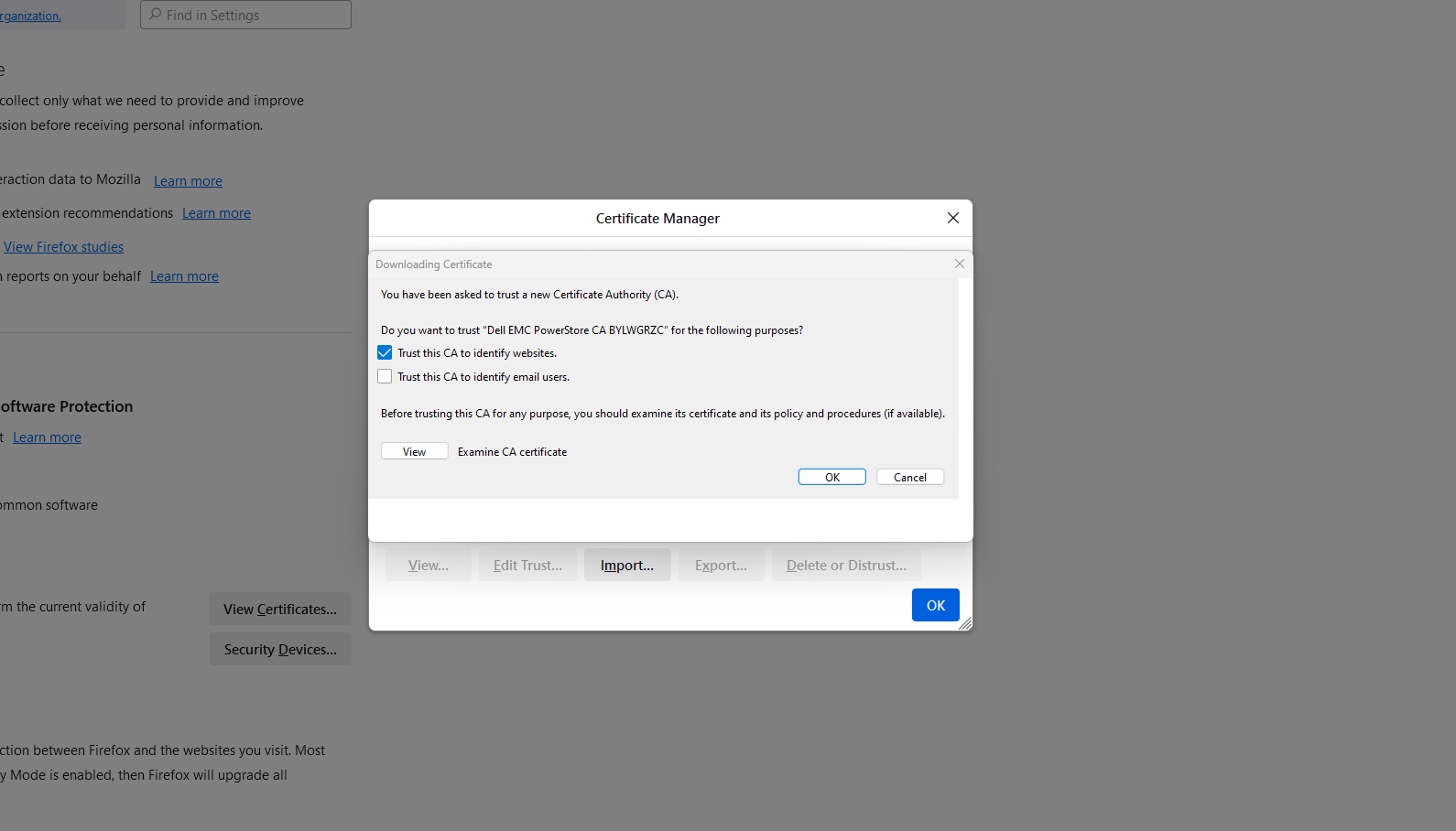
- Select Trust this CA to identify websites and click OK.
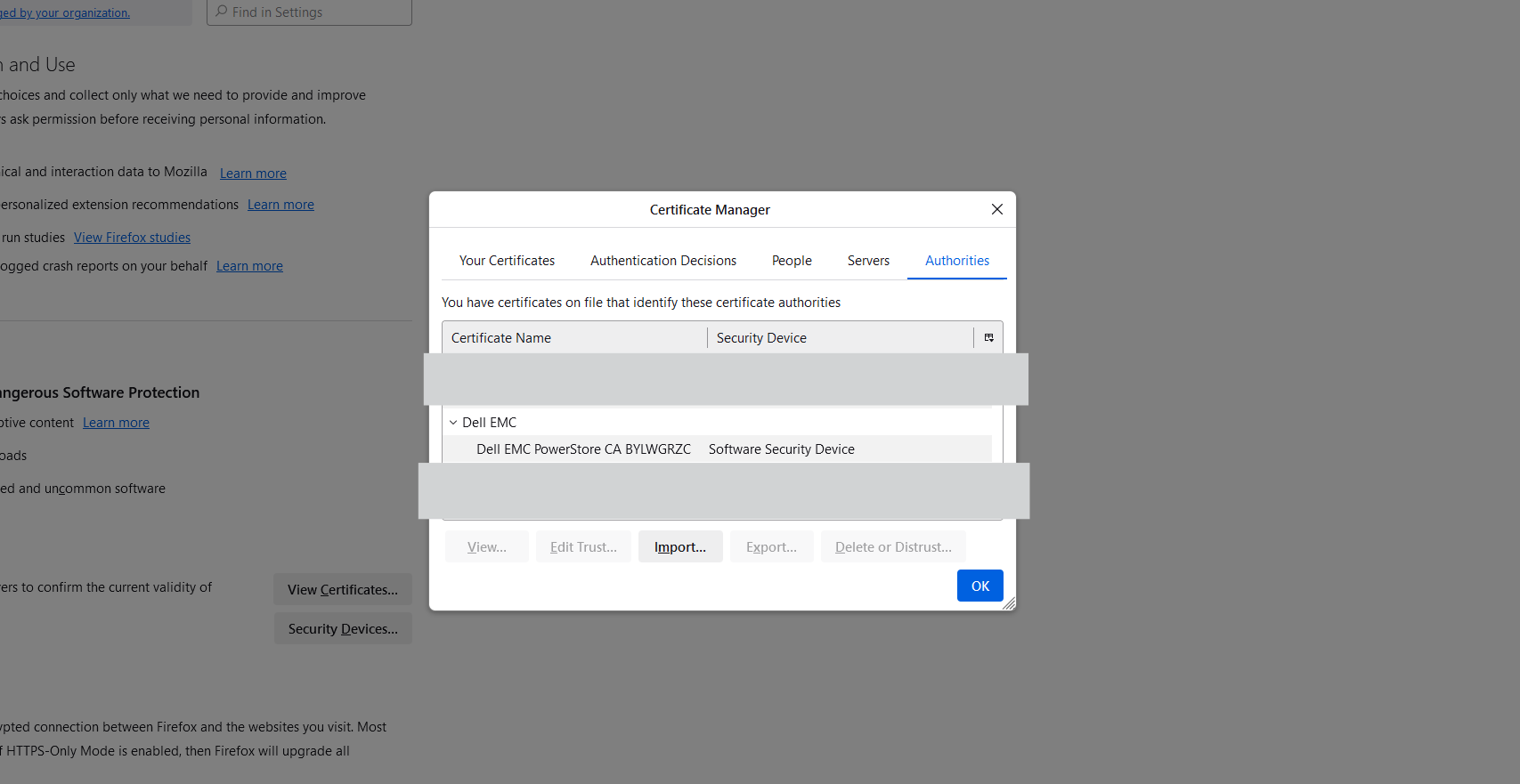
- The CA is in Firefox's trust store now.
- After import the CA, the browser should be closed and reopened. The UI should be recovered now.
Affected Products
PowerStoreArticle Properties
Article Number: 000227174
Article Type: Solution
Last Modified: 14 يونيو 2025
Version: 3
Find answers to your questions from other Dell users
Support Services
Check if your device is covered by Support Services.