Connectrix MDS: Generate Authorization Code for MDS Switch in Offline Mode without RUM Report
Summary: To generate authorization code in offline mode, perform these steps:
This article applies to
This article does not apply to
This article is not tied to any specific product.
Not all product versions are identified in this article.
Instructions
- Log in to the
CSSM Web UI - Click Inventory > Product Instances > Authorize License-Enforced Features.
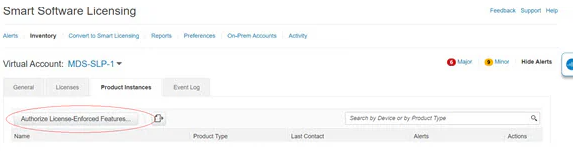
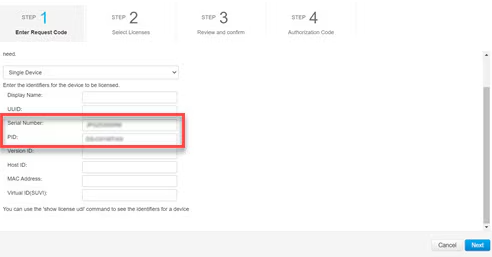
- In the Enter Request Code section, select the Single Device option from the drop-down option if it is not already selected.
- Enter the Serial Number and PID information of your switch and click Next. You only have to provide the serial number and PID information and no other information for this pane.
The Serial Number and PID information can be viewed using the # show license udi command on your switch or PI.
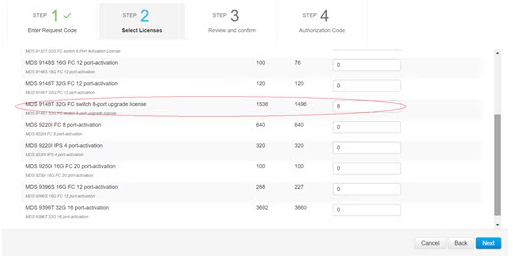
- In the Selected Licenses section, enter the number of licenses (multiples of block size) under Reserve for the appropriate switch and click Next.
- Select a Device Type (MDS9000) and click Continue.
- Click Generate Authorization Code.
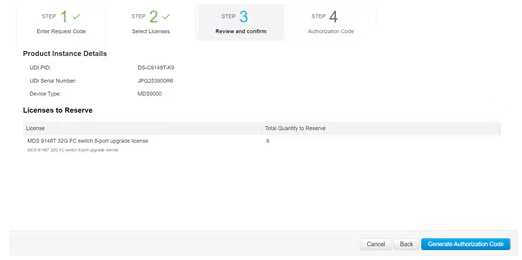
- Click Download as File to save the code.
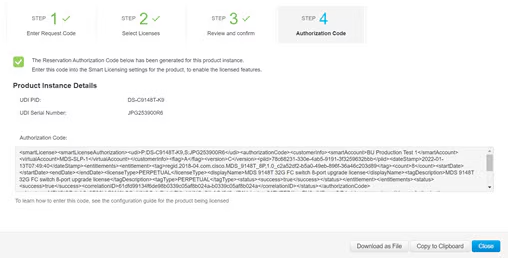
- Copy the authorization code to the
bootflashof your switch. - Use the
license smart importcommand to import the authorization code on your switch.
switch# configure t
switch(config)# license smart import bootflash:authcode.txt
Done smart import

switch(config)# show license authorizations

Overall status:
  Active: PID:DS-C9148T-K9,SN:XXX253900X6
      Status: SMART AUTHORIZATION INSTALLED on Apr 18 2017 22:29:18 UTC
      Last Confirmation code: xxxxxxxx
      Status:PAK

Authorizations:
  MDS 9148T 32G FC 8-port activation (MDS_9148T_8P):
    Description: MDS 9148T 32G FC 8-port activation
    Total available count: 8
    Enforcement type: ENFORCED
    Term information:
      Active: PID:DS-C9148T-K9,SN:XXX253900X6
Authorization type: SMART AUTHORIZATION INSTALLED - Get the confirmation code from the previous step and update the
CSSM portalunder Inventory > Product Instances (click the respective product instance) and then click Action > Enter Confirmation Code at the bottom.
Note: This step is necessary only if the portal indicates an incomplete registration.
Affected Products
Connectrix MDS-Series Firmware 9.XProducts
VxBlock and Vblock SystemsArticle Properties
Article Number: 000318601
Article Type: How To
Last Modified: 27 يناير 2026
Version: 2
Find answers to your questions from other Dell users
Support Services
Check if your device is covered by Support Services.