Data Domain: Firmware mismatch after DDOS upgrade on PowerEdge DDs
Summary: Following a DDOS upgrade some systems might report a firmware mismatch.
Symptoms
You might see this alert:
EVT-FIRMWARE-00001: Current firmware version is not certified for DDOS version
This KB is applicable to newer DD models running on PowerEdge hardware.
For these models:
DD6400, DD6410, DD6900, DD9400, DD9410, DD9900, DD9910
Cause
The iDRAC module is responsible for updating firmware during a DDOS upgrade. The DDOS pushes jobs to the iDRAC to update the firmware on hardware components. Sometimes this iDRAC module gets stopped responding or stuck in a bad state. This prevents the firmware from being updated during bootup of the DD.
Resolution
This issue is often resolved by simply clearing the iDRAC job queue and restarting the iDRAC module and then restarting the DD appliance.
-
Connect with ssh to the iDRAC console:
ssh root@<Add iDrac IP Address>
Password:
Input the iDRAC password
-
This takes you to the racadm shell
racadm>>
-
Now run these commands to clear the job queue
racadm jobqueue delete --all
racadm jobqueue delete -i JID_CLEARALL_FORCE
- We would prefer to reset the iDRAC config (while keeping user settings) but if the customer has imported a certificate for the iDRAC web GUI, we will not want to reset the config as it will remove that.
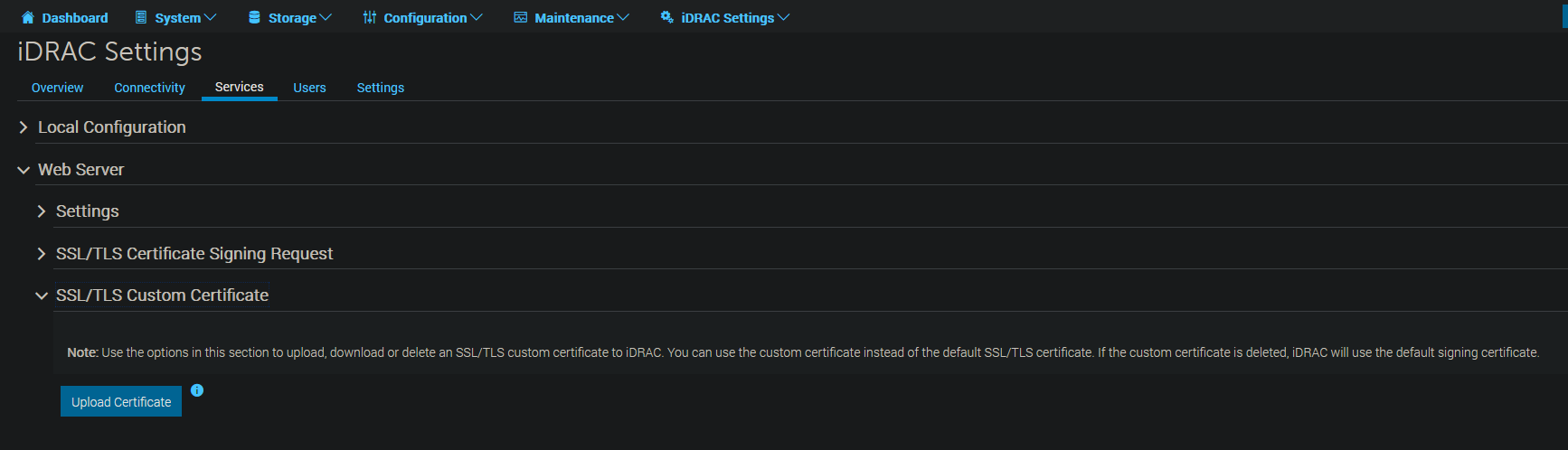
- You can check for an imported cert by going to iDRAC Settings -> Services -> Web Server -> SSL/TLS Custom Certificate
- This example does not have an imported cert:
- If there's no imported cert, use this command to reset the config while keeping the user settings
-
racadm racresetcfg -f
-
- If there is an imported cert, let's try just resetting the idrac with:
-
racadm racreset hard -f
- If the fw still won't update after trying racreset hard, we will have to do a racresetcfg as in step (d) and then the certificate signing request will have to be redone by the customer and signed by their CA and imported again.
-
-
After the iDRAC comes back online, connect to the DD and reboot:
reboot
-
You can watch the boot sequence from the iDRAC virtual console. You should see a part of the boot where it checks firmware and pushes out any updates. This populates jobs in the iDRAC job queue and automatically reboot the system so iDRAC can push the firmware out.
-
Once the system comes back online, you should see any firmware alerts cleared. You can verify that the firmware is properly updated with this command:
system firmware show all
-
If you still see some firmware that is out of date, you should repeat this process from the beginning. For some reason, we often have to reset the iDRAC and clear the job queue multiple times to get all firmware components to update.