VxRail: How to Collect Node Image Management Tool (NIM) Logs
Summary: This guide details how to collect Node Image Management (NIM) logs in order to troubleshoot NIM reimage failures.
Instructions
Windows Command-Line Interface Method:
After NIM is run, using the procedure in SolVe, a log folder will be created in the NIM tool client folder:

If more verbose logging is required to understand the details of the logs, this can be adjusted in the node-image.conf file, located in the NIM tool client folder:
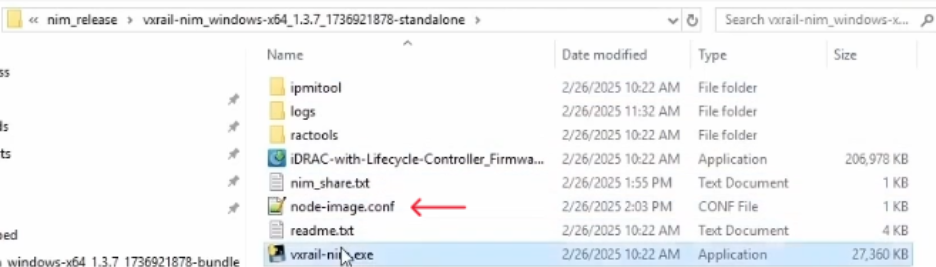
To edit the file, double-click the node-image.conf file and change the log_level value from log_level=info to log_level=debug. Rerun NIM, and the logs are more verbose this time.
Collect the nim.debug, nim.log, and node-image.conf file for troubleshooting.
Linux Command-Line Interface Method:
After NIM is run, using the procedure in SolVe, a log folder will be created in the NIM tool client folder:

If more verbose logging is required to understand the details of the logs, this can be adjusted in the node-image.conf file, located in the NIM tool client folder:
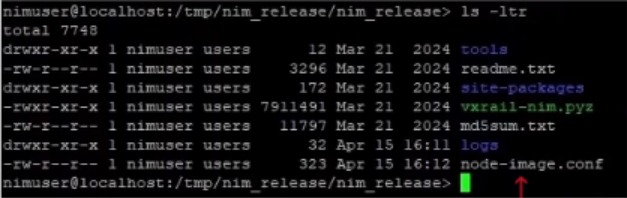
To edit the file, run vi node-image.conf, press the "I" key to enable Insert Mode, navigate your cursor to log_level=info and change it to log_level=debug, press the "ESC" key and type :wq and press the "Enter" key to save changes. Rerun NIM and the logs are more verbose this time.
Collect the nim.debug, nim.log, and node-image.conf file for troubleshooting.